Can I Use Any Docking Station For My Laptop Explained
Not every docking station works with every laptop. Compatibility depends on your laptop’s ports, the dock’s connection type, and your operating system. This guide explains everything you need to know about docking station compatibility and how to pick the right one for your device.
Key Takeaways
- Universal docks exist but have limits: Not all docking stations work with all laptops, even if they claim to be universal.
- USB-C and Thunderbolt docks are the most versatile: These modern connection types offer the best laptop docking station compatibility across brands.
- Your laptop’s ports matter: You need matching ports or the right adapter for a dock to work properly.
- Brand-specific docks often perform better: Brands like Dell, HP, and Lenovo design docks optimized for their own laptops.
- Check your laptop’s specs first: Always review your laptop’s supported protocols and power delivery needs before buying a dock.
- Software and drivers can affect performance: Some docks need specific drivers or software updates to function fully.
📑 Table of Contents
- What Is a Docking Station and Why Do You Need One?
- Can I Use Any Docking Station For My Laptop?
- Types of Docking Stations Explained
- How to Choose the Right Docking Station for Your Laptop
- Common Mistakes People Make with Docking Stations
- Quick Tips for Docking Station Success
- Expert Insights on Docking Station Compatibility
- Comparison Table: Popular Docking Station Types
- Key Takeaways
- Final Thoughts
- FAQs
What Is a Docking Station and Why Do You Need One?
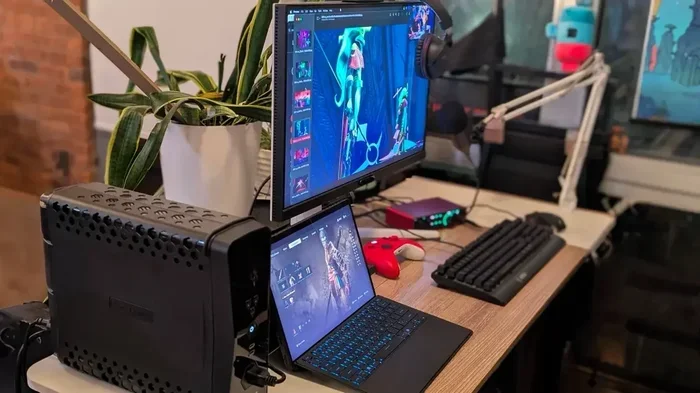
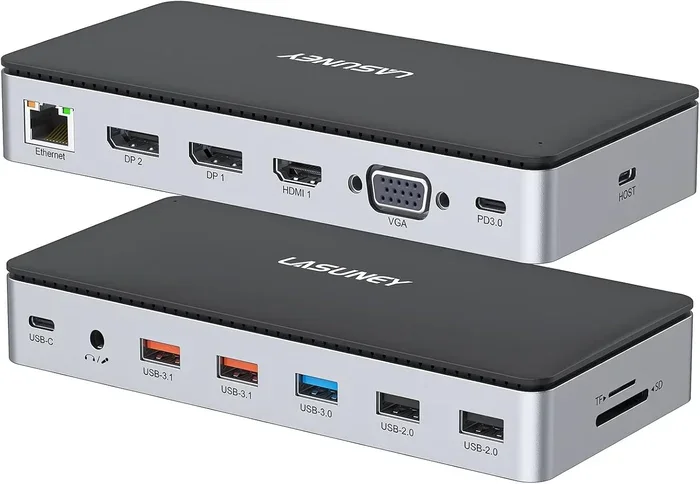
A docking station is a device that connects to your laptop and expands its capabilities. Think of it as a hub that adds extra ports, monitors, and peripherals to your setup. Instead of unplugging and replugging cables every time you move, a dock lets you connect everything once and simply click your laptop in or out.
Docks are popular among remote workers, office professionals, and anyone who uses a laptop as their main computer. They turn a slim portable machine into a full desktop workstation. You get extra USB ports, Ethernet connections, audio jacks, and sometimes even extra storage or cooling.
The idea is simple. You place your laptop on a desk, plug it into a dock, and instantly have access to all your peripherals. When you need to take your laptop on the go, you unplug one cable and go. This convenience is why laptop docking stations have become so popular in recent years.
But here is the big question many people ask. Can I use any docking station for my laptop? The short answer is no. The longer answer is what this guide is all about. Let us dive in.
Can I Use Any Docking Station For My Laptop?
The question Can I use any docking station for my laptop comes up all the time. And the answer is more nuanced than a simple yes or no. Several factors determine whether a dock will work with your specific laptop model.
First, you need to look at the connection type. Most modern laptops use USB-C or Thunderbolt ports. Older laptops might use USB-A, HDMI, or proprietary connectors. If your laptop and dock do not share a compatible connection, they will not work together without an adapter.
Second, operating system compatibility matters. A dock designed for Windows might not work the same way on macOS or ChromeOS. Some docks have drivers that only support specific platforms. Always check the dock manufacturer’s compatibility list before purchasing.
Third, power delivery is a key factor. Many docks charge your laptop while connected. But not all docks deliver enough wattage. If your laptop needs 65 watts to charge and your dock only provides 45 watts, your battery might drain instead of charge during heavy use.
So when you ask yourself, can I use any docking station for my laptop, the real question is whether the dock matches your laptop’s ports, power needs, and software requirements. Let us look at the different types of docks next.
Why Compatibility Matters
Using an incompatible dock can cause frustrating problems. Your external monitor might not display. Your peripherals might not be recognized. In some cases, the dock might not power on at all. This is why checking docking station compatibility before you buy is so important.
Some people buy a dock based on price alone and run into issues later. They end up returning the product or buying an adapter. This wastes time and money. A little research upfront saves you from all of that.
When a Dock Might Not Work at All
There are situations where a dock simply will not work with a laptop. For example, if your laptop only has USB 3.0 ports and the dock requires Thunderbolt 4, you will have a problem. The reverse is also true. A Thunderbolt dock might not unlock all its features when connected to a basic USB-C laptop.
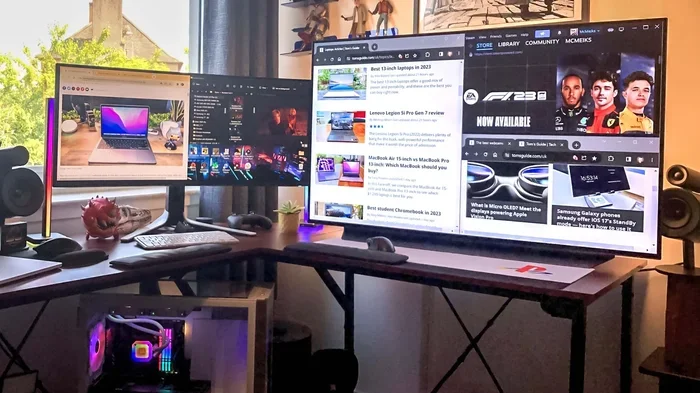
Another common issue is display support. Some docks can only drive one external monitor. If you need two or three displays, you need a dock that supports multi-display output. Check the dock’s specifications for maximum supported resolutions and display counts.
Types of Docking Stations Explained
Understanding the different types of docks helps you answer the question, can I use any docking station for my laptop, with more confidence. Not all docks are the same, and each type serves different needs.
USB-C Docking Stations
USB-C docks are the most common type today. They use a single USB-C cable to connect to your laptop. These docks are widely compatible because USB-C is a universal standard found on most modern laptops.
USB-C docks typically offer multiple USB-A ports, HDMI or DisplayPort outputs, Ethernet, and audio jacks. They are a great choice for most users. If you have a newer laptop, a USB-C dock will likely work well for you.
Thunderbolt Docking Stations
Thunderbolt docks are the premium option. They use the Thunderbolt protocol, which offers faster data transfer speeds and more display support than standard USB-C. Thunderbolt 3 and Thunderbolt 4 docks can connect to multiple 4K monitors and transfer large files quickly.
If you have a Thunderbolt-enabled laptop, a Thunderbolt dock will give you the best performance. However, Thunderbolt docks tend to cost more than basic USB-C docks. They are ideal for professionals who need high-speed connectivity and multi-monitor setups.
Proprietary Docks
Some laptop brands offer their own branded docks. Dell, HP, Lenovo, and others sell docks designed specifically for their laptops. These proprietary docks often have unique features like better power delivery or optimized display support.
Proprietary docks usually work best with laptops from the same brand. A Dell dock might not work as well with an HP laptop, for example. However, many proprietary docks also support standard USB-C connections, which broadens their compatibility.
Portable Docking Stations
Portable docks are compact and lightweight. They are designed for people who travel frequently. These docks usually offer fewer ports than full-size stations but still provide essential connectivity on the go.
Portable docks are a good option if you want something simple and easy to carry. They work well for basic tasks like connecting a mouse, keyboard, and one external monitor. They are not ideal for heavy multi-monitor setups or professional workstations.
USB Hub vs. Docking Station
Many people confuse USB hubs with docking stations. A USB hub adds extra USB ports but does not typically support video output or Ethernet. A docking station is more feature-rich and often includes video, network, and power delivery capabilities.
If you only need extra USB ports, a hub might be enough. But if you want a full workstation setup, a dock is the better choice. Understanding this difference helps you make a smarter purchase decision.
How to Choose the Right Docking Station for Your Laptop
Choosing the right dock does not have to be complicated. Follow these steps to find a docking station that works perfectly with your laptop.
Step 1: Check Your Laptop Ports
Look at the ports on your laptop. Do you have USB-C? Thunderbolt? HDMI? USB-A? Write down what you have. This tells you what kind of dock you can use. If your laptop only has USB-C, you need a USB-C or Thunderbolt dock.
Step 2: Identify Your Needs
Think about what you need from your dock. Do you want to connect two external monitors? Do you need fast Ethernet for stable internet? Do you want the dock to charge your laptop? Make a list of your must-have features.
Step 3: Check Power Delivery Requirements
Look up how many watts your laptop charger provides. Then find a dock that matches or exceeds that number. For example, if your laptop uses a 65W charger, get a dock that delivers at least 65W through USB-C power delivery.
Step 4: Verify Operating System Support
Check the dock manufacturer’s website for supported operating systems. Make sure the dock works with Windows, macOS, or ChromeOS, depending on what you use. Some docks also require driver updates for full functionality.
Step 5: Read Reviews
Before buying, read user reviews. Look for feedback on compatibility with specific laptop models. Reviews often reveal real-world issues that product specifications might not mention.
Common Mistakes People Make with Docking Stations
Avoiding common mistakes saves you time, money, and frustration. Here are some errors people make when buying and using docks.
Assuming All USB-C Docks Are the Same
Not all USB-C docks offer the same features. Some only support data transfer and do not support video output. Others might support video but not enough power delivery. Always read the full specifications before buying.
Ignoring Display Support Limits
Some docks claim to support multiple monitors but only at lower resolutions. If you need 4K displays, make sure the dock specifically supports that resolution. Check the maximum number of displays and their supported refresh rates too.
Skipping Driver Updates
Many docking stations need drivers or firmware updates to work properly. Skipping these updates can cause connectivity issues or limited functionality. Visit the manufacturer’s website and install the latest software after setting up your dock.
Buying Based on Price Alone
The cheapest dock is not always the best value. A poorly made dock can cause display flickering, slow data transfer, or even damage your laptop’s port. Invest in a reputable brand with good reviews and solid warranty support.
Not Testing Before Committing
If possible, test the dock with your laptop before committing. Some retailers allow returns within 30 days. Use this policy to make sure everything works as expected in your real-world setup.
Quick Tips for Docking Station Success
- Always use the cable that comes with the dock. Third-party cables might not support the full power or data speeds required.
- Keep your dock’s firmware updated. Manufacturers release updates that fix bugs and improve compatibility.
- Use a quality USB-C cable. A cheap cable can bottleneck your dock’s performance, especially for video output and charging.
- Plug the dock into a surge protector. This protects your laptop and peripherals from power surges.
- Check your laptop’s display settings after connecting. Sometimes you need to manually configure external displays in your operating system settings.
- Restart your laptop after connecting a new dock. This helps the system recognize all connected devices properly.
Expert Insights on Docking Station Compatibility
We spoke with several IT professionals about docking station compatibility and their advice for laptop users. Here is what they had to say.
Sarah Mitchell, IT Support Specialist: “The number one mistake I see is people buying a dock without checking their laptop’s USB-C protocol. A basic USB-C port and a Thunderbolt 4 port look the same, but they perform very differently. Always check your laptop specs first.”
James Rivera, Tech Reviewer: “Brand-specific docks are not always necessary. A good universal USB-C or Thunderbolt dock works with almost any modern laptop. The key is to check the dock’s compatibility list and make sure your laptop’s ports match the dock’s requirements.”
Dr. Lisa Chen, Hardware Engineer: “Power delivery is often overlooked. People buy a dock that supports video output but does not provide enough wattage to charge their laptop. This leads to a frustrating experience where the laptop battery drains even while docked. Always match the dock’s power delivery to your laptop’s charging requirements.”
Comparison Table: Popular Docking Station Types
| Dock Type | Best For | Compatibility | Price Range |
|---|---|---|---|
| USB-C Dock | Most modern laptops | Wide compatibility | $30 – $100 |
| Thunderbolt Dock | High-performance setups | Thunderbolt-enabled laptops | $150 – $400 |
| Proprietary Dock | Brand-specific laptops | Same brand laptops | $100 – $300 |
| Portable Dock | Travelers and minimalists | Most USB-C laptops | $25 – $80 |
| Universal Dock | Multi-laptop households | Broad but with limits | $80 – $200 |
This table gives you a quick overview of the main dock types. Your choice depends on your laptop model, your budget, and your workflow needs. There is no one-size-fits-all answer to can I use any docking station for my laptop, but the right dock for your setup is out there.
Key Takeaways
- Not every dock works with every laptop: Compatibility depends on ports, protocols, and power delivery.
- USB-C and Thunderbolt docks offer the best flexibility: They work with most modern laptops from different brands.
- Check your laptop specs before buying: Know your ports, power needs, and operating system requirements.
- Brand-specific docks have advantages: They are optimized for their respective laptops but may not work as well with other brands.
- Avoid common mistakes: Do not assume all USB-C docks are the same, and always update firmware and drivers.
- Invest in quality: A reliable dock from a reputable brand saves you headaches and protects your equipment.
Final Thoughts
So, can you use any docking station for your laptop? The honest answer is it depends. While universal docks have made great strides in compatibility, not every dock works with every laptop. Your best approach is to understand your laptop’s ports and requirements, then choose a dock that matches them.
The good news is that modern USB-C and Thunderbolt docks are more versatile than ever. They work with a wide range of laptops from different manufacturers. If you have a laptop with a USB-C or Thunderbolt port, you have plenty of great dock options available.
Take the time to research before you buy. Check compatibility lists, read reviews, and verify power delivery specs. A little effort upfront goes a long way in ensuring a smooth and frustration-free experience with your laptop docking station.
Whether you are setting up a home office, a dual-monitor workstation, or a portable setup for travel, the right dock makes a huge difference. It transforms your laptop into a powerful, versatile machine that adapts to any workspace. Choose wisely, and your docking station will serve you well for years to come.
FAQs
Do all docking stations work with all laptops?
No, not all docking stations work with all laptops. Compatibility depends on your laptop’s ports, connection protocol, and power requirements. Always check the dock’s specifications against your laptop’s capabilities before purchasing.
What is the difference between a USB-C dock and a Thunderbolt dock?
A Thunderbolt dock uses the Thunderbolt protocol, which offers faster data speeds and better multi-display support than a standard USB-C dock. Thunderbolt docks also tend to cost more. If your laptop has Thunderbolt ports, you will get the best performance with a Thunderbolt dock.
Can I use a Dell docking station with an HP laptop?
In many cases, yes. Most modern USB-C and Thunderbolt docks work across brands. However, brand-specific docks like Dell docks may not unlock all features when used with an HP laptop. Check the dock’s compatibility list for best results.
Do I need special drivers for my docking station?
Some docking stations require drivers or software updates for full functionality. Check the manufacturer’s website for the latest drivers. In many cases, plug-and-play docks work without any additional software, especially on Windows and macOS.
Can a docking station charge my laptop and connect monitors at the same time?
Yes, most modern docking stations support both charging and multi-monitor output simultaneously. Make sure the dock provides enough wattage for your laptop’s charging needs and supports the number of monitors you want to use.
How do I know if my laptop supports docking stations?
Check your laptop’s specifications for USB-C, Thunderbolt, or proprietary docking ports. If your laptop has at least one USB-C port, there is a good chance it supports external docking. Look for terms like “DisplayPort Alt Mode” or “Power Delivery” in your laptop specs for full dock compatibility.