Can My Hp Laptop Play Dvds And What You Need To Know
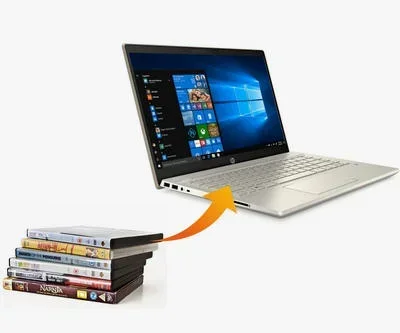
So you’re wondering can my HP laptop play DVDs? The answer depends on whether your laptop has a built-in optical disc drive and what type of DVD format you’re using. This guide covers everything from DVD compatibility to external DVD drive options and troubleshooting tips so you can enjoy your favorite movies and discs on your HP machine.
Key Takeaways
- Check for a DVD drive: Not all HP laptops have built-in optical drives, especially newer models like the HP Spectre and HP Envy lines.
- External drives work great: If your HP laptop lacks a DVD drive, a USB external DVD drive is an affordable and easy solution.
- Format matters: Your HP laptop may play some DVD formats but not others. DVD-R, DVD+R, and CD-R discs are widely supported.
- Software is key: You may need the right media player software to play DVDs on your HP laptop, especially for copy-protected discs.
- Troubleshooting is straightforward: Most DVD playback issues can be fixed with simple steps like updating drivers or cleaning the disc.
- Blu-ray is different: Standard HP laptops typically cannot play Blu-ray discs without a dedicated Blu-ray drive.
- Older HP models are more likely DVD-ready: Laptops like the HP Pavilion and older HP EliteBook models often come with built-in DVD drives.
📑 Table of Contents
- Can My HP Laptop Play DVDs? Here Is Everything You Need to Know
- How to Check If Your HP Laptop Has a DVD Drive
- Types of DVD Discs and Formats You Should Know About
- Troubleshooting Common DVD Playback Issues on HP Laptops
- How to Use an External DVD Drive with Your HP Laptop
- Media Player Software You Need for DVD Playback
- Tips for Extending Your DVD Drive’s Life on Your HP Laptop
- Common Mistakes People Make With DVD Playback on HP Laptops
- What to Do If Your HP Laptop DVD Drive Stops Working Completely
- Conclusion
Can My HP Laptop Play DVDs? Here Is Everything You Need to Know
If you have an HP laptop and want to watch a movie on a DVD, you might be asking yourself: can my HP laptop play DVDs? The short answer is that it depends. Some HP laptops come with built-in DVD drives, while others do not. Newer thin-and-light models often skip the optical drive entirely. But don’t worry. There are always ways to get your DVDs playing on your laptop.
In this guide, we will walk you through everything you need to know about DVD compatibility on HP laptops. We will cover how to check if your laptop has a DVD drive, what to do if it does not, how to fix common playback problems, and which media player software works best. By the end, you will know exactly how to enjoy your DVDs on any HP laptop.
Whether you own an HP Pavilion, HP Envy, HP Spectre, or an older HP EliteBook, this article has you covered. Let us dive in and get those discs spinning.
How to Check If Your HP Laptop Has a DVD Drive
The first step is figuring out whether your HP laptop even has an optical disc drive. Many people assume their laptop has one, only to find out it does not. This is especially common with modern laptops that prioritize thin designs over built-in features.
Look for the DVD Drive on Your Laptop
The easiest way is to simply look at your laptop. On the side or front edge, you should see a small tray slot. This is where you pop in a DVD. If you see this slot, your laptop has a built-in DVD drive. Some laptops also have an eject button next to the tray. If there is no slot at all, your laptop likely does not have a DVD drive.
You can also check your laptop’s specifications. Go to the HP support website and search for your laptop model. The specs page will list whether an optical drive is included. Another quick method is to open File Explorer on Windows. Look for a drive labeled with a DVD or CD icon. If you see it, you are good to go.
Built-in vs External DVD Drives
HP laptops come in two categories when it comes to disc playback:
- Built-in DVD drives: These are installed inside the laptop. They are convenient because you do not need any extra equipment. Many HP Pavilion and older HP EliteBook models include these drives.
- External DVD drives: These are separate devices you connect via USB. They are perfect for laptops that do not have a built-in drive. External DVD drives are lightweight, portable, and affordable.
If your HP laptop does not have a built-in drive, do not worry. An external DVD drive works just as well. You simply plug it in, insert your disc, and start watching.
Common HP Laptop Models and DVD Support
Here is a quick look at some popular HP laptop lines and their DVD compatibility:
- HP Pavilion: Many models include a built-in DVD drive. This is one of the most likely HP lines to support DVDs natively.
- HP Envy: Some older models have DVD drives, but newer slim models often do not. Check your specific model.
- HP Spectre: These premium ultrabooks rarely include a DVD drive. You will likely need an external option.
- HP EliteBook: Older business models often have built-in optical drives. Newer models tend to drop them.
- HP Stream: This budget line rarely includes a DVD drive. An external drive is your best bet.
Types of DVD Discs and Formats You Should Know About
Not all DVDs are the same. Different disc formats work differently, and your HP laptop may handle some better than others. Understanding these formats helps you avoid frustration and get the best video playback experience.
DVD-R vs DVD+R
These are the two most common recordable DVD formats. Both are widely supported on HP laptops with DVD drives. The difference between them is mostly about which laser format the disc uses. For everyday users, they work almost identically. You can burn a movie onto either format and play it back on most HP laptops.
DVD-5 vs DVD-9
This refers to the storage capacity of the disc:
- DVD-5: Holds up to 4.7 GB of data. This is a single-layer disc and the most common type you will find.
- DVD-9: Holds up to 8.5 GB of data. This is a dual-layer disc, often used for longer movies with extra features.
Both formats work fine on standard HP laptop DVD drives. Your laptop does not need anything special to play either one.
CDs and CD-R Discs
Most HP laptops with a DVD drive can also play CDs and CD-R discs. The DVD drive is usually backward compatible with CDs. You can listen to music CDs, install software from a CD, or play data discs. This optical disc compatibility is a nice bonus that comes with having a built-in drive.
Can HP Laptops Play Blu-ray Discs?
This is a common question. The short answer is no. Standard HP laptops with a regular DVD drive cannot play Blu-ray discs. Blu-ray discs require a dedicated Blu-ray drive with a different laser. Most HP laptops do not come with Blu-ray drives. If you need Blu-ray playback, you will need to buy a separate external Blu-ray drive. These are more expensive than standard external DVD drives but are available from major brands.
Troubleshooting Common DVD Playback Issues on HP Laptops
Even if your HP laptop has a DVD drive, you might run into problems. Do not stress. Most DVD playback issues are easy to fix. Here are the most common problems and how to solve them.
The DVD Disc Is Not Recognized
This is the most common issue. If your laptop does not recognize the disc, try these steps:
- Clean the disc. Use a soft cloth and wipe gently from the center outward. Dust and fingerprints can block the laser from reading the disc.
- Try a different disc. If one disc does not work but another does, the first disc might be damaged.
- Check if the disc is the right format. Make sure the disc is a DVD, not a Blu-ray, since standard drives cannot read Blu-ray.
- Restart your laptop. Sometimes a simple restart fixes the issue.
- Update your laptop specifications and drivers. Go to Device Manager, find the DVD drive, right-click, and select Update Driver.
No Sound During DVD Playback
If the video plays but you hear no sound, check the following:
- Make sure your laptop volume is not muted or turned down.
- Check your audio output settings. Right-click the speaker icon in the taskbar and select the correct output device.
- Try using headphones or external speakers. This helps rule out a speaker problem.
- Update your audio drivers. Outdated drivers can cause sound issues on HP laptops.
The DVD Plays but the Image Is Shaky or Pixelated
This usually happens with older or scratched discs. Try cleaning the disc again. If the problem persists, the disc might be too damaged to play properly. Using a higher-quality media player software can also help. Some players do a better job at upscaling and smoothing out video from older discs.
DVD Software Does Not Open Automatically
Sometimes your HP laptop does not open a DVD automatically when you insert a disc. This is normal. You can open your preferred media player software manually and select the disc from there. You can also change your autoplay settings in Windows. Go to Settings, then System, then Default Apps, and set your preferred player as the default for DVDs.
Quick Tip: Always keep your DVD drive clean. Dust buildup inside the drive can cause reading problems over time. A can of compressed air can help blow out dust from the disc tray area.
How to Use an External DVD Drive with Your HP Laptop
If your HP laptop does not have a built-in drive, an external DVD drive is the best solution. These devices are simple to use and work with almost any laptop. Here is everything you need to know about setting one up.
Best External DVD Drives for HP Laptops
You do not need to spend a lot of money. Here are some popular and reliable options:
- LG External DVD Writer: A well-known brand with fast read speeds and reliable performance. Works great with HP laptops.
- ASUS External DVD Drive: Slim and portable. Perfect for travel and everyday use with your HP laptop.
- Teclast External DVD Drive: A budget-friendly option that still delivers solid disc playback quality.
- Dell External USB DVD Drive: Despite the brand name, it works perfectly with HP laptops and other brands.
Most external DVD drives connect through a USB port. They do not need any extra power source. You simply plug in the USB cable, and the drive is ready to use. Many are bus-powered, meaning they get all their power from the USB connection itself.
Setting Up Your External DVD Drive
Follow these simple steps to get your external drive working:
- Plug the USB cable into an available port on your HP laptop.
- Wait for Windows to detect the device. This usually takes a few seconds.
- Open File Explorer and look for the new drive under “This PC.”
- Insert your DVD into the external drive.
- Open your media player software and start playing the disc.
That is all there is to it. The process is the same whether you have an HP Pavilion, HP Envy, or any other HP model. External DVD drives are plug-and-play, so no complicated setup is needed.
Portable vs Desktop External DVD Drives
There are two main types of external drives:
- Portable drives: These are small and light. They run on USB power alone. Great for everyday use and travel with your HP laptop.
- Desktop drives: These are larger and usually sit on your desk. They often come with a separate power adapter. They tend to be a bit faster but less portable.
For most users, a portable external DVD drive is the better choice. It fits easily in a laptop bag and works anywhere.
Media Player Software You Need for DVD Playback
Having the right media player software makes a big difference. Windows comes with a basic player, but it does not always handle DVDs well, especially copy-protected ones. Here are the best options for your HP laptop.
Free Media Players That Work Great
- VLC Media Player: This is the top free choice. VLC plays almost any DVD format without extra codecs. It works on all Windows versions and is very beginner-friendly. Many people call it the best free media player available.
- MPV Player: A lightweight, open-source option. It is simple and fast. Great for basic DVD playback on your HP laptop.
- Kodi: A powerful media center app. It is great if you want to organize your DVD library digitally. Kodi works well but has a steeper learning curve.
- Windows Media Player: The built-in option on Windows. It works for basic DVDs but may struggle with copy-protected or less common formats.
Software for Ripping DVDs to Digital Files
Some people want to copy DVD content to their laptop for offline viewing. This is called “ripping.” Here are popular options:
- HandBrake: A free and open-source tool. It converts DVDs to digital video files like MP4. It works well on HP laptops and supports many formats.
- DVD Fab: A paid tool that handles copy-protected DVDs. It is powerful but costs money.
- MakeMKV: Another popular tool for ripping DVDs. It creates MKV files that preserve the original quality.
Always respect copyright laws when ripping DVDs. Only rip discs you own for personal use, unless your country allows broader use.
Quick Tip: VLC Media Player is the go-to choice for most people. It is free, easy to install, and handles nearly every DVD you throw at it. If you are not sure which player to pick, start with VLC. You will not be disappointed.
Tips for Extending Your DVD Drive’s Life on Your HP Laptop
If your HP laptop has a built-in DVD drive, you want it to last. Here are some practical tips to keep it working well for years.
- Keep discs clean: Dust and smudges wear down the laser over time. Always clean your discs before inserting them.
- Do not force discs in: If a disc does not go in smoothly, do not push it. This can damage the drive mechanism.
- Eject properly: Use the eject button or software command. Never open the tray with a pin or paperclip unless absolutely necessary.
- Update drivers regularly: Go to HP Support and download the latest drivers for your laptop model. Updated drivers keep the drive running smoothly.
- Avoid using damaged discs: Scratched or cracked discs can jam the drive. Replace badly damaged discs instead of risking the drive.
- Use a surge protector: Power surges can damage internal components, including your DVD drive. Protect your HP laptop with a good surge strip.
When to Consider Removing the DVD Drive
Some HP laptop owners wonder if they should remove the built-in DVD drive to save battery or weight. This is generally not recommended. Removing the drive can affect airflow inside the laptop and may void your warranty. If you want a lighter setup, use an external DVD drive instead and keep the built-in drive untouched.
Expert Insight: According to HP support specialists, most DVD playback issues on HP laptops are caused by outdated software or dirty discs rather than hardware failure. Before assuming your drive is broken, always try updating your software and cleaning your disc first. This saves time and often solves the problem immediately.
Common Mistakes People Make With DVD Playback on HP Laptops
Even experienced users make mistakes. Here are some common ones to avoid:
- Assuming all discs will play: Your HP laptop may not support every format. Always check the disc type before trying to play it.
- Ignoring software updates: Outdated media players and drivers cause most playback problems. Keep everything updated.
- Using the wrong media player: Not every player handles DVDs equally. Some struggle with encrypted or region-locked discs. Use a reliable player like VLC.
- Forcing a Blu-ray into a DVD drive: This will not work and could damage the disc. Blu-ray discs require a Blu-ray drive.
- Not checking regional settings: Some DVDs are region-locked. Make sure your Windows region settings match the disc’s region. You can check this in your media player settings.
Understanding DVD Region Codes
DVDs are divided into regions to control where they can be played. Most HP laptops follow the region code of the country they were sold in. If you buy a DVD from another country, it might not play. Some media player software allows you to change or ignore region settings, but this depends on the program and your local laws.
What to Do If Your HP Laptop DVD Drive Stops Working Completely
If your built-in drive stops working entirely, do not panic. Here is a step-by-step approach:
- Restart your laptop. This resets the system and often fixes temporary glitches.
- Check Device Manager. Look under “DVD/CD-ROM drives.” If your drive is listed but has a yellow warning icon, update the driver.
- Uninstall and reinstall the driver. Right-click the drive in Device Manager, select Uninstall Device, then restart your laptop. Windows will reinstall it automatically.
- Run the HP Hardware Diagnostics tool. Many HP laptops come with a built-in diagnostic tool. Run it to check if the drive has a hardware issue.
- Contact HP Support. If nothing works, reach out to HP for professional help. Your laptop may still be under warranty.
- Use an external DVD drive. If the built-in drive is truly dead, an external drive is a fast and affordable replacement.
Quick Tip: HP offers a free diagnostic tool on their support website. Download it, run it, and it will tell you exactly what is wrong with your hardware. This is one of the best first steps when dealing with hardware problems on your HP laptop.
Conclusion
So, can my HP laptop play DVDs? The answer is yes, as long as your laptop has a compatible DVD drive and the right software. If your HP laptop has a built-in optical disc drive, you can pop in your favorite DVDs and start watching right away. If it does not, a simple external DVD drive connected through USB solves the problem completely.
We have covered how to check for a DVD drive, understand different disc formats, troubleshoot common issues, choose the best media player software, and keep your drive in good shape. These tips apply to HP Pavilion, HP Envy, HP Spectre, HP EliteBook, and other HP laptop models. The key is knowing what equipment you have and what tools you need.
DVD playback on an HP laptop is easy once you know the basics. Do not let the lack of a built-in drive stop you from enjoying your favorite movies and data discs. With an external drive and a good media player like VLC, you will be all set. Take action today, apply what you have learned, and get back to enjoying your DVDs on your HP laptop.
Frequently Asked Questions
Can I play DVDs on an HP laptop without a built-in DVD drive?
Yes, you can. Buy a USB external DVD drive and connect it to your HP laptop. These drives are affordable, portable, and work with most HP models. Simply plug in the USB cable, insert your disc, and use a media player like VLC to watch your DVD.
Why won’t my HP laptop play a DVD even though it has a DVD drive?
This usually happens because of a software issue, a dirty disc, or outdated drivers. Try cleaning the disc, updating your media player software, or updating the DVD drive driver through Device Manager. If the disc is a Blu-ray or is region-locked, your standard DVD drive will not play it.
What is the best free media player for DVDs on HP laptops?
VLC Media Player is the best free option. It plays almost all DVD formats without needing extra codecs. It works on all versions of Windows and is very easy to use. Other solid choices include MPV Player and Kodi, but VLC is the most beginner-friendly.
Can I use my HP laptop to rip DVDs to digital files?
Yes, you can. Use software like HandBrake, MakeMKV, or DVD Fab to copy DVD content to your laptop as digital video files. HandBrake is free and works well for most DVDs. Always make sure you only rip discs you own and follow your local copyright laws.
Do HP Spectre laptops have DVD drives?
Most HP Spectre models do not have a built-in DVD drive. These are premium ultrabooks designed to be thin and light, so they leave out the optical disc drive. You will need a USB external DVD drive to play DVDs on an HP Spectre laptop.
Are Blu-ray and DVD the same thing? Can my HP laptop play both?
No, they are not the same. Blu-ray discs store more data and require a Blu-ray drive with a special laser. Standard HP laptops with a DVD drive cannot play Blu-ray discs. If you need Blu-ray playback, you must buy a separate external Blu-ray drive, which costs more than a regular external DVD drive.