Can My Laptop Run 2 Screens Everything You Need To Know
Can My Laptop Run 2 Screens? Yes, most modern laptops can support a second monitor, but it depends on your ports, graphics card, and operating system. This guide walks you through every step, from checking compatibility to setting up your dual monitor workspace like a pro.
Have you ever looked at your laptop and thought, “I need more screen space”? You are not alone. So many of us juggle multiple apps, tabs, and windows every single day. And sometimes one screen just is not enough. That is where the idea of running two screens comes in.
The big question is simple: Can My Laptop Run 2 Screens? The short answer is yes. Most laptops made in the last few years can support a second display. But the full answer depends on a few things. Your laptop model matters. Your ports matter. Even your graphics card plays a role. In this guide, we will walk you through everything you need to know. You will learn how to check if your laptop supports dual monitors, what cables you need, and how to set things up in minutes.
Key Takeaways
- Most laptops can run 2 screens: You just need the right port or adapter to make it work.
- Check your laptop specs first: Look at your GPU, ports, and operating system before buying anything.
- USB-C and HDMI are the most common options: They make connecting a second monitor simple and fast.
- A docking station can help: It adds ports and makes your setup cleaner and more organized.
- Display settings are easy to adjust: Windows and macOS both offer simple tools for managing two screens.
- Common mistakes can cause problems: Avoid using the wrong cable or adapter to save time and frustration.
- Productivity increases with two screens: Many users report better workflow and multitasking ability.
📑 Table of Contents
- Understanding How Dual Monitors Work with Laptops
- How to Check If Your Laptop Can Run Two Screens
- Best Ways to Connect a Second Monitor to Your Laptop
- Setting Up Your Dual Monitor Display
- Common Mistakes to Avoid When Setting Up Two Screens
- Benefits of Using Two Screens with Your Laptop
- Expert Tips for Getting the Most Out of Your Dual Monitor Setup
- Frequently Asked Questions
- Final Thoughts
Understanding How Dual Monitors Work with Laptops
Before you grab any cables, it helps to understand the basics. When you connect a second screen to your laptop, you are using the laptop display as your main screen and adding an external monitor as a second one. Your computer’s graphics card handles both screens at the same time.
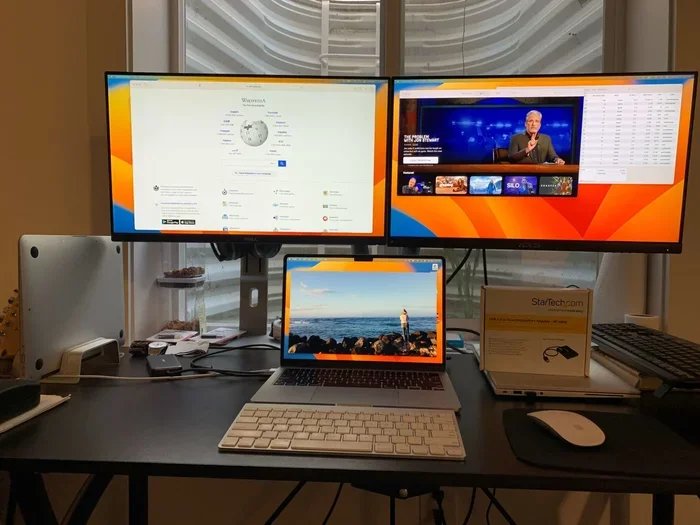
There are two main ways to use two screens. The first is called extended display. This means your desktop stretches across both monitors. You can drag windows from one screen to the other. It is like having one big workspace. The second option is screen mirroring. This shows the same image on both screens. It is useful for presentations or watching videos with friends.
Most people want the extended display setup. It gives you room to work on one screen while keeping reference material on the other. Whether you are coding, designing, or just browsing, two screens make a huge difference.
What Your Laptop Needs to Support Two Screens
Not every laptop is built the same way. Some laptops come with multiple video outputs right out of the box. Others need a little help. Here is what you should look for:
- A dedicated or integrated graphics card: Most modern laptops have GPUs that can handle two displays. Even basic integrated graphics from Intel or AMD usually support dual monitors.
- Available video output ports: Look for HDMI, DisplayPort, USB-C, or VGA ports on your laptop. These are your connection points.
- Sufficient RAM: Running two screens uses more memory. At least 8 GB of RAM is recommended for smooth performance.
- A compatible operating system: Windows 10, Windows 11, macOS, and most Linux distributions all support multi-monitor setups.
If your laptop has limited ports, do not worry. We will cover adapters and docking stations later in this guide. There is almost always a way to make it work.
How to Check If Your Laptop Can Run Two Screens
Wondering whether your specific laptop supports a second monitor? The good news is that checking is quick and easy. You do not need to be a tech expert. Follow these simple steps to find out.
Step 1: Look at Your Ports
Flip your laptop over or check the sides. Do you see an HDMI port? A USB-C port? A DisplayPort? These are all signs that your laptop can likely connect to an external monitor. If you see at least one of these, you are probably good to go.
Step 2: Check Your Graphics Card
On Windows, right-click your desktop and select Display Settings. Scroll down to find your display adapter information. On macOS, click the Apple menu, then About This Mac, and look at the Graphics section. If your GPU supports multiple displays, you are in business.
Step 3: Search Your Laptop Model Online
Still not sure? Type your laptop model number into a search engine along with the words “dual monitor support.” You will usually find the answer within seconds. Manufacturer websites often list this information in the specifications section too.
Best Ways to Connect a Second Monitor to Your Laptop
Now that you know your laptop can handle two screens, let us talk about how to actually connect them. There are several methods, and the right one depends on your laptop and your budget.
Using an HDMI Cable
HDMI is the most common connection type. Most laptops have at least one HDMI port, and so do most monitors. Just plug one end into your laptop and the other into your monitor. Switch your display settings to extend the screen, and you are done. HDMI also carries both video and audio, which is a nice bonus.
Using USB-C or Thunderbolt
Many newer laptops use USB-C or Thunderbolt ports. These are versatile and can carry video signals. If your laptop has a USB-C port, you can use a USB-C to HDMI or USB-C to DisplayPort adapter. Thunderbolt ports are even better because they support high resolutions and fast data transfer.
Using a Docking Station
A docking station is a great option if you use your laptop at a desk often. It connects to your laptop through one cable and provides multiple ports for monitors, keyboards, and other peripherals. Docking stations make your setup cleaner and more organized. They also make it easy to connect and disconnect your dual monitor setup whenever you want.
Using a DisplayPort or VGA Cable
DisplayPort offers excellent video quality and is common on monitors. VGA is an older standard but still works for basic setups. If you only have a VGA port, you may need a VGA to HDMI adapter to connect a modern monitor.
| Connection Type | Speed | Max Resolution | Common on Laptops? |
|---|---|---|---|
| HDMI | Good | 4K at 60Hz | Yes, very common |
| USB-C | Fast | 4K at 120Hz | Yes, on newer models |
| Thunderbolt | Very Fast | 8K | Yes, on premium models |
| DisplayPort | Fast | 4K at 144Hz | Rare (needs adapter) |
| VGA | Slow | 1080p max | Rare on modern laptops |
Setting Up Your Dual Monitor Display
Once you have your cables and connections ready, setting up your multi-monitor setup is straightforward. Both Windows and macOS make this process simple.
Setting Up Dual Monitors on Windows
On Windows 10 or Windows 11, right-click your desktop and choose Display Settings. You will see two rectangles representing your screens. If you do not see the second screen, click the Detect button. From there, you can choose to extend your desktop across both monitors. You can also adjust the screen order by dragging the rectangles. This controls which monitor is on the left and which is on the right.
You can also adjust the resolution and scale for each screen individually. This is helpful if your two monitors have different sizes or screen resolutions.
Setting Up Dual Monitors on macOS
On a Mac, go to System Settings and click Displays. Your Mac should automatically detect an external monitor. You can choose to extend the display or mirror it. Drag the menu bar to arrange the screens in the order you prefer. Mac users can also adjust brightness, resolution, and refresh rate for each display separately.
Adjusting Display Settings for the Best Experience
Take a few minutes to fine-tune your setup. Match the refresh rate of both screens if possible. Set the resolution to the native setting of each monitor. Position the monitors at eye level to reduce strain. These small adjustments make a big difference in comfort and productivity.
Common Mistakes to Avoid When Setting Up Two Screens
Setting up dual monitors is usually easy, but people do make mistakes. Here are some common pitfalls to watch out for.
Using the Wrong Cable or Adapter
Not all cables are the same. Using an old VGA cable on a 4K monitor will give you poor image quality. Always match your cable type to your port type. If you are unsure, buy a high-quality adapter that supports the resolution you need.
Ignoring Your Laptop’s Graphics Capabilities
Some older or budget laptops have graphics cards that cannot handle two external displays. Before buying a second monitor, confirm that your GPU supports dual output. Check the manufacturer’s website or user manual for this information.
Forgetting to Update Display Drivers
Outdated graphics drivers can cause flickering, black screens, or detection problems. Always keep your drivers up to date. On Windows, use Device Manager. On macOS, updates come through System Settings.
Setting Up Screens Too Far Apart
If your monitors are too far from your eyes, you will strain your neck constantly. Place them close enough that you can see the full screen without turning your head too much. An ideal setup has both screens at a comfortable viewing distance.
Benefits of Using Two Screens with Your Laptop
Why bother with a second screen at all? The benefits are real and well-documented. Here is why so many people make the switch to a dual monitor setup.
- Increased productivity: Studies show that dual monitors can boost productivity by 20 to 30 percent. You spend less time switching between windows.
- Better multitasking: Keep your email open on one screen while working on a document on the other. No more alt-tabbing constantly.
- Improved workflow: Designers, programmers, and writers all benefit from having more visible workspace. You can see your code on one screen and your preview on the other.
- Easier comparisons: Need to compare two documents side by side? Two screens make this effortless.
- Enhanced entertainment: Watch a movie on one screen while browsing the web on the other. It is a simple luxury that makes your laptop experience better.
Expert Tips for Getting the Most Out of Your Dual Monitor Setup
Want to take your two-screen setup to the next level? Here are some tips from experienced users and professionals.
Match Your Monitors When Possible
Using two identical monitors creates a seamless viewing experience. The colors, brightness, and bezels will match perfectly. If you must use different monitors, try to match the resolution and size as closely as you can.
Use a Monitor Arm or Stand
A monitor arm gives you flexibility. You can adjust the height, angle, and position of each screen. This helps you create an ergonomic workspace that reduces neck and back strain.
Consider a Wireless Display Option
If running cables bothers you, look into wireless display technology. Miracast and Wi-Fi Direct allow you to cast your laptop screen to a compatible monitor without any cables. It is not as fast as a wired connection, but it works well for everyday tasks.
Turn On Night Light Mode
Staring at two bright screens for hours can tire your eyes. Enable night light or blue light filter mode on both monitors. This reduces eye strain, especially during evening work sessions.
Organize Your Desktop Across Both Screens
Use one screen for your primary work and the other for reference materials, chat apps, or media. Keep your most-used apps on the main screen. This keeps your workflow smooth and distraction-free.
Frequently Asked Questions
Can any laptop run two screens?
Most laptops can run two screens, but it depends on the model and available ports. Check your laptop specifications to confirm dual monitor support. If your laptop has at least one video output port, there is usually a way to connect a second display.
Do I need a special graphics card to run two monitors?
Not always. Most integrated graphics cards in modern laptops support dual displays. However, if you use demanding applications or high-resolution monitors, a dedicated graphics card will provide better performance. Check your GPU specs to be sure.
What is the best cable to connect a second monitor?
HDMI and USB-C are the most common and versatile options. HDMI works with most monitors, while USB-C and Thunderbolt offer faster speeds and higher resolutions. Choose the cable that matches your laptop’s available ports.
Can I use a docking station for dual monitors?
Yes, a docking station is an excellent choice. It connects to your laptop through one cable and provides multiple display outputs. Docking stations also add extra ports for peripherals, making your workspace cleaner and more efficient.
Will running two screens slow down my laptop?
Running two screens uses slightly more GPU power, but modern laptops handle it easily for everyday tasks. If you run heavy applications like video editing or gaming on both screens, you may notice some slowdown. For general use, the impact is minimal.
Can I connect a second monitor wirelessly?
Yes, wireless display options exist. Miracast works on many Windows laptops, and macOS supports AirPlay for connecting to compatible displays. Wireless connections are convenient but may have slight latency compared to wired setups.
Final Thoughts
The answer to Can My Laptop Run 2 Screens is almost always yes. Whether you have a budget laptop or a high-end workstation, connecting a second monitor is usually simple and affordable. You just need to check your ports, grab the right cable or adapter, and adjust your display settings.
A dual monitor setup can transform the way you work. You will wonder how you ever managed with just one screen. The productivity boost, the ease of multitasking, and the improved workflow are real and noticeable.
Start by checking your laptop today. Look at your ports, search for your model online, or try connecting a monitor you already own. You might be surprised at how easy it is. Once you set up your second screen, you will not want to go back to working on just one. Give it a try and see the difference for yourself.