How Can I Disable My Laptop Keyboard on Windows 10
Disabling your laptop keyboard on Windows 10 is possible through several simple methods, including Device Manager, Registry Editor, and Group Policy settings. Whether you are using an external keyboard full-time or dealing with a malfunctioning built-in keyboard, this guide walks you through every option clearly and safely. You will learn how to disable laptop keyboard Windows 10 in just a few clicks, plus how to reverse the process anytime.
Have you ever sat down at your laptop and thought, “I wish I could just turn off this keyboard”? Maybe the keys are sticking. Maybe you spilled coffee on it last week. Or maybe you use a full-size external keyboard every day and the built-in one just gets in the way. Whatever your reason, disabling your laptop keyboard on Windows 10 is totally doable. And it is easier than you might think.
In this guide, I will walk you through every method step by step. You will learn how to disable my laptop keyboard on Windows 10 using Device Manager, Registry Editor, Group Policy, and more. I will also show you how to undo it when you are ready. No jargon. No confusing tech talk. Just clear, simple instructions you can follow right now.
Before we dive in, let me say this: disabling your keyboard does not damage your laptop. It simply tells Windows 10 to stop recognizing the built-in input device. Your external keyboard, if you have one, will keep working just fine. So let us get started.
Key Takeaways
- Device Manager is the easiest way to disable your built-in laptop keyboard on Windows 10 in seconds.
- Registry Editor offers a permanent solution that survives driver updates and system restarts.
- Group Policy Editor works best for managed PCs and gives administrators fine control over keyboard access.
- Re-enabling the keyboard is just as easy as disabling it, and you can do it anytime.
- Using an external USB or Bluetooth keyboard is the most practical alternative after disabling the built-in one.
- Common mistakes include forgetting to back up your registry and accidentally disabling the wrong device.
- Always create a system restore point before making deep system changes like registry edits.
📑 Table of Contents
- Why Would You Want to Disable Your Laptop Keyboard?
- Method 1: Using Device Manager to Disable the Keyboard
- Method 2: Disabling Keyboard via Registry Editor
- Method 3: Using Group Policy Editor
- Method 4: Disabling Keyboard Through Device Installation Settings
- How to Re-enable Your Laptop Keyboard After Disabling
- Using an External Keyboard After Disabling the Built-In One
- Common Mistakes People Make When Disabling Their Keyboard
- Final Thoughts
Why Would You Want to Disable Your Laptop Keyboard?
You might be wondering why anyone would want to turn off their keyboard. It seems counterintuitive, right? But there are actually several very good reasons people do this every day.
First, hardware malfunctions are a common culprit. If certain keys stopped working or your keyboard is typing random characters, disabling it can save you a lot of frustration while you decide whether to repair or replace it. Second, many people use their laptops with external monitors and full-size keyboards at a desk. Having the built-in keyboard active can lead to accidental key presses while typing on the external one. Third, parents or teachers sometimes disable laptop keyboards to keep kids focused on a mouse or touchscreen instead. Finally, some users simply prefer the feel of an external keyboard and want to remove the distraction of the built-in one.
No matter your reason, Windows 10 gives you multiple tools to make it happen. Let us look at each one.
Method 1: Using Device Manager to Disable the Keyboard
Device Manager is the fastest and most popular way to disable your laptop keyboard. It is built right into Windows 10 and requires no extra software. Here is exactly how to do it.
Step-by-Step Instructions
- Right-click the Start button on your taskbar.
- Select Device Manager from the menu that appears.
- Find the Keyboards section and click the arrow to expand it.
- Right-click on your laptop keyboard. It usually says something like “Standard PS/2 Keyboard” or the name of your laptop brand.
- Choose Disable device from the menu.
- Click Yes if a confirmation window pops up.
That is it. Your keyboard is now disabled. You will notice the keyboard icon in Device Manager has a down arrow on it, which means it is turned off. If you plug in an external USB keyboard, it will work immediately.
Quick Tips for Device Manager
- Restart your laptop after disabling the keyboard to make sure the change takes full effect.
- If you do not see your keyboard listed, click View and then select Show hidden devices.
- You can also uninstall the device instead of disabling it, but disabling is safer because you can easily reverse it.
Common Mistakes to Avoid
One mistake people make is disabling the wrong device. Device Manager lists multiple keyboard entries sometimes. Make sure you are disabling the one that matches your built-in laptop keyboard, not an external USB keyboard you still want to use. Also, do not confuse the keyboard entry with the “HID Keyboard Device” entry unless you are sure. If you are unsure, right-click and check the device properties before disabling anything.
Method 2: Disabling Keyboard via Registry Editor
If you want a more permanent solution that survives driver updates, the Registry Editor is the way to go. This method modifies your Windows registry to prevent the keyboard from loading at startup. It is a bit more advanced, but I will walk you through it carefully.
Step-by-Step Instructions
- Press Windows Key + R to open the Run dialog box.
- Type regedit and press Enter.
- Click Yes if User Account Control asks for permission.
- Navigate to this path: HKEY_LOCAL_MACHINE\SYSTEM\CurrentControlSet\Services\i8042prt
- On the right side, double-click the Start value.
- Change the value data to 4 (this means disabled).
- Click OK and restart your laptop.
After restarting, Windows 10 will no longer load the keyboard driver. Your built-in keyboard will be completely inactive until you change this value back to 1 or 3.
Quick Tips for Registry Editing
- Always back up your registry before making changes. Click on File and then Export in Registry Editor to save a backup file.
- If something goes wrong, you can import the backup file to restore your settings.
- Write down the original value before you change it, so you know exactly what to revert to.
Expert Insight
Registry Editor changes affect your entire system, not just your user account. This means the keyboard will stay disabled for every user who logs in. It is a great choice for shared computers or managed devices where you want a consistent setting across all users.
Method 3: Using Group Policy Editor
The Group Policy Editor is a powerful tool available on Windows 10 Pro and Enterprise editions. It lets you control many system settings, including which hardware devices are allowed to run. This method is especially useful in office or school environments.
Step-by-Step Instructions
- Press Windows Key + R to open the Run dialog.
- Type gpedit.msc and press Enter.
- Navigate to User Configuration > Administrative Templates > Control Panel.
- Double-click on Prohibit access to Control Panel and PC settings.
- Set it to Enabled and apply the changes.
Note that Group Policy works differently than Device Manager. It does not directly disable the keyboard driver, but it can restrict access to the Device Manager so users cannot re-enable the keyboard on their own. This makes it a great management tool.
When to Use Group Policy
Use this method if you are managing multiple computers in an organization. You can push Group Policy settings through a domain controller to disable keyboards across many laptops at once. It is also useful if you want to prevent other users from undoing the keyboard disable.
Method 4: Disabling Keyboard Through Device Installation Settings
This is a lesser-known method that works at the system level. Windows 10 has device installation settings that control which hardware is allowed to install and run on your computer. You can use these settings to block your laptop keyboard.
Step-by-Step Instructions
- Open the Settings app by pressing Windows Key + I.
- Go to System and then click on Notifications & Actions.
- Scroll down to Get notifications about these accessories.
- Look for your keyboard device and toggle it off.
This method is not as foolproof as Device Manager or Registry Editor, but it adds another layer of control. It works well in combination with the other methods for a more thorough disable.
Comparison Table: Methods at a Glance
| Method | Difficulty | Permanence | Best For |
|---|---|---|---|
| Device Manager | Easy | Temporary (until re-enabled) | Quick disable and re-enable |
| Registry Editor | Medium | Permanent until changed | Long-term disable |
| Group Policy Editor | Medium | Persistent across users | Managed or shared PCs |
| Device Installation Settings | Easy | Moderate | Additional layer of control |
Each method has its strengths. Device Manager is the best starting point for most users because it is simple and reversible. If you need something more permanent, the Registry Editor is your best bet. Group Policy is ideal for IT administrators managing multiple machines.
How to Re-enable Your Laptop Keyboard After Disabling
Disabling your keyboard is easy, but you will eventually want to turn it back on. The good news is that re-enabling is just as simple as disabling. Here is how to do it for each method.
For Device Manager: Open Device Manager, expand Keyboards, right-click your keyboard, and select Enable device. That is all you need to do.
For Registry Editor: Go back to HKEY_LOCAL_MACHINE\SYSTEM\CurrentControlSet\Services\i8042prt and change the Start value back to 1 or 3. Restart your laptop.
For Group Policy: Open gpedit.msc, navigate to the same policy you changed, and set it back to Not Configured or Disabled.
For Device Installation Settings: Go back to Settings, find the keyboard toggle, and switch it back on.
What If Your Keyboard Does Not Come Back?
Sometimes after disabling a keyboard, it does not re-enable right away. Do not panic. Try these steps:
- Restart your laptop — a fresh boot often fixes driver issues.
- Scan for hardware changes in Device Manager by clicking Action and then Scan for hardware changes.
- Update the keyboard driver — right-click the keyboard entry and select Update driver.
- Check for Windows updates — sometimes a missing update causes driver conflicts.
If none of these work, you can always uninstall the keyboard driver completely and let Windows 10 reinstall it automatically on the next restart.
Using an External Keyboard After Disabling the Built-In One
Once you disable my laptop keyboard on Windows 10, you will need an alternative input method. The most common solution is an external keyboard. You have several great options.
USB keyboards are the simplest choice. Just plug one into any USB port and Windows 10 will recognize it immediately. Wireless Bluetooth keyboards are a clean option if you want to keep your desk tidy. Just pair the keyboard through Settings > Devices > Bluetooth & other devices.
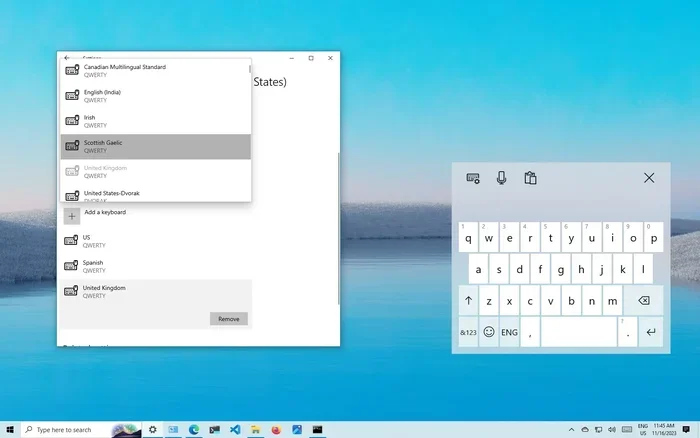
Another option is to use the on-screen keyboard. Windows 10 has a built-in touch keyboard that appears on your screen. To access it, right-click the taskbar, go to Taskbar settings, and turn on the Touch Keyboard button. This is especially useful if you have a touchscreen laptop.
Some users also prefer voice typing. Windows 10 has a built-in voice typing feature you can access by pressing Windows Key + H. It works surprisingly well for short documents and emails. You can find this feature by pressing the Windows Key + H combination anywhere you can type text.
Quick Tips for External Keyboard Setup
- Keep a spare USB keyboard in your bag or desk drawer in case your built-in keyboard stops working unexpectedly.
- Label your external keyboard if you use multiple devices, so you always know which one is connected.
- Adjust keyboard repeat rates in Settings > Devices > Typing to match your typing speed and preferences.
Common Mistakes People Make When Disabling Their Keyboard
Even though disabling your laptop keyboard is straightforward, people still make avoidable mistakes. Here are the most common ones and how to prevent them.
Mistake 1: Not creating a backup before Registry edits. The Registry Editor is powerful but unforgiving. One wrong value can cause system instability. Always export a backup before changing anything.
Mistake 2: Disabling the wrong keyboard entry. Device Manager sometimes shows multiple keyboard devices. Make sure you are targeting the built-in laptop keyboard, not your external USB keyboard or a virtual keyboard driver.
Mistake 3: Forgetting to plug in an external keyboard first. If you disable your built-in keyboard and do not have an external one ready, you will be typing with a mouse or on-screen keyboard. It works, but it is slow and frustrating.
Mistake 4: Assuming the change is permanent. Some methods, like Device Manager, are temporary. After a driver update or system restore, the keyboard may re-enable on its own. If you want a permanent solution, use the Registry Editor method.
Mistake 5: Ignoring the Fn key combinations. Some laptops have a function key combination that can lock or disable the keyboard at the hardware level. Check your laptop manual or the manufacturer website for your specific model. Sometimes pressing Fn + a function key does the job without any software changes at all.
Expert Tips to Avoid These Mistakes
- Always test your external keyboard before disabling the built-in one.
- Write down the steps you took so you can reverse them later if needed.
- Create a system restore point before making any deep system changes. This gives you a safety net.
- Take screenshots of your Device Manager before making changes, so you can compare later.
Final Thoughts
Disabling your laptop keyboard on Windows 10 is a simple process that can solve many everyday problems. Whether your keyboard is malfunctioning, you prefer using an external one, or you just want a cleaner workspace, Windows 10 gives you all the tools you need. The Device Manager method is perfect for most users because it is quick and easy. The Registry Editor method is great for a more permanent solution. And Group Policy Editor is ideal for managing multiple computers.
Remember, you can always undo these changes. Nothing you do in this guide is permanent or damaging to your laptop. So feel free to experiment and find the method that works best for you. If you run into any issues, the troubleshooting steps in this guide will help you get back on track.
Now you have everything you need to disable my laptop keyboard on Windows 10 with confidence. Go ahead and try it out. You will be surprised at how easy it really is.
Frequently Asked Questions
Can I disable my laptop keyboard without using third-party software?
Yes, absolutely. All the methods in this guide use built-in Windows 10 tools like Device Manager, Registry Editor, and Group Policy Editor. You do not need to download any third-party software. These are official Microsoft tools that come with every Windows 10 installation.
Will disabling my laptop keyboard affect my external keyboard?
No, it will not. Disabling the built-in laptop keyboard only affects the internal keyboard. Your external USB or Bluetooth keyboard will continue to work normally. In fact, that is the whole point — you can use your external keyboard without the built-in one interfering.
Can I re-enable my laptop keyboard after disabling it?
Yes, you can. Every method described in this guide is fully reversible. Simply go back to Device Manager, Registry Editor, or Group Policy Editor and reverse the steps. Your built-in keyboard will work again as if nothing happened.
Is it safe to edit the Windows Registry to disable my keyboard?
It is safe as long as you follow the instructions carefully. The key you need to change (i8042prt) is a standard Windows keyboard driver setting. Always back up your registry before making changes, and you will be fine. If you are not comfortable with Registry Editor, stick with the Device Manager method instead.
Why did my laptop keyboard stop working after a Windows update?
Windows updates sometimes install new drivers that conflict with your keyboard driver. This is a known issue with some laptop models. Disabling and then re-enabling the keyboard in Device Manager usually fixes it. If that does not work, try rolling back the driver to the previous version.
Can I disable only certain keys on my laptop keyboard?
Windows 10 does not have a built-in feature to disable individual keys. However, you can use third-party tools like SharpKeys or KeyTweak to remap or disable specific keys. These tools modify the Windows registry in a user-friendly way, making it easy to turn off any key you do not want to use.
=== CONCLUSION ===
Disabling your laptop keyboard on Windows 10 is a practical and easy fix for many common problems. Whether you use Device Manager for a quick solution or Registry Editor for a permanent one, you now have all the knowledge you need. The key is to choose the method that fits your situation and always have a backup plan in place. Keep your external keyboard handy, create a system restore point before making changes, and you will be just fine. Now go ahead and take control of your laptop keyboard — you have everything you need to get it done right.