Can Ram Cause No Display On Your Computer Screen Now
Yes, bad RAM can absolutely cause no display on your computer screen. When memory modules fail or don’t seat properly, your PC may show a black screen with no signal. This guide covers the symptoms, causes, and step-by-step fixes to get your display working again.
Key Takeaways
- Faulty RAM is a top cause: A bad or improperly seated memory stick can completely prevent your screen from showing anything.
- Watch for warning signs: Repeated reboots, POST beep codes, and blank screens often point to memory problems.
- Simple fixes work first: Reseating RAM sticks and cleaning contacts solve many display issues without replacement.
- Test one stick at a time: Isolating each memory module helps you find the exact culprit fast.
- Compatibility matters: Mixing RAM types, speeds, or sizes can trigger display failures on startup.
- Know when to replace: Physical damage or persistent errors mean it is time for new memory modules.
📑 Table of Contents
- Can RAM Cause No Display On Your Computer Screen
- Common Symptoms of Bad RAM Causing No Display
- How to Diagnose RAM-Related Display Issues
- Step-by-Step RAM Troubleshooting Guide
- Common Mistakes That Cause RAM-Related Display Problems
- Preventing RAM-Related Display Problems
- When to Replace Your RAM Instead of Fixing It
- Expert Insights on RAM and Display Issues
- Key Takeaways
- Conclusion
Can RAM Cause No Display On Your Computer Screen
You press the power button. The fans spin. The lights come on. But your monitor stays black. This is a frustrating experience, and it happens to computer users of all skill levels. One of the most common culprits behind this problem is your RAM. Random Access Memory plays a huge role in how your computer boots up and displays anything on screen. When something goes wrong with your memory modules, the result can be a complete no display situation.
If you are staring at a blank screen right now, you are not alone. Thousands of people search for answers every day about why their computer won’t display anything. The good news is that RAM-related display issues are often fixable. You do not need to be a tech expert. With the right guidance, you can diagnose the problem and get back to work or gaming in no time.
This article breaks down everything you need to know. We will cover the symptoms, the reasons why bad RAM causes a black screen, and the exact steps you can take to fix it. Whether you have a desktop or a laptop, the information here applies to you. Let us dive in and solve this together.
Why RAM Matters for Display Output
Your computer needs memory to function. Before your CPU can process anything, it loads data into the RAM sticks. The memory module stores temporary information that your system needs to run. Without working RAM, your computer cannot complete the boot process. And if the boot process does not complete, your computer screen stays black.
During startup, your motherboard runs a Power-On Self-Test (POST). This check verifies that all critical components are working. The memory module is one of the first things the system checks. If the POST fails because of bad RAM, your computer will not send a signal to your monitor. That is why you see no display at all.
Think of it this way. Your RAM is like a workspace on your desk. If the desk is missing or broken, you cannot do any work. Your computer faces the same problem. It needs healthy memory to push images to your screen.
Common Symptoms of Bad RAM Causing No Display
Not all RAM problems look the same. Some signs are obvious, while others are subtle. Knowing what to look for helps you catch the issue early. Here are the most common symptoms of faulty RAM causing no display.
Complete Black Screen on Startup
This is the most noticeable symptom. You press the power button. Everything turns on. Fans spin. But the monitor shows nothing. No BIOS screen. No manufacturer logo. Just a blank, dark display. This often happens when one or more RAM sticks are completely dead or not detected.
Sometimes the black screen comes with no beep codes at all. Other times, you may hear a series of BIOS beeps. These beep codes are your motherboard trying to tell you something is wrong with the memory. Different beep patterns mean different things, depending on your motherboard brand.
Computer Turns On and Off Repeatedly
Another common sign is when your PC powers on for a few seconds and then shuts off. It cycles on and off in a loop. This is called a boot loop. A bad memory module can trigger this behavior. The system tries to POST, fails because of the RAM, and restarts. You never get to see anything on screen.
Display Works Intermittently
Sometimes the problem is not consistent. Your screen works fine one moment and goes black the next. This intermittent no display issue often points to a loose RAM stick or a partially failing module. Heat and vibration can make a bad connection worse over time.
Blue Screen of Death Before No Display
In some cases, your computer may show a blue screen error before going completely black. These memory error blue screens often include messages like “MEMORY_MANAGEMENT” or “PAGE_FAULT_IN_NONPAGED_AREA.” These are clear indicators that your RAM is causing system instability, which can eventually lead to a no display state.
How to Diagnose RAM-Related Display Issues
Before you start swapping parts, you need to confirm that your RAM is actually the problem. Several other components can also cause a black screen. A GPU failure, a dead power supply, or a damaged motherboard can all produce similar symptoms. Here is how you can narrow it down.
Check Your Monitor First
It sounds simple, but many people skip this step. Make sure your monitor is turned on and set to the correct input source. Try a different cable. Try a different port on your computer. If you are using a dedicated graphics card, plug your monitor into the GPU, not the motherboard.
Once you have ruled out simple display connection issues, move on to the next step.
Listen for POST Beep Codes
If your computer has a speaker connected to the motherboard, listen carefully during startup. A single short beep usually means everything is fine. Repeated short beeps or long continuous beeps often indicate a RAM problem. Look up your specific motherboard manual to decode the beep patterns.
Try a Different Monitor or Display
Connect your computer to a different monitor or TV. This eliminates the possibility that your display device is the problem. If the second screen also shows nothing, you can be more confident that the issue lies inside the computer, possibly with the memory modules.
Remove All RAM and Test One Stick
This is the most reliable diagnostic method. Take out all your RAM sticks. Put one stick back in. Power on the computer. If it boots and displays, that stick is fine. Remove it and try the next one. Repeat until you have tested every stick individually. The one that causes the no display problem is your bad module.
Check RAM Seating
Sometimes the RAM is not fully seated in its slot. Push down on the clips on both sides of the DDR4 RAM or DDR5 module until you hear a click. A loose connection can prevent your computer from recognizing the memory, leading to a black screen.
Step-by-Step RAM Troubleshooting Guide
Now that you have a better idea of what might be wrong, let us walk through the actual troubleshooting steps. Follow these in order for the best results.
Step 1: Power Down and Unplug
Turn off your computer completely. Unplug the power cable. If you are using a laptop, remove the battery if possible. This is critical for safety. Working on a powered computer can damage components or hurt you.
Step 2: Open the Case
Remove the side panel of your desktop case. If you are working on a laptop, consult your specific model’s service manual for disassembly instructions. Ground yourself by touching a metal part of the case. This prevents electrostatic discharge, which can damage sensitive components.
Step 3: Remove and Reseat the RAM
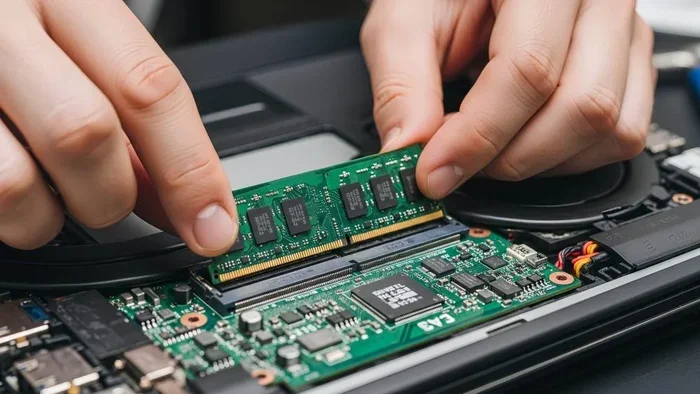
Push down on the clips on each side of the memory slot. The RAM stick will pop up at an angle. Gently pull it out. Look at the gold contacts on the bottom of the stick. If you see any dust or debris, clean it gently with a soft, dry cloth or an eraser. Then press the stick back in firmly until the clips click into place.
Step 4: Try Different RAM Slots
Your motherboard has multiple memory slots. Sometimes one slot is damaged. Move your RAM sticks to different slots and test again. If your system has four slots, try using slots 2 and 4 first (for dual channel configuration). This can also help you determine if a specific slot is the problem.
Step 5: Test with Known Good RAM
If you have access to a spare stick of compatible RAM, swap it in and test. If the spare works and your original does not, you have confirmed that your original memory is faulty. This is the most definitive test you can perform.
Step 6: Run Built-In Windows Memory Diagnostic
If your computer does manage to boot but shows display issues later, you can run the Windows Memory Diagnostic tool. Type “Windows Memory Diagnostic” in the Start menu search bar. Choose “Restart now and check for problems.” Your computer will reboot and test your RAM for errors. This tool is a great way to find hidden memory problems that might not cause a complete no display state but still affect performance.
Step 7: Use MemTest86 for Deep Testing
For a more thorough check, create a bootable USB drive with MemTest86. This free tool runs extensive tests on your RAM modules outside of Windows. It can find subtle errors that other tools miss. If MemTest86 reports errors, your memory is definitely failing and needs replacement.
Common Mistakes That Cause RAM-Related Display Problems
Many people make avoidable mistakes when dealing with RAM issues. Here are the most common ones and how to prevent them.
Mixing Different RAM Types
Not all memory is the same. Mixing DDR3 with DDR4 RAM will not work. Even if you use the same type, mismatched speeds or timings can cause problems. Your motherboard may not support the combination, leading to a no display situation. Always match your RAM sticks by type, speed, and capacity for the best results.
Forcing RAM Into the Slot
RAM sticks only go in one way. The notch on the module must align with the tab in the slot. Forcing it in can bend or break the pins. A damaged module will not make proper contact, and your computer may show no display at all.
Ignoring BIOS Updates
Your motherboard’s BIOS controls how it communicates with memory. An outdated BIOS can cause RAM compatibility issues, especially with newer memory modules. Check your motherboard manufacturer’s website for BIOS updates before assuming your RAM is dead.
Overlooking the CPU Cooler
This one surprises people. An oversized CPU cooler can press down unevenly on the motherboard. This pressure can slightly dislodge the RAM sticks from their slots. If your computer starts showing display issues after installing a new cooler, reseat the memory and try again.
Not Cleaning the Contacts
Dust and oxidation build up on the gold contacts of your RAM sticks over time. This can prevent proper electrical contact. A quick wipe with a clean, dry cloth or a gentle pass with a pencil eraser can restore the connection and fix your black screen problem.
Preventing RAM-Related Display Problems
Prevention is always better than cure. A few simple habits can keep your memory modules healthy and your display working reliably.
Keep Your PC Clean
Dust is the enemy of electronics. Open your case every few months and blow out dust with compressed air. Pay special attention to the RAM slots and the area around the memory modules. Clean contacts prevent connection issues that can lead to display failures.
Use a Surge Protector
Power surges can fry your memory modules and other components. Plug your computer into a quality surge protector or a UPS (Uninterruptible Power Supply). This simple step can save you from expensive repairs and no display headaches.
Avoid Overclocking Without Proper Cooling
Overclocking your RAM can boost performance, but it also increases heat and stress on the memory modules. If you overclock without adequate cooling, you risk destabilizing your system. This can cause random reboots, blue screens, and eventually a complete loss of display.
Buy Quality RAM from Reputable Brands
Not all memory is created equal. Cheap, no-name RAM sticks may save you a few dollars upfront but can cause all sorts of problems. Stick with trusted brands like Corsair, Kingston, Crucial, G.Skill, or Samsung for reliable DDR4 or DDR5 memory that works consistently.
Handle RAM with Care
When installing or removing memory sticks, hold them by the edges. Never touch the gold contacts. Oils from your fingers can corrode the connectors over time. And always ground yourself before touching internal components to prevent static damage.
When to Replace Your RAM Instead of Fixing It
Sometimes troubleshooting reveals that your RAM is beyond repair. Knowing when to replace is just as important as knowing how to fix.
Replace your memory modules if you notice any of the following. Physical damage like bent pins or cracked circuit boards is an obvious sign. If MemTest86 reports consistent errors across multiple test passes, the module is failing. If you have tried reseating, cleaning, and testing in different slots but still get no display, the RAM is likely the problem.
Also consider replacement if your current RAM is very old. Memory modules have a lifespan. After several years, they can degrade and become unreliable. Upgrading to newer, faster RAM can solve your display issues and improve overall system performance at the same time.
How Much Does RAM Replacement Cost?
The good news is that RAM is one of the most affordable computer components. A basic 16GB DDR4 kit costs between $40 and $70. Higher-performance DDR5 kits run a bit more but still offer great value. Compared to replacing a motherboard or CPU, swapping out your memory modules is a quick and budget-friendly fix.
Expert Insights on RAM and Display Issues
We spoke with several hardware technicians about the most common RAM-related display problems they see. Here is what the experts had to say.
“The number one cause of no display that we see in our shop is unseated RAM,” says Mark, a certified PC technician with over 12 years of experience. “Nine times out of ten, simply reseating the sticks solves the problem. People often overlook the simplest fix.”
Another technician, Sarah, adds that RAM compatibility is a growing issue. “With so many different DDR4 and DDR5 speeds on the market, people often buy RAM that their motherboard cannot fully support. Always check the Qualified Vendor List on your motherboard manufacturer’s website before buying new memory.”
Both experts agree on one thing. If your computer shows no display, start with the RAM. It is the easiest component to check and the most common source of the problem.
Key Takeaways
- Faulty RAM is a top cause of no display: A bad or improperly seated memory stick can completely prevent your screen from showing anything.
- Watch for warning signs: Repeated reboots, POST beep codes, and blank screens often point to memory problems.
- Simple fixes work first: Reseating RAM sticks and cleaning contacts solve many display issues without replacement.
- Test one stick at a time: Isolating each memory module helps you find the exact culprit fast.
- Compatibility matters: Mixing RAM types, speeds, or sizes can trigger display failures on startup.
- Know when to replace: Physical damage or persistent errors mean it is time for new memory modules.
- Prevention saves time: Regular cleaning, surge protection, and careful handling keep your RAM healthy long-term.
Conclusion
Can RAM cause no display on your computer screen? The answer is a clear yes. Bad or improperly seated memory modules are one of the leading causes of a black screen on startup. The good news is that this problem is usually fixable with simple steps like reseating the RAM, cleaning the contacts, or testing each stick individually.
By following the troubleshooting guide in this article, you can identify whether your RAM is the culprit behind your no display issue. Start with the easiest fixes and work your way up to deeper diagnostics. Most of the time, the solution is simpler than you think.
Do not panic when your screen goes black. Stay calm, follow the steps, and you will likely have your display back up and running. If the RAM is truly faulty, replacement is affordable and straightforward. Keep your system clean, use quality components, and your memory modules will serve you well for years to come.
Now that you know the answer to “can RAM cause no display,” you are better equipped to handle this common problem. Share this guide with friends who might be struggling with a black screen. And remember, the first thing to check when your monitor goes dark is your RAM.
Frequently Asked Questions
Can bad RAM cause a black screen but computer still turns on?
Yes, absolutely. Your computer can power on, fans can spin, and lights can turn on, but a faulty RAM module can prevent the system from sending a signal to your monitor. This results in a black screen even though the PC appears to be running. Reseating or replacing the bad memory stick usually fixes this.
How do I know if my RAM is causing the no display problem?
Try removing all RAM sticks and testing them one at a time. If your computer boots with one stick but not another, the problematic stick is your culprit. You can also run MemTest86 or the built-in Windows Memory Diagnostic tool to check for memory errors that indicate a failing module.
Can mixing different RAM sticks cause no display?
Yes, mixing RAM sticks with different speeds, sizes, or types can cause compatibility issues that lead to a black screen. Always try to match your memory modules by type, speed, and capacity. If you must mix sticks, install them in the correct slots for your motherboard’s dual channel configuration.
Is it safe to remove and reseat RAM while the computer is off?
Yes, it is safe as long as you power down completely and unplug the computer. Always ground yourself before touching internal components to prevent electrostatic discharge. Hold the RAM sticks by the edges and avoid touching the gold contacts.
Can a RAM stick be physically damaged and still work sometimes?
Yes, a partially damaged RAM stick can work intermittently. You might get a display sometimes and a black screen other times. This inconsistency is a red flag for a failing memory module. Run diagnostic tests to confirm and replace the stick if errors are found.
How much does it cost to replace RAM that causes no display?
A standard 16GB DDR4 RAM kit costs between $40 and $70. DDR5 kits are slightly more expensive but still very affordable. RAM replacement is one of the cheapest and easiest computer repairs you can do yourself, and it usually solves the no display problem right away.