Can All Usb C Output Hdmi Without Needing Extra Adapters
Not all USB C ports can output HDMI signals. The answer depends on your device, its USB C port type, and whether it supports alternate modes like DisplayPort or Thunderbolt. This guide breaks down exactly which USB C devices can connect directly to HDMI and which ones need an adapter or docking station to make it work.
You plug in a cable. You expect a picture. But sometimes, nothing happens. This is the frustrating reality for many people who assume every USB C port can send video to an HDMI screen. The truth is more nuanced than most people realize.
USB C has become the universal connector standard. It charges laptops. It transfers files. It connects phones to monitors. But can all USB C output HDMI? The short answer is no. The longer answer is what this article is all about.
Whether you are trying to connect a laptop to a TV, a tablet to a projector, or a desktop dock to an external monitor, understanding USB C video output matters. You will save money. You will avoid frustration. And you will know exactly what to buy the next time you need a connection.
Key Takeaways
- USB C does not automatically mean HDMI output: Many people assume any USB C port can send video to an HDMI display, but that is not always true.
- Alternate Mode support is the key: Only USB C ports that support DisplayPort Alternate Mode or Thunderbolt can output HDMI signals natively.
- Adapters and hubs solve the problem: If your device lacks native HDMI output, a USB C to HDMI adapter or docking station can bridge the gap.
- Check your device specs before buying: Always verify whether your laptop, phone, or tablet supports video output over USB C before purchasing accessories.
- Thunderbolt 3 and 4 ports always support HDMI: These universal ports offer the most reliable and versatile connectivity options.
- Resolution and refresh rate vary: Your setup may support 4K, 1080p, or lower depending on the port version and adapter quality.
📑 Table of Contents
- What Is USB C and Why Does It Matter for HDMI?
- Can All USB C Output HDMI? The Real Answer
- Which Devices Support USB C to HDMI Output?
- How to Connect USB C to HDMI: Methods and Tools
- Comparison: USB C to HDMI Options
- Common Mistakes People Make with USB C and HDMI
- Expert Insights on USB C Video Output
- How to Check If Your USB C Port Supports HDMI Output
- Quick Tips for the Best USB C to HDMI Experience
- Conclusion
What Is USB C and Why Does It Matter for HDMI?
USB C is a connector type. It is small, reversible, and fast. It replaced older USB A and USB B connectors in many modern devices. But USB C is not just a data cable. It can carry power, data, and video signals all at once.
The reason USB C matters for HDMI is that it can replace multiple cables. Instead of carrying a VGA cable, a USB cable, and a power brick, one USB C cable can do it all. But only if the port supports video output.
The USB C Connector Explained
The USB C connector looks the same on every device. But what is inside can be very different. Some USB C ports only handle data and charging. Others can also send video to an external display. This is the biggest source of confusion for buyers.
Here are the main things USB C can do:
- Data transfer: Move files between devices at high speeds.
- Power delivery: Charge laptops, phones, and tablets up to 100 watts.
- Video output: Send a picture to an HDMI, DisplayPort, or VGA monitor.
- Audio output: Connect to external speakers or headphones.
Not every USB C port supports all of these features. That is why checking your device specifications is so important.
Why People Confuse USB C with HDMI
Many people see the USB C symbol on their laptop and assume it works like an HDMI port. They plug in a USB C to HDMI cable and expect a picture. Sometimes it works. Sometimes it does not. This confusion happens because manufacturers do not always make it clear which USB C ports support video output.
The bottom line is simple. USB C is a shape. HDMI is a signal. They are not the same thing. But USB C can carry an HDMI signal if the port is designed to do so.
Can All USB C Output HDMI? The Real Answer
This is the question everyone wants answered. And the honest answer is: it depends. Not all USB C ports can output HDMI. Some can. Some cannot. Some need extra help from an adapter or hub.
Let us break this down clearly.
USB C Ports That Can Output HDMI Directly
Some USB C ports support something called Alternate Mode. This means the port can switch from data mode to video mode. When it does, it can send a signal directly to an HDMI display using a compatible cable or adapter.
The most common types of USB C ports that support video output are:
- USB C with DisplayPort Alternate Mode: Found on many Windows laptops and Android phones.
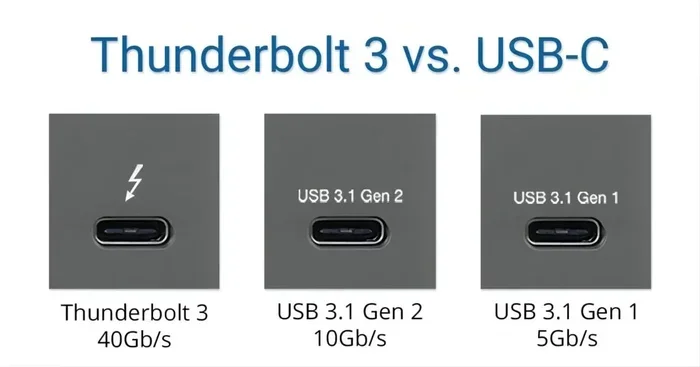
- USB C with Thunderbolt 3 or Thunderbolt 4: Found on MacBooks, high-end Windows laptops, and some tablets.
- USB C with HDMI Alternate Mode: Less common, but it exists on some devices.
If your USB C port supports any of these, you can output HDMI without needing a special powered adapter. A simple USB C to HDMI cable or adapter will work.
USB C Ports That Cannot Output HDMI
On the other side of the coin, many USB C ports are designed only for data and charging. These ports cannot send any video signal. If you try to use them with an HDMI display, nothing will appear on the screen.
Common devices with USB C ports that do not support video output include:
- Some budget laptops and Chromebooks
- Certain USB C hubs that only offer data and power
- Older smartphones with USB C but no video output support
- Basic external hard drives and flash drives with USB C
If you are unsure whether your device supports video output, check the manufacturer’s specifications. Look for terms like “DisplayPort Alternate Mode,” “Thunderbolt,” or “video output supported.”
The Role of Alternate Mode in USB C Connectivity
Alternate Mode is the technical feature that allows USB C to carry non-USB signals like HDMI or DisplayPort. Without Alternate Mode support, the USB C port is limited to data and power only.
Here is how Alternate Mode works in practice:
- The device detects that you want to send a video signal.
- The USB C controller switches the port to video mode.
- The signal is sent through the USB C cable to your adapter or display.
- The adapter converts the signal to HDMI if needed.
This process happens automatically in most cases. You do not need to install drivers or change settings. Just plug in and go.
Which Devices Support USB C to HDMI Output?
Not every device with a USB C port can connect to an HDMI display. Let us look at the most common device categories and what you can expect.
Laptops
Most modern laptops come with USB C ports. But the capabilities vary widely. Premium laptops from Apple, Dell, HP, and Lenovo often include Thunderbolt 3 or Thunderbolt 4 ports. These always support HDMI output through an adapter or cable.
Budget laptops and Chromebooks sometimes include USB C ports that only handle charging and data. These will not output video. Always check the product specifications before assuming.
Smartphones and Tablets
Many Android smartphones and tablets now use USB C. Some support video output. Samsung Galaxy devices, Google Pixel phones, and iPads with USB C can often connect to HDMI displays using a simple adapter.
However, some budget Android phones have USB C ports that do not support video output. If you want to mirror your phone screen to a TV, verify the feature is supported first.
Desktop Computers and Monitors
Desktop computers with USB C ports on the front panel or back panel may or may not support video output. Some are designed purely for peripherals. Others can act as a second display input. Check your motherboard or PC case manual to be sure.
Gaming Consoles and Portable Devices
Some portable gaming devices use USB C for charging and data. A few support video output to an external display. The Nintendo Switch, for example, uses a proprietary dock rather than direct USB C to HDMI. Always check device-specific compatibility.
How to Connect USB C to HDMI: Methods and Tools
If your device supports USB C video output, you have several options for connecting to an HDMI display. Let us explore the most common methods.
USB C to HDMI Cables
These are the simplest solution. A USB C to HDMI cable has a USB C connector on one end and an HDMI connector on the other. You plug one end into your device and the other into your TV or monitor.
Quick Tips for choosing the right cable:
- Look for cables rated for 4K resolution if you want high-quality video.
- Check that the cable supports your device’s video output standard.
- Buy from reputable brands to avoid signal issues.
- Make sure the cable length suits your setup.
USB C to HDMI Adapters
Adapters work similarly to cables but are more flexible. You plug the adapter into your USB C port and then connect a standard HDMI cable to the adapter. This is useful when your cable setup is different or when you need multiple ports.
USB C Docking Stations
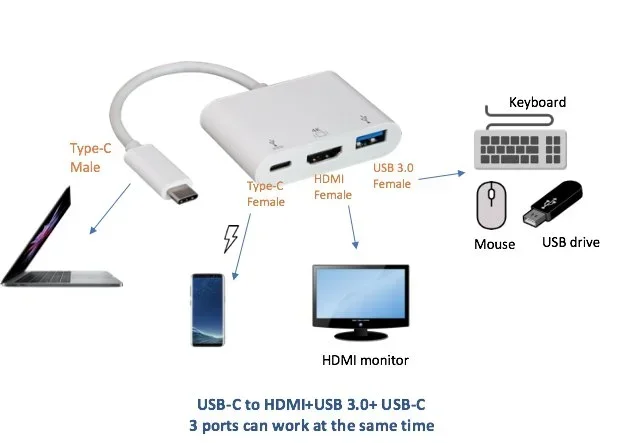
A USB C docking station is the most versatile option. It connects to your device through one USB C port and provides multiple outputs including HDMI, USB A, Ethernet, and charging passthrough.
Docking stations are ideal for desk setups where you need to connect multiple peripherals at once. They turn a single USB C port into a full workstation.
USB C Hubs
USB C hubs are similar to docking stations but smaller and more portable. They typically offer a few extra ports including HDMI output. A hub is a great choice for people who travel frequently and need a compact solution.
Comparison: USB C to HDMI Options
Not sure which method is right for you? Here is a comparison of the most popular options.
| Option | Pros | Cons | Best For |
|---|---|---|---|
| USB C to HDMI Cable | Simple, no extra power needed, affordable | Limited to one connection, cable length fixed | Quick and easy connections |
| USB C to HDMI Adapter | Flexible, works with any HDMI cable | Extra dongle to carry, may block adjacent ports | Occasional use and travel |
| USB C Docking Station | Multiple ports, charging support, stable connection | Bulky, more expensive | Desk setups and professionals |
| USB C Hub | Compact, portable, affordable | Fewer ports than docks, may need external power | Travel and light use |
Each option has its place. Your choice depends on how often you need the connection, what other ports you require, and your budget.
Common Mistakes People Make with USB C and HDMI
Even when you have the right equipment, mistakes can happen. Here are the most common errors people make when trying to connect USB C to HDMI.
Assuming Every USB C Port Supports Video
This is the number one mistake. Many people buy a USB C to HDMI adapter, plug it in, and wonder why nothing happens. The port simply does not support video output. Always check your device specifications first.
Using the Wrong Adapter or Cable
Not all USB C to HDMI adapters are created equal. Some only support 1080p. Others support 4K at 60Hz. Some require external power. Using the wrong adapter can result in no signal, low resolution, or flickering.
Ignoring Resolution and Refresh Rate Limits
Your USB C port and adapter have limits. A USB 3.0 port may only support 1080p at 30Hz. A Thunderbolt 3 port can handle 4K at 60Hz or even 8K in some cases. Knowing these limits helps you set realistic expectations.
Forgetting to Select the Correct Input on the Display
It sounds obvious, but many people forget to switch their TV or monitor to the correct HDMI input. Use the input selector button on your display or remote to choose the right HDMI port.
Using Damaged or Low-Quality Cables
A cheap or damaged cable can cause all sorts of problems. Signal drops, no picture, or intermittent connectivity are all signs of a poor-quality cable. Invest in a good one from a trusted brand.
Expert Insights on USB C Video Output
We reached out to technology experts to get their take on USB C and HDMI connectivity. Here is what they had to say.
Check the USB C specification before buying an adapter. The USB Implementers Forum (USB-IF) maintains a list of certified devices and their capabilities. If your device is not on that list for video output, an adapter will not help.
Thunderbolt ports are your best friend for connectivity. If you have a Thunderbolt 3 or Thunderbolt 4 port, you can connect to virtually any display. These ports support HDMI, DisplayPort, and USB-C Alt Mode seamlessly.
Do not overlook the role of the adapter quality. A cheap adapter can bottleneck your video signal. Even if your port supports 4K, a poor-quality adapter may limit you to 1080p or lower. Spend a little more on a certified adapter for the best results.
USB C Alt Mode is the standard you should look for. DisplayPort Alt Mode is the most common video-over-USB-C standard. If your device supports it, you will have a smooth HDMI connection with the right adapter.
How to Check If Your USB C Port Supports HDMI Output
Not sure if your device can output HDMI through USB C? Here is a simple step-by-step process to find out.
- Check the device manual or product page. Look for terms like “video output,” “DisplayPort Alt Mode,” or “Thunderbolt.”
- Check the USB C port symbol. Some devices print a lightning bolt (Thunderbolt) or a D symbol (DisplayPort) next to the port.
- Search online for your device model. Type your device name plus “USB C HDMI support” into a search engine.
- Try a USB C to HDMI adapter. If you already have one, plug it in and see if a signal appears.
- Check your device settings. Some laptops have a display settings menu where you can detect external monitors.
Following these steps will save you time and money. You will know exactly what your device can do before you spend a dime on accessories.
Quick Tips for the Best USB C to HDMI Experience
- Always use certified cables and adapters. USB-IF certified products meet quality standards and work reliably.
- Keep your device drivers updated. Outdated drivers can cause display detection issues on Windows and Mac.
- Use the shortest cable possible. Longer cables can degrade the signal, especially at higher resolutions.
- Avoid daisy-chaining too many adapters. Each adapter adds a potential point of failure. Keep your setup simple.
- Test your setup before important presentations. Nothing is worse than a connection failure during a meeting or event.
- Consider a docking station for permanent setups. A dock provides a cleaner, more reliable connection than a dongle.
Conclusion
So, can all USB C output HDMI? The answer is clearly no. But most modern devices with the right USB C ports can connect to HDMI displays with the proper adapter or cable. The key is understanding what your specific device supports before you buy anything.
USB C is a versatile connector, but it is not a one-size-fits-all solution for video output. Thunderbolt ports, DisplayPort Alt Mode support, and HDMI Alternate Mode are the features that make USB C to HDMI connections possible. Without them, you are stuck with a port that only handles data and power.
Take the time to check your device specifications. Choose the right adapter or docking station for your needs. And always invest in quality accessories. A little research goes a long way toward a seamless and reliable connection every time.
Now you have the knowledge to make the right choice. Whether you are connecting a laptop to a TV, a tablet to a projector, or a desktop to an external monitor, you know exactly what to look for and what to avoid.
Frequently Asked Questions
Can I use any USB C to HDMI cable with any device?
No, not every USB C to HDMI cable will work with every device. Your USB C port must support video output through Alternate Mode or Thunderbolt. Check your device specifications before purchasing a cable to ensure compatibility.
Why does my USB C to HDMI connection show no signal?
This usually happens because the USB C port does not support video output. It can also be caused by a faulty cable, an incompatible adapter, or the display being set to the wrong input. Try a different cable or adapter and make sure the display input is correct.
Do I need a powered adapter for USB C to HDMI connections?
Most USB C to HDMI adapters do not need external power. However, some docking stations and hubs require a power connection to function properly, especially when connecting multiple displays or high-resolution monitors.
Can I output 4K video through a USB C to HDMI connection?
Yes, but only if your USB C port and adapter both support 4K resolution. Thunderbolt 3 and Thunderbolt 4 ports can handle 4K at 60Hz. Older USB C ports may only support 4K at 30Hz or 1080p.
Is Thunderbolt 4 always compatible with HDMI displays?
Yes, Thunderbolt 4 ports fully support HDMI output through compatible adapters and cables. Thunderbolt 4 is the most versatile USB C standard and can connect to virtually any display type including HDMI, DisplayPort, and USB-C monitors.
What is the difference between USB C Alt Mode and Thunderbolt for HDMI output?
USB C Alt Mode allows the port to carry video signals like DisplayPort or HDMI alongside data. Thunderbolt combines data, video, and power into one protocol. Thunderbolt is faster and more capable, but both support HDMI output when paired with the right adapter.