Can I Clean My Laptop Fan By Myself Without Any Help
Yes, you can clean your laptop fan by yourself with basic tools and a little patience. This guide walks you through every step, from gathering supplies to reassembling your laptop safely. You will learn how to clean laptop fan components, prevent overheating, and boost performance without spending a dime on professional service.
Your laptop is working harder than you think. Every day, dust, hair, and tiny particles sneak into the vents and settle on the fan blades. Over time, this buildup makes your laptop run hot, slow, and loud. Many people panic when they notice their laptop fan screaming like a jet engine. But here is the good news. You do not need to rush to a repair shop or spend hundreds of dollars. You can clean your laptop fan by yourself right at home. With a few simple tools and this step-by-step guide, you will have your laptop running cool and quiet again in no time.
Cleaning your laptop fan is one of the most rewarding DIY tech tasks you can do. It is not complicated. You do not need to be a computer engineer. You just need patience, the right approach, and a willingness to open up your machine. Whether you have a Dell, HP, Lenovo, MacBook, or any other brand, the basic process is very similar. This guide covers everything you need to know. We will talk about why fans get dirty, what signs to look for, which tools to use, and exactly how to clean each part safely.
By the end of this article, you will feel confident enough to tackle the job yourself. You will also know when it is smart to call in a professional. Let us get started.
Key Takeaways
- Yes, you can do it yourself: Cleaning your laptop fan at home is safe, easy, and saves money.
- You need basic tools: Compressed air, a soft brush, a screwdriver, and isopropyl alcohol are all you need.
- Regular cleaning prevents overheating: Dust buildup is the number one cause of laptop fan problems and overheating.
- Follow safety steps: Always power off, unplug, and ground yourself before opening your laptop.
- Know when to stop: Some laptop models are tricky to open, and that is okay to seek help.
- Cleaning extends your laptop life: A clean cooling system means better performance and a longer-lasting machine.
📑 Table of Contents
- Why Your Laptop Fan Gets Dirty
- Signs Your Laptop Fan Needs Cleaning
- Tools You Will Need to Clean Your Laptop Fan
- Step-by-Step Guide to Cleaning Your Laptop Fan
- Common Mistakes to Avoid When Cleaning Your Laptop Fan
- When to Seek Professional Help Instead
- How Often Should You Clean Your Laptop Fan?
- Final Thoughts
Why Your Laptop Fan Gets Dirty
Understanding why your laptop fan collects dust helps you clean it better and prevent future buildup. Fans pull air into the laptop to cool the internal components. That air carries dust particles, pet hair, crumbs, and even fibers from your clothes. Over weeks and months, these particles stick to the fan blades, the heat sink, and the vents. The result is a thick layer of gunk that blocks airflow.
Laptops used on beds, couches, or carpeted floors gather dust even faster. Soft surfaces block the intake vents, forcing the fan to work harder. This pulls in more dust and creates a vicious cycle. If you live in a dusty environment or have pets, your laptop fan will need cleaning more often. Even in clean homes, normal use leads to gradual dust accumulation inside the chassis.
How Dust Affects Cooling Performance
Dust acts like insulation inside your laptop. It coats the heat sink and blocks the tiny gaps where hot air should escape. When airflow is restricted, the internal temperature rises. Your fan spins faster to compensate, which makes more noise. But spinning faster does not solve the problem. It just makes the fan work harder and wear out sooner. Cleaning your laptop fan regularly keeps airflow open and helps the cooling system do its job efficiently.
Signs Your Laptop Fan Needs Cleaning
How do you know it is time to clean your laptop fan? Your laptop will tell you. Here are the most common signs that dust has built up inside your machine.
- Loud or unusual noises: If your fan sounds like a small airplane taking off, dust is likely the cause. The fan blades become unbalanced when coated in grime, creating rattling or grinding sounds.
- Overheating: Your laptop feels hot to the touch, especially on the bottom or side vents. The keyboard area may also get uncomfortably warm during basic tasks.
- Frequent thermal throttling: Your laptop slows down during demanding tasks. Games stutter, videos lag, and apps take longer to respond. This happens because the processor gets too hot and reduces its speed to protect itself.
- Fan running constantly: Even when you are doing simple tasks like browsing the web, the fan never stops. A clean fan should spin up only when needed and quiet down during light use.
- Burning smell: In serious cases, trapped heat can cause a burning odor. This is a warning sign that your laptop needs immediate attention.
- Unexpected shutdowns: Your laptop shuts off randomly, even when you are not running heavy software. This is a safety mechanism triggered by dangerously high internal temperatures.
If you notice any of these symptoms, it is time to open up your laptop and clean the fan. The good news is that this is a very fixable problem in most cases.
Tools You Will Need to Clean Your Laptop Fan
Before you start, gather everything you need. Having the right tools makes the job easier, faster, and safer. You do not need expensive equipment. Most of what you need, you probably already have at home.
| Tool | Purpose | Approximate Cost |
|---|---|---|
| Compressed air canister | Blows dust out of vents and fan blades | $5-$10 |
| Soft-bristle brush | Gently loosens stuck-on dust from fan and heatsink | $3-$5 |
| Isopropyl alcohol (90%+) | Cleans sticky residue and disinfects surfaces | $5-$8 |
| Small Phillips screwdriver | Opens the laptop back panel | $3-$5 |
| Anti-static wrist strap | Protects internal components from static damage | $5-$8 |
| Cotton swabs | Reaches tight spaces around the fan and vents | $2-$3 |
| Microfiber cloth | Wipes down surfaces gently without leaving lint | $3-$5 |
Quick Tips for Choosing the Right Tools
- Use compressed air in short bursts: Holding the can upside down or spraying too long can cause moisture to come out. Keep the can upright and use quick, controlled puffs.
- Avoid vacuum cleaners: They create static electricity that can damage sensitive laptop components. Stick to compressed air instead.
- Choose 90% or higher isopropyl alcohol: Lower concentrations contain more water, which can leave moisture behind and potentially damage parts.
- A soft toothbrush works in a pinch: If you do not have a dedicated soft-bristle brush, a clean, dry toothbrush is a great substitute.
Step-by-Step Guide to Cleaning Your Laptop Fan
Now for the part you have been waiting for. Here is the full process for cleaning your laptop fan by yourself. Follow each step carefully, and you will do great.
Step 1: Power Off and Unplug Your Laptop
Turn off your laptop completely. Do not just put it to sleep. Shut it down fully. Then unplug the power cable and disconnect any external devices like USB drives, mice, or monitors. This ensures there is no electrical current running through the laptop while you work on it. Safety always comes first.
Step 2: Ground Yourself
Static electricity can fry delicate internal components. Before touching anything inside, touch a metal surface like a doorknob or your desk leg to discharge any static. If you have an anti-static wrist strap, put it on and clip it to a grounded metal object. This simple step protects your laptop from electrostatic discharge damage.
Step 3: Remove the Back Panel
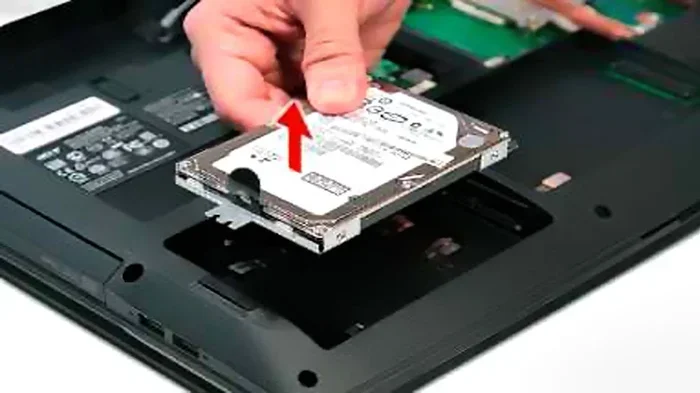
Flip your laptop over and locate the screws on the bottom panel. Use your Phillips screwdriver to remove them. Keep the screws in a small bowl or magnetic mat so you do not lose them. Carefully pry off the back panel using a plastic spudger or your fingernail. Avoid metal tools, as they can scratch the chassis or damage internal components.
Step 4: Locate the Fan and Heat Sink
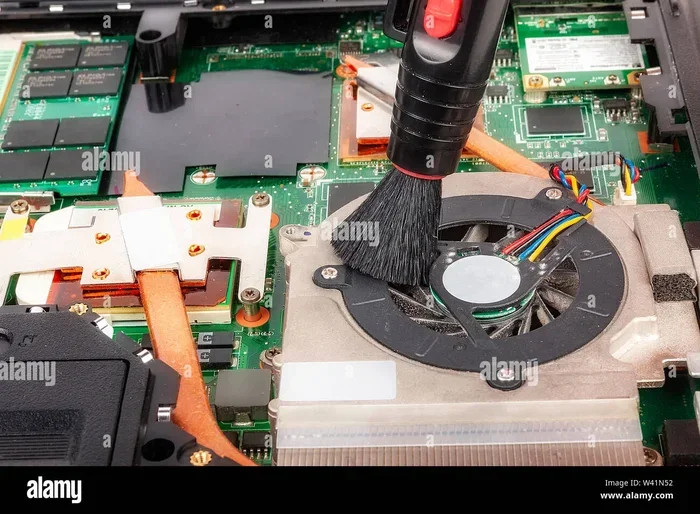
Once the panel is off, you will see the internal components. The fan is usually near the center or side of the motherboard, attached to the heat sink. The heat sink is a metal block with thin fins that absorb heat from the processor. The fan sits on top of or beside it, blowing air across those fins. Take a moment to observe how everything is connected before you start cleaning.
Step 5: Use Compressed Air to Blow Out Loose Dust
Hold the compressed air can upright and aim the nozzle at the fan blades and heat sink fins. Use short bursts of air. You can also gently hold the fan blade still with a finger or a cotton swab while blowing air. This prevents the fan from spinning too fast, which can generate a back-voltage that damages the motherboard. Blow air in the direction of the exhaust vents to push dust out of the laptop.
Step 6: Brush Away Stubborn Dust
After using compressed air, some dust will still cling to the fan blades and heat sink fins. Dip your soft-bristle brush in a tiny amount of isopropyl alcohol and gently brush the surfaces. Work in slow, careful strokes. Do not press too hard. The goal is to loosen dust, not damage the fan motor or bend the fragile heat sink fins.
Step 7: Clean the Vents and Exterior
Use a cotton swab dipped in isopropyl alcohol to clean around the intake and exhaust vents on the sides and bottom of your laptop. Wipe down the exterior with a microfiber cloth. This removes surface dust and oils that can block airflow even after you clean the inside.
Step 8: Apply New Thermal Paste (Optional but Recommended)
If your laptop is more than two years old, the thermal paste between the processor and the heat sink may have dried out. Dried thermal paste reduces heat transfer and contributes to overheating. Apply a small pea-sized dot of fresh thermal paste to the center of the processor before reattaching the heat sink. This small step can make a noticeable difference in cooling performance.
Step 9: Reassemble and Test
Put the back panel back on and screw it in place. Plug in your power cable and turn on the laptop. Listen to the fan. It should spin smoothly and quietly. Run a demanding task like a video or a game for a few minutes and check the temperature. You should notice a significant improvement in both noise levels and heat management.
Common Mistakes to Avoid When Cleaning Your Laptop Fan
Even with the best intentions, people make mistakes when cleaning their laptops. Here are the most common ones and how to avoid them.
- Using a household vacuum cleaner: Vacuums create static electricity that can destroy motherboard components. Always use canned compressed air instead.
- Spraying compressed air too long: This causes the can to get very cold and may release liquid propellant onto your internal parts. Use short, controlled bursts.
- Forcing screws or panels: If a screw does not come out easily, do not force it. You may be using the wrong size screwdriver or may have missed a screw. Forcing things can strip threads or crack the chassis.
- Applying too much thermal paste: More is not better. A tiny pea-sized dot is all you need. Excess paste can overflow onto other components and cause short circuits.
- Forgetting to ground yourself: A single static shock can permanently damage your laptop’s CPU or RAM. Always discharge static before touching internal parts.
- Cleaning while the laptop is still plugged in: Even in sleep mode, some power flows through the system. Always fully shut down and unplug before opening your laptop.
Avoiding these mistakes keeps your laptop safe and ensures your cleaning efforts actually help instead of hurt.
When to Seek Professional Help Instead
Cleaning your laptop fan yourself works for most people. But there are times when it makes sense to let a professional handle it. If your laptop is still under warranty, opening the back panel may void the coverage. Check your warranty terms before you start. Some modern laptops, especially ultrabooks and MacBooks, have sealed chassis with special screws that require specific tools. If you feel uncomfortable or unsure at any point, it is perfectly fine to take your laptop to a certified repair shop.
Also, if you notice damaged components inside the laptop, such as a broken fan blade, a loose cable, or a swollen battery, stop and seek professional help. Cleaning is safe, but you do not want to accidentally cause more damage while trying to fix one problem.
How Often Should You Clean Your Laptop Fan?
As a general rule, clean your laptop fan every 3 to 6 months. If you use your laptop in a dusty environment, on a bed, or around pets, you may need to clean it every 2 to 3 months. Regular maintenance keeps your laptop running at peak performance and extends the life of your fan and cooling system.
Making laptop maintenance part of your routine is one of the best things you can do for your device. A few minutes of cleaning every few months can prevent overheating, improve speed, and save you from expensive repairs down the road.
Final Thoughts
Cleaning your laptop fan by yourself is one of the easiest and most impactful things you can do for your computer. It saves money, builds your confidence, and keeps your machine running smoothly. You do not need special skills or expensive tools. Just follow the steps in this guide, take your time, and be gentle with your laptop.
The next time you hear your fan spinning loudly or feel your laptop getting too hot, do not panic. Grab your compressed air can and a soft brush, and get to work. Your laptop will thank you with cooler temperatures, quieter operation, and better performance. Give it a try, and you will wonder why you did not do it sooner.
Remember, maintaining your laptop is not just about cleaning the fan. It is about taking care of your investment. A little effort today saves you big headaches tomorrow. So go ahead, open up that laptop, and give it the cleaning it deserves.
Frequently Asked Questions
Can I use a hair dryer instead of compressed air to clean my laptop fan?
No, a hair dryer blows warm air that can push dust deeper into the laptop and potentially damage components. Compressed air is the safest and most effective tool for this job. It delivers a strong, focused burst of dry air that dislodges dust without adding heat or moisture.
How long does it take to clean a laptop fan by yourself?
Most people can clean their laptop fan in 15 to 30 minutes. The time depends on your laptop model and how much dust has built up. If you also replace the thermal paste, add another 10 to 15 minutes. Once you do it a couple of times, you will get faster and more comfortable with the process.
Will cleaning my laptop fan improve its performance?
Yes, cleaning your laptop fan can noticeably improve performance. When dust blocks airflow, the processor gets hot and slows down to protect itself. This is called thermal throttling. After a cleaning, your laptop stays cooler and maintains higher speeds for longer periods.
Is it safe to open my laptop if it is still under warranty?
This depends on your warranty terms. Some manufacturers allow user repairs, while others void the warranty if you open the chassis. Check your warranty documentation or contact the manufacturer before you start. If you are unsure, consider using compressed air through the vents without opening the laptop.
Can I use water or regular cleaning spray to clean inside my laptop?
Absolutely not. Water and regular cleaning sprays contain moisture that can short-circuit internal components. Always use isopropyl alcohol (90% or higher) for any internal cleaning. It evaporates quickly and leaves no moisture behind, making it safe for electronics.
What should I do if my laptop fan is still loud after cleaning?
If the fan remains loud after a thorough cleaning, the issue may go beyond dust. The fan itself could be failing, the thermal paste may need replacing, or there could be a software issue causing high CPU usage. Try updating your drivers and checking your task manager for resource-hungry processes. If the problem persists, consult a professional technician.