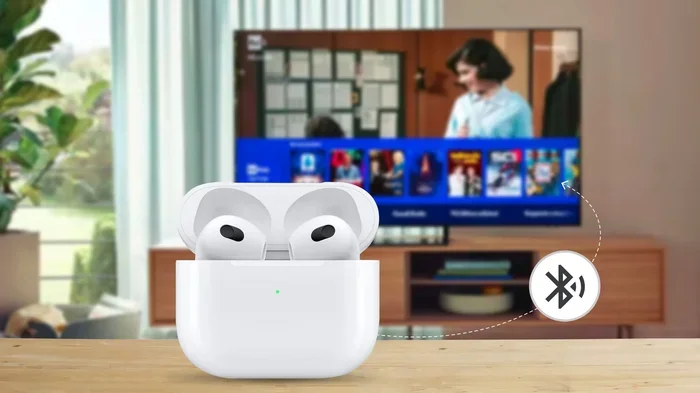
Can I Connect My Airpods To My Smart Tv Without Effort
Yes, you can connect your AirPods to your Smart TV without any hassle. Whether you own an Apple TV, a Samsung set, or an LG model, there is a simple way to pair your AirPods for private listening. This guide walks you through every method step by step so you can enjoy wireless audio from your TV in minutes.
Have you ever wanted to watch your favorite show late at night without waking up everyone in the house? Or maybe you just prefer a more personal audio experience when binge-watching your latest series. Whatever the reason, the idea of using AirPods with your Smart TV sounds great.
But can you actually do it? The short answer is yes. You can connect your AirPods to your Smart TV without much effort at all. In this guide, we will walk you through every method, every brand, and every tip you need to know. By the end, you will be streaming wireless audio from your TV in no time.
Let us dive right in and make your TV pairing experience as smooth as possible.
Key Takeaways
- Multiple Connection Methods: You can use AirPlay, Bluetooth, or a third-party adapter to link your AirPods to a Smart TV.
- Apple TV Makes It Easy: If you have an Apple TV, pairing AirPods is almost instant and seamless.
- Works on Most Brands: Samsung, LG, Sony, and other major TV brands support Bluetooth audio output.
- Watch Out for Latency: Some setups may cause a slight audio delay, but simple fixes exist.
- No Apple TV? No Problem: You can still connect AirPods using a Bluetooth transmitter or adapter.
- Check Your TV Settings: Enabling Bluetooth on your TV is the first step in most connection methods.
📑 Table of Contents
How to Connect AirPods to a Smart TV
The process depends on what kind of TV you own and what devices you have. But the good news is that most modern Smart TVs support Bluetooth connection with wireless headphones. Here are the main ways to get it done.
Method 1: Use AirPlay with Apple TV
If you have an Apple TV, this is by far the easiest route. Apple TV and AirPods were made for each other. Here is how it works:
- Make sure your AirPods are charged and in their case.
- Open the lid and hold it near your Apple TV.
- Your Apple TV will detect the AirPods automatically.
- Select your AirPods from the audio output menu.
- You are now streaming TV sound directly to your ears.
This method uses AirPlay, Apple’s wireless streaming protocol. It offers very low latency, which means the audio stays in sync with the video. You will not experience that annoying lip-sync problem that sometimes happens with Bluetooth connections.
Method 2: Connect via Bluetooth Directly
Many Smart TVs from brands like Samsung, LG, Sony, and Vizio have built-in Bluetooth. This lets you pair wireless headphones without any extra gear. Here is the general process:
- Go to your TV’s Settings menu.
- Look for Bluetooth or Sound settings.
- Turn on Bluetooth and set it to pairing mode.
- Open your AirPods case and hold the button on the back until the light flashes white.
- Select your AirPods from the list of available devices on your TV.
Once paired, your TV speakers will automatically switch to your AirPods. You can adjust the volume right from your TV remote or from your iPhone.
Method 3: Use a Bluetooth Transmitter
What if your TV does not have Bluetooth? You are not out of luck. A Bluetooth adapter or transmitter solves this problem easily. These small devices plug into your TV’s audio output and broadcast a Bluetooth signal. Here is what to do:
- Buy a Bluetooth transmitter that supports aptX or aptX Low Latency.
- Plug it into your TV’s 3.5mm headphone jack or optical audio output.
- Put your AirPods in pairing mode.
- Pair the transmitter with your AirPods.
- Enjoy wireless audio from your TV.
This option costs around $20 to $40 and works with almost any television. It is a great workaround for older TV models.
Connecting AirPods to Different Smart TV Brands
Not all Smart TVs work the same way when you want to connect AirPods. Each brand has its own quirks. Let us look at the most popular ones.
Samsung Smart TVs
Samsung TVs are very popular, and they do support Bluetooth audio output. To pair your AirPods with a Samsung TV:
- Go to Settings > Sound > Sound Output.
- Select Bluetooth Speaker List.
- Put your AirPods in pairing mode.
- Choose your AirPods from the list.
Samsung TVs also support a feature called Bluetooth Audio Sharing, which makes the connection even smoother. One thing to note is that some Samsung models may have a slight audio delay. If you notice this, look for a “Low Latency” mode in your sound settings.
LG Smart TVs
LG TVs use webOS and also offer Bluetooth support. The steps are very similar:
- Open Settings > Sound > Sound Out.
- Choose Bluetooth Device.
- Enable Bluetooth and search for devices.
- Select your AirPods.
LG TVs tend to have a clean Bluetooth connection with minimal audio delay. If you use LG TV models from 2020 or newer, the experience is especially good.
Sony Smart TVs
Sony is another brand that plays well with wireless headphones. Sony TVs often use the Google TV platform, which makes Bluetooth pairing straightforward.
- Go to Settings > Bluetooth > Bluetooth Devices.
- Set your TV to “Ready to Pair.”
- Open your AirPods case and hold the pairing button.
- Select your AirPods from the list.
Sony TVs are known for excellent sound quality on their own, but streaming that audio to AirPods works just as well.
Apple TV
If you have an Apple TV 4K or Apple TV HD, you have the best experience possible. AirPlay was built into the device, so connecting AirPods is automatic and instant. You can also share audio between your Apple TV and your iPhone at the same time, which is a cool feature.
Troubleshooting Common Connection Issues
Sometimes things do not go as planned. Your AirPods might not show up, or the audio might lag. Here are the most common problems and how to fix them.
AirPods Not Showing Up on TV
This is the number one issue people face. If your Smart TV does not detect your AirPods, try these steps:
- Make sure your AirPods are fully charged.
- Turn Bluetooth off and back on your TV.
- Reset your AirPods by holding the button on the case for 15 seconds.
- Restart your TV and try again.
- Move your AirPods closer to the TV.
Sometimes a simple restart of both devices solves the problem completely.
Audio Delay or Lag
Audio delay, also called latency, happens when the sound does not match the video. You might notice lips moving before the sound comes through your wireless headphones. Here is how to reduce it:
- Use AirPlay if you have an Apple TV. It has the lowest latency.
- Choose a Bluetooth transmitter that supports aptX Low Latency.
- Check your TV for a “Game Mode” or “Low Latency” setting.
- Keep your AirPods close to the TV for a stronger signal.
Sound Cuts Out Intermittently
If your wireless audio keeps cutting out, interference might be the cause. Other Bluetooth devices nearby can disrupt the signal. Try moving away from Wi-Fi routers or other wireless electronics. Also, make sure your AirPods firmware is up to date by connecting them to your iPhone first.
Tips for the Best Audio Experience
Once you get your AirPods connected to your Smart TV, you will want the best sound possible. Here are some tips that make a big difference.
Adjust the Audio Output Settings
Go into your TV’s sound settings and look for options like “Dialogue Enhancement” or “Night Mode.” These settings can make voices clearer when you are watching through wireless headphones. You can also adjust the balance between left and right AirPods for a more comfortable fit.
Keep Firmware Updated
Apple regularly releases updates for AirPods that improve Bluetooth connection stability and audio quality. To update, place your AirPods in their case, keep them near your iPhone, and check for updates in Settings > General > Software Update.
Use Both AirPods for Shared Listening
Did you know you can share your TV audio with someone else? If you have a second pair of AirPods or Beats, you can use the “Share Audio” feature on Apple TV. Both people can listen at the same volume level. This is perfect for couples or for watching movies with family.
Control Volume from Your Phone
When your AirPods are connected to your Smart TV, you can control the volume right from your iPhone. Just open the Control Center and use the volume slider. This is handy when the TV remote is across the room.
Consider a Dedicated Streaming Device
If your TV is older and does not support Bluetooth audio well, consider getting a streaming device like Apple TV, Roku, or Fire TV Stick. These devices often have better wireless connectivity and more audio output options. An Apple TV in particular makes connecting AirPods effortless.
Can You Use AirPods with Any TV?
The honest answer is almost any TV. If your TV has Bluetooth, you can pair directly. If it does not, a Bluetooth adapter fills the gap. Even very old TVs can work with a simple transmitter plugged into the audio output.
However, there are a few things to keep in mind. Some TVs only support certain Bluetooth codecs, which can affect sound quality. Also, very old TVs may not have a 3.5mm headphone jack or optical output, which limits your options for a Bluetooth transmitter. In those rare cases, you might need an adapter cable to connect the transmitter.
Overall, connecting AirPods to a Smart TV is possible in nearly every situation. You just need the right approach for your specific setup.
Final Thoughts
Connecting your AirPods to your Smart TV is easier than most people think. Whether you use AirPlay with an Apple TV, Bluetooth directly on your Samsung or LG set, or a Bluetooth transmitter for older models, the process is straightforward. You do not need to be tech-savvy to get it working.
The key is to start with the right method for your TV brand and model. Once you make the TV pairing, you will wonder how you ever watched shows with the TV speakers. Wireless audio from your AirPods gives you freedom, privacy, and a better viewing experience.
Try it tonight. Put on your favorite movie, connect your AirPods, and enjoy the show without a single distraction. Once you experience personal audio while watching TV, you will not go back.
Frequently Asked Questions
Can I connect AirPods to any Smart TV?
Most Smart TVs made in the last five years support Bluetooth and can connect to AirPods. If your TV does not have Bluetooth, you can use a Bluetooth transmitter to add wireless capability. This works with almost any television, even older models.
Why is there a delay when I watch TV with AirPods?
Audio delay, or latency, happens because Bluetooth takes a moment to transmit sound. The best way to reduce this is by using AirPlay with an Apple TV, which has very low latency. You can also use a Bluetooth transmitter that supports aptX Low Latency for a better experience.
Do I need an Apple TV to connect AirPods to my TV?
No, you do not need an Apple TV. Many Smart TVs from Samsung, LG, Sony, and others have built-in Bluetooth. You can pair AirPods directly. If your TV lacks Bluetooth, a Bluetooth transmitter works as a simple alternative.
Can I connect AirPods to a TV and still use the TV speakers?
On most TVs, when you connect AirPods, the sound automatically switches from the TV speakers to your AirPods. To use both at the same time, you may need a specific setting or a third-party app. Some Samsung and LG TVs offer an audio sharing option that allows this.
How do I know if my TV supports Bluetooth?
Go to your TV’s Settings menu and look for Bluetooth or Sound settings. If you see an option to search for Bluetooth devices, your TV supports it. You can also check your TV’s manual or the manufacturer’s website for a list of features.
Can I use AirPods with a soundbar or home theater system?
Yes, you can connect AirPods to a soundbar if it supports Bluetooth. Some soundbars also support AirPlay if you have an Apple TV. This gives you flexibility to switch between your soundbar and your AirPods depending on your preference.
=== CONCLUSION ===
Connecting AirPods to a Smart TV opens up a whole new way to enjoy your favorite content. Whether you are a late-night watcher, a parent needing quiet time, or someone who values personal audio, the process is simple and works across most TV brands. You have several methods at your disposal, from direct Bluetooth pairing to AirPlay and Bluetooth transmitters.
The key takeaway is that there is almost always a way to make it work, no matter what TV you own. Start with the method that fits your setup, follow the steps in this guide, and you will be enjoying wireless TV audio in minutes. Do not let connection worries stop you. Give it a try and experience the difference wireless headphones make in your viewing routine.