Can I Connect My Phone To A Boombox And Stream Music
Yes, you can connect your phone to a boombox using Bluetooth, an AUX cable, or even FM radio. This guide covers every method so you can enjoy wireless music streaming from your smartphone on any boombox. Whether you own a classic portable radio or a modern Bluetooth boombox, the steps are simple and fast.
Key Takeaways
- Multiple Connection Methods: You can pair your phone to a boombox via Bluetooth, an AUX cable, or FM radio depending on your device.
- Bluetooth Is the Easiest Option: Most modern boomboxes support wireless streaming, making phone pairing quick and hassle-free.
- AUX Cables Work for Older Models: A simple 3.5mm audio cable connects any phone to a boombox with an aux input jack.
- Sound Quality Matters: Your connection method affects audio output, so choosing the right one improves your listening experience.
- Troubleshooting Is Simple: Most connection problems come from distance, outdated firmware, or incorrect pairing mode settings.
- Battery Life Is Key: Streaming music drains phone battery faster, so keep your device charged during long listening sessions.
📑 Table of Contents
- Can I Connect My Phone To A Boombox And Stream Music?
- How To Connect Your Phone To A Boombox
- Best Boomboxes For Phone Connectivity
- Troubleshooting Common Connection Issues
- Bluetooth Vs Wired Connection: Which Is Better?
- Tips For Better Music Playback On Your Boombox
- Can You Connect Any Phone To Any Boombox?
- Common Mistakes People Make When Connecting Phones To Boomboxes
- Final Thoughts
Can I Connect My Phone To A Boombox And Stream Music?
The short answer is yes. You absolutely can connect your phone to a boombox and stream music. Whether you have a classic portable boombox from the 90s or a modern Bluetooth speaker with built-in radio, your phone can work with it. The method you use depends on what your boombox supports.
Connecting your phone to a boombox opens up a world of music options. You are no longer limited to FM radio stations or cassette tapes. Instead, you can stream from Spotify, Apple Music, YouTube, or any app on your phone. The experience is simple, and most people get it set up in under five minutes.
Think about how convenient this is. You can throw a party, enjoy a backyard barbecue, or just relax at home with your favorite playlist pumping through a boombox. The sound is louder and richer than what you get from phone speakers alone. This is exactly why so many people want to know how to make this connection work.
In this guide, we will walk you through every method. We will cover Bluetooth pairing, AUX cable connections, and even older FM radio tricks. By the end, you will know exactly how to connect your phone to any boombox you own or plan to buy.
How To Connect Your Phone To A Boombox
There are three main ways to connect a phone to a boombox. Each method works with different types of devices. Let us break them down so you can pick the one that fits your setup.
Method 1: Bluetooth Connection
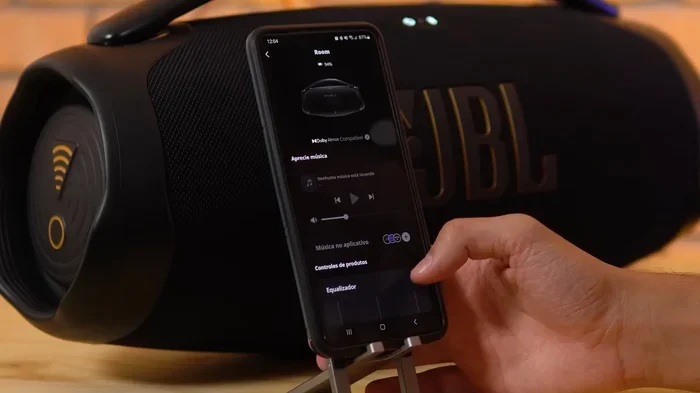
Bluetooth is the most popular way to connect a phone to a modern boombox. Most boomboxes made after 2010 support Bluetooth wireless streaming. This means no cables, no hassle, and instant music playback from your smartphone.
Here is how to set up a Bluetooth connection step by step:
- Turn on your boombox and enter pairing mode. Usually, you hold down the Bluetooth button until a light flashes.
- Open the Bluetooth settings on your phone.
- Look for your boombox in the list of available devices.
- Tap on the boombox name to pair.
- Once connected, open your music app and start playing.
The Bluetooth range is typically around 30 feet. Stay within that distance for a stable connection. Walls and other electronics can cause signal interference, so keep your phone close to the boombox for the best wireless streaming experience.
Quick Tip: If your phone does not find the boombox, turn Bluetooth off and back on. This simple fix solves most smartphone pairing problems.
Method 2: Using an AUX Cable
An AUX cable is a reliable backup for boomboxes without Bluetooth. You can also use it if you prefer a wired audio connection. This method works with almost any boombox that has an aux input port.
You will need a standard 3.5mm audio cable. One end plugs into your phone’s headphone jack or charging port (with an adapter). The other end goes into the aux input on your boombox.
Follow these steps for a wired connection:
- Plug the 3.5mm cable into your phone.
- Insert the other end into the aux input on your boombox.
- Set the boombox to AUX mode using the source or mode button.
- Play music on your phone.
- Adjust the volume on both your phone and the boombox.
A wired connection gives you a stable audio output with no latency. There is no pairing process, so it just works every time. The downside is the cable limits your movement. You need to stay within cable length, which is usually around 3 to 6 feet.
Quick Tip: Use a braided AUX cable instead of a thin one. Braided cables last longer and resist tangling, which is great for outdoor use.
Method 3: FM Radio with Phone Audio
This method is a bit older but still works. Some boomboxes let you tune into an FM frequency and then broadcast audio from your phone through a process called FM transmission. You set your boombox to an empty FM frequency and use your phone’s headphone jack as a mini transmitter.
This method is not as common today. However, it is useful for boomboxes that lack both Bluetooth and aux inputs. The audio quality is not as strong as Bluetooth or AUX, but it gets the job done in a pinch.
Best Boomboxes For Phone Connectivity
Not all boomboxes are created equal when it comes to connecting your phone. Some are designed specifically for wireless streaming, while others are better suited for traditional radio listening. Here is what to look for when choosing a boombox that works well with your phone.
What To Look For In A Portable Speaker Boombox
When shopping for a boombox that connects to your phone easily, check for these features:
- Bluetooth 5.0 or higher: This gives you a stronger Bluetooth range and more stable wireless connection.
- Aux input jack: A 3.5mm port ensures you can always use a cable if Bluetooth fails.
- USB charging port: Some boomboxes can charge your phone while playing music.
- Battery life: Look for at least 10 hours of playback so your music does not stop mid-party.
- Water resistance: An IPX rating protects your boombox during outdoor use near pools or beaches.
These features make your boombox a true companion for phone-based music playback. They ensure compatibility across different devices and usage scenarios.
Top Boombox Brands For Phone Pairing
Several brands stand out when it comes to connecting phones to boomboxes. Sony, JBL, and Panasonic all make models that handle smartphone pairing with ease. The Sony GTK-XB60, for example, offers excellent Bluetooth connectivity and deep bass for music streaming. The JBL PartyBox series is another popular choice for loud, reliable wireless audio output.
If you prefer a budget option, brands like Logitech and Anker produce affordable portable speakers that connect to phones without any fuss. The key is to read the product specs before buying. Make sure the boombox explicitly lists Bluetooth or aux support.
Troubleshooting Common Connection Issues
Even with the best boombox, you might run into connection problems now and then. This section covers the most common issues and how to fix them fast.
Phone Will Not Pair With Boombox
If your phone will not connect to your boombox, try these steps:
- Make sure Bluetooth is turned on in your phone settings.
- Check that your boombox is in pairing mode. The light should be flashing.
- Restart both your phone and the boombox.
- Remove the boombox from your phone’s Bluetooth memory and try pairing again.
- Move closer to the boombox. Distance causes most failed pairing attempts.
Signal interference from other Bluetooth devices can also cause problems. Turn off nearby wireless speakers or headphones temporarily and try again.
Audio Cuts Out During Streaming
If your music keeps stopping or glitching, the Bluetooth range might be the issue. Stay within 30 feet of your boombox. Walls and metal objects weaken the wireless signal. Moving closer to the boombox usually fixes this problem immediately.
Another cause is a low battery on either device. A low phone battery or a boombox running on low power can cause audio dropouts. Charge both devices before a long listening session.
Poor Sound Quality When Connected
If the audio sounds weak or distorted, check your connection type first. A cheap AUX cable can degrade sound quality. Replace it with a high-quality cable and test again.
For Bluetooth connections, make sure your music app is not compressing the audio too much. Some apps have an audio quality setting. Switching to a higher quality stream improves the audio output noticeably.
Bluetooth Vs Wired Connection: Which Is Better?
This is one of the most common questions people ask. Both connection methods have pros and cons. The right choice depends on your needs and your boombox model.
| Feature | Bluetooth | AUX Cable |
|---|---|---|
| Convenience | Very high, no cables needed | Moderate, requires a cable |
| Sound Quality | Good, slightly compressed | Excellent, lossless audio |
| Range | Up to 30 feet | Limited by cable length |
| Setup Time | Under 1 minute | Instant plug and play |
| Compatibility | Works with most modern phones | Works with all phones |
| Battery Usage | Higher on phone | Lower on phone |
For most people, Bluetooth is the go-to choice. It is fast, convenient, and works with virtually every modern smartphone. A wired AUX connection is better if you care about pure sound quality and do not mind staying in one spot.
Expert Insight: Many audiophiles prefer the AUX connection for critical listening. The wired audio output delivers cleaner sound without any Bluetooth compression. However, for casual listening and parties, Bluetooth is more than enough.
Tips For Better Music Playback On Your Boombox
Once your phone is connected, you can improve your listening experience with a few simple tips. These small changes make a big difference in sound quality and convenience.
Keep Your Phone Charged
Streaming music uses a lot of battery power. Your phone works harder when it is sending audio to a boombox over Bluetooth. Start with a full battery before a long session. Better yet, keep a portable charger nearby so you never run out of power.
Use the Right Music App
Not all music apps sound the same. Apps like Spotify, Tidal, and Apple Music offer high-quality audio streams. Free apps with lower bitrates sound worse on a loud boombox. If you want the best sound, choose a premium streaming service with lossless or high-bitrate options.
Position Your Boombox Wisely
Where you place your boombox affects the sound. Put it on a flat surface away from walls for better audio projection. Outdoor use works best when the boombox is elevated slightly. Avoid placing it in corners or enclosed spaces, which create echo and muddiness.
Clean Your Audio Ports
Dust and lint build up in your phone’s charging port and the boombox aux input. Use a toothpick or compressed air to clean these ports regularly. A dirty connection causes crackling sound or intermittent audio dropouts.
Can You Connect Any Phone To Any Boombox?
The short answer is almost always yes. Most phones and boomboxes share common connection standards. Here is why compatibility is rarely a problem.
Bluetooth is a universal standard. Any phone made in the last decade supports Bluetooth. Any boombox made in the same period likely does too. Even very old phones with 3.5mm headphone jacks can connect to a boombox using an AUX cable.
The only exception is if your phone has no audio output at all. Some newer phones removed the headphone jack entirely. In this case, you need a USB-C to AUX adapter or a Bluetooth transmitter. Both are inexpensive and widely available.
For older boomboxes that only have cassette decks or radio tuning, you can still connect a modern phone. FM transmitters and cassette adapter cables bridge the gap between old and new technology. These small accessories let you play phone audio through nearly any boombox.
Common Mistakes People Make When Connecting Phones To Boomboxes
Avoid these simple mistakes to save time and frustration:
- Forgetting to turn on pairing mode: Your boombox will not show up in your phone’s Bluetooth list if it is not in pairing mode.
- Using a damaged cable: A frayed AUX cable causes static and connection drops. Replace worn cables immediately.
- Ignoring firmware updates: Some boomboxes need firmware updates to fix Bluetooth bugs. Check the manufacturer’s app for updates.
- Overcrowding the Bluetooth list: Too many paired devices can slow down your connection. Remove old pairings you no longer use.
- Setting volume too high on the phone: This causes distortion. Keep your phone volume at about 70% and adjust the boombox volume instead.
These small habits make a big difference in your daily experience with a phone-connected boombox.
Final Thoughts
So, can you connect your phone to a boombox and stream music? Absolutely. The process is simple, fast, and works with almost every combination of phone and boombox. Whether you choose Bluetooth for convenience or an AUX cable for the best sound quality, you have options that fit your needs.
Connecting your phone to a boombox transforms how you listen to music. You get louder, richer sound and access to your entire music library on the go. It is one of the easiest tech upgrades you can make, and it costs nothing if you already own both devices.
Try each method we covered and see which works best for your setup. Start with Bluetooth since it is the fastest option. If that does not work, grab an AUX cable. You will be listening to your favorite tracks on your boombox in minutes.
Share this guide with friends who are still struggling to connect their devices. The more people know about these simple methods, the more they can enjoy their music wherever they go.
Frequently Asked Questions
Can I Connect My Phone To A Boombox Without Bluetooth?
Yes, you can use an AUX cable or an FM transmitter to connect your phone to a boombox without Bluetooth. An AUX cable provides the best wired audio output, while an FM transmitter broadcasts your phone’s audio to the boombox radio. Both methods work reliably with older boombox models.
Why Won’t My Phone Connect To My Boombox Via Bluetooth?
The most common reason is that your boombox is not in pairing mode. Make sure the Bluetooth light is flashing before you search on your phone. Also, check that Bluetooth is turned on and that your phone is within 30 feet of the boombox. Restarting both devices often fixes the problem.
Does Connecting My Phone To A Boombox Drain The Battery?
Yes, Bluetooth streaming uses more battery than normal phone use. Your phone works harder to send audio wirelessly to the boombox. To conserve battery, lower your phone screen brightness and close apps you are not using while streaming music.
Can I Connect Multiple Phones To One Boombox?
Most boomboxes can remember several paired devices. You can switch between phones by disconnecting one and connecting another through Bluetooth settings. Some modern boomboxes support multipoint pairing, which lets two phones stay connected at the same time.
What Is The Best Boombox For Phone Connectivity?
The best boombox depends on your budget and needs. The Sony GTK-XB60 and JBL PartyBox series are top choices for Bluetooth streaming and loud, clear audio output. For a budget option, look for any boombox with Bluetooth 5.0 and an aux input for maximum compatibility.
Can I Use A Bluetooth Adapter To Connect My Phone To An Old Boombox?
Yes, a Bluetooth receiver adapter is a great solution for older boomboxes without built-in Bluetooth. You plug the adapter into the boombox aux input and pair your phone to the adapter. This small device costs under $20 and brings wireless streaming capability to any boombox with an aux port.
=== CONCLUSION ===
Connecting your phone to a boombox is one of the simplest and most rewarding tech setups you can do. The process works whether you prefer wireless Bluetooth streaming or a dependable AUX cable connection. You now know every method, every troubleshooting fix, and every tip to get the best sound from your setup.
Can I connect my phone to a boombox? Yes, and you can do it right now with the steps in this guide. Pick the connection method that suits your boombox, follow the instructions, and start streaming your favorite music on a bigger, louder speaker. Your listening experience will never be the same again.