Can I Connect My Powerbeats To My Laptop Wirelessly
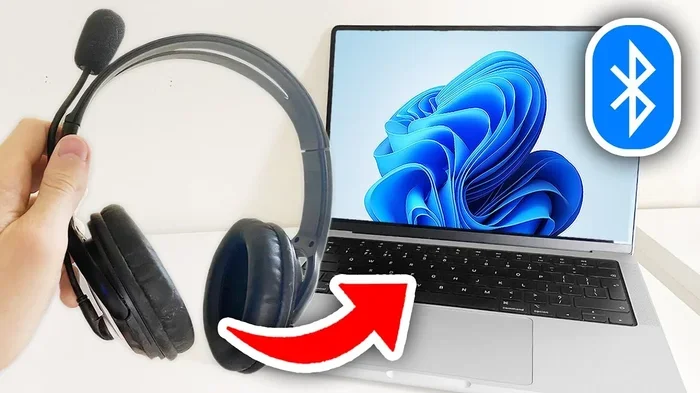
Yes, you can connect your Powerbeats to your laptop wirelessly using Bluetooth. This guide walks you through pairing steps, troubleshooting fixes, and expert tips to get the best audio experience. Whether you own Powerbeats Pro or the classic Powerbeats, the process is simple and fast. You will learn how to pair, reset, and optimize your connection for crystal-clear sound.
So you just got a pair of Powerbeats, and now you want to use them with your laptop. Maybe you are working from home, editing a video, or just binge-watching your favorite show. The question is simple: can you connect Powerbeats to a laptop wirelessly? The short answer is yes. The longer answer is that it takes a few steps, and sometimes you might run into a small hiccup. But dont worry. This guide covers everything you need to know.
Powerbeats are fantastic headphones. They are made by Beats by Dre, and they deliver powerful sound with deep bass. They are also sweat-resistant, which makes them great for workouts. But using them with a laptop is a different experience than using them with your phone. The Bluetooth settings on a laptop can be tricky. Sometimes the connection drops. Sometimes the audio quality is not what you expected. This article will help you solve all of those problems.
In this guide, you will learn exactly how to pair your Powerbeats with your laptop. You will also learn how to troubleshoot common issues, optimize your audio settings, and keep your connection stable. Whether you use a Windows laptop or a Mac, this guide has you covered. Let us get started.
Key Takeaways
- Wireless Pairing Is Easy: You can connect Powerbeats to any laptop with Bluetooth in just a few simple steps.
- Resetting Fixes Most Issues: A quick reset solves the majority of Powerbeats laptop connection problems.
- Battery Matters: Keep your Powerbeats charged for a stable wireless connection.
- Firmware Updates Help: Updating your Beats firmware improves compatibility and audio quality.
- Distance Limits Apply: Bluetooth range is around 30 feet, so stay close for best performance.
- Multipoint Is Not Available: Powerbeats do not support simultaneous laptop and phone connections.
📑 Table of Contents
- Can I Connect My Powerbeats To My Laptop Wirelessly?
- How to Pair Powerbeats with Your Laptop Step by Step
- Troubleshooting Common Connection Problems
- Powerbeats Models and Laptop Compatibility
- Optimizing Your Wireless Audio Experience
- Common Mistakes to Avoid
- Expert Tips for a Better Connection
- Can You Use Powerbeats for Work Calls on a Laptop?
- How to Disconnect Powerbeats from Your Laptop
- Final Thoughts
Can I Connect My Powerbeats To My Laptop Wirelessly?
The short answer is absolutely yes. Your Powerbeats use Bluetooth technology to connect to devices. Laptops support Bluetooth too, so the two can talk to each other. The process is straightforward, but there are a few things you should know first.
Powerbeats come in different models. The Powerbeats Pro and the classic Powerbeats both use Bluetooth for wireless connections. The pairing process is similar for both. However, some older laptop models might not have Bluetooth built in. In that case, you would need a Bluetooth adapter. But most modern laptops made in the last 10 years have Bluetooth already installed.
Before you start pairing, make sure your Powerbeats are charged. A low battery can cause connection problems. Also, make sure your laptop Bluetooth is turned on. These small checks save a lot of frustration later.
What You Need Before You Start
- A pair of Powerbeats with enough battery charge
- A laptop with Bluetooth capability
- The Beats app installed (optional but recommended)
- A quiet space for the pairing process
Once you have these ready, you are good to go. The next section will walk you through the exact pairing steps.
How to Pair Powerbeats with Your Laptop Step by Step
Pairing your Powerbeats to your laptop is a quick process. It should take about two minutes. Follow these steps carefully, and you will be listening to music in no time.
Step 1: Put Your Powerbeats in Pairing Mode
First, you need to make your Powerbeats discoverable. For the Powerbeats Pro, open the charging case and hold the button on the back until the LED light flashes white. For the classic Powerbeats, press and hold the power button for five seconds until the indicator light blinks. This flashing light tells your laptop that the headphones are ready to pair.
Step 2: Open Bluetooth Settings on Your Laptop
On a Windows laptop, click the Start menu and go to Settings. Then click Devices and select Bluetooth. Make sure Bluetooth is turned on. On a Mac, click the Apple menu, go to System Preferences, and click Bluetooth. Ensure Bluetooth is enabled there too.
Step 3: Find Your Powerbeats
Your laptop will now search for nearby Bluetooth devices. Look for your Powerbeats in the list. They might show up as Powerbeats Pro or just Beats. Click on them and select Connect. The connection should happen within a few seconds.
Step 4: Confirm the Connection
Once connected, you will hear a short chime in your Powerbeats. The LED light on the case or headphones will stop flashing and stay solid. You can now play audio on your laptop, and it will come through your Powerbeats.
Troubleshooting Common Connection Problems
Sometimes things do not go smoothly. Maybe your Powerbeats will not show up on your laptop. Maybe the connection keeps dropping. These are common issues, and they are usually easy to fix.
Powerbeats Not Showing Up on Laptop
If your laptop does not detect your Powerbeats, try these fixes. First, make sure your Powerbeats are in pairing mode. The flashing white light is the key indicator. Second, turn Bluetooth off and back on your laptop. Third, move your Powerbeats closer to your laptop. Bluetooth has a range of about 30 feet, and walls can weaken the signal.
Another common cause is that your Powerbeats are already connected to another device. Powerbeats can remember up to eight devices, but they only connect to one at a time. If they are paired with your phone, they might try to reconnect to it instead of your laptop. Turn off Bluetooth on your phone temporarily, and then try again.
Audio Keeps Cutting Out
If your audio drops in and out, the Bluetooth signal might be weak. Stay within range of your laptop. Avoid placing your laptop near microwaves, cordless phones, or other devices that cause wireless interference. Also, check your Powerbeats battery. Low battery can cause unstable connections.
Sound Quality Is Poor
If the audio sounds muffled or distorted, try these steps. First, check your laptop audio settings. Make sure the output is set to your Powerbeats. Second, update your Beats firmware using the Beats app. Third, restart both your laptop and your Powerbeats. A fresh restart often fixes audio glitches.
Powerbeats Models and Laptop Compatibility
Not all Powerbeats models are exactly the same. Here is a quick look at how different models work with laptops.
| Model | Bluetooth Version | Battery Life | Laptop Compatibility |
|---|---|---|---|
| Powerbeats Pro | Bluetooth 5.0 | 9 hours per charge | Windows and Mac |
| Powerbeats (3rd Gen) | Bluetooth 4.0 | 12 hours per charge | Windows and Mac |
| Powerbeats4 | Bluetooth 5.0 | 15 hours per charge | Windows and Mac |
All of these models connect to laptops the same way. The newer models with Bluetooth 5.0 offer a more stable connection and slightly better range. If you have an older model, you might notice the connection is a bit less reliable, but it still works fine for most tasks.
Which Powerbeats Model Should You Choose for Laptop Use?
If you use your laptop a lot for calls and music, the Powerbeats Pro is the best choice. They have the most modern Bluetooth version and the best sound quality. The classic Powerbeats are also great, especially if you prefer the earhook design for a secure fit.
Optimizing Your Wireless Audio Experience
Once your Powerbeats are connected, you can take a few steps to improve your listening experience. These small adjustments make a big difference.
Adjust Your Laptop Audio Settings
On Windows, right-click the speaker icon in your taskbar and select Open Sound Settings. Under Output, choose your Powerbeats. On a Mac, go to System Preferences, click Sound, and select your Powerbeats as the output device. This ensures all audio routes through your headphones.
Use the Beats App for Fine-Tuning
The Beats app lets you update firmware and customize settings. It is available for both Windows and Mac. The app also helps you check battery levels and manage paired devices. Downloading it is a simple way to get the most out of your Powerbeats.
Keep Your Laptop Close
Bluetooth works best at close range. Try to keep your laptop within 15 to 20 feet of your Powerbeats for the best experience. If you move too far away, the signal weakens, and audio quality drops. This is especially important during video calls or when streaming high-quality audio.
Common Mistakes to Avoid
Here are some mistakes people make when connecting Powerbeats to a laptop. Avoiding these will save you time and frustration.
- Skipping the pairing mode: If you do not put your Powerbeats in pairing mode, your laptop will not find them. Always look for the flashing light.
- Ignoring battery levels: A low battery causes weak connections. Charge your Powerbeats fully before pairing.
- Leaving Bluetooth on other devices: Your Powerbeats might auto-connect to your phone instead of your laptop. Turn off Bluetooth on other devices during pairing.
- Not updating firmware: Outdated firmware can cause compatibility issues. Always keep your Beats firmware up to date.
- Placing the laptop near interference sources: Wi-Fi routers and microwaves can disrupt Bluetooth signals. Keep your devices away from these sources.
Expert Tips for a Better Connection
Here are some insider tips from audio experts that will help you get the most out of your Powerbeats and laptop setup.
Reset your Powerbeats regularly. A factory reset clears old pairings and fixes minor software glitches. To reset Powerbeats Pro, hold the button on the back of the case for 15 seconds until the LED flashes. For classic Powerbeats, hold the power button for 10 seconds. This simple step solves many connection issues.
Use a Bluetooth 5.0 laptop if possible. Newer laptops with Bluetooth 5.0 provide a stronger and more stable connection. If your laptop is older, consider a USB Bluetooth adapter. These adapters are affordable and plug right into a USB port. They instantly upgrade your laptops wireless capabilities.
Close unused apps that use audio. If you have multiple apps playing sound at the same time, it can confuse the audio output. Close apps you are not using, and your Powerbeats will stay connected to the right device.
Keep your Powerbeats clean. Dirt and sweat can block the sensors on your Powerbeats. Wipe them down regularly with a soft cloth. Clean headphones connect more reliably and last longer.
Restart both devices when in doubt. This sounds basic, but restarting your laptop and Powerbeats fixes more problems than you might think. It clears temporary glitches and refreshes the Bluetooth connection.
Can You Use Powerbeats for Work Calls on a Laptop?
Yes, you can absolutely use Powerbeats for work calls on your laptop. The built-in microphone on the Powerbeats Pro picks up your voice clearly. The classic Powerbeats also have a decent microphone, though it is not as refined. For video calls on Zoom, Skype, or Teams, Powerbeats work well. They provide good audio quality, and your colleagues will hear you clearly.
One thing to keep in mind is the microphone boom on the Powerbeats Pro. Make sure it is positioned near your mouth for the best call quality. Also, if you are in a noisy environment, the microphone might pick up background noise. In quiet rooms, the microphone performance is excellent.
How to Disconnect Powerbeats from Your Laptop
Disconnecting your Powerbeats is just as easy as connecting them. On Windows, go to Bluetooth settings, click on your Powerbeats, and select Disconnect. On a Mac, hover over your Powerbeats in the Bluetooth menu and click Disconnect. You can also simply turn off Bluetooth on your laptop, which disconnects all paired devices at once.
If you want to forget the device entirely, you can remove it from the Bluetooth list. This is useful if you want to pair your Powerbeats with a different laptop. Just remember that you will need to pair them again from scratch.
Final Thoughts
Connecting your Powerbeats to your laptop wirelessly is simple, fast, and totally worth it. Whether you are working, watching movies, or listening to music, the wireless freedom is unbeatable. Just follow the pairing steps, keep your firmware updated, and troubleshoot any issues with the tips in this guide.
Remember to keep your Powerbeats charged, stay within Bluetooth range, and avoid common mistakes. With a little care, your Powerbeats and laptop will work together seamlessly. Enjoy your wireless audio experience, and happy listening.
Frequently Asked Questions
Can I connect Powerbeats to any laptop?
Yes, as long as your laptop has Bluetooth. Most laptops made after 2010 support Bluetooth. If your laptop does not have Bluetooth built in, you can buy a USB Bluetooth adapter for under $15.
Why wont my Powerbeats connect to my laptop?
This is usually because the Powerbeats are not in pairing mode or they are already connected to another device. Try resetting your Powerbeats and making sure no other device is connected to them. Also check that your laptop Bluetooth is turned on.
Can I use Powerbeats for video calls on my laptop?
Absolutely. The Powerbeats Pro has a built-in microphone that works well for video calls. The classic Powerbeats also have a microphone, though it is less advanced. For the best call quality, make sure the microphone is positioned near your mouth.
How far can my Powerbeats be from my laptop?
Bluetooth has a range of about 30 feet. However, walls and other electronic devices can reduce this distance. For the best experience, keep your laptop within 15 to 20 feet of your Powerbeats.
Do Powerbeats work with both Windows and Mac laptops?
Yes, Powerbeats work with both Windows and Mac laptops. The pairing process is the same on both platforms. Just make sure Bluetooth is enabled on your laptop and your Powerbeats are in pairing mode.
How do I update my Powerbeats firmware?
Download the Beats app on your laptop. Connect your Powerbeats and open the app. The app will check for firmware updates automatically. Keeping your firmware up to date improves connection stability and audio quality.
=== CONCLUSION ===
Connecting your Powerbeats to your laptop wirelessly is easy and convenient. With just a few simple steps, you can enjoy high-quality audio on your laptop for work, entertainment, or anything in between. The process works for all Powerbeats models and both Windows and Mac laptops. Remember to keep your devices charged, update your firmware, and follow the troubleshooting tips if you run into any issues. Now that you know how to connect Powerbeats to your laptop, you are ready to enjoy a seamless wireless audio experience every day.