Can I Download A Bluetooth Driver For Windows 10 Now
Yes, you can download a Bluetooth driver for Windows 10 easily and safely. This guide walks you through every step, from checking your current driver status to installing the latest version. You will learn trusted sources, common fixes, and expert tips to keep your Bluetooth running smoothly.
If your Bluetooth stopped working or never worked at all on your Windows 10 PC, you are not alone. Millions of users face Bluetooth connectivity problems every day. The good news is that you can almost always fix the issue by downloading the right Bluetooth driver. This guide will show you exactly how to do it, step by step.
We will cover everything you need to know. You will learn what a Bluetooth driver does, how to check if yours is working, where to download it safely, and how to install it without any headaches. By the end of this article, you will have the confidence and knowledge to solve your Bluetooth problems on your own.
Whether you have a Dell laptop, an HP desktop, or a custom-built PC, this guide applies to you. The process for downloading and installing a Bluetooth driver for Windows 10 is the same regardless of your brand. Let us dive right in.
Key Takeaways
- Bluetooth drivers are essential: Without the right driver, your Windows 10 PC cannot connect to wireless accessories like headphones, speakers, and mice.
- Multiple safe download sources exist: You can get drivers directly from your PC manufacturer, Windows Update, or the Bluetooth chipmaker’s official website.
- Built-in Bluetooth is common: Many modern laptops already have Bluetooth hardware, but the driver may need updating or reinstalling.
- Troubleshooting is straightforward: Most Bluetooth problems on Windows 10 can be fixed with simple steps like restarting services, updating drivers, or running the built-in troubleshooter.
- Regular updates prevent issues: Keeping your Bluetooth driver up to date improves compatibility, fixes bugs, and enhances connection stability.
- Uninstalling and reinstalling works: This classic fix resolves many stubborn Bluetooth driver errors on Windows 10.
📑 Table of Contents
- What Is a Bluetooth Driver and Why Does It Matter?
- How to Check If Your Bluetooth Driver Is Working on Windows 10
- Where to Download Bluetooth Drivers for Windows 10
- Step-by-Step Guide to Installing a Bluetooth Driver
- Common Bluetooth Driver Problems and How to Fix Them
- Expert Tips to Keep Your Bluetooth Driver Running Smoothly
- Conclusion
What Is a Bluetooth Driver and Why Does It Matter?
A Bluetooth driver is a small software program. It acts as a translator between your Windows 10 computer and your Bluetooth devices. Without this driver, your PC simply cannot “see” or communicate with wireless accessories like headphones, keyboards, speakers, or mice.
Think of it this way. Your Bluetooth device speaks one language. Your Windows 10 PC speaks another. The Bluetooth driver is the interpreter that helps them understand each other. If the interpreter is missing, outdated, or corrupted, the conversation stops. That is when you start seeing problems like Bluetooth not connecting, devices disappearing from the list, or error messages popping up.
How Bluetooth Drivers Work on Windows 10
Windows 10 includes a built-in Bluetooth stack. This is the core software that handles Bluetooth connections. However, the built-in stack still needs a specific driver for your Bluetooth hardware. Every Bluetooth chip is different. Your laptop might use a Realtek Bluetooth chip. Another PC might use an Intel or Broadcom chip. Each one requires its own driver.
When you install the correct driver, it tells Windows 10 how to talk to your specific Bluetooth hardware. It also enables features like Bluetooth pairing, file sharing, and audio streaming. Without the proper driver, none of these features work.
Signs Your Bluetooth Driver Needs Attention
How do you know your Bluetooth driver is causing problems? Watch for these common signs:
- Bluetooth does not appear in your Windows 10 settings.
- Your Bluetooth devices connect but then disconnect randomly.
- You see a yellow triangle or error icon next to Bluetooth in Device Manager.
- Your PC says “No Bluetooth devices found” even though Bluetooth is turned on.
- Bluetooth worked yesterday but stopped working today after a Windows update.
If you notice any of these issues, downloading a fresh Bluetooth driver for Windows 10 is likely the solution.
How to Check If Your Bluetooth Driver Is Working on Windows 10
Before you download anything, it is smart to check your current Bluetooth driver status. This helps you understand exactly what is wrong. You can do this in just a few minutes using built-in Windows 10 tools.
Step 1: Open Device Manager
Press the Windows key and the letter X at the same time. A menu will appear. Click on “Device Manager.” This tool shows you all the hardware and drivers installed on your PC. Look for a section called “Bluetooth.” Click the arrow next to it to expand the list.
If you see your Bluetooth adapter listed there, your hardware is recognized. If you see a yellow triangle or a “Bluetooth” entry with a downward arrow, there is a problem with the driver.
Step 2: Check the Driver Version
Right-click on your Bluetooth adapter in Device Manager. Select “Properties.” Go to the “Driver” tab. Here you will see the driver version, the manufacturer name, and the date it was signed. Write this down or take a screenshot. You will need this information later when you search for an updated driver.
Step 3: Test Bluetooth Connectivity
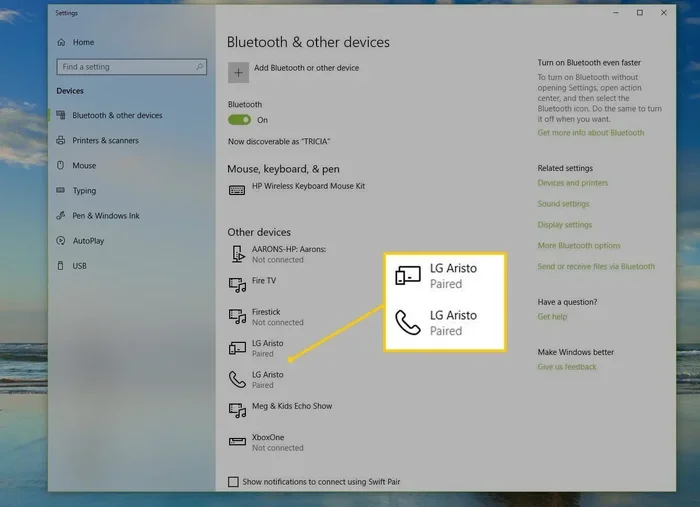
Go to Settings, then Devices, then Bluetooth and other devices. Turn Bluetooth on. Try to pair a device. If the pairing fails or the device keeps disconnecting, your driver may be outdated or corrupted. This is a clear signal that you need to download a new Bluetooth driver for Windows 10.
Where to Download Bluetooth Drivers for Windows 10
Not all driver download sites are safe. Some sites bundle unwanted software or even malware with their downloads. That is why it is important to know exactly where to get your Bluetooth driver safely. Here are the best and most trusted sources.
Option 1: Download from Your PC Manufacturer’s Website
This is the safest and most reliable method. Every major PC brand like Dell, HP, Lenovo, and Asus maintains a driver support page. You just need to know your exact model number.
Here is how to do it:
- Find your PC model number. You can usually find it on a sticker on the bottom of your laptop or on the box it came in.
- Go to the manufacturer’s official support website.
- Type your model number into the search bar.
- Navigate to the “Drivers and Downloads” section.
- Look for the Bluetooth driver. Download the version that matches Windows 10.
This method ensures you get a driver that is fully compatible with your specific hardware. It is the best way to avoid Bluetooth driver compatibility issues.
Option 2: Use Windows Update
Windows 10 has a built-in feature that automatically checks for and downloads drivers. This is the easiest method, but it does not always have the latest version.
To use Windows Update for your Bluetooth driver:
- Go to Settings, then Update and Security, then Windows Update.
- Click “Check for updates.”
- Click “View optional updates.”
- Look for driver updates under the “Driver updates” tab.
- If a Bluetooth driver update is available, check the box and click “Download.”
This method works well for most users. However, if Windows Update does not have the latest Bluetooth driver for Windows 10, you may need to try the next option.
Option 3: Download Directly from the Bluetooth Chipmaker
If you know which Bluetooth chip your PC uses, you can download the driver directly from the chipmaker’s website. Common Bluetooth chipmakers include Realtek, Intel, Broadcom, and Qualcomm.
To find out which chip you have:
- Open Device Manager.
- Expand the Bluetooth section.
- Right-click your Bluetooth adapter and select “Properties.”
- Go to the “Details” tab.
- In the dropdown menu, select “Hardware Ids.”
- Look for a name like “Realtek,” “Intel,” or “Broadcom” in the list.
Once you know the manufacturer, go to their official website and search for the latest driver. This method gives you access to the Bluetooth driver latest version, which often includes important bug fixes and performance improvements.
Option 4: Use a Trusted Driver Update Tool
If you are not comfortable searching for drivers manually, you can use a trusted driver update tool. These tools scan your PC, identify outdated drivers, and download the correct updates automatically. Just make sure you choose a reputable tool and read reviews before installing anything.
Step-by-Step Guide to Installing a Bluetooth Driver
Now that you have downloaded the right driver, it is time to install it. Follow these steps carefully to ensure a smooth installation process.
Step 1: Uninstall the Old Driver First
This is a step many people skip, but it makes a big difference. Removing the old driver before installing the new one prevents conflicts and errors.
- Open Device Manager.
- Expand the Bluetooth section.
- Right-click your Bluetooth adapter.
- Select “Uninstall device.”
- Check the box that says “Delete the driver software for this device.”
- Click “Uninstall.”
- Restart your computer.
After your PC restarts, Windows 10 may try to reinstall a generic driver. That is fine. We will replace it with the proper one in the next step.
Step 2: Install the New Driver
Now run the Bluetooth driver installer you downloaded. Here is what to do:
- Locate the downloaded file. It is usually in your “Downloads” folder.
- Double-click the installer file.
- Follow the on-screen instructions. Click “Next” and “Agree” when prompted.
- Wait for the installation to complete. This usually takes about one to two minutes.
- Restart your computer once more when the installer asks you to.
After the restart, go to Settings, then Devices, then Bluetooth and other devices. Turn Bluetooth on. Your Bluetooth should now be working properly.
Step 3: Verify the Installation
Go back to Device Manager. Expand the Bluetooth section. Right-click your Bluetooth adapter and select “Properties.” Check the “Driver” tab. The driver version should now match the version you just installed. If it does, congratulations. You have successfully installed your new Bluetooth driver for Windows 10.
Quick Tips for a Smooth Installation
- Always restart your PC after installing a new driver. This ensures Windows loads the new driver correctly.
- Close all other programs before running the installer.
- If the installer asks you to disconnect and reconnect your Bluetooth device, do so.
- Do not install drivers from unknown or suspicious websites. Stick to official sources.
Common Bluetooth Driver Problems and How to Fix Them
Even after downloading and installing a new driver, you might run into some issues. Here are the most common Bluetooth driver problems on Windows 10 and how to fix each one.
Problem 1: Bluetooth Is Not Showing Up in Settings
This usually means the Bluetooth driver is missing or not loaded correctly. Try running the Windows 10 Bluetooth troubleshooter. Go to Settings, then Update and Security, then Troubleshoot, then “Bluetooth.” Let Windows scan for problems and apply any fixes it finds.
If the troubleshooter does not work, try uninstalling and reinstalling the driver using the steps in the previous section. Also check that the Bluetooth service is running. Press Windows key and R, type “services.msc,” and press Enter. Look for “Bluetooth Support Service.” Make sure it is set to “Running” and “Automatic.”
Problem 2: Bluetooth Keeps Disconnecting
Frequent disconnections are frustrating. They often happen when the Bluetooth driver is outdated or when the power management settings are interfering. To fix this:
- Update your Bluetooth driver to the latest version.
- Go to Device Manager, right-click your Bluetooth adapter, select “Properties,” then go to the “Power Management” tab.
- Uncheck the box that says “Allow the computer to turn off this device to save power.”
- Click “OK” and restart your PC.
Problem 3: Bluetooth Pairing Fails
If your PC cannot pair with a Bluetooth device, the issue might be with the pairing process itself rather than the driver. Try these steps:
- Turn off Bluetooth on both your PC and the device you want to pair.
- Wait 10 seconds.
- Turn Bluetooth back on.
- Put the device in pairing mode.
- Click “Add Bluetooth or other device” in your Windows 10 settings.
- Select the device from the list and follow the prompts.
If pairing still fails, try removing the device from your Bluetooth list and adding it again. Sometimes the Bluetooth driver needs a fresh start to establish a new connection.
Problem 4: Bluetooth Works but Audio Quality Is Poor
Poor audio quality over Bluetooth is often caused by an outdated driver or an incompatible Bluetooth profile. Make sure you have the latest Bluetooth driver for Windows 10 installed. Also check that your Bluetooth device supports the codec your PC is using. Updating the driver often resolves audio quality issues.
Problem 5: Bluetooth Driver Gets Corrupted After a Windows Update
Windows 10 updates sometimes overwrite or corrupt Bluetooth drivers. If this happens to you:
- Download the latest Bluetooth driver from your PC manufacturer or chipmaker website.
- Uninstall the corrupted driver using Device Manager.
- Install the new driver you downloaded.
- Restart your PC.
This fixes the problem in most cases. Keeping your drivers updated independently of Windows Update can help prevent this issue from recurring.
Expert Tips to Keep Your Bluetooth Driver Running Smoothly
Preventing Bluetooth driver problems is easier than fixing them. Here are some expert tips that will help you maintain a healthy Bluetooth connection on your Windows 10 PC.
Set a Monthly Reminder to Check for Driver Updates
Bluetooth driver updates come out regularly. They fix bugs, improve performance, and add support for new devices. Set a reminder on your phone or calendar to check for Bluetooth driver updates once a month. This simple habit can save you from a lot of frustration.
Create a System Restore Point Before Updating Drivers
Before you install any new driver, create a system restore point. This gives you a safety net. If something goes wrong after the installation, you can roll your PC back to the way it was before. To create a restore point, search for “Create a restore point” in the Windows search bar and follow the prompts.
Keep Your Windows 10 System Updated
Windows 10 updates often include improved Bluetooth support. They also fix bugs that can cause Bluetooth connectivity issues. Make sure your operating system is always up to date. Go to Settings, then Update and Security, then Windows Update, and click “Check for updates” regularly.
Avoid Using Third-Party Driver Updater Tools That Are Not Trusted
There are many driver updater tools on the internet. Some of them are legitimate and helpful. Others are not. They may install wrong drivers, bundle unwanted software, or even contain malware. Stick to trusted sources like your PC manufacturer’s website, Windows Update, or well-known driver tools with good reviews.
Use a USB Bluetooth Adapter if Your PC Lacks Built-In Bluetooth
Not all PCs have built-in Bluetooth. If your desktop or older laptop does not have Bluetooth, you can buy a USB Bluetooth adapter. These are inexpensive and easy to use. Just plug the adapter into a USB port, and Windows 10 will usually install a basic driver automatically. For the best performance, download the latest Bluetooth USB adapter driver from the manufacturer’s website.
Keep Your Bluetooth Devices Close and Free from Interference
Sometimes the problem is not the driver at all. Bluetooth signals can be weakened by walls, other wireless devices, and even microwave ovens. Keep your Bluetooth device close to your PC and away from sources of interference. This simple step can dramatically improve your Bluetooth connection quality.
Conclusion
Downloading a Bluetooth driver for Windows 10 is straightforward once you know where to look and how to install it correctly. You now have all the tools and knowledge you need to solve your Bluetooth problems. Whether you download from your PC manufacturer, Windows Update, or the chipmaker’s website, the key is to get the right driver for your specific hardware.
Remember to check your current driver status first. Uninstall the old driver before installing the new one. Restart your PC after every installation. And if you run into any problems, the troubleshooting tips in this guide should help you resolve them quickly.
Keeping your Bluetooth driver up to date is one of the simplest things you can do to improve your PC experience. It ensures your wireless devices connect reliably, audio streams smoothly, and file transfers happen without interruptions. Take action today. Download your Bluetooth driver for Windows 10 and enjoy a seamless wireless experience once again.
Frequently Asked Questions
Can I download a Bluetooth driver for Windows 10 for free?
Yes, Bluetooth drivers for Windows 10 are available for free from your PC manufacturer’s website, Windows Update, and the official websites of Bluetooth chipmakers like Realtek and Intel. Never pay for a driver that should be free. If a website asks you to pay for a Bluetooth driver, it is likely a scam.
How do I know which Bluetooth driver is right for my Windows 10 PC?
Check your PC model number and look it up on your manufacturer’s support page. You can also check the Bluetooth chip model in Device Manager. Download the driver that matches both your hardware and your Windows 10 version (32-bit or 64-bit). Using the wrong driver can cause more problems, so always double-check compatibility before installing.
What should I do if Bluetooth still does not work after installing a new driver?
First, restart your PC. Sometimes the driver needs a fresh restart to load properly. If that does not work, try uninstalling the driver completely and reinstalling it. You can also run the Windows 10 Bluetooth troubleshooter. If none of these steps work, the Bluetooth hardware itself may be faulty and need replacement.
Can I use a Bluetooth driver from a different PC manufacturer?
No, you should always use the Bluetooth driver designed for your specific hardware and PC model. Drivers from different manufacturers may not be compatible with your Bluetooth chip. Using the wrong driver can cause errors, crashes, or make your Bluetooth stop working entirely. Stick to drivers from your PC manufacturer or the Bluetooth chipmaker.
How often should I update my Bluetooth driver for Windows 10?
Checking for Bluetooth driver updates once a month is a good habit. You should also check after major Windows 10 updates, as these can sometimes affect driver compatibility. If you notice Bluetooth problems, check for a driver update immediately. Keeping your driver current prevents many common connectivity issues.
Is it safe to download Bluetooth drivers from third-party websites?
It can be risky. Many third-party driver websites bundle malware, adware, or unwanted programs with their downloads. The safest approach is to download drivers directly from your PC manufacturer’s official website, Windows Update, or the Bluetooth chipmaker’s official site. If you must use a third-party tool, choose one with excellent reviews and a strong reputation in the tech community.