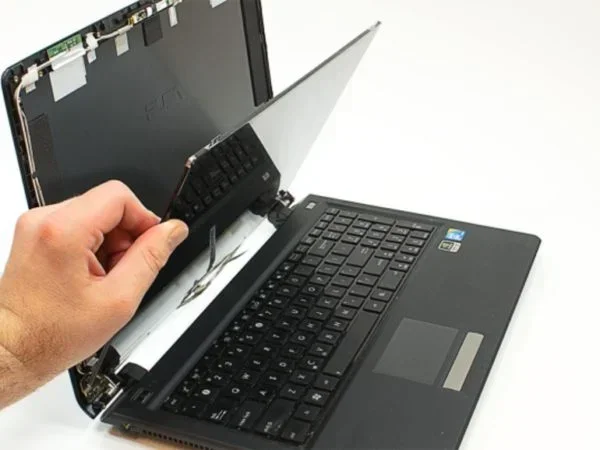
Can I Replace My Laptop Screen With a 144hz Display
Yes, you can replace your laptop screen with a 144hz display in most cases, but it depends on your laptop model, GPU, and connector type. This guide covers everything you need to know about upgrading to a 144hz screen, including compatibility checks, step-by-step instructions, and common mistakes to avoid.
Have you ever wondered whether you can swap out your dull, sluggish laptop screen for something smoother and more responsive? A 144hz display can transform how your laptop feels during gaming, video editing, and even everyday scrolling. The idea of a laptop screen upgrade is exciting, but the real question is whether your machine can handle it.
The short answer is yes, in many cases you can replace your laptop screen with a 144hz panel. But the full answer requires a closer look at your laptop’s hardware, your graphics card, and the specific panel you want to install. This guide walks you through every step of the process so you can make an informed decision.
Whether you are a casual user looking for a smoother experience or a competitive gamer chasing every frame, a high refresh rate screen makes a noticeable difference. Let us dive into what you need to know before you buy a replacement panel and start swapping screens.
Key Takeaways
- Compatibility is key: Not every laptop supports a 144hz screen replacement. Check your GPU, display connector, and model first.
- Panel type matters: IPS panels offer the best balance of color accuracy and fast refresh rates for most users.
- Resolution and GPU must match: A 1080p 144hz screen is the most common and widely supported upgrade option.
- You can do it yourself: With the right tools and a compatible panel, replacing a laptop screen is a manageable DIY project.
- Cost varies widely: A 144hz replacement panel typically costs between $80 and $250 depending on size and brand.
- Check your cable and connector: Some older laptops use eDP connectors that may limit refresh rate support.
- Test before fully assembling: Always power on the new screen before closing the laptop back up to avoid rework.
📑 Table of Contents
What Is a 144hz Laptop Screen?
A 144hz display refreshes the image on your screen 144 times per second. Traditional laptop screens usually run at 60hz, which means they update 60 times per second. The difference is huge when it comes to motion clarity and overall smoothness.
When you move your cursor or scroll through a webpage, a 60hz screen can feel a bit laggy. A 144hz panel makes everything feel buttery smooth. For gaming, this means less motion blur and a more responsive experience. Your frames per second (FPS) feel more connected to what you see on screen.
Refresh Rate and Why It Matters
The refresh rate is measured in hertz (Hz). It tells you how many times the screen redraws the image each second. A higher refresh rate means your eyes receive more frames, which reduces the perception of stutter and blur. Here is a quick comparison:
- 60hz: Standard for most laptops. Fine for everyday tasks and casual use.
- 120hz: A noticeable step up. Great for smoother video playback.
- 144hz: The sweet spot for gaming and fast-paced content. Very popular among enthusiasts.
- 240hz and above: Found in high-end gaming setups. Best for competitive esports players.
For most laptop users, 144hz is the ideal target for a screen upgrade. It offers a big improvement over 60hz without requiring an overly expensive panel.
Can Your Laptop Support a 144hz Screen?
Not every laptop can run a 144hz display. Before you buy a replacement panel, you need to verify that your hardware can support it. There are three main factors to check: your graphics card, the display connector, and your laptop model.
Check Your Graphics Card
Your GPU needs to be powerful enough to push frames at 144hz. Integrated graphics from Intel or AMD can handle 144hz at 1080p for many games, but more demanding titles may struggle. A dedicated GPU from NVIDIA or AMD will give you much better results.
Here are some common GPUs and their 144hz capabilities at 1080p:
- NVIDIA GTX 1650 or higher: Can handle most games at 144fps on low to medium settings.
- NVIDIA RTX 3050 or higher: Solid 144hz performance in many modern titles.
- AMD Radeon RX 5600M or higher: Great for 144hz gaming at 1080p.
- Intel Iris Xe: Capable of 144hz for esports titles and lighter games.
If your GPU cannot output enough frames, a 144hz screen will not help much. You need both a capable GPU and a smooth panel to get the full benefit.
Verify the Display Connector
Laptops use different display connectors to link the GPU to the screen. The most common ones are eDP (embedded DisplayPort) and LVDS. Newer laptops almost always use eDP, which supports high refresh rates easily. Older models may use LVDS, which can be more limiting.
To check your connector type, look up your laptop model on the manufacturer’s website or use a service manual. If your laptop uses an eDP 1.2 or higher connector, you should have no problem running a 144hz panel. If it uses an older LVDS connector, a 144hz upgrade may not be possible.
Confirm Your Laptop Model Supports It
Some laptop brands design their machines with upgrade-friendly screens. Brands like Lenovo, Dell, HP, and ASUS often list compatible panels in their service manuals. You can search for your specific model number along with “compatible display” to find a list of supported panels.
For example, many ThinkPad models from Lenovo have well-documented screen upgrade paths. You can often find community forums where users share their successful screen replacement experiences. Always double-check before purchasing a panel.
How to Choose the Right 144hz Panel
Not all 144hz screens are the same. Choosing the right panel for your laptop involves more than just picking the highest refresh rate. You need to consider panel type, resolution, size, and response time.
Panel Types: IPS, TN, and VA
The panel type affects color accuracy, viewing angles, and response time. Here is a quick breakdown:
- IPS (In-Plane Switching): The best all-around choice. Great colors, wide viewing angles, and decent response times. Most 144hz laptop panels today are IPS.
- TN (Twisted Nematic): Fast response times but poor color accuracy and narrow viewing angles. Rare in modern laptops.
- VA (Vertical Alignment): Good contrast and deep blacks but slower response times than IPS. Less common for 144hz laptop screens.
For most users, an IPS 144hz panel is the way to go. It offers the best balance of color quality and smoothness.
Resolution Considerations
The most common 144hz resolution for laptop upgrades is 1920×1080 (Full HD or 1080p). Some panels offer 2560×1440 (2K) at 144hz, but these are rarer and require a more powerful GPU. A 4K 144hz panel exists but is very expensive and demands a top-tier graphics card.
For a smooth upgrade experience, 1080p at 144hz is the most practical choice. It works well with most laptop GPUs and keeps costs reasonable.
Response Time and Adaptive Sync
Look for a panel with a response time of 5ms or lower. This reduces ghosting and motion blur during fast-moving scenes. Also, check if the panel supports adaptive sync technologies like FreeSync or G-Sync Compatible. These features reduce screen tearing and make the experience even smoother.
Step-by-Step Guide to Replacing Your Laptop Screen
Replacing a laptop screen is easier than most people think. With the right tools and a little patience, you can complete the screen replacement in about 30 to 60 minutes. Here is a detailed walkthrough.
What You Will Need
Before you start, gather these tools and materials:
- A compatible 144hz replacement panel (matched to your laptop model)
- A small Phillips-head screwdriver (usually #0 or #1)
- A plastic spudger or prying tool
- A soft, clean workspace with good lighting
- A microfiber cloth to handle the screen
Make sure you purchase the correct panel for your laptop model. The part number is usually printed on the back of your current screen. Write it down or take a photo before you start.
Step 1: Power Down and Disconnect
Shut down your laptop completely. Unplug the power adapter and disconnect any external monitors or peripherals. If your laptop has a removable battery, take it out. For built-in batteries, power down fully and hold the power button for 15 seconds to discharge any remaining electricity.
Step 2: Remove the Bezel
The bezel is the plastic frame around your screen. Use a plastic spudger to gently pry it loose. Start at the bottom corners and work your way around. Be careful not to snap any clips. Some bezels are held by screws, so check for those first.
Step 3: Disconnect the Old Screen
Once the bezel is off, you will see the screen panel held in place by screws. Remove those screws carefully. Then locate the display connector cable at the bottom of the screen. Gently disconnect it by lifting the latch or sliding it out. Do not pull on the cable itself.
Step 4: Install the New 144hz Panel
Take your new 144hz display out of its packaging carefully. Handle it by the edges to avoid touching the screen surface. Align the new panel with the mounting brackets and secure it with the screws you removed earlier. Connect the display cable to the new panel, making sure it clicks into place.
Step 5: Test Before Closing
This is the most important step. Before you reassemble the bezel, power on your laptop and check the new screen. Verify that the display works, the refresh rate shows 144hz in your display settings, and there are no dead pixels or lines. If everything looks good, you can proceed to reassemble.
Step 6: Reassemble the Bezel
Snap the bezel back into place, making sure all clips are secure. Replace any screws you removed. Plug in your power adapter and enjoy your new high refresh rate screen.
Common Mistakes to Avoid
Screen replacements can go wrong if you are not careful. Here are some common mistakes to watch out for:
- Buying the wrong panel: Always double-check the part number, size, and connector type before purchasing. A panel that looks similar may not fit.
- Forgetting to check the cable: Some laptops use a specific cable orientation. Installing the panel backward will not work.
- Applying too much force: Be gentle when prying the bezel. Plastic clips break easily and are expensive to replace.
- Not testing before closing: Reassembling without testing means you have to open it all up again if something is wrong.
- Ignoring the warranty: Opening your laptop may void the warranty. Check with your manufacturer before attempting a DIY replacement.
How Much Does a 144hz Laptop Screen Cost?
The cost of a 144hz replacement panel varies depending on size, brand, and features. Here is a general price range:
- Budget options: $60 to $100 for basic 1080p IPS 144hz panels.
- Mid-range options: $100 to $170 for panels with better color accuracy and faster response times.
- Premium options: $170 to $250 for panels with HDR support or higher-quality panels from brands like AU Optronics or Samsung.
Keep in mind that if you are not comfortable doing the replacement yourself, professional repair services will charge an additional $50 to $150 for labor. Overall, a DIY screen upgrade to 144hz is one of the most cost-effective ways to breathe new life into an older laptop.
Expert Tips for the Best Experience
Once you have your new 144hz screen installed, a few extra steps will help you get the most out of it:
- Update your GPU drivers: Always use the latest drivers from NVIDIA or AMD to ensure full compatibility with your new panel.
- Adjust your Windows display settings: Go to Display Settings > Advanced Display and set the refresh rate to 144hz manually.
- Enable adaptive sync: Turn on FreeSync or G-Sync in your GPU control panel to reduce screen tearing.
- Calibrate your colors: A new panel may have different color settings. Use a calibration tool or follow online guides for best results.
- Use a quality cable: The internal display cable matters. Make sure it supports the data bandwidth needed for 144hz at your chosen resolution.
Final Thoughts
Replacing your laptop screen with a 144hz display is one of the most rewarding upgrades you can make. It makes everything feel faster, smoother, and more responsive. From gaming to everyday browsing, the difference is immediately noticeable.
The key is to do your homework first. Confirm that your laptop supports the upgrade, buy the right panel, and follow the steps carefully. With a little effort, you can turn an older laptop into a smooth and enjoyable machine again. Upgrade your screen, upgrade your experience, and enjoy every frame at 144hz.
Whether you are a student, a professional, or a gamer, a 144hz laptop screen is a worthwhile investment. It costs less than buying a new laptop and delivers a dramatically better experience. Give it a try, and you will wonder why you did not do it sooner.
Frequently Asked Questions
Can any laptop be upgraded to a 144hz screen?
Not every laptop supports a 144hz screen upgrade. You need to check your GPU, display connector type, and laptop model to confirm compatibility. Older laptops with LVDS connectors may not support high refresh rates.
Do I need a powerful GPU for a 144hz laptop screen?
You need a GPU capable of outputting at least 144 frames per second to take full advantage of a 144hz panel. For esports games at 1080p, even mid-range GPUs can handle this. For demanding AAA titles, a stronger GPU is recommended.
How do I know which replacement panel to buy?
Check the part number on the back of your current screen or look it up in your laptop’s service manual. Match the size, resolution, connector type, and panel type when shopping for a replacement.
Is it hard to replace a laptop screen yourself?
No, it is a manageable DIY project for most people. You need basic screwdriver skills and about 30 to 60 minutes. Many online tutorials and videos can guide you through the specific steps for your laptop model.
Will a 144hz screen drain my laptop battery faster?
Yes, a higher refresh rate uses slightly more power than a 60hz screen. You can reduce battery drain by lowering the refresh rate to 60hz when you are not gaming or performing demanding tasks.
Can I upgrade from a 1080p 60hz screen to a 1440p 144hz screen?
It depends on your laptop’s GPU and connector. A 1440p 144hz panel requires more GPU power and a display cable that supports higher bandwidth. Check your laptop specifications before attempting this upgrade.
=== CONCLUSION ===
So, can you replace your laptop screen with a 144hz display? Absolutely, as long as your hardware supports it. The process is straightforward, the cost is reasonable, and the results are fantastic. A 144hz laptop screen brings smoother visuals, reduced motion blur, and a much more enjoyable computing experience. Take the time to verify compatibility, choose the right panel, and follow the replacement steps carefully. Your laptop will feel like new again, and you will wonder why you waited so long to make the upgrade.