Can I Uninstall Bluetooth And How To Reinstall It Now
You can uninstall Bluetooth from your computer, but it requires removing both the Bluetooth adapter and its drivers through Device Manager or Settings. Reinstalling Bluetooth is straightforward using Windows Update, manufacturer software, or manual driver downloads. This guide walks you through every step to safely remove and restore your Bluetooth functionality without losing other system features.
Have you ever stared at your computer screen and thought, “Can I uninstall Bluetooth and start fresh?” Maybe your Bluetooth keeps disconnecting, or your wireless connection just feels broken. Whatever the reason, you are not alone. Thousands of people search for answers about removing and restoring Bluetooth every single day.
The good news is that yes, you absolutely can uninstall Bluetooth. And the best part? You can reinstall it just as easily. Whether you use a desktop, a laptop, or a tablet, the process is simpler than you might think. In this guide, we will walk you through every step with clear instructions and practical tips.
We will cover how to remove Bluetooth drivers, why you might want to do it, and exactly how to get your wireless connection back up and running. By the end, you will feel confident tackling any Bluetooth issue on your own. Let us dive right in.
Key Takeaways
- Bluetooth can be uninstalled: You have multiple methods to remove Bluetooth from Windows, including Device Manager, Settings, and Control Panel.
- Reinstallation is simple: Use Windows Update, manufacturer tools, or manual driver installation to bring Bluetooth back.
- Device Manager is your best friend: It gives you full control over Bluetooth drivers and adapters.
- Common issues are fixable: Most Bluetooth problems after uninstalling are easy to resolve with a few clicks.
- Backup your drivers first: Always save your current Bluetooth drivers before removing them to avoid complications.
- Bluetooth hardware matters: Some computers have built-in Bluetooth modules that need special handling during removal.
- Reinstallation restores wireless freedom: Once reinstalled, you can pair all your Bluetooth devices again quickly.
📑 Table of Contents
- Why Would You Want to Uninstall Bluetooth?
- How to Uninstall Bluetooth on Windows
- How to Reinstall Bluetooth After Uninstalling
- Common Bluetooth Uninstallation Mistakes to Avoid
- How to Know If Your Bluetooth Is Working After Reinstallation
- Bluetooth Uninstallation and Reinstallation on Different Devices
- When You Should NOT Uninstall Bluetooth
- Final Thoughts on Uninstalling and Reinstalling Bluetooth
Why Would You Want to Uninstall Bluetooth?
Before we get into the how, let us talk about the why. Understanding your reasons helps you make the right decision. Not everyone needs to remove their Bluetooth setup. But for many people, doing so solves frustrating problems.
Troubleshooting Bluetooth Connection Issues
Bluetooth problems can drive anyone crazy. Your headphones keep dropping. Your mouse disconnects randomly. The Bluetooth icon just vanishes from your taskbar. These issues often stem from corrupted drivers or software conflicts. Removing the Bluetooth stack and starting fresh can fix many of these headaches.
Think of it like restarting your phone. Sometimes a clean slate is exactly what you need. When your Bluetooth adapter stops working properly, uninstalling everything gives you a blank canvas to work with.
Preparing for a Driver Update
Outdated drivers cause all kinds of wireless problems. If your manufacturer released a new Bluetooth driver update, sometimes the old version needs to go first. Uninstalling the current driver ensures the new one installs cleanly. This is especially true after major Windows updates that can mess with your wireless connection.
Removing Unused Bluetooth Hardware
Some people use external Bluetooth USB dongles. If you switch to a different adapter or no longer need wireless connectivity, removing the hardware makes sense. You free up USB ports and reduce clutter. Plus, it saves system resources that your computer can use elsewhere.
How to Uninstall Bluetooth on Windows
Now let us get to the real question: how do you actually do it? Windows offers several ways to remove Bluetooth. Each method works slightly differently. We will cover the most reliable approaches so you can pick the one that suits you best.
Method 1: Using Device Manager
Device Manager is the most powerful tool for removing Bluetooth on Windows. It gives you direct access to all your hardware and drivers. Here is exactly how to use it:
- Right-click the Start button on your taskbar.
- Select Device Manager from the menu that appears.
- Find the Bluetooth section and click the arrow to expand it.
- Right-click on your Bluetooth adapter. It might say “Bluetooth Radio” or the manufacturer name.
- Choose Uninstall device from the dropdown menu.
- Check the box that says “Attempt to remove the driver for this device.”
- Click Uninstall and wait for the process to finish.
- Restart your computer when prompted.
This method removes both the hardware entry and the Bluetooth driver files. It is thorough and effective. After restarting, your system will no longer recognize the Bluetooth module until you reinstall it.
Quick Tip: Before uninstalling, open Device Manager and expand the Bluetooth section. Note the exact name of your adapter. This helps you find the correct replacement driver later. You can also check under “Network adapters” because some Bluetooth devices show up there too.
Method 2: Using Windows Settings
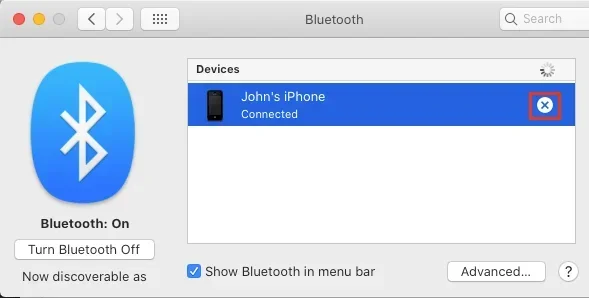
If Device Manager feels too technical, Windows Settings offers a simpler path. This method works well for removing Bluetooth devices you have paired but not the underlying driver.
- Open Settings by pressing Windows key + I.
- Click on Bluetooth & devices.
- Find the device you want to remove.
- Click the three dots next to it.
- Select Remove device.
This removes the paired device from your list but keeps the Bluetooth adapter and its drivers intact. It is perfect when you want to unpair a specific device like headphones or a keyboard without losing your entire Bluetooth setup.
Quick Tip: Use this method when you are selling or giving away a Bluetooth device. It clears the pairing memory and keeps your system clean for the next user.
Method 3: Using Control Panel Programs
Some Bluetooth software comes with its own installation package. Think of brands like Intel Wireless Bluetooth, Realtek Bluetooth, or Broadcom Bluetooth. These programs add extra features and settings beyond the basic Windows Bluetooth stack.
To remove this software:
- Open Control Panel.
- Click Programs and Features (or Uninstall a program).
- Find your Bluetooth software in the list.
- Click Uninstall and follow the prompts.
This method is great for removing manufacturer-specific Bluetooth tools that might be causing conflicts. After uninstalling the software, you can still use Windows built-in Bluetooth features.
How to Reinstall Bluetooth After Uninstalling
Now comes the exciting part — getting your Bluetooth back. Whether you removed the driver completely or just the paired devices, reinstalling is a straightforward process. Let us walk through each option.
Option 1: Let Windows Update Handle It
The easiest way to reinstall Bluetooth is to let Windows do the work for you. Windows Update often includes the latest Bluetooth drivers and installs them automatically.
- Open Settings by pressing Windows key + I.
- Click Windows Update.
- Click Check for updates.
- Look for optional updates or driver updates.
- If a Bluetooth driver appears, select it and click Download.
- Install the update and restart your computer.
After restarting, your Bluetooth should be back in full working order. You will see the Bluetooth icon in your system tray again. You can now pair Bluetooth device connections just like before.
Quick Tip: If Windows Update does not show a Bluetooth driver, try clicking “View optional updates” under the Windows Update page. Drivers often hide in this section.
Option 2: Download the Driver from the Manufacturer
Sometimes Windows Update does not have the latest driver. In that case, going directly to the manufacturer is your best bet. Here is what to do:
- Find out what Bluetooth hardware your computer has.
- Open Device Manager (before uninstalling, note the adapter name).
- Visit the manufacturer website — Intel, Realtek, Qualcomm, or your laptop brand.
- Search for your specific model.
- Download the latest Bluetooth driver.
- Run the installer and follow the on-screen steps.
- Restart your computer.
This method gives you the most up-to-date driver with the best performance. It also often includes extra features like Bluetooth troubleshooting tools and device management software.
Option 3: Use the Bluetooth Troubleshooter
If your Bluetooth is not showing up after reinstalling, do not panic. Windows has a built-in troubleshooter that can find and fix many common problems.
- Open Settings.
- Go to System > Troubleshoot > Other troubleshooters.
- Find Bluetooth in the list.
- Click Run.
- Follow the on-screen instructions.
The troubleshooter checks your Bluetooth stack, driver status, and hardware connections. It often identifies issues you would never notice on your own. It is a great first step before digging into more advanced fixes.
Option 4: System Restore
If uninstalling Bluetooth caused bigger problems than expected, System Restore can undo everything. This tool rolls your system back to a previous state before you made changes.
- Type “Create a restore point” in the Windows search bar.
- Click System Restore.
- Choose a restore point from before you uninstalled Bluetooth.
- Follow the prompts to complete the restore.
This method reverses all changes made after the restore point. It is a safety net that protects you from major mistakes. Always create a restore point before making system changes like uninstalling drivers.
Common Bluetooth Uninstallation Mistakes to Avoid
Even though uninstalling Bluetooth is not rocket science, people still make mistakes. These errors can cause extra headaches and wasted time. Let us look at the most common ones and how to avoid them.
Forgetting to Back Up Drivers
Before you remove anything, back up your current Bluetooth driver. If something goes wrong during reinstallation, having a backup saves you from downloading everything again. You can use free tools like Double Driver or Snappy Driver Installer to create a backup.
Removing the Wrong Device
Device Manager lists many adapters and devices. It is easy to click the wrong one. Always double-check that you are uninstalling the Bluetooth adapter, not your Wi-Fi card or another important piece of hardware. The names are similar, and removing the wrong device can break your wireless internet too.
Skipping the Restart
After uninstalling or reinstalling, always restart your computer. Skipping this step is the number one reason people think the process did not work. A restart clears temporary files, refreshes system services, and allows new drivers to load properly.
Ignoring Bluetooth in BIOS
Some laptops have a BIOS setting that controls Bluetooth hardware. If you uninstalled Bluetooth but it still shows up in Device Manager, check your BIOS settings. You may need to disable and re-enable the Bluetooth module at the firmware level for changes to take full effect.
How to Know If Your Bluetooth Is Working After Reinstallation
After you go through the reinstallation process, you want to confirm everything works. Here is how to test your Bluetooth quickly and easily.
- Look for the Bluetooth icon in your system tray near the clock.
- Open Settings and go to Bluetooth & devices.
- Make sure the toggle is turned on.
- Click Add device.
- Select Bluetooth from the list.
- Choose your device from the discovered list.
- Follow the pairing instructions.
If your device connects and works normally, congratulations! Your Bluetooth functionality is fully restored. If it does not connect, try the troubleshooter we discussed earlier. Sometimes it takes two or three attempts for everything to sync properly.
Expert Insight: According to tech support professionals, the most common reason Bluetooth fails after reinstallation is a missing or incorrect driver version. Always make sure you download the driver that matches your specific Windows version — whether that is Windows 10 or Windows 11 — and your system architecture (32-bit or 64-bit).
Bluetooth Uninstallation and Reinstallation on Different Devices
Bluetooth works differently depending on your device. Let us quickly compare how the process varies across different platforms.
| Device Type | Uninstall Method | Reinstall Method | Difficulty Level |
|---|---|---|---|
| Windows PC | Device Manager or Settings | Windows Update or manual driver | Easy |
| Mac | Remove Bluetooth preferences | System Preferences or reset Bluetooth module | Moderate |
| Android Phone | Settings > Apps > Bluetooth > Uninstall updates | Clear cache or reset network settings | Easy |
| iPhone/iPad | Cannot fully uninstall, only unpair devices | Reset network settings | Easy |
| Linux | Remove bluez package via terminal | Reinstall bluez via package manager | Advanced |
As you can see, the process varies quite a bit depending on your device. Windows PCs offer the most straightforward uninstall and reinstall options. Macs and mobile devices have more limited removal capabilities. For most people reading this, you are likely using a Windows computer, and the methods we covered above will work perfectly for you.
When You Should NOT Uninstall Bluetooth
While uninstalling Bluetooth can fix many problems, it is not always the right move. Here are situations where you should think twice before removing it.
- Your Bluetooth is working fine: If everything connects without issues, leave it alone. Unnecessary removal can introduce new problems.
- You are about to use Bluetooth for something important: If you need to pair a device for a presentation or meeting, do not remove Bluetooth the day before.
- You are not comfortable with drivers: If the idea of working with Device Manager makes you nervous, stick to simpler fixes like restarting your computer or toggling Bluetooth off and on.
- You have a hardware failure: If your Bluetooth adapter is physically damaged, uninstalling and reinstalling the driver will not fix it. You may need to replace the hardware or use a USB Bluetooth dongle instead.
Sometimes the simplest solutions work best. Before uninstalling anything, try turning Bluetooth off and back on, restarting your computer, or running the Windows troubleshooter. These quick fixes solve many Bluetooth problems without the need for a full uninstall.
Final Thoughts on Uninstalling and Reinstalling Bluetooth
So, can I uninstall Bluetooth? The answer is a clear yes. You have multiple reliable methods to remove your Bluetooth drivers, adapters, and paired devices. Whether you use Device Manager, Windows Settings, or Control Panel, the process is well within reach for most users.
Reinstalling is just as simple. Windows Update, manufacturer websites, and the built-in troubleshooter all make it easy to get your wireless connection back. The key is to follow the steps carefully, back up your drivers first, and restart your computer after every major change.
Remember, Bluetooth problems are incredibly common. They affect millions of people every day. You are not alone in dealing with this, and the solution is often simpler than you think. A clean uninstall and fresh reinstall can breathe new life into your wireless devices and restore the freedom of going cable-free.
Take your time with the process. Do not rush through the steps. And if something does not work the first time, do not give up. Try a different method or use the troubleshooter. With a little patience, your Bluetooth will be working better than ever.
Now that you know exactly how to uninstall Bluetooth and reinstall it, you have the power to fix connection issues on your own. You do not need to call tech support or spend money on repairs. You have everything you need right here. Go ahead and give it a try — your wireless devices are waiting to reconnect.
Frequently Asked Questions
Can I uninstall Bluetooth on Windows 11?
Yes, you can uninstall Bluetooth on Windows 11 using the same methods described above. Device Manager, Settings, and Control Panel all work on Windows 11. The steps are nearly identical to Windows 10. Just make sure you download the correct driver after reinstalling, as Windows 11 sometimes requires newer driver versions.
Will uninstalling Bluetooth delete my paired devices?
Uninstalling the Bluetooth driver removes the adapter from your system but does not delete your paired devices permanently. When you reinstall Bluetooth and turn it back on, your previously paired devices usually reappear. However, it is a good idea to note down your important pairings before removing anything.
How long does it take to reinstall Bluetooth?
The entire process usually takes between 5 and 15 minutes. Downloading the driver is the fastest part, and installation takes just a couple of minutes. The restart adds another minute or two. If you use Windows Update, it may take longer depending on how many updates are available.
Why is my Bluetooth not showing up after reinstalling?
This usually happens when the wrong driver version is installed or the Bluetooth service is disabled. Check Device Manager to see if the adapter appears. If it does, try updating the driver again. If it does not appear, run the Bluetooth troubleshooter or check your BIOS settings to make sure Bluetooth is enabled at the hardware level.
Can I use a USB Bluetooth dongle instead of the built-in adapter?
Absolutely! A USB Bluetooth dongle is a great alternative if your built-in Bluetooth is not working or if you removed it entirely. Plug the dongle into any USB port, and Windows will usually install the driver automatically. These dongles are inexpensive and work with almost any device.
Is it safe to uninstall Bluetooth drivers?
Yes, it is completely safe. Uninstalling Bluetooth drivers does not harm your computer or other hardware. You can always reinstall them afterward. Just make sure you have a working internet connection via Wi-Fi or Ethernet before removing Bluetooth, so you can download the driver again if needed.
=== CONCLUSION ===
Can I uninstall Bluetooth? Yes, and now you know exactly how to do it safely and effectively. The process of removing and restoring your Bluetooth connection is simpler than most people think. Whether you are troubleshooting connection problems, updating drivers, or cleaning up your system, the steps in this guide give you complete control.
Remember to back up your drivers first, use Device Manager for thorough removal, and choose the reinstallation method that works best for your setup. With a little patience and the right guidance, you can fix any Bluetooth issue and get back to enjoying seamless wireless connectivity.
Now it is your turn. Try these steps today and experience the freedom of a fully working Bluetooth setup. Your wireless headphones, keyboard, mouse, and speakers are waiting to reconnect. You have got this!