Can I Upgrade My Laptop Graphics Card And What Happens
Upgrading a laptop graphics card is usually not possible because most GPUs are soldered directly to the motherboard. However, you can use an external GPU (eGPU) enclosure to get desktop-level graphics performance through a Thunderbolt or USB-C connection. Some rare models with MXM graphics slots do allow internal swaps. Let us break down every option so you know exactly what to expect.
You have been using your laptop for a while now. Maybe you bought it a few years ago for work or school. But lately, you have noticed that your games lag, your video edits take forever to render, and your graphics performance just is not what it used to be. So you start searching online and ask yourself the same question thousands of others ask every day: Can I Upgrade My Laptop Graphics Card?
The desire to squeeze more power out of an existing machine is completely understandable. Laptops are expensive. Replacing one is not something most people want to do lightly. And the idea of simply swapping in a newer, faster dedicated graphics card sounds like an easy fix. But the reality is more complicated than you might think.
In this article, we will explore every angle of this topic. We will look at why most laptops do not allow laptop GPU upgrade options, what alternatives exist, what actually happens when you try, and how to make the best decision for your situation. Whether you are a gaming laptop enthusiast or a creative professional, this guide has something for you.
Key Takeaways
- Most laptops cannot upgrade the graphics card: The GPU is soldered onto the motherboard in the vast majority of laptops.
- eGPU enclosures are the best alternative: An external GPU connected via Thunderbolt 3 or 4 can deliver near-desktop performance.
- MXM laptops are rare exceptions: Some mobile workstations and older gaming models support replaceable MXM graphics modules.
- Thermal design matters: Even with an eGPU, your laptop cooling system must handle the increased heat output.
- Driver compatibility can be tricky: Always check for driver support before purchasing an external GPU for your specific setup.
- Consider the cost-benefit ratio: An eGPU setup can be expensive, so weigh it against buying a new laptop with a dedicated graphics card already built in.
📑 Table of Contents
Understanding Your Laptop Graphics Card
Integrated Graphics vs Dedicated Graphics
Before we dive into upgrades, it helps to understand what you are working with. Every laptop has a graphics processor. But not all of them are the same.
Integrated graphics are built into the CPU itself. They share memory with the rest of the system. They are fine for basic tasks like browsing the web, watching videos, and editing documents. Examples include Intel UHD and Intel Iris Xe graphics. They use very little power, which is great for battery life.
A dedicated graphics card, on the other hand, is a separate chip with its own VRAM and cooling system. It handles heavy tasks like gaming, 3D rendering, and video editing much more efficiently. Brands like NVIDIA GeForce and AMD Radeon make the most common mobile GPUs you will find in laptops.
Here is a quick comparison:
| Feature | Integrated Graphics | Dedicated Graphics Card |
|---|---|---|
| Memory | Shares system RAM | Has its own VRAM |
| Power Usage | Low | High |
| Performance | Basic tasks only | Gaming, rendering, AI |
| Upgradeable | No | Rarely |
| Cost | Included with CPU | Adds to laptop price |
How Your GPU Affects Daily Performance
Your graphics card affects more than just games. If you do any of the following, your GPU matters a lot:
- Video editing in software like Premiere Pro or DaVinci Resolve
- 3D modeling and animation in Blender or Maya
- Machine learning and AI tasks
- Running multiple high-resolution monitors
- Streaming while gaming or creating content
So when your graphics performance drops or feels outdated, it can slow down your entire workflow. That is why so many people wonder about a laptop GPU upgrade in the first place.
Can You Actually Upgrade a Laptop GPU?
Why Most Laptops Have Soldered GPUs
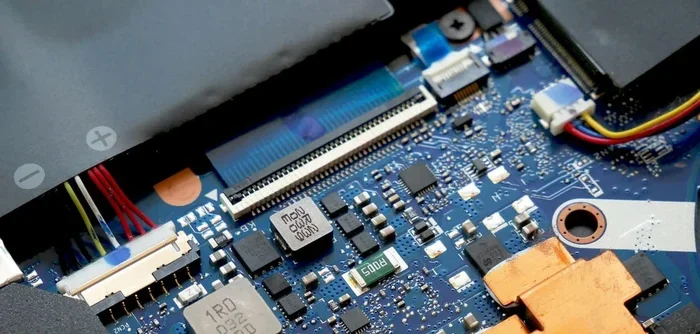
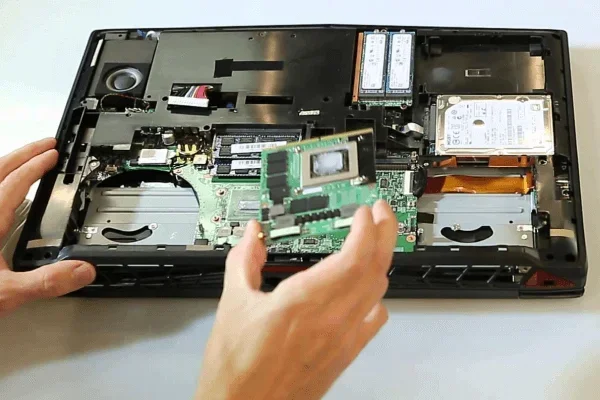
Here is the hard truth. In the overwhelming majority of laptops, the graphics card is soldered directly onto the laptop motherboard. This means it is physically attached with solder and cannot be removed or replaced.
Why do manufacturers do this? There are a few reasons:
- Space constraints: Laptops are designed to be thin and light. A removable GPU slot would take up precious space.
- Thermal design: The cooling system is built around the specific GPU installed. Swapping it out could cause overheating.
- Power delivery: The motherboard’s power circuitry is tailored for one specific GPU. A different card might not get the right amount of power.
- Cost and simplicity: Soldering is cheaper for mass production and reduces the number of parts that can fail.
So if you open up your laptop and see a chip that looks like a soldered GPU, you are most likely stuck with it. This is true for the vast majority of consumer laptops from brands like Dell, HP, Lenovo, ASUS, and Acer.
The MXM Standard and Rare Exceptions
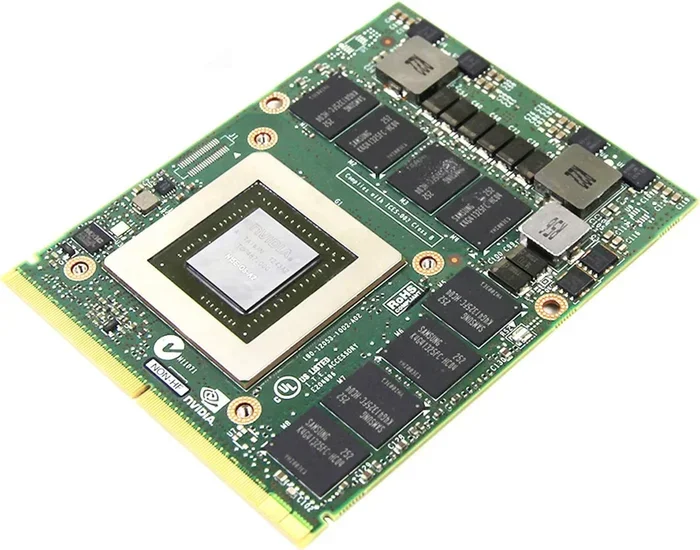
Now, there is a small ray of hope. A standard called MXM graphics (Mobile PCI Express Module) was created specifically to make laptop GPUs replaceable. Some gaming laptop models and mobile workstations from brands like Clevo, MSI, and certain Dell Precision models use this standard.
With an MXM slot, you can theoretically remove the old GPU and insert a new one. This is the closest thing to a true laptop GPU upgrade that exists. But there are big catches:
- MXM laptops are rare: Most consumer laptops do not use this standard.
- Compatibility is limited: The MXM slot comes in different versions (Type A, Type B, Type C). You need an exact match.
- BIOS support is required: Your laptop BIOS must recognize and support the new GPU module.
- Thermal limits apply: A more powerful MXM card may generate more heat than the cooling system can handle.
Even if you find an MXM-compatible laptop, finding the right replacement GPU can be difficult and expensive. This path is really only viable for technicians or enthusiasts who know exactly what they are doing.
External GPU (eGPU) Solutions
If you cannot upgrade the internal graphics card, what can you do? The answer that has gained a lot of popularity in recent years is the external GPU, commonly known as an eGPU.
What Is an eGPU and How Does It Work?
An eGPU is essentially a desktop graphics card housed in an external enclosure. This enclosure connects to your laptop through a Thunderbolt 3 or Thunderbolt 4 port (or sometimes USB-C with DisplayPort alternate mode). The connection sends data back and forth between your laptop and the powerful desktop GPU inside the enclosure.
Think of it this way. Your laptop becomes the brain and the display. The eGPU becomes the muscle. You get the portability of a laptop with the raw graphics performance of a desktop computer when you need it.
Here is how a typical setup looks:
- You plug a Thunderbolt cable from your laptop into the eGPU enclosure.
- The enclosure houses a desktop dedicated graphics card like an NVIDIA GeForce RTX 4070 or AMD Radeon RX 7800 XT.
- The desktop GPU does all the heavy rendering work.
- The results are sent back to your laptop screen via the same cable.
How to Set Up an eGPU
Setting up an eGPU is surprisingly straightforward. Here are the basic steps:
- Check compatibility: Make sure your laptop has a Thunderbolt 3 or 4 port. Not all USB-C ports support eGPU connections.
- Buy an eGPU enclosure: Popular brands include Razer Core, Sonnet Breakaway, and Akitio. Prices range from $150 to $400 for the enclosure alone.
- Choose a desktop GPU: Pick a graphics card that fits inside the enclosure and matches your power supply capacity.
- Install the GPU: Open the enclosure, insert the graphics card into the PCIe slot, secure it, and close the case.
- Connect and configure: Plug the Thunderbolt cable into your laptop, install the latest driver support from NVIDIA or AMD, and you are ready to go.
eGPU Performance Expectations
So what kind of graphics performance can you actually expect from an eGPU? The honest answer is: it is close to desktop performance, but not quite there.
The Thunderbolt connection has a bandwidth limit. Thunderbolt 3 offers about 40 Gbps, and Thunderbolt 4 offers the same. This is less than a direct PCIe connection inside a desktop, which can result in a 5% to 15% performance loss compared to the same GPU running in a desktop.
For most users, this difference is barely noticeable. You will still see massive improvements over integrated graphics. A modern eGPU setup can handle 1080p and even 1440p gaming at high settings. Video editing and 3D rendering will also see dramatic speed gains.
What Happens When You Upgrade Your Laptop Graphics Card
Performance Improvements
If you do manage to upgrade your graphics card — either through an eGPU or a rare MXM swap — the results can be impressive. Here is what typically happens:
- Higher frame rates in games: You can expect a significant boost in FPS, especially at higher resolutions.
- Faster rendering times: Video and 3D projects that took hours may now take minutes.
- Better display output: You can drive higher refresh rate monitors and even multiple displays simultaneously.
- More VRAM available: A newer GPU typically comes with more VRAM, which helps with large textures and complex scenes.
- Support for newer features: Modern GPUs support ray tracing, DLSS, and other technologies that older cards lack.
The difference can feel like going from a bicycle to a sports car. Suddenly, tasks that were painful become smooth and enjoyable.
Thermal and Power Considerations
But here is where things get tricky. When you add a more powerful dedicated graphics card to any system, heat and power become real concerns.
With an eGPU, the bulk of the heat is managed inside the enclosure, which has its own fans and cooling system. Your laptop stays relatively cool. However, the Thunderbolt connection does generate some heat during extended use, and your laptop cooling system still has to handle the data processing load.
With an internal upgrade (MXM), the situation is different. The new GPU sits inside your laptop next to the same cooling system it always had. If the new card runs hotter, you may experience:
- Thermal throttling (the GPU slows itself down to avoid overheating)
- Increased fan noise
- Reduced battery life
- Potential long-term wear on the cooling system
This is why checking the thermal design of your laptop is critical before any internal swap. A more powerful GPU does not always mean better results if the cooling cannot keep up.
Compatibility and Driver Issues
Another thing that happens when you upgrade is dealing with compatibility. Your laptop BIOS may not recognize a new GPU, especially if it is from a different manufacturer or generation.
Driver support is also a factor. You need to install the correct drivers for the new GPU. With NVIDIA GeForce cards, this is usually straightforward through the GeForce Experience app. AMD Radeon drivers are also well-supported but sometimes require manual installation on laptops.
In some cases, a new GPU may conflict with existing drivers or system settings. You may need to perform a clean driver installation or even reset your laptop BIOS to defaults. Always back up your system before making any hardware changes.
Laptops With Upgradeable Graphics Options
If you are in the market for a new laptop and you want the option to upgrade your graphics card in the future, you should look for specific models that support this.
Models That Support GPU Upgrades
Here are some types of laptops that offer better upgradeable graphics options:
- Clevo-based laptops: These barebone laptops often come with MXM slots and are popular among enthusiasts who want to swap GPUs.
- MSI GT and GT7 series: Some older MSI gaming laptops featured MXM slots for GPU replacement.
- Dell Precision mobile workstations: Certain models support replaceable dedicated graphics card modules.
- Eurocom and other custom laptop brands: These companies build laptops with user-upgradeable components, including GPUs.
Keep in mind that even with these models, you are limited to the GPU form factor and power envelope that the laptop supports. You cannot just drop in any desktop GPU you want.
Comparison of Upgrade Options
| Option | Feasibility | Cost Range | Performance Gain | Risk Level |
|---|---|---|---|---|
| Internal GPU Upgrade (MXM) | Very Low (rare models only) | $300 – $800 | Moderate to High | High (thermal, BIOS issues) |
| External GPU (eGPU) | High (most Thunderbolt laptops) | $400 – $1500+ | High (near desktop) | Low (safe and reversible) |
| Keep Current Setup | N/A | $0 | None | None |
| Buy a New Laptop | Always an option | $800 – $3000+ | Very High | Low (but expensive) |
As you can see from the table, an eGPU offers the best balance of feasibility, performance gain, and low risk. It is the most practical path for most people who want better graphics performance from their existing laptop.
Alternatives If You Cannot Upgrade
If your laptop does not support any form of laptop GPU upgrade, you still have options to improve your graphics performance without spending a fortune.
Software Optimization
Sometimes the problem is not your hardware but your software settings. Try these tips:
- Update your graphics drivers to the latest version from NVIDIA or AMD.
- Lower in-game resolution and graphical settings to reduce the load on your GPU.
- Close background applications that might be using graphics performance resources.
- Use game optimization tools like NVIDIA GeForce Experience or AMD Adrenalin to automatically adjust settings.
- Enable hardware acceleration in your web browser and creative apps.
These steps may not turn your old laptop into a gaming powerhouse, but they can definitely squeeze out some extra performance.
Cloud Gaming and Remote Rendering
Another modern alternative is cloud gaming. Services like NVIDIA GeForce NOW, Xbox Cloud Gaming, and Shadow PC let you stream games from powerful remote servers. Your laptop just needs a decent internet connection.
This means even a laptop with integrated graphics can play demanding AAA titles at high settings. The heavy lifting is done on remote servers, not on your local graphics card. The trade-off is that you need a fast, stable internet connection and there can be slight input lag.
When to Consider a New Laptop
Sometimes, the smartest move is to accept that your laptop has reached its limits. If you have tried all the options above and still need more power, it might be time to invest in a new machine.
Look for laptops that come with a strong dedicated graphics card right out of the box. Modern laptops from brands like ASUS ROG, Lenovo Legion, and Razer offer excellent gaming laptop options with upgradeable RAM and storage, even if the GPU itself is soldered.
Final Thoughts
The question Can I Upgrade My Laptop Graphics Card does not have a simple yes or no answer. For most people, the answer is no — the GPU is soldered and cannot be replaced. But that does not mean you are out of options.
An external GPU enclosure gives you a practical and effective way to boost your graphics performance without replacing your entire laptop. It is safe, reversible, and delivers near-desktop performance. If your laptop happens to support MXM graphics, you have a rare but real path for an internal swap.
Before you spend any money, take stock of your current setup. Check if your laptop has a Thunderbolt port. Research your specific model for upgrade possibilities. And honestly evaluate whether an eGPU or a new laptop makes more financial sense in the long run.
The bottom line is this: your laptop GPU upgrade journey is entirely possible, even if it does not go the traditional route. With the right approach and realistic expectations, you can get the graphics performance you need without breaking the bank.
Frequently Asked Questions
Can I Upgrade My Laptop Graphics Card in Any Laptop?
No, you cannot upgrade the graphics card in most laptops. The vast majority of laptops have a soldered GPU that is permanently attached to the motherboard. Only a small number of specialized models with MXM graphics slots or Thunderbolt ports for eGPU support allow any form of upgrade.
What Is an eGPU and How Does It Work?
An eGPU, or external GPU, is a desktop graphics card housed in an external enclosure that connects to your laptop through a Thunderbolt 3 or 4 port. It allows your laptop to use a powerful dedicated graphics card for demanding tasks like gaming and rendering, even if the internal GPU cannot be upgraded.
How Much Does an External GPU Setup Cost?
A basic eGPU setup costs between $400 and $1500 or more, depending on the enclosure and the graphics card you choose. The enclosure alone typically costs $150 to $400, and the desktop GPU can range from $300 for an entry-level card to over $1000 for a high-end NVIDIA GeForce or AMD Radeon model.
Will Upgrading My Laptop GPU Void the Warranty?
Opening your laptop to swap internal components almost always voids the manufacturer’s warranty. Even if your laptop supports an MXM upgrade, the act of opening the chassis and replacing the GPU is considered unauthorized modification. With an eGPU, there is no risk to your warranty since nothing is opened or modified internally.
Can I Upgrade a Gaming Laptop’s Graphics Card?
Most gaming laptop models also have soldered GPUs, even though they come with powerful dedicated graphics cards out of the box. A few gaming laptop models from brands like Clevo or certain MSI and Dell Precision lines support MXM graphics swaps. Otherwise, an eGPU is the best way to boost graphics performance on a gaming laptop.
What Are the Alternatives If I Cannot Upgrade My Laptop GPU?
If you cannot upgrade your graphics card, you can optimize your software settings, use cloud gaming services, or consider purchasing a new laptop with a stronger GPU. Software tweaks can squeeze out extra performance, while cloud gaming lets you stream demanding games without needing a powerful local graphics card at all.