Can I Use My Monitor With Hdmi Here Is Everything You Need
Can I Use My Monitor With HDMI? Yes, you can! This guide covers everything you need to know about connecting your display with an HDMI cable. You will learn about HDMI versions, connection steps, common problems, and expert tips to get the best picture and sound from your monitor.
Have you ever plugged in a new cable and just hoped for the best? That is exactly how many people feel when they try to use a monitor with HDMI. The good news is that it is usually simple and works right away. Can I Use My Monitor With HDMI? The short answer is yes, and this guide will show you exactly how. You will learn about the different HDMI versions, how to connect your display, and how to fix common issues. By the end, you will feel confident setting up your monitor with an HDMI cable.
Monitors come with many different ports these days. You might see VGA, DVI, DisplayPort, or HDMI. Each one has its own strengths. But HDMI has become the most popular choice for most people. It carries both video and audio through a single cable. This makes it super convenient for laptops, gaming consoles, and desktop computers. Whether you are setting up a new monitor or fixing an old one, understanding HDMI helps a lot.
In this article, we will walk through everything step by step. You do not need to be a tech expert to follow along. We will cover the basics and also dive into more advanced topics. You will find practical tips, real examples, and answers to common questions. So let us get started and make sure your monitor works perfectly with HDMI.
Key Takeaways
- HDMI is the most popular and easiest way to connect a monitor to a laptop, PC, or gaming console using a single cable for both video and audio.
- You need the right cable and port on your monitor and source device to get the best results.
- Different HDMI versions support different resolutions and refresh rates, so knowing which one you have matters.
- Common HDMI problems like no signal or no sound are usually easy to fix with simple troubleshooting steps.
- Adapters and splitters can expand your options if your monitor or device has limited HDMI ports.
- Plug and play is the norm with HDMI, but checking your resolution settings ensures the best display quality.
📑 Table of Contents
What Is HDMI and Why It Matters for Monitors
What Does HDMI Stand For
HDMI stands for High-Definition Multimedia Interface. It is a standard cable type used to send video and audio from one device to another. Think of it as a single wire that does the job of two or three older cables. Before HDMI, you might need a separate cable for video and another for sound. HDMI combines both into one neat connection.
The HDMI standard was first introduced in 2003. Since then, it has gone through several updates. Each new version brought better support for higher resolutions and faster frame rates. Today, HDMI is found on almost every modern TV, monitor, laptop, and gaming console. It is truly a universal standard.
Why HDMI Is the Go-To Choice for Display Connection
There are many reasons why HDMI is the preferred display connection for most users. First, it is simple. You plug one end into your source device and the other into your monitor. That is it. No extra software or drivers are needed in most cases.
Second, HDMI supports high-quality video and audio together. You get crisp visuals and clear sound through one cable. Third, HDMI cables are widely available and affordable. You can buy one at almost any electronics store or online. Here are some key benefits of using HDMI:
- Single cable for video and audio – fewer wires means less clutter
- Wide device support – works with laptops, PCs, consoles, and streaming boxes
- Plug and play – most devices recognize the connection instantly
- Affordable and easy to find – cables come in many lengths and prices
- Good cable compatibility – most HDMI cables work across different devices
Expert Insight: Many people overlook the importance of using a quality HDMI cable. A cheap or damaged cable can cause signal drops, poor image quality, or no sound at all. Always choose a certified cable from a trusted brand for the best results.
Can I Use My Monitor With HDMI? Here Is How to Connect
What You Need to Get Started
Before you connect anything, make sure you have the right items. You need a monitor with an HDMI monitor input port. You also need an HDMI cable that matches your devices. Most monitors sold today come with an HDMI port built in. If yours does not, you may need a VGA to HDMI adapter or a DisplayPort to HDMI adapter instead.
Here is a quick checklist of what you need:
- A monitor with an available HDMI port
- An HDMI cable (make sure it is the right version for your needs)
- A source device like a laptop, PC, or gaming console
- Optional: an HDMI adapter if your devices use different port types
Step-by-Step Connection Guide
Connecting your monitor with HDMI is straightforward. Follow these steps and you should be up and running in minutes.
- Turn off both devices. It is safer to connect cables when the devices are powered off. This helps prevent any signal issues during the initial connection.
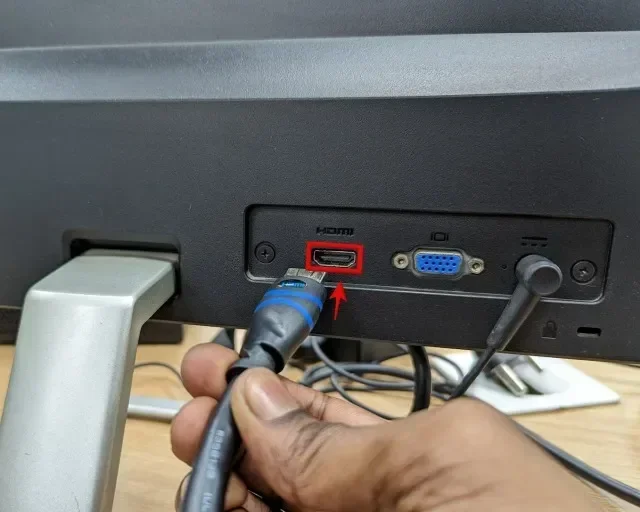
- Plug the HDMI cable into your monitor. Find the HDMI port on your monitor and insert the cable firmly. The connector only fits one way, so do not force it.
- Plug the other end into your source device. Connect the other end of the cable into your laptop, PC, or console. Make sure it clicks in securely.
- Turn on both devices. Power on your monitor first, then your source device. Most monitors will automatically detect the HDMI video signal and display the image.
- Check your resolution settings. Go to your device display settings and make sure the resolution settings match your monitor’s native resolution. This ensures the sharpest picture possible.
That is really all there is to it. The display connection is usually instant and requires no extra setup. This is what makes HDMI so popular. It truly is a plug and play experience for most users.
Quick Tips for a Smooth Setup
Here are a few quick tips that can save you time and frustration during setup:
- Use the shortest cable length you need. Longer cables can sometimes cause signal loss, especially with older HDMI versions.
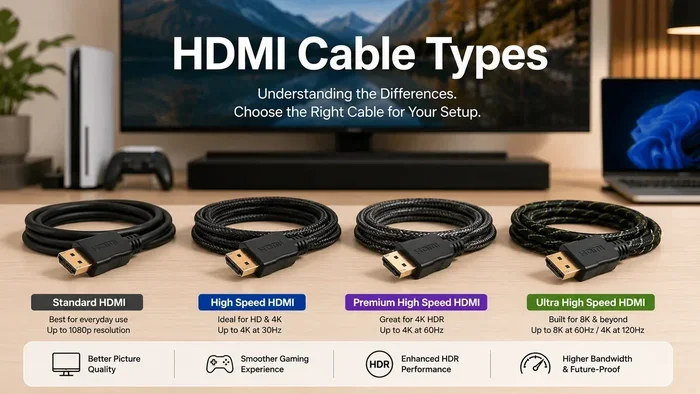
- Check your cable version. If you want 4K resolution or high refresh rates, make sure your cable supports it. Look for cables labeled “High Speed HDMI” or “Ultra High Speed HDMI.”
- Test different HDMI ports on your monitor. If one port does not work, try another. Some monitors have multiple HDMI ports and they may behave slightly differently.
- Update your graphics card drivers. If you are connecting from a PC, outdated drivers can sometimes cause display issues even with a working HDMI cable.
Common Mistakes: One of the most common mistakes people make is using an old or damaged HDMI cable. Another is not checking that the monitor input is set to the correct HDMI port. Many monitors have multiple HDMI inputs, and you may need to select the right one using the monitor’s menu button.
Understanding HDMI Versions and What They Mean
HDMI 1.4 vs HDMI 2.0 vs HDMI 2.1
Not all HDMI cables are the same. Over the years, the HDMI standard has evolved through several versions. Each version brings better support for resolution, refresh rate, and bandwidth. Understanding these differences helps you choose the right cable and get the most out of your monitor.
Here is a quick look at the three most common HDMI versions you will encounter today:
- HDMI 1.4: Released in 2009, this version supports up to 4K at 30Hz. It is fine for basic office work and casual media watching. Most older monitors use this version.
- HDMI 2.0: Released in 2013, this version supports 4K at 60Hz. It is great for gaming and content creation. Many modern monitors use HDMI 2.0.
- HDMI 2.1: Released in 2017, this version supports 4K at 120Hz and even 8K at 60Hz. It is designed for serious gaming and high-end setups. It offers the highest bandwidth and the most features.
Which HDMI Version Do You Need
The version you need depends on what you plan to do with your monitor. If you are using your monitor for office work, browsing, and watching videos, HDMI 1.4 or 2.0 is more than enough. But if you are a gamer who wants smooth gameplay at high frame rates, HDMI 2.1 is the way to go.
Your source device also matters. If your laptop or PC has an HDMI 2.0 output, using an HDMI 2.1 cable will not magically give you HDMI 2.1 performance. The connection will work, but it will be limited by the older version. Always check the capabilities of both your monitor and your source device.
Comparison Table of HDMI Versions
| Feature | HDMI 1.4 | HDMI 2.0 | HDMI 2.1 |
|---|---|---|---|
| Max Resolution | 4K at 30Hz | 4K at 60Hz | 4K at 120Hz / 8K at 60Hz |
| Max Bandwidth | 10.2 Gbps | 18 Gbps | 48 Gbps |
| Best For | Basic use, office work | Gaming, media, content creation | High-end gaming, 4K/120Hz |
| Audio Return Channel | Yes (ARC) | Yes (eARC) | Yes (eARC) |
| Dynamic HDR | No | Yes | Yes (Advanced HDR) |
| Release Year | 2009 | 2013 | 2017 |
As you can see from the table, the version you choose directly impacts your experience. If you want the best 4K resolution and smooth frame rate for gaming, HDMI 2.1 is the clear winner. But for everyday tasks, HDMI 2.0 is perfectly fine and more budget-friendly.
Quick Tips: When shopping for an HDMI cable, look at the label. Cables labeled “Premium High Speed HDMI” or “Ultra High Speed HDMI” are certified for higher bandwidth and better performance. Avoid cables that do not list their version or bandwidth rating.
Common HDMI Monitor Problems and How to Fix Them
No Signal on Your Screen
One of the most frustrating issues is when your monitor shows no signal after connecting via HDMI. This happens more often than you might think, and the fix is usually simple. First, check that both ends of the HDMI cable are firmly plugged in. A loose connection is the most common cause of this problem.
Next, make sure your monitor is set to the correct monitor input. Most monitors have multiple input options, and you need to select the right HDMI port. Use the buttons on your monitor or the on-screen menu to switch the input source. If that does not work, try a different HDMI cable. Old or damaged cables are a frequent culprit.
Also, check that your source device is outputting a video signal through HDMI. On some laptops, you may need to press a function key (like Fn + F4 or Fn + F7) to switch the display output to the external monitor. This is called screen mirroring or extending your display.
Poor Image Quality or Flickering
If your image looks blurry, pixelated, or flickers, the issue is often related to resolution settings or cable quality. Start by going to your display settings and selecting the recommended resolution for your monitor. A mismatched resolution can cause a poor picture.
Another common cause is using a cable that is too long or of low quality. Longer cables can lose signal strength, especially with older HDMI versions. Try a shorter, higher-quality cable to see if that fixes the issue. Also, make sure your graphics card drivers are up to date. Outdated drivers can sometimes cause display problems even with a perfect cable.
Expert Insight: If you are experiencing flickering, try adjusting the refresh rate in your display settings. Sometimes the default refresh rate does not match what your monitor supports, causing visual artifacts. Setting it to the correct rate (usually 60Hz for most monitors) can solve the problem quickly.
No Sound Through HDMI
HDMI carries both video and audio, but sometimes the sound does not work. This is usually a settings issue, not a cable problem. On Windows, right-click the speaker icon in your taskbar and select your monitor as the audio output device. On a Mac, go to System Settings and choose your monitor under the Sound output section.
If you are using a laptop to monitor connection and the sound still does not work, check that your monitor has built-in speakers or an audio jack for external speakers. Some monitors are display-only and do not have speakers. In that case, you can use the audio jack or connect external speakers to your source device instead.
Common Mistakes That Cause HDMI Issues
Here are some mistakes that many people make when setting up their monitor with HDMI:
- Using an incompatible cable. Not all HDMI cables support the same features. An older cable may not handle 4K or high refresh rates.
- Not selecting the right input source. Many monitors have multiple HDMI ports, and you must select the correct one in the monitor menu.
- Ignoring driver updates. Outdated graphics drivers can cause connection issues even when the hardware is fine.
- Forcing the cable in the wrong direction. HDMI connectors are directional. If it does not fit easily, flip it around and try again.
- Using a damaged or bent cable. Physical damage to the cable can cause intermittent signal loss or no signal at all.
Best Monitors for HDMI Use in 2024
Budget-Friendly HDMI Monitors
You do not need to spend a lot to get a great monitor with HDMI. Many affordable options offer solid performance for everyday use. Look for a 24-inch or 27-inch monitor with HDMI 2.0 support and Full HD or 1440p resolution. These monitors are perfect for office work, web browsing, and casual media consumption.
Brands like Acer, AOC, and LG offer excellent budget options. These monitors are often plug and play with no extra setup required. Just connect the HDMI cable and you are good to go. They are ideal for students, remote workers, and anyone who wants a reliable second screen.
Gaming Monitors With HDMI
For gamers, the HDMI version and refresh rate are critical factors. A good gaming monitor should support at least HDMI 2.0 for 4K at 60Hz or HDMI 2.1 for 4K at 120Hz. The higher the refresh rate, the smoother your gameplay will feel, especially in fast-paced games like shooters and racing titles.
Popular gaming monitors from brands like ASUS, MSI, and Samsung often come with multiple HDMI ports and advanced features like adaptive sync and HDR support. If you are building a dual monitor setup for gaming or streaming, make sure both monitors support the same HDMI version for consistent performance.
4K HDMI Monitors for Work and Creative Tasks
If you do design work, video editing, or any task that benefits from sharp visuals, a 4K monitor with HDMI 2.0 or higher is a great choice. 4K resolution gives you four times the detail of Full HD, making text crisp and images sharp. Many professional monitors also support wide color gamuts and factory-calibrated color accuracy.
When choosing a 4K monitor, pay attention to the aspect ratio and panel type. A 27-inch or 32-inch 4K monitor with an IPS panel offers great color accuracy and wide viewing angles. These monitors work well for both creative professionals and anyone who wants a premium display experience.
Expert Tips for the Best HDMI Monitor Experience
Get the Right Cable Length
Cable length matters more than most people realize. A short cable (3 to 6 feet) is ideal for desk setups where your devices are close together. For longer distances, use a high-quality cable rated for the length. Signal degradation can occur with cables that are too long, especially with older HDMI standards.
If you need to run a cable over 15 feet, consider using an HDMI splitter with a built-in signal booster. This helps maintain a strong video signal over longer distances. You can also use fiber optic HDMI cables, which are designed for long runs without signal loss.
Optimize Your Resolution and Display Settings
Once your monitor is connected, take a few minutes to optimize your settings. Go to your display settings and set the resolution to match your monitor’s native resolution. This gives you the sharpest possible image. Also, check the scaling setting to make sure text and icons are easy to read.
For the best audio output experience, set your HDMI monitor as the default audio device in your system settings. This ensures that sound plays through your monitor speakers or connected audio equipment when you use the HDMI display connection.
Use Adapters and Splitters When Needed
Not every setup is straightforward. If your laptop only has USB-C or DisplayPort but your monitor has HDMI, an adapter solves the problem. A USB-C to HDMI adapter or a DisplayPort to HDMI adapter works great for a laptop to monitor connection. These adapters are affordable and widely available.
If you need to connect multiple devices to one monitor, an HDMI splitter lets you share the same screen across devices. Just keep in mind that a splitter does not increase the resolution or performance. It simply duplicates the signal to multiple displays.
Common Mistakes: A frequent mistake is buying the wrong type of adapter. Make sure your adapter matches the HDMI version you need. A cheap adapter may not support 4K or high refresh rates even if your cable does. Always check the specifications before you buy.
Maintain Your HDMI Setup for Longevity
A little maintenance goes a long way in keeping your HDMI setup running smoothly. Keep your cables organized and avoid bending them sharply. Dust the HDMI ports on your monitor and devices regularly to prevent connection issues. If a cable shows signs of wear, replace it promptly to avoid signal problems.
Also, if you are using a dual monitor setup with HDMI, make sure both cables are of similar quality and version. Mixing very different cable standards can sometimes cause one monitor to perform differently than the other. Consistency is key for a seamless experience.
Conclusion
The answer to the question Can I Use My Monitor With HDMI is a clear and confident yes. HDMI is the simplest, most reliable way to connect your monitor to almost any device. Whether you are setting up a home office, a gaming station, or a creative workspace, HDMI delivers great video and audio through a single cable. It is truly a plug and play standard that just works.
By understanding the different HDMI versions, choosing the right cable, and knowing how to troubleshoot common issues, you can get the most out of your monitor. The tips and guidance in this article should help you set up your display connection with confidence. From choosing the right resolution settings to optimizing your audio output, every detail matters for the best experience.
Remember, the right HDMI cable and a little bit of knowledge can transform your setup. Take the time to check your ports, update your drivers, and select the correct input source. Your monitor is ready to deliver a great experience. All you need to do is connect it. Happy setup!
Frequently Asked Questions
Do I Need a Special HDMI Cable for My Monitor?
Not necessarily, but it helps to use the right one. A standard HDMI cable works for basic use, but if you want 4K or high refresh rates, choose a High Speed or Ultra High Speed HDMI cable. Check your monitor and device specs to find the right cable for your needs.
Can I Connect My Laptop to a Monitor Using HDMI?
Yes, most laptops have an HDMI output port. Simply connect an HDMI cable from your laptop to your monitor and switch the monitor input to the correct HDMI source. Your laptop should automatically detect the external display and mirror or extend your screen.
Why Is There No Sound When I Connect My Monitor With HDMI?
This is usually a settings issue. Make sure your monitor is set as the default audio output device in your system sound settings. Some monitors do not have built-in speakers, in which case you can use the audio jack or connect external speakers to your source device.
Can I Use an HDMI Splitter With My Monitor?
Yes, an HDMI splitter lets you connect multiple devices to one monitor. It duplicates the signal from one source to your display. Keep in mind that a splitter does not improve resolution or performance. It simply shares the same signal across connected displays.
What Is the Difference Between HDMI and DisplayPort for Monitors?
HDMI is the most universal and beginner-friendly option. It carries both video and audio in one cable. DisplayPort is often found on higher-end monitors and offers higher bandwidth for advanced features like high refresh rates and ultrawide resolutions. Both work great, but HDMI is the easiest choice for most users.
Does HDMI Cable Length Affect Monitor Performance?
Yes, longer cables can sometimes cause signal loss, especially with older HDMI versions. For most desk setups, a cable between 3 and 6 feet works perfectly. If you need a longer cable, choose a high-quality or fiber optic HDMI cable to maintain a strong signal.