Use Bluetooth Speakers As a Microphone on Phone Calls
Yes, you can use a Bluetooth speaker as a microphone during a phone call. Many Bluetooth speakers have built-in microphone capabilities that allow them to pick up your voice and transmit it wirelessly. This guide covers how it works, which speakers support it, and tips to improve your call quality with Bluetooth audio devices.
Have you ever been in a situation where your phone’s built-in microphone just isn’t cutting it? Maybe you are on a hands-free call across the room, or your phone’s mic is buried under a pile of papers. The idea of using a Bluetooth speaker as a microphone during a phone call might sound unusual, but it is something many people can do. Bluetooth speakers are not just for playing music anymore. Many modern wireless speakers come equipped with built-in microphones that let them do double duty as audio output and input devices.
In this article, we will walk you through everything you need to know about using a Bluetooth speaker as a microphone on phone calls. You will learn how it works, which speakers support this feature, how to set it up, and tips to get the best call quality possible. Whether you are taking a conference call at home or just want more freedom while chatting, this guide has you covered.
Key Takeaways
- Bluetooth speakers can work as microphones: Many models have built-in mics that capture your voice during calls.
- Not all speakers support mic input: Check your speaker specs before assuming it can double as a microphone.
- Setup is simple: Pairing your speaker with your phone takes just a few taps and seconds.
- Audio quality varies: The speaker’s driver size and mic quality directly impact your call clarity.
- Use speakerphone mode: This allows you to use the speaker’s mic and speaker simultaneously during calls.
- External mics can boost quality: For professional calls, consider adding a dedicated microphone to your setup.
📑 Table of Contents
- How Bluetooth Speakers Work as Microphones
- Can Any Bluetooth Speaker Be Used as a Microphone?
- How to Set Up Your Bluetooth Speaker as a Microphone
- Best Bluetooth Speakers for Mic Use During Calls
- Tips for Better Call Quality with Bluetooth Speakers
- Common Problems and How to Fix Them
- Expert Insights on Using Bluetooth Speakers as Microphones
- Key Takeaways
- Frequently Asked Questions
- Conclusion
How Bluetooth Speakers Work as Microphones
Understanding how a Bluetooth speaker can function as a microphone starts with knowing what is inside the device. Bluetooth speakers are essentially compact audio systems. They contain a loudspeaker driver, an amplifier, a battery, and a Bluetooth chip. Many of them also include a small built-in microphone module. This microphone picks up sound waves and converts them into electrical signals. Those signals are then transmitted wirelessly to your phone through Bluetooth connectivity.
The internal components of a Bluetooth speaker share similarities with other electronic devices. For example, the circuit board inside a speaker contains capacitors, resistors, and microchips that are also found on a 5 Components That Are Found On The Motherboard, including capacitors and integrated circuits. These components work together to process and transmit audio data. The audio input from the microphone is handled by a small digital signal processor that prepares your voice for wireless transmission.
The Role of the Built-In Microphone
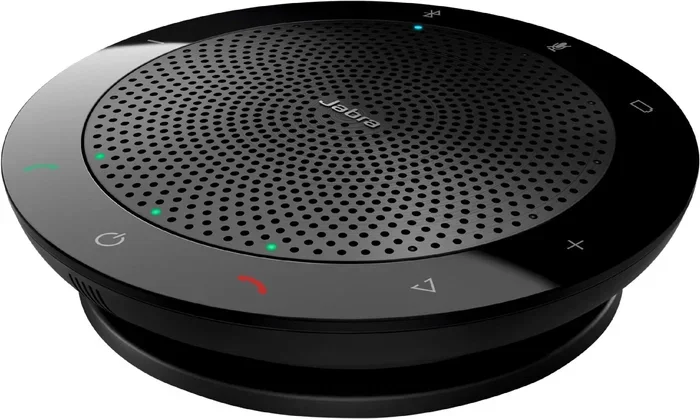
Most Bluetooth speakers designed for consumer use include a built-in microphone. This mic is typically located on the top or side of the speaker unit. When you activate speakerphone mode on your phone, the speaker switches from being an audio output device to an audio input device as well. Your voice travels from the microphone, through the Bluetooth chip, and into your phone call.
The quality of the built-in microphone varies greatly from one speaker to another. Some speakers use basic, low-cost mics that work fine for casual calls. Others feature noise-canceling microphones that deliver surprisingly clear voice transmission. If you want to use your speaker as a mic, check the product specifications for a “microphone” or “mic” label.
How Bluetooth Audio Transmission Works for Calls
When you pair your speaker with your phone, the device establishes a wireless connection using Bluetooth protocols. For music playback, the speaker receives audio data and plays it through the driver. For calls, the process reverses partially. The microphone captures your voice, and the Bluetooth chip sends that audio data to your phone in real time.
This wireless speaker setup works because Bluetooth supports both audio input and output. The Bluetooth standard includes profiles like the Hands-Free Profile (HFP), which is specifically designed for voice calls. When you connect your speaker, it uses this profile to handle hands-free calling seamlessly.
Can Any Bluetooth Speaker Be Used as a Microphone?
The short answer is no. Not every Bluetooth speaker can function as a microphone during a phone call. The ability depends entirely on the hardware inside the device. Some speakers are designed purely for audio output. They have no microphone component at all. Others include a mic but may not support the necessary Bluetooth profiles for call functionality.
Before you try using your speaker as a mic, check the product label or manual. Look for terms like “built-in microphone,” “speakerphone capability,” or “hands-free calling.” If your speaker does not list these features, it likely cannot serve as a microphone.
Speakers with Built-In Microphones
Many popular Bluetooth speakers on the market today come with built-in microphones. Brands like JBL, Bose, Sony, and Anker frequently include mic functionality in their mid-range and premium models. These speakers are designed to be versatile. You can play music, take calls, and even use them for conference calls with multiple people in a room.
Here are some common types of Bluetooth speakers that typically include microphones:
- Portable Bluetooth speakers: Small, lightweight, and often used for outdoor calls.
- Home Bluetooth speakers: Larger units with better sound and mic quality for indoor use.
- Waterproof Bluetooth speakers: Great for outdoor or kitchen use where hands-free calling is handy.
- Smart speakers with Bluetooth: Devices like Amazon Echo or Google Nest include mics for voice assistants and calls.
Speakers Without Microphones
Some Bluetooth speakers are built solely for audio output. These are often very affordable or designed for specific use cases like portable music listening. If your speaker does not have a mic, you cannot use it as a microphone during a call. No software trick or setting change will add mic functionality to a speaker that lacks the hardware.
How to Set Up Your Bluetooth Speaker as a Microphone
Setting up your Bluetooth speaker to work as a microphone during phone calls is straightforward. The process is similar whether you use an iPhone or an Android device. Below is a step-by-step guide to get you started.
Step 1: Charge Your Speaker
Before anything else, make sure your speaker has enough battery. A low battery can cause audio dropouts and poor call clarity. Plug in your speaker and let it charge for at least 30 minutes if the battery is low.
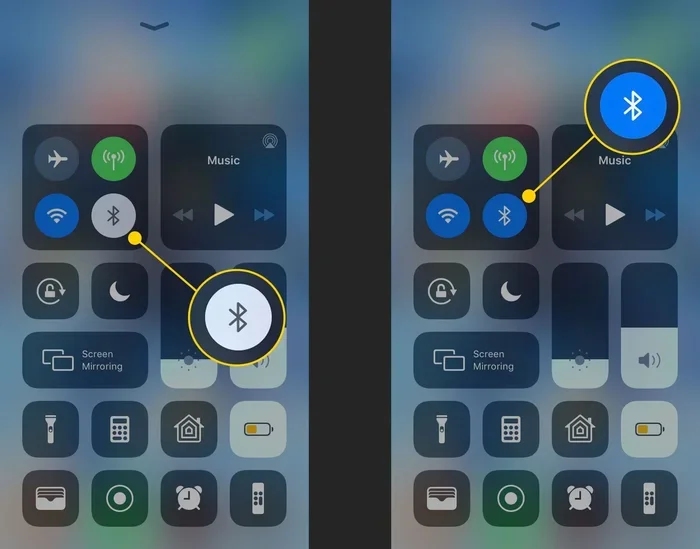
Step 2: Enable Bluetooth on Your Phone
Go to your phone’s settings and turn on Bluetooth. Make sure your phone is discoverable. This allows the speaker to find and connect to your device.
Step 3: Pair the Speaker with Your Phone
Put your speaker in pairing mode. Usually, you hold down the Bluetooth button until a light starts flashing. On your phone, look for the speaker name in the list of available devices. Tap on it to connect. Once paired, the connection should be automatic in the future.
Step 4: Activate Speakerphone Mode
When you receive or make a call, activate speakerphone mode on your phone. This routes the call audio through the Bluetooth speaker. The speaker’s built-in microphone will now pick up your voice and send it back to the other person on the call.
Step 5: Test the Setup
Before an important call, do a quick test. Ask someone if they can hear you clearly. Check for background noise, echo, or volume issues. Adjust the speaker volume and your phone’s mic sensitivity if needed.
Best Bluetooth Speakers for Mic Use During Calls
Not all Bluetooth speakers are created equal when it comes to microphone quality. If you plan to use your speaker frequently for calls, choosing the right model matters. Here are some factors to consider and a few popular options.
What to Look For in a Call-Ready Speaker
When shopping for a Bluetooth speaker that doubles as a microphone, keep these features in mind:
- Microphone quality: Look for speakers with noise-canceling or dual-microphone setups.
- Bluetooth version: Bluetooth 5.0 or newer provides more stable connections for calls.
- Battery life: Long battery life ensures your speaker stays powered through extended calls.
- Speakerphone mode support: Not all speakers support this feature, so confirm before buying.
- Portability: If you want to take calls in different rooms, a lightweight speaker is ideal.
Popular Speakers with Good Mic Quality
Several Bluetooth speakers stand out for their microphone performance during calls. The JBL Charge series, for example, includes a noise-canceling microphone that delivers clear voice transmission. The Bose SoundLink series offers excellent audio output and a reliable built-in mic. Sony’s SRS-XB series combines loud sound with decent microphone quality for casual calls.
For budget-friendly options, the Anker Soundcore series provides surprisingly good mic quality at an affordable price. These speakers are great for everyday hands-free calling without breaking the bank.
| Speaker Model | Mic Quality | Bluetooth Version | Battery Life | Speakerphone Mode |
|---|---|---|---|---|
| JBL Charge 5 | Excellent | 5.2 | 20 hours | Yes |
| Bose SoundLink Flex | Very Good | 5.1 | 12 hours | Yes |
| Sony SRS-XB43 | Good | 5.3 | 24 hours | Yes |
| Anker Soundcore 2 | Good | 5.0 | 24 hours | Yes |
| Ultimate Ears Wonderboom 3 | Very Good | 5.3 | 13 hours | Yes |
Tips for Better Call Quality with Bluetooth Speakers
Using a Bluetooth speaker as a microphone can work well, but the results depend on how you set things up. Follow these practical tips to improve your call clarity and overall experience.
Keep the Speaker Close to You
Place the Bluetooth speaker within a few feet of your mouth. The built-in microphone has a limited pickup range. If you sit too far away, the other person may struggle to hear you. A distance of three to five feet works well for most speakers.
Reduce Background Noise
Background noise is the biggest enemy of Bluetooth call quality. Turn off fans, close windows, and keep the speaker away from loud appliances. Some speakers with noise-canceling mics handle this better than others, but reducing noise at the source always helps.
Adjust Your Phone’s Audio Settings
Your phone has audio settings that affect how the Bluetooth mic works. Look for options like “noise reduction,” “audio enhancement,” or “call volume.” Adjusting these settings can significantly improve the sound quality of your voice transmission.
Keep the Speaker Fully Charged
A low battery can cause audio glitches, delays, and dropouts. Always keep your speaker charged, especially if you plan to use it for an important call. A full battery ensures consistent audio input and output performance.
Update Your Speaker’s Firmware
Manufacturers often release firmware updates that improve Bluetooth performance and mic quality. Check the speaker manufacturer’s app or website for updates. Installing the latest firmware can fix bugs and enhance your Bluetooth pairing experience.
Common Problems and How to Fix Them
Even with the best setup, you may run into issues when using a Bluetooth speaker as a microphone. Here are some common problems and simple fixes.
No Sound from the Speaker During Calls
If you cannot hear the other person, check that the speaker is connected and in speakerphone mode. Also, verify that your phone’s call volume is turned up. Sometimes the audio route defaults to the phone’s speaker instead of the Bluetooth device.
The Other Person Cannot Hear You
This usually means the speaker’s microphone is not picking up your voice properly. Move closer to the speaker. Make sure the mic is not covered or blocked. Also, check that your phone has granted the speaker permission to access the microphone.
Echo or Feedback During Calls
Echo happens when the speaker’s output is picked up by its own microphone. To fix this, lower the speaker volume. Move the speaker away from reflective surfaces like walls or tables. Some speakers have an echo cancellation feature that you can enable in the settings.
Bluetooth Connection Drops During Calls
Interference from other wireless devices can cause connection drops. Keep your phone and speaker close to each other. Avoid placing the speaker near Wi-Fi routers or other Bluetooth devices. A stable Bluetooth connectivity connection ensures uninterrupted calls.
Expert Insights on Using Bluetooth Speakers as Microphones
Audio engineers and tech experts often recommend using Bluetooth speakers as microphones only for casual or semi-formal calls. For professional or business calls, a dedicated microphone will always deliver better results. However, for everyday use, modern Bluetooth speakers have come a long way in terms of mic quality.
The audio device ecosystem has evolved rapidly. What was once a simple loudspeaker now often includes advanced features like voice assistants, noise cancellation, and multi-device pairing. These features make Bluetooth speakers increasingly versatile for both entertainment and communication purposes.
One thing to keep in mind is the speaker components inside these devices. The loudspeaker driver, amplifier board, and microphone module all work together as a system. The quality of each component affects the overall performance. Just like the components found on a 5 Components That Are Found On The Motherboard, each part plays a specific role in the device’s functionality. The capacitor regulates power, the IC processes signals, and the microphone converts sound into data.
Another expert tip is to always test your setup before an important call. Do a trial run with a friend or family member. This helps you identify any issues with volume, clarity, or connection stability before you need the speaker for a critical conversation.
Key Takeaways
- Bluetooth speakers can work as microphones: Many models have built-in mics that capture your voice during calls.
- Not all speakers support mic input: Check your speaker specs before assuming it can double as a microphone.
- Setup is simple: Pairing your speaker with your phone takes just a few taps and seconds.
- Audio quality varies: The speaker’s driver size and mic quality directly impact your call clarity.
- Use speakerphone mode: This allows you to use the speaker’s mic and speaker simultaneously during calls.
- External mics can boost quality: For professional calls, consider adding a dedicated microphone to your setup.
Frequently Asked Questions
Can I use any Bluetooth speaker as a microphone for phone calls?
No, not every Bluetooth speaker can work as a microphone. The speaker must have a built-in microphone and support the Hands-Free Profile (HFP) for Bluetooth calling. Check your speaker’s specifications to confirm it includes mic functionality before trying to use it for calls.
How do I know if my Bluetooth speaker has a microphone?
Look for a microphone icon on the speaker itself or check the product manual and manufacturer’s website. Most speakers that support speakerphone mode will clearly list “built-in microphone” in their product description. You can also test it by activating speakerphone mode during a call and seeing if the other person can hear you.
Is the audio quality good enough for business calls?
For casual calls, Bluetooth speaker microphones work well. However, for important business calls, a dedicated microphone will provide better call clarity and more professional sound quality. Premium Bluetooth speakers with noise-canceling mics come closer to professional-grade audio, but they still may not match a standalone microphone.
Can I use a Bluetooth speaker as a microphone for WhatsApp or Zoom calls?
Yes, you can use a Bluetooth speaker as a microphone for apps like WhatsApp, Zoom, and other calling platforms. As long as your phone connects to the speaker via Bluetooth and the speaker has a built-in mic, the app will use the speaker’s microphone for audio input during calls.
Why does my Bluetooth speaker disconnect during phone calls?
Bluetooth disconnections during calls are usually caused by distance, interference, or low battery. Keep your phone and speaker within close range, away from other wireless devices, and ensure the speaker is fully charged. Updating the speaker’s firmware can also improve connection stability.
Can I use multiple Bluetooth speakers as microphones at the same time?
Most phones only support one Bluetooth audio input device at a time. You cannot typically connect multiple speakers as microphones simultaneously. However, some smart speakers and conference call systems support multi-device setups for larger meeting environments.
Conclusion
Using a Bluetooth speaker as a microphone during phone calls is not only possible but also quite convenient. Many modern wireless speakers come equipped with built-in microphones that make hands-free calling a breeze. Whether you are chatting casually, taking a conference call, or just want more freedom while talking on the phone, a Bluetooth speaker can serve as a reliable audio input device.
The key is to choose a speaker with good microphone quality, set it up correctly, and follow the tips outlined in this guide. Not every speaker can do this, so always check the specs first. And remember, for professional calls, a dedicated microphone will always be the better choice. But for everyday use, your Bluetooth speaker might just surprise you with how well it handles both sound output and voice input.
Now that you know the answer to “Can I use the Bluetooth speakers as a microphone and use it during a phone call,” you can put this knowledge to work. Try it out, experiment with different setups, and enjoy the convenience of wireless audio devices that do more than just play music.