Can I Stream My Steam Deck To My Tv From Anywhere Now
Yes, you can stream your Steam Deck to your TV from anywhere. Whether you use the Steam Link app or a wired connection, casting your Steam Deck to TV is simple and works great. This guide walks you through every step, from home setup to remote streaming on the go.
So you just got a Steam Deck and you want the big screen experience. Maybe you are on the couch, maybe you are at a friend’s house, or maybe you are traveling. Either way, you want to know if you can stream your Steam Deck to your TV. The short answer is yes. You absolutely can. And the good news is it is way easier than you think.
Streaming your Steam Deck to a TV opens up a whole new world. You get to play your favorite PC games on a bigger display without buying a second console. You can use your Steam Deck as a portable streaming device. And yes, you can even do it from outside your home. This guide covers everything you need to know about streaming Steam Deck to TV from anywhere.
Whether you are a casual gamer or a hardcore enthusiast, this article will help you set up your Steam Deck TV connection the right way. We will walk through every method, fix common problems, and share tips that actually work. Let us dive in.
Key Takeaways
- Steam Link app: The easiest way to cast Steam Deck to TV wirelessly at home.
- Wired HDMI output: You can connect Steam Deck directly to a TV using the official dock or USB-C HDMI adapter.
- Remote streaming works: You can stream Steam Deck to TV from anywhere using Steam Link or third-party tools over the internet.
- Wi-Fi quality matters: A strong 5GHz network gives you the best streaming experience with minimal lag.
- Common issues are fixable: Latency, audio sync, and connection drops can all be solved with simple steps.
📑 Table of Contents
- What Is Steam Deck Streaming?
- How to Stream Steam Deck To TV at Home
- Streaming From Anywhere: Can You Really Do It?
- Wired vs Wireless Streaming: Which Is Better?
- Common Problems When Streaming Steam Deck to TV
- Expert Tips for the Best Streaming Experience
- Can I Stream My Steam Deck To My TV From Anywhere?
- Key Takeaways
- Conclusion
What Is Steam Deck Streaming?
Steam Deck streaming means sending your game display from the Steam Deck to another screen. That screen could be your TV, a monitor, or even another computer. The Steam Deck acts as the source device. It sends the video and audio to the target display over a network or a cable.
There are two main ways to do this. The first is local streaming, which happens within your home network. The second is remote streaming, which works over the internet from anywhere in the world. Both methods let you cast Steam Deck to TV, but they use different tools and setups.
The most popular tool for this is the Steam Link app. It is free, easy to use, and works on most smart TVs, phones, tablets, and computers. Valve built Steam Link specifically for this purpose. It has been around for years and works very well with the Steam Deck.
How Does Steam Link Work?
Steam Link uses your home Wi-Fi network to send a video stream from your Steam Deck to your TV. Think of it like casting a YouTube video, but for your entire Steam library. The Steam Deck encodes the game video in real time. It sends that data to the receiving device. The receiving device decodes it and displays it on your TV screen.
The quality of the stream depends on your network speed. A fast Wi-Fi connection gives you smooth, high-quality video. A slow connection might cause lag or low resolution. We will talk more about how to optimize your setup later in this article.
How to Stream Steam Deck To TV at Home
Setting up Steam Deck streaming at home is straightforward. You have two main paths: wireless using Steam Link, or wired using a dock or adapter. Both work great. Let us look at each one in detail.
Method 1: Using the Steam Link App (Wireless)
This is the most popular method for streaming Steam Deck to TV. Here is how to do it step by step:
- Make sure your Steam Deck and your TV are on the same Wi-Fi network.
- Download the Steam Link app on your TV or a mobile device.
- Open the Steam Link app and follow the on-screen setup.
- On your Steam Deck, go to the Steam menu and select the Steam Link option.
- Pair the devices by entering the PIN shown on your TV screen.
- Once paired, your Steam Deck screen will appear on your TV.
That is it. You are now streaming your Steam Deck to TV wirelessly. You can use your Steam Deck as a controller or connect a separate gamepad for a more traditional feel.
Pro tip: For the best performance, make sure both devices are close to your Wi-Fi router. Walls and distance can weaken the signal and cause lag during game streaming.
Method 2: Using a USB-C Dock or HDMI Adapter (Wired)
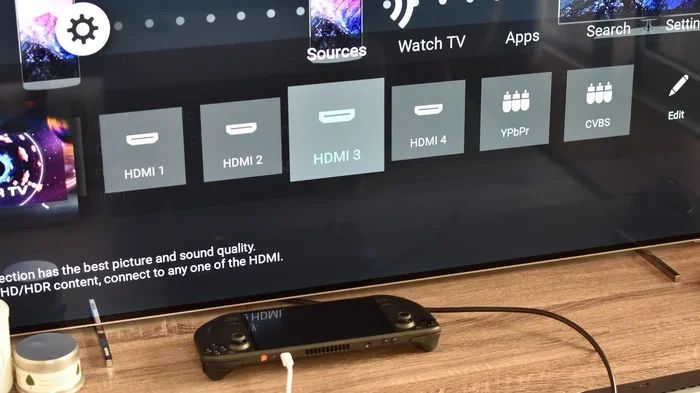
If you want a rock-solid connection, a wired setup is the way to go. The official Steam Deck Dock connects your Steam Deck to a TV using an HDMI cable. You just plug the dock into the Steam Deck, connect an HDMI cable from the dock to your TV, and you are good to go.
No dock? No problem. You can use a USB-C to HDMI adapter. These are cheap and widely available. Just plug the adapter into your Steam Deck, connect an HDMI cable, and your TV will display your Steam Deck screen.
A wired connection has some big advantages. There is zero latency. The video quality is always crisp. And you do not have to worry about Wi-Fi signal strength. If you want the most reliable way to stream Steam Deck to TV, go wired.
Streaming From Anywhere: Can You Really Do It?
Here is where things get exciting. Yes, you can stream your Steam Deck to TV from anywhere. You do not have to be at home. This is one of the coolest features of the Steam Deck ecosystem.
Remote streaming works by using the Steam Link app over the internet. Your Steam Deck stays at home, connected to your home network. You connect to your Steam Deck from a remote location using your phone, tablet, or another computer. The video stream travels through the internet to reach you.
What You Need for Remote Streaming
To stream Steam Deck to TV from anywhere, you need a few things in place:
- A computer running Steam at home: Your Steam Deck must be in Game Mode or connected to Steam on your home PC.
- A stable internet connection at home: Your upload speed matters most here. At least 10 Mbps upload is recommended.
- A good internet connection on your remote device: Your phone or laptop needs decent download speed to receive the stream smoothly.
- The Steam Link app on your remote device: Install it on your phone, tablet, or computer.
- Port forwarding or Steam Remote Play enabled: You need to allow incoming connections through your home router.
Setting this up can feel a little technical at first. But once it is working, it is incredibly powerful. You can sit in a hotel room and play your Steam Deck games on a big TV screen. Or you can game from your bedroom while the Steam Deck stays in the living room.
Setting Up Remote Play Over the Internet
Steam has a built-in feature called Remote Play Together. This lets you stream your Steam Deck games to another device over the internet. Here is how to enable it:
- On your Steam Deck, go to Settings and then Network.
- Enable Steam Remote Play.
- On your remote device, open the Steam app or Steam Link app.
- Select your Steam Deck from the list of available devices.
- Enter your Steam account credentials if prompted.
- Start streaming your games to your TV or monitor.
Remote Play Together is very convenient because it does not require complex router configuration. It uses Valve’s servers to relay the connection. This makes setup much easier than traditional port forwarding methods.
Wired vs Wireless Streaming: Which Is Better?
When it comes to casting Steam Deck to TV, you have two main options. Each has its pros and cons. Let us compare them side by side.
| Feature | Wireless (Steam Link) | Wired (Dock / HDMI) |
|---|---|---|
| Setup ease | Very easy | Easy |
| Latency | Low to moderate | Zero |
| Video quality | Good (depends on Wi-Fi) | Excellent |
| Mobility | High | Low |
| Equipment needed | Wi-Fi network only | Dock or HDMI adapter |
| Best for | Casual gaming at home | Competitive or fast-paced games |
For most people, wireless streaming with Steam Link is more than enough. The latency is barely noticeable for single-player games and casual play. But if you are playing competitive multiplayer games where every millisecond counts, a wired connection is the better choice.
Quick tip: If you go wireless, use a 5GHz Wi-Fi band instead of 2.4GHz. The 5GHz band is faster and less congested, which means a smoother game streaming experience.
Common Problems When Streaming Steam Deck to TV
Streaming is not always perfect. You might run into some issues along the way. Here are the most common problems and how to fix them.
Lag and Latency Issues
Lag is the biggest complaint when streaming games from a Steam Deck to a TV. If your games feel slow or unresponsive, the problem is usually your network connection.
Here is what you can do to reduce lag:
- Move your Wi-Fi router closer to your Steam Deck.
- Use the 5GHz Wi-Fi band instead of 2.4GHz.
- Reduce the stream quality in Steam Link settings.
- Close other apps or devices that are using bandwidth.
- Restart your router if the connection feels slow.
If you are streaming from anywhere over the internet, your home upload speed becomes the bottleneck. A faster internet plan at home will make a big difference in remote streaming performance.
Audio and Video Sync Problems
Sometimes the audio and video get out of sync. This can be annoying, especially during cutscenes or dialogue-heavy games. The fix is usually simple.
Try adjusting the audio delay settings in Steam Link. Go to the Steam Link settings menu and look for the audio sync option. Increase or decrease the delay until the audio matches the video on screen.
Another common cause is a weak Wi-Fi signal. When the signal drops, the video buffer gets ahead of the audio. Improving your Wi-Fi connection often solves this problem completely.
Connection Drops
If your Steam Deck to TV stream keeps disconnecting, check a few things. First, make sure both devices are on the same network. Second, check if other devices are downloading large files, which can eat up your bandwidth. Third, try restarting both your Steam Deck and your TV or receiving device.
For remote streaming, make sure your home firewall or router is not blocking the Steam Link connection. You may need to forward specific ports or enable UPnP on your router.
Expert Tips for the Best Streaming Experience
After testing many different setups, here are some tips that will help you get the most out of streaming your Steam Deck to TV.
1. Use an Ethernet connection at home. If your TV or dock supports wired Ethernet, use it. A wired connection to your router gives you the most stable and fastest connection possible. This eliminates Wi-Fi interference and keeps your game streaming smooth.
2. Keep your Steam Deck firmware updated. Valve regularly releases updates that improve streaming performance and fix bugs. Always make sure your Steam Deck is running the latest software version.
3. Use a Bluetooth controller for comfort. When streaming to a TV, you might want to sit farther away. A wireless Bluetooth controller lets you play comfortably from the couch without holding the Steam Deck.
4. Adjust stream resolution based on your needs. For casual gaming, 720p is often enough and uses less bandwidth. For story-driven games where visuals matter more, bump it up to 1080p or even 4K if your network can handle it.
5. Close background apps on your Steam Deck. Every open app uses system resources and network bandwidth. Closing unnecessary apps before streaming gives you better performance and a smoother experience.
6. Consider a mesh Wi-Fi system. If you have a large home with weak Wi-Fi spots, a mesh network can eliminate dead zones. This ensures your Steam Deck streaming stays strong no matter where you set up.
7. Use a VPN for secure remote access. If you stream Steam Deck to TV from outside your home frequently, a VPN adds a layer of security. It protects your connection and can sometimes improve routing stability.
Can I Stream My Steam Deck To My TV From Anywhere?
This is the question many Steam Deck owners ask, and the answer is a resounding yes. You can cast Steam Deck to TV from anywhere in the world as long as you have the right setup. The Steam Link app makes remote streaming simple. You just need a computer or Steam Deck running at home, a stable internet connection, and the Steam Link app on your remote device.
Some people use third-party tools like Moonlight or Parsec for remote streaming. These apps can offer even better performance in some cases. But for most users, the official Steam Link app is all you need. It is free, reliable, and designed specifically for Steam Deck streaming.
The beauty of being able to stream your Steam Deck to TV from anywhere is the freedom it gives you. You are not tied to your living room TV. You can game on any screen you want. You can visit family and play your Steam library on their TV. You can stay in a hotel and still enjoy your games on a big screen. The possibilities are endless.
Just remember that remote streaming depends heavily on internet quality. Both your home connection and your remote connection need to be strong for the best experience. If you have fast internet at both ends, you will barely notice a difference between local and remote streaming.
Key Takeaways
- Steam Link is your best friend: It is the easiest and most reliable way to stream Steam Deck to TV at home or remotely.
- Wired connections beat wireless: For zero lag and the best quality, use a dock or HDMI adapter.
- Remote streaming works from anywhere: You can cast Steam Deck to TV from anywhere using Steam Remote Play or Steam Link over the internet.
- Wi-Fi quality makes a huge difference: Use 5GHz bands and keep devices close to your router for the smoothest experience.
- Common issues have simple fixes: Lag, sync problems, and connection drops can all be resolved with basic troubleshooting steps.
- Third-party tools are an option: Apps like Moonlight and Parsec offer alternatives if Steam Link does not meet your needs.
- Your setup matters: A strong home internet connection, updated firmware, and a good controller all contribute to the best streaming results.
Conclusion
So can I stream my Steam Deck to my TV from anywhere? Absolutely yes. Whether you are at home on your couch or traveling across the country, you can stream your Steam Deck to any TV with the right setup. The Steam Link app makes local streaming a breeze, and remote streaming over the internet is easier than ever with Steam Remote Play Together.
You have multiple options to choose from. You can go wireless with Steam Link for convenience. You can go wired with a dock or HDMI adapter for the best quality. You can stream locally within your home or remotely from anywhere in the world. Each method has its strengths, and all of them work great.
The key is to start simple. Set up Steam Link at home first. Get comfortable with the basics. Then explore remote streaming when you are ready. Once you experience the freedom of casting Steam Deck to TV, you will wonder how you ever lived without it.
Give it a try tonight. Connect your Steam Deck to your TV, pick your favorite game, and enjoy the big screen. You will not regret it.
Frequently Asked Questions
Do I need a Steam Link device to stream my Steam Deck to TV?
No, you do not need the physical Steam Link hardware. The Steam Link app is free and works on most smart TVs, phones, tablets, and computers. You can download it from your device’s app store and start streaming right away.
Can I stream Steam Deck games to a TV that does not have Wi-Fi?
Yes, you can use a wired connection. Plug your Steam Deck into a USB-C dock or HDMI adapter and connect it directly to your TV with an HDMI cable. This gives you a stable connection without needing any Wi-Fi at all.
Is remote streaming Steam Deck to TV free?
Yes, both Steam Link and Steam Remote Play Together are completely free. You do not need to pay any subscription fees. You just need a good internet connection on both ends.
What internet speed do I need for smooth Steam Deck streaming?
For local streaming, a standard home Wi-Fi connection is usually enough. For remote streaming, aim for at least 10 Mbps upload speed at home and 10 Mbps download speed on your remote device. Faster speeds give you better video quality and less lag.
Can I use my phone as a controller when streaming Steam Deck to TV?
Yes, you can. The Steam Link app lets you use your phone or tablet as a virtual controller. You can also connect a Bluetooth gamepad to your phone for a more comfortable gaming experience while streaming to your TV.
Why does my Steam Deck streaming have lag when playing fast games?
Lag usually comes from a weak Wi-Fi signal or slow internet speed. Try switching to the 5GHz band, moving closer to your router, or using a wired connection. Reducing the stream resolution in Steam Link settings can also help reduce lag during fast-paced games.