Can a USB C Hub Support Dual Monitors for Your Setup
A USB C hub can support dual monitors, but success depends on the hub’s chipset, your laptop’s port capabilities, and the right cables. This guide walks you through how USB C hub support dual monitors works, what to check before buying, and which hubs deliver the best performance. You’ll also find setup tips and common mistakes to avoid.
You bought a sleek laptop with only a few ports. Then you got a second monitor to boost productivity. Now you need a way to connect both screens. A USB C hub looks like the perfect solution. But can a USB C hub support dual monitors? The short answer is yes, but the full story is more nuanced. Not every hub handles two displays equally. Some work beautifully with 4K screens. Others struggle with 1080p. This guide breaks down exactly how USB C hub support dual monitors works. You’ll learn what to look for, which hubs to choose, and how to set everything up without headaches.
Whether you work from home, edit videos, or just want an extended desktop, understanding your hub’s capabilities saves time and money. I’ll share practical tips, common mistakes, and expert insights. By the end, you’ll know precisely what your setup needs. Let’s dive in.
Key Takeaways
- USB C hubs can drive two monitors: Many modern hubs support dual displays, but you must match the hub’s video bandwidth to your needs.
- Thunderbolt 3 and 4 hubs are the most reliable: They offer higher bandwidth and native DisplayPort over USB C, making dual monitor setups smoother.
- Check your laptop’s USB C port first: Not every USB C port supports video output, and some only support one external display.
- Resolution and refresh rate matter: A hub that handles 4K at 60Hz on one screen may only support 1080p on two screens.
- DisplayLink hubs are an alternative: They use software to add a second display, but they work best for productivity, not gaming.
- Cable quality and adapters count: Using the right USB C to HDMI or DisplayPort cables ensures stable dual monitor performance.
- Setup is simple once you know the requirements: Plug in the hub, connect monitors, and adjust display settings in your operating system.
📑 Table of Contents
- What Is a USB C Hub and How Does It Handle Video?
- Can a USB C Hub Support Dual Monitors?
- Factors That Determine Dual Monitor Support
- Quick Tips for Choosing the Right Hub
- Top USB C Hubs for Dual Monitors
- How to Set Up Dual Monitors with a USB C Hub
- Pros and Cons of Using a USB C Hub for Dual Screens
- Conclusion
What Is a USB C Hub and How Does It Handle Video?
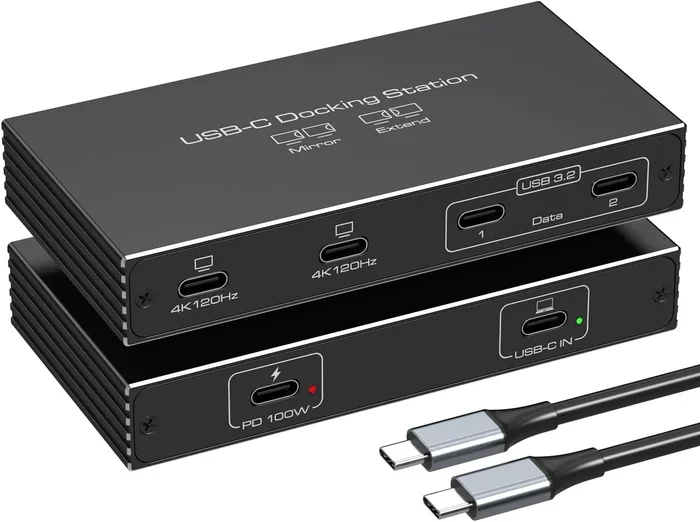
A USB C hub is a small device that expands your laptop’s connectivity. It adds ports like HDMI, DisplayPort, USB A, and SD card readers through a single USB C connection. Many people call it a docking station, though a true dock often has its own power supply. The hub draws power from your laptop’s USB C port. This makes it portable and tidy. But the key question is video. Can a USB C port carry video signals for two screens? Yes, but only if the port and the hub support it.
The USB C Port’s Video Capabilities
Your laptop’s USB C port might support video output, but it depends on the underlying protocol. USB 3.1 and USB 3.2 ports can sometimes carry video, but they are not designed for it. The real game-changers are Thunderbolt 3, Thunderbolt 4, and USB4 ports. These protocols bundle data, power, and video into one cable. They use DisplayPort Alternate Mode or Thunderbolt protocol to send video signals. A USB C hub that works with these protocols can output video to one or more monitors. If your laptop only has a basic USB C port, it might not support dual displays at all. Always check your laptop’s specs first.
How a Hub Processes Dual Displays
Inside a USB C hub, a small chip handles the video processing. This chip takes the single USB C video stream and splits it into two separate outputs. Some hubs use a technology called DisplayLink. DisplayLink uses your laptop’s CPU and software to compress video data and send it over USB. Other hubs use native DisplayPort or HDMI chips that handle video without extra software. Native solutions are smoother and better for motion. DisplayLink works well for static images and office work, but it can lag with fast-moving content. When shopping for a hub, look for “dual display support” on the box. That phrase means the hub can run two monitors at once.
Can a USB C Hub Support Dual Monitors?
The answer is yes, but with conditions. A USB C hub support dual monitors when it has enough bandwidth and the right video outputs. Most hubs come with at least one HDMI port and one DisplayPort port. Some offer two HDMI ports. The hub’s internal chip determines how much data it can push through each port. Bandwidth is measured in gigabits per second. Thunderbolt 3 provides 40 Gbps, which is plenty for two 4K displays. USB 3.2 Gen 2 offers 10 Gbps, which can handle two 1080p screens or one 4K screen. The hub’s chipset and your laptop’s port type together decide what you can do.
Understanding Bandwidth and Protocols
Think of bandwidth like a highway. More lanes mean more cars can travel at once. Video signals need lanes. A single 4K display at 60Hz needs about 12 Gbps. Two 4K displays at 60Hz need roughly 24 Gbps. Thunderbolt 3 and 4 have 40 Gbps, so they handle two 4K screens easily. USB 3.2 Gen 2 has 10 Gbps, which is enough for one 4K or two 1080p screens. If you try to push two 4K streams through a 10 Gbps hub, one screen might flicker or drop to a lower resolution. Always check the hub’s maximum resolution and refresh rate specs before buying.
USB C Hub vs Thunderbolt Dock
People often confuse USB C hubs with Thunderbolt docks. A USB C hub is usually smaller and cheaper. It relies on your laptop’s USB C port for power and data. A Thunderbolt dock is more powerful. It often includes its own power supply and can charge your laptop while driving two or more monitors. Thunderbolt docks use the Thunderbolt protocol, which guarantees consistent video performance. If you need rock-solid dual monitor support, a Thunderbolt dock is the safer choice. But a quality USB C hub with native video chips can do the same job for a lower price, as long as your laptop supports it.
Factors That Determine Dual Monitor Support
Not all USB C hubs are created equal. Several factors decide whether a hub can run two monitors smoothly. Understanding these factors helps you avoid buying the wrong product.
Check Your Laptop’s USB C Port
Start with your laptop. Does it have a USB C port that supports video? Look for a lightning bolt icon next to the port. That means it’s a Thunderbolt port. If there’s no lightning bolt, check if the port supports USB Power Delivery and DisplayPort Alternate Mode. You can usually find this in your laptop’s manual or on the manufacturer’s website. A basic USB C port that only charges your laptop and transfers data cannot output video. In that case, no hub will give you dual monitors.
Hub Chipset and DisplayLink Technology
The chipset inside the hub is its brain. Hubs with native DisplayPort or HDMI chips offer better performance than those relying solely on DisplayLink. DisplayLink hubs work by using your computer’s graphics card to render the second screen and then sending the image over USB. This works for office tasks, web browsing, and document editing. But it introduces a small delay. For video editing or gaming, native video outputs are far superior. When a product description says “USB C hub support dual monitors,” check if it uses DisplayLink or native video. The latter is almost always better.
Resolution and Refresh Rate Limits
Resolution and refresh rate are the next big factors. A hub might claim dual monitor support, but at what resolution? Many affordable hubs support two 1080p displays at 60Hz. Some can push one 4K display at 60Hz and one 1080p display at 30Hz. If you need two 4K monitors at 60Hz, you’ll need a Thunderbolt 3 or 4 dock or a high-end USB C hub with a powerful chipset. Always match the hub’s specs to your monitor’s requirements. If your monitors are 1440p or 4K, read the fine print carefully.
Quick Tips for Choosing the Right Hub
Before you buy, run through these quick checks. They save you from buying a hub that can’t handle your dual monitor setup.
- Check your laptop’s USB C port type. Thunderbolt 3 or 4 is ideal. USB 3.2 Gen 2 works for 1080p dual screens.
- Look for native video outputs. HDMI and DisplayPort ports on the hub are better than DisplayLink-only hubs for smooth video.
- Verify the maximum resolution. Make sure the hub supports the resolution and refresh rate of both your monitors.
- Consider power delivery. If you want to charge your laptop while using two monitors, pick a hub with 60W or 100W USB Power Delivery.
- Read real user reviews. Look for feedback on dual monitor stability and flickering issues.
Top USB C Hubs for Dual Monitors
The market offers many options. Here are some of the best USB C hubs that reliably support dual monitors. I’ve grouped them by use case so you can find the right fit.
| Hub Name | Video Outputs | Max Dual Resolution | Power Delivery | Best For |
|---|---|---|---|---|
| Anker PowerExpand Elite | 2x HDMI | 2x 4K @ 60Hz | 100W | Thunderbolt 3/4 laptops |
| CalDigit TS4 | 2x Thunderbolt / 2x HDMI | 2x 4K @ 60Hz | 96W | Professionals needing reliability |
| Satechi USB C Slim Multiport | 1x HDMI, 1x DisplayPort | 2x 1080p @ 60Hz | 60W | Budget dual monitor setup |
| HyperDrive Next | 1x HDMI, 1x DisplayPort | 1x 4K @ 60Hz + 1x 1080p @ 60Hz | 60W | Travel and portability |
| Cable Matters USB C Docking Station | 2x DisplayPort | 2x 1440p @ 60Hz | 65W | Creative professionals |
Each of these hubs delivers solid USB C hub support dual monitors performance. The Anker and CalDigit models are premium choices for 4K. The Satechi and HyperDrive options work well for everyday productivity. Pick the one that matches your monitors and budget.
How to Set Up Dual Monitors with a USB C Hub
Setting up dual monitors with a USB C hub is straightforward. Follow these steps to get both screens running in minutes.
Step-by-Step Connection Guide
- Plug the hub into your laptop’s USB C port. Make sure it clicks in firmly.
- Connect your first monitor. Use an HDMI or DisplayPort cable from the hub to the monitor. Turn the monitor on and select the correct input.
- Connect your second monitor. Plug the second cable into the other video output on the hub. Power on the second monitor.
- Adjust display settings. On Windows, right-click the desktop and select Display Settings. On macOS, go to System Settings and click Displays. Arrange the monitors to match their physical positions.
- Set the primary display. Choose which monitor shows your taskbar and main desktop. This helps with workflow.
- Test both screens. Open a video or a moving window to check for flickering or lag.
Common Setup Mistakes to Avoid
Many users run into issues because of simple oversights. First, using a faulty or low-quality USB C cable can cause disconnects. Always use the cable that came with the hub or a certified high-speed cable. Second, plugging the hub into a USB hub or extension can reduce power and bandwidth. Plug the hub directly into your laptop. Third, ignoring driver updates can cause display glitches. Check the hub manufacturer’s website for firmware or driver updates. Finally, assuming all USB C ports are the same leads to disappointment. Verify your laptop’s port supports video output before buying a hub.
Pros and Cons of Using a USB C Hub for Dual Screens
Like any tech accessory, a USB C hub has strengths and weaknesses. Understanding both helps you set realistic expectations.
Pros:
- Portability: A hub is small and lightweight. You can easily pack it in your laptop bag.
- Single-cable solution: One USB C cable connects your laptop to the hub, reducing cable clutter.
- Affordability: Many hubs cost less than full docking stations, making dual monitors accessible on a budget.
- Versatility: Beyond video, hubs add USB A ports, card readers, and Ethernet, which is great for all-in-one setups.
- Easy setup: Most hubs are plug-and-play with no software installation required.
Cons:
- Bandwidth limits: Cheaper hubs may not support high resolutions on both screens simultaneously.
- Power delivery trade-offs: Some hubs charge your laptop slowly while driving two monitors, especially if the laptop is power-hungry.
- DisplayLink dependency: Hubs relying on DisplayLink need software and can introduce slight input lag.
- Compatibility quirks: Not every laptop and hub combination works perfectly. Some setups need specific adapters.
- Heat under load: Driving two 4K displays can make a hub warm. Place it on a flat surface for airflow.
Conclusion
A USB C hub can absolutely support dual monitors, but you need to choose the right one for your needs. Check your laptop’s USB C port capabilities first. Then match the hub’s bandwidth and video outputs to your monitor resolutions. Thunderbolt hubs offer the smoothest experience, but quality USB C hubs with native video chips work great for most users. Follow the setup steps carefully, avoid common mistakes, and update your drivers if needed. With the right hub, you’ll enjoy a spacious dual monitor setup that boosts productivity and makes your workspace feel complete. Start by checking your laptop’s specs, pick a hub from the list above, and enjoy your new multi-screen setup.
Frequently Asked Questions
Can any USB C hub support dual monitors?
No, not every hub can handle two displays. The hub must have two video outputs and a chipset that supports dual streams. Always check the product specifications for “dual monitor support” or “dual display” before purchasing.
Do I need a Thunderbolt hub for two monitors?
Thunderbolt hubs are the most reliable for dual 4K monitors, but they are not strictly required. A high-quality USB C hub with native HDMI and DisplayPort outputs can also run two monitors, especially at 1080p or 1440p resolutions.
Will a USB C hub support dual monitors if my laptop has a basic USB C port?
It depends. A basic USB C port without video output capabilities cannot drive external monitors. If your laptop’s USB C port only charges and transfers data, it will not support dual monitors through a hub. Check for Thunderbolt, DisplayPort Alternate Mode, or USB4 support.
Is DisplayLink bad for dual monitors?
DisplayLink is not bad; it’s just different. It uses software to render a second screen over USB, which works fine for office tasks. However, it can introduce slight lag and is not ideal for video editing or gaming. For smooth performance, choose a hub with native video outputs.
Can I use a USB C hub to run two 4K monitors at 60Hz?
Yes, but you need a hub with sufficient bandwidth. Thunderbolt 3 and 4 hubs can easily handle two 4K displays at 60Hz. Some high-end USB C hubs with native chips also support this, but they tend to be more expensive.
Why does one of my monitors flicker when using a USB C hub?
Flickering often results from insufficient bandwidth, a faulty cable, or an incompatible adapter. Try using a different USB C cable, ensure the hub is plugged directly into the laptop, and check if the hub’s firmware is up to date. If the issue persists, the hub may not support your monitors’ combined resolution and refresh rate.