Can You Convert Ethernet To USB A Full Step by Step Guide
Yes, you can convert Ethernet to USB easily with the right adapter or converter. This guide walks you through every step, from choosing the best USB ethernet adapter to troubleshooting common issues. You will learn how to get a stable wired internet connection on any device with a USB port.
Have you ever plugged in an ethernet cable only to realize your laptop or tablet does not have an ethernet port? It is a frustrating moment. You want a fast, stable wired internet connection, but your device only has USB ports. The good news is that you can solve this problem easily. You can convert Ethernet to USB with a simple adapter. This process is straightforward, affordable, and works with almost any device.
In this guide, we will walk you through everything you need to know about converting Ethernet to USB. You will learn what adapters work best, how to set them up, and how to fix common issues. Whether you have a desktop, laptop, or even a Raspberry Pi, this guide covers you. Let us get you connected with a reliable wired network in no time.
Key Takeaways
- Ethernet to USB conversion is simple: You just need a USB ethernet adapter or converter to plug in and go.
- Multiple adapter types exist: USB-A, USB-C, and gigabit options suit different devices and speed needs.
- Step-by-step setup takes minutes: No technical skills are required to get wired network connectivity.
- Driver installation matters: Proper drivers ensure your USB network adapter works smoothly on Windows, Mac, or Linux.
- Speed and reliability are key benefits: A wired connection often outperforms Wi-Fi for stability and low latency.
- Common issues are easy to fix: Most problems with ethernet dongles have simple solutions.
- Choose the right adapter for your device: Matching the USB port type and ethernet speed ensures the best performance.
📑 Table of Contents
- What Does It Mean to Convert Ethernet to USB?
- Types of USB Ethernet Adapters You Can Use
- Step-by-Step Guide to Converting Ethernet to USB
- Benefits of Using a USB Ethernet Adapter
- Common Mistakes to Avoid When Using Ethernet USB Adapters
- Expert Tips for Getting the Best Performance
- Troubleshooting Common Ethernet USB Adapter Issues
- Conclusion
What Does It Mean to Convert Ethernet to USB?
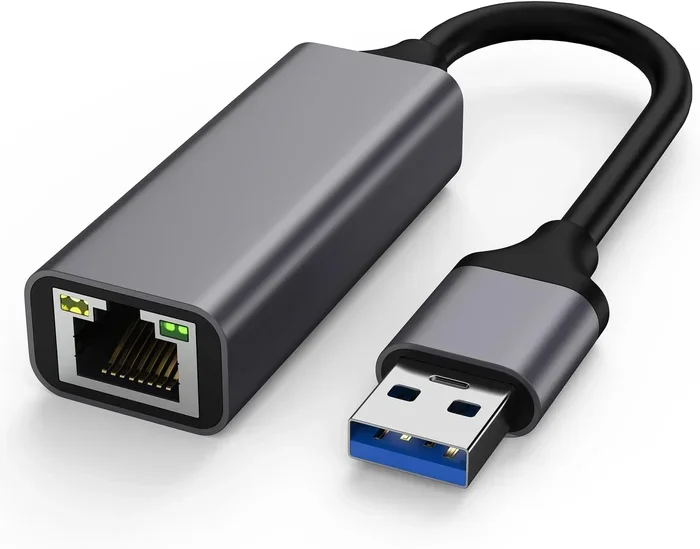
When we talk about converting Ethernet to USB, we mean using a device that takes a wired network signal and connects it through a USB port. Your computer does not need a built-in ethernet jack to access a wired internet connection. A small adapter bridges the gap between the two. This adapter is sometimes called a USB ethernet adapter, a network adapter, or even an ethernet dongle.
The concept is simple. An ethernet cable carries data from your router or modem. The adapter converts that signal into a format your device understands through USB. Think of it as a translator between two different languages. Once connected, your device treats the wired connection just like any other network interface.
Why Would You Need This Conversion?
Many modern laptops and tablets have dropped the ethernet port entirely. They rely solely on Wi-Fi. But Wi-Fi can be unstable. It suffers from interference, distance issues, and slower speeds. A wired internet connection through USB gives you a more reliable and faster alternative. Gamers, remote workers, and anyone who needs a steady connection benefits greatly from this setup.
Here are some common reasons you might need a USB to ethernet converter:
- Your laptop lacks an ethernet port
- You want faster and more stable internet than Wi-Fi provides
- You are setting up a desktop in a tight space where Wi-Fi signals are weak
- You need a low-latency connection for gaming or video calls
- You are using a device like a Chromebook or tablet with only USB ports
Types of USB Ethernet Adapters You Can Use
Not all adapters are the same. Different devices need different types of USB connections and ethernet speeds. Understanding your options helps you pick the right one. Here is a breakdown of the most common types you will find on the market.
USB-A Ethernet Adapters
This is the most traditional type. It plugs into the standard rectangular USB-A port found on older laptops and desktops. These adapters support speeds ranging from 100 Mbps to 1 Gbps (gigabit ethernet). They are affordable and widely available. Most people looking for a simple ethernet to USB adapter start with this option.
USB-C Ethernet Adapters
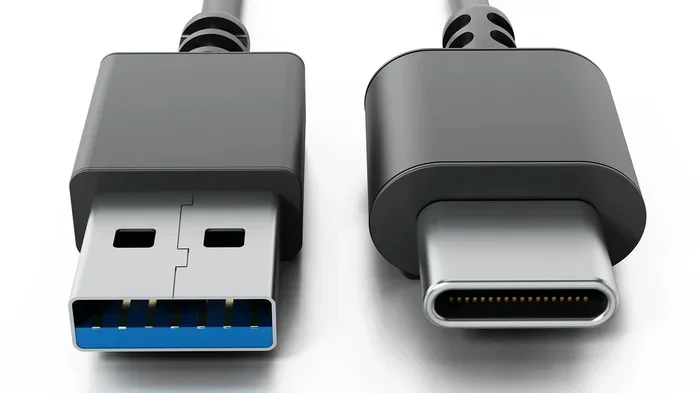
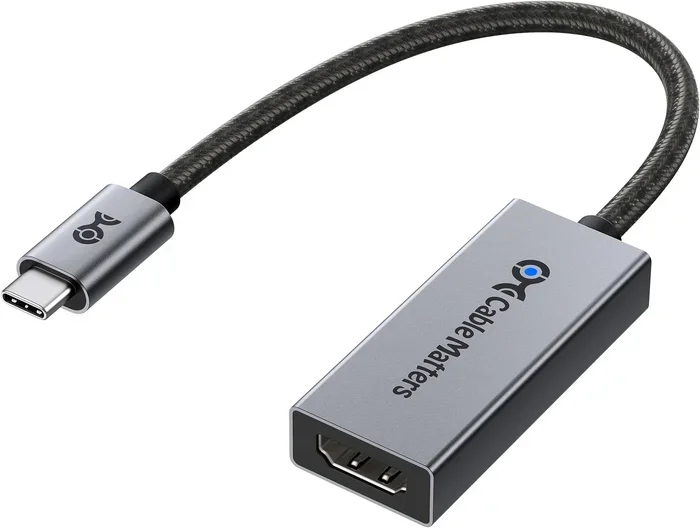
If you have a newer laptop or tablet, it likely has USB-C ports. A USB-C to ethernet adapter fits right into these modern ports. They offer the same speed benefits as USB-A adapters but with a smaller, reversible connector. Many of these adapters also include additional USB-A ports or SD card readers, making them versatile hubs.
USB 3.0 vs. USB 2.0 Adapters
Speed matters when choosing an adapter. USB 3.0 adapters offer much faster data transfer than USB 2.0. For gigabit ethernet, you need a USB 3.0 adapter to fully utilize the speed. A USB 2.0 adapter will cap your speeds around 100 Mbps. If you want the best performance from your USB ethernet adapter, always go for USB 3.0 or higher.
| Adapter Type | USB Version | Max Speed | Best For |
|---|---|---|---|
| USB-A Ethernet | USB 3.0 | 1 Gbps | Desktops, older laptops |
| USB-C Ethernet | USB 3.0/3.1 | 1 Gbps | Modern laptops, tablets |
| USB-A Ethernet | USB 2.0 | 100 Mbps | Basic browsing, budget setups |
| USB-C Ethernet | USB 3.1/3.2 | 10 Gbps | High-speed workstations |
Step-by-Step Guide to Converting Ethernet to USB
Setting up your ethernet to USB connection is easier than you might think. Follow these steps, and you will be online in just a few minutes. No technical expertise is required.
Step 1: Choose the Right Adapter
Start by picking the right USB to ethernet converter for your device. Check what type of USB port your device has. Is it USB-A or USB-C? Then decide on the speed you need. For most home users, a gigabit adapter works perfectly. Make sure the adapter is compatible with your operating system, whether that is Windows, macOS, or Linux.
Here are some quick tips for choosing:
- Check your device’s USB port type first
- Go with USB 3.0 or higher for the best speeds
- Read user reviews before buying
- Choose a reputable brand for reliability
- Consider an adapter with extra USB ports if you need them
Step 2: Plug in the Adapter
Once you have your adapter, plug it into your device’s USB port. It should fit snugly. If you are using a USB-C adapter, make sure it is fully seated. You may hear a small click when it locks in place. Most modern operating systems will recognize the adapter immediately.
Step 3: Install Drivers (If Needed)
Some adapters work right out of the box with no extra steps. Others require you to install drivers. Drivers are small software programs that help your device talk to the adapter. Check the manufacturer’s website for the latest drivers. Download and install them following the on-screen instructions. This step is crucial for a smooth network connectivity experience.
Step 4: Connect the Ethernet Cable
Now take your ethernet cable and plug one end into the adapter. Plug the other end into your router or modem. You should see a small light on the adapter turn on or blink. This indicates a physical connection has been made. The light color may vary depending on the adapter model.
Step 5: Configure Network Settings
On most devices, the network connection will set up automatically. Your device should detect the wired connection and assign it an IP address through DHCP. You can check this by going to your network settings. On Windows, go to Settings > Network & Internet. On Mac, go to System Preferences > Network. You should see the ethernet connection listed as active.
Step 6: Test Your Connection
Open a web browser and try loading a website. Run a speed test at a site like Speedtest.net to check your connection speed. You should see speeds close to what your internet plan offers. If everything works, congratulations. You have successfully set up a wired network connection using a USB adapter.
Benefits of Using a USB Ethernet Adapter
Switching from Wi-Fi to a wired connection through a USB adapter offers many advantages. These benefits make it a smart choice for both home and office use.
Faster and more stable speeds: Ethernet connections are faster and more consistent than Wi-Fi. You will not experience random drops or slowdowns. This is especially important for video conferencing and online gaming.
Lower latency: Latency is the delay between sending and receiving data. Wired connections have much lower latency than wireless ones. This makes your online experience feel more responsive and smooth.
Better security: A wired connection is harder to intercept than Wi-Fi. Your data travels through a physical cable, making it more secure. This matters for sensitive work or financial transactions.
No interference: Wi-Fi signals can be disrupted by walls, other devices, and even microwaves. An ethernet cable is immune to these issues. You get a clean, uninterrupted signal every time.
Easy to set up: As we showed in the steps above, you do not need to be a tech expert. Plug in the adapter, connect the cable, and you are done. It takes less than five minutes in most cases.
Common Mistakes to Avoid When Using Ethernet USB Adapters
Even though the process is simple, some common mistakes can cause problems. Avoiding these pitfalls saves you time and frustration.
Buying the Wrong Adapter Type
The most common mistake is buying a USB-A adapter when your device only has USB-C ports. Always double-check your device’s port type before purchasing. An incompatible adapter will not work, no matter how good it is.
Skipping Driver Updates
Some users plug in the adapter and expect it to work perfectly without any software. While many adapters are plug-and-play, others need updated drivers. Skipping this step can lead to slow speeds or no connection at all. Always check for drivers from the manufacturer’s website.
Using a USB 2.0 Hub for Gigabit Speeds
If you want gigabit ethernet speeds, do not plug your adapter into a USB 2.0 hub. The hub will bottleneck your speed. Plug the adapter directly into a USB 3.0 or USB-C port on your device for the best performance.
Using Low-Quality Cables
The ethernet cable you use matters too. A cheap or damaged cable can limit your speeds or cause intermittent disconnects. Use a certified Cat5e or Cat6 cable for reliable network connectivity.
Ignoring Adapter Overheating
Some adapters can get warm during extended use. This is normal. However, if the adapter becomes too hot to touch, it may be a sign of a problem. Move it to a well-ventilated area or consider getting a model with a built-in fan.
Expert Tips for Getting the Best Performance
Want to squeeze every bit of performance from your USB ethernet adapter? Here are some expert tips that make a real difference.
- Keep your drivers updated: Manufacturers often release updates that improve speed and stability. Check for updates monthly.
- Use a short ethernet cable: Longer cables can reduce signal quality. Keep your cable under 10 feet for best results.
- Disable Wi-Fi when using wired: This prevents your device from switching between connections randomly, which can cause brief disconnects.
- Restart your router regularly: A quick router reboot can fix many connectivity issues and improve overall network performance.
- Choose a USB port directly on your device: Avoid USB hubs when possible. Direct ports provide the most power and bandwidth.
- Check for interference: Keep your ethernet cable away from power cords and other electronics that might cause interference.
Troubleshooting Common Ethernet USB Adapter Issues
Even with the best setup, you might run into occasional issues. Here is how to fix the most common problems.
No internet connection after plugging in: First, check that the ethernet cable is firmly connected at both ends. Then go to your network settings and make sure the wired connection is enabled. Restarting your device often fixes this issue quickly.
Slow speeds: Make sure you are using a USB 3.0 port and a quality ethernet cable. Check for driver updates. Also, test your internet speed directly from your router to rule out an ISP issue.
Adapter not recognized by your device: Try a different USB port. If that does not work, uninstall the adapter from your device manager and reinstall it with the latest drivers from the manufacturer’s website.
Intermittent disconnects: This is often caused by a loose cable connection or a faulty adapter. Try a different ethernet cable first. If the problem persists, the adapter itself may need replacing.
Conclusion
Converting Ethernet to USB is one of the simplest and most effective ways to improve your internet connection. Whether you are working from home, gaming online, or just need a more reliable connection, a USB ethernet adapter is the answer. The process is quick, affordable, and works with almost any device that has a USB port.
You now know the different types of adapters available, how to set them up step by step, and how to troubleshoot common issues. You also understand the benefits of a wired connection and how to get the best performance from your setup. With the right USB to ethernet converter in hand, you can enjoy fast, stable, and secure internet any time you need it.
Do not let the lack of an ethernet port hold you back. Grab an adapter, follow the steps in this guide, and get connected today. A better internet experience is just one plug away.
Frequently Asked Questions
Can You Convert Ethernet To USB on Any Device?
Yes, as long as your device has a USB port, you can convert Ethernet to USB using an adapter. This works on Windows PCs, Macs, Chromebooks, tablets, and even some gaming consoles. Just make sure you pick the right adapter type for your USB port.
Do I Need to Install Drivers for a USB Ethernet Adapter?
Many modern adapters are plug-and-play and do not need driver installation. However, some adapters require you to download and install drivers from the manufacturer’s website. Always check the product details before buying to know what to expect.
Will a USB Ethernet Adapter Slow Down My Internet Speed?
No, a good quality adapter will not slow down your speed. In fact, a wired connection through USB often provides faster and more stable speeds than Wi-Fi. Just make sure you use a USB 3.0 adapter and a quality ethernet cable for the best results.
What Is the Difference Between a USB Ethernet Adapter and a USB-C Ethernet Adapter?
The main difference is the type of USB port they use. A USB-A adapter fits into the standard rectangular USB port found on older devices. A USB-C adapter fits into the smaller, oval-shaped port found on newer laptops and tablets. Both can support the same ethernet speeds.
Can I Use a USB Ethernet Adapter for Gaming?
Absolutely. Many gamers prefer a wired connection through a USB ethernet adapter because it offers lower latency and more stable speeds than Wi-Fi. This reduces lag and provides a smoother gaming experience, especially for competitive online games.
How Much Does a USB Ethernet Adapter Cost?
Most USB ethernet adapters cost between $10 and $30. Higher-end models with gigabit speeds or extra features may cost a bit more. Considering the improvement in connection quality, they are a very affordable and worthwhile investment for any device.