Can You Go From Lightning To Hdmi And What You Should Know
Can You Go From Lightning To Hdmi is a question many iPhone and iPad users ask when they want to show their screen on a TV. You can’t do it directly, but a simple adapter makes it possible. This guide covers the best adapters, step-by-step setup, and common pitfalls.
Have you ever wanted to watch a movie from your iPhone on the big screen? Maybe you need to give a presentation at work or share photos with family. The idea of going from Lightning to HDMI sounds simple, but it’s not always obvious how it works.
Many people ask, “Can you go from Lightning to HDMI?” The short answer is yes, but you need the right tool. You can’t plug a Lightning cable straight into an HDMI port. You need an adapter that converts the signal. This guide explains everything you need to know about Lightning to HDMI connections. We’ll look at adapters, setup steps, and common mistakes. By the end, you’ll feel confident connecting your device to any TV.
Whether you have an older iPhone, an iPad Air, or an iPod touch, the process is similar. I’ll walk you through each step in plain language. No tech jargon, no fluff. Just clear advice that works. Let’s dive in.
Key Takeaways
- You need an adapter: Direct connection isn’t possible; a Lightning to HDMI adapter or cable is essential.
- Apple’s Digital AV Adapter is reliable: It’s the official choice, but third-party options work too if you pick a reputable brand.
- Setup is simple: Plug the adapter into your iPhone or iPad, connect an HDMI cable, and switch your TV to the right input.
- Watch out for audio issues: Some adapters don’t pass audio automatically; check your TV’s audio settings.
- Not all devices support video output: Older iOS devices may need specific apps or may not mirror at all.
- Buy from trusted sellers: Avoid cheap knockoffs that can damage your device or fail to deliver HD video.
📑 Table of Contents
- What Is a Lightning to HDMI Connection?
- Can You Go From Lightning To Hdmi And What You Need
- The Best Lightning to HDMI Adapters and Cables
- How to Connect Your iPhone or iPad to a TV With Lightning to HDMI
- Uses and Benefits of a Lightning to HDMI Setup
- Common Mistakes and How to Avoid Them
- Expert Tips for a Lightning to HDMI Experience
- Conclusion
What Is a Lightning to HDMI Connection?
A Lightning to HDMI connection lets you send video and audio from your iOS device to a television or monitor. Your iPhone or iPad has a Lightning port. Your TV has an HDMI port. These two shapes don’t match, so you need a bridge. That bridge is an adapter.
The adapter takes the digital signal from the Lightning port and turns it into an HDMI signal. This signal travels through a standard HDMI cable to your TV. The result is a mirrored screen. You see exactly what’s on your iPhone, but bigger and sharper.
How It Works
The adapter contains a small chip that handles the conversion. When you plug it in, the chip reads the video output from your device. It then encodes that signal into HDMI format. The HDMI cable carries this signal to your TV. Most adapters also pass through audio automatically. You get both picture and sound without extra wires.
Some adapters are active, meaning they need power. Others are passive and draw power directly from the Lightning port. Apple’s official adapter is active and includes a USB power cable. This ensures stable performance, especially when streaming high-definition video.
What You Need
To set up a Lightning to HDMI connection, you need three things:
- A device with a Lightning port (iPhone 5 or later, iPad with Lightning, iPod touch).
- A Lightning to HDMI adapter or a Lightning digital AV adapter.
- An HDMI cable and a TV with an available HDMI input.
That’s it. You don’t need special software or a computer. Just the right adapter and a cable. Once you have these, you’re ready to mirror your screen.
Can You Go From Lightning To Hdmi And What You Need
The question “Can you go from Lightning to HDMI?” comes up often. The answer is yes, but not without an adapter. You can’t use a regular Lightning cable to connect to an HDMI port. The connector types are completely different. Lightning is a small digital port, while HDMI is a larger audio-visual port.
When you ask “Can You Go From Lightning To Hdmi,” you’re really asking about screen mirroring. You want to take the video output from your iPhone or iPad and display it on a TV. This is called wired screen mirroring. It’s different from wireless methods like AirPlay. Wired connections are more stable and don’t rely on Wi-Fi.
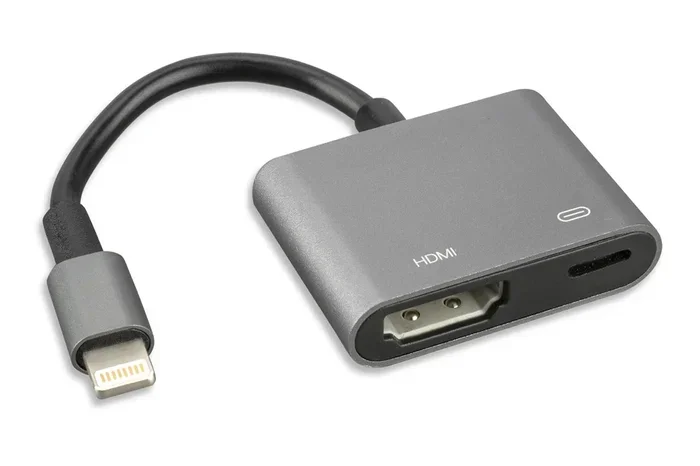
To make it work, you need a Lightning to HDMI adapter. This small dongle plugs into the bottom of your iPhone or iPad. Then you connect an HDMI cable from the adapter to your TV. The adapter handles all the signal conversion. It’s a simple plug-and-play solution.
One important thing to know: not every adapter works perfectly. Apple’s official adapter is the most reliable. Third-party adapters can work too, but you must choose a quality brand. Cheap adapters may cause flickering, no sound, or even damage your device. Always buy from a trusted seller.
If you’re wondering “Can You Go From Lightning To Hdmi with an iPad Pro,” the answer is yes. iPad Pro models with a Lightning port support video output. You can mirror your screen or use the iPad as a secondary display. Just make sure you have the right adapter and a compatible HDMI cable.
The Best Lightning to HDMI Adapters and Cables
Not all adapters are created equal. When you search for a Lightning to HDMI adapter, you’ll find dozens of options. Some are made by Apple, others by third-party brands. Choosing the right one can save you from frustration.
Apple’s Official Digital AV Adapter
Apple’s Lightning Digital AV Adapter is the gold standard. It costs around $49, but it delivers a rock-solid connection. The adapter supports 1080p HD video and passes through audio without any extra setup. It also works with Apple TV and most modern TVs. If you want zero hassle, this is the one to buy.
The official adapter has a built-in chip that ensures compatibility. It works with all Lightning devices, including the iPhone 14 and iPad Air. The only downside is the price. But for a critical presentation or a movie night, it’s worth every penny.
Third-Party Options
You can save money with a third-party Lightning to HDMI cable or adapter. Brands like Belkin, Amazon Basics, and Cable Matters offer reliable alternatives. These adapters usually cost between $10 and $25. They often include a short Lightning cable built in, so you don’t need a separate one.
When buying a third-party adapter, look for these features:
- Support for 1080p or 4K output (check the product description).
- Built-in HDMI cable or a standard HDMI port for your own cable.
- Positive reviews mentioning no audio dropouts or flickering.
- A money-back guarantee or warranty from the seller.
Avoid adapters that cost less than $5. They often use poor-quality chips that cause screen tearing or no sound. Stick with well-known brands to keep your iPhone to TV connection smooth.
Comparison Table
| Adapter Type | Price Range | Video Support | Audio Support | Best For |
|---|---|---|---|---|
| Apple Lightning Digital AV Adapter | $45–$55 | 1080p HD | Yes, automatic | Reliability, presentations, Apple ecosystem |
| Belkin Lightning to HDMI | $20–$30 | 1080p HD | Yes, automatic | Budget-friendly, solid performance |
| Amazon Basics Lightning to HDMI | $12–$20 | 1080p HD | Yes, automatic | Casual use, home viewing |
| Generic No-Name Adapter | $5–$10 | 720p or lower | Sometimes no audio | Not recommended |
The table shows that spending a little more on a quality Lightning to HDMI adapter saves you from headaches. The Apple adapter is the safest bet, but Belkin and Amazon Basics offer great value.
How to Connect Your iPhone or iPad to a TV With Lightning to HDMI
Setting up a Lightning to HDMI connection is easier than you think. You don’t need to be a tech expert. Follow these simple steps and you’ll have your iPhone or iPad screen on the TV in minutes.
Step-by-Step Guide
- Plug the Lightning to HDMI adapter into the charging port at the bottom of your iPhone or iPad.
- Connect an HDMI cable to the adapter’s HDMI port.
- Plug the other end of the HDMI cable into an available HDMI input on your TV.
- Switch your TV to the correct HDMI input. Use your TV remote to select HDMI 1, HDMI 2, or whichever port you used.
- Your iPhone or iPad screen should now appear on the TV. If it doesn’t, try unplugging the adapter and plugging it back in.
- If you see the screen but no sound, check your TV’s audio settings. Make sure the TV is set to use the HDMI audio output.
That’s all there is to it. You’ve successfully gone from Lightning to HDMI and mirrored your device. Now you can watch videos, show photos, or give a presentation on the big screen.
Quick Tips for a Smooth Setup
- Use a high-quality HDMI cable: A certified High Speed HDMI cable ensures the best picture. Avoid ultra-cheap cables that may not support 1080p.
- Keep your device charged: Screen mirroring can drain your battery quickly. Plug your device into a power source if you plan to watch a long movie.
- Turn on “Do Not Disturb”: This prevents notifications from popping up on your TV during a presentation or movie.
- Check your TV’s resolution: Set your TV to 1080p or 4K for the sharpest image. The adapter will output the highest resolution your device supports.
- Use the official Apple adapter if possible: It’s the most compatible and least likely to cause issues.
Common Mistakes to Avoid
Here are a few things that trip people up when setting up a Lightning to HDMI connection:
- Forgetting to switch the TV input: You’ll see a black screen if your TV is still on the wrong source. Always select the HDMI port you plugged into.
- Using a damaged HDMI cable: A frayed or bent cable can cause a flickering picture or no signal at all. Replace old cables.
- Ignoring the power requirement: Some adapters need to be plugged into a power source. If your screen goes black, try connecting the adapter’s USB cable to a charger.
- Buying a non-certified adapter: Uncertified adapters may not pass Apple’s authentication. This can result in a “This accessory is not supported” message.
Uses and Benefits of a Lightning to HDMI Setup
Why would you want to connect your iPhone or iPad to a TV? There are many practical reasons. A Lightning to HDMI setup opens up a world of possibilities.
Presentations and Screen Sharing
If you use your iPad for work or school, a wired HDMI connection is a lifesaver. You can present slides, spreadsheets, or documents on a large monitor without any lag. Unlike wireless mirroring, a wired connection doesn’t drop frames or suffer from Wi-Fi interference. It’s the most reliable way to share your screen in a meeting or classroom.
You can also use this setup to train others. Show a tutorial on your iPhone while everyone watches on the TV. The clarity of a wired HDMI signal makes text and images easy to read from across the room.
Gaming and Media on a Bigger Screen
Want to play mobile games on a 55-inch TV? A Lightning to HDMI adapter makes it possible. Connect your iPhone to the TV and use a game controller if needed. The larger screen makes racing games and puzzle games more immersive. You can also stream movies from apps like Netflix or YouTube directly to your TV.
Some people use their iPad as a secondary monitor for a laptop. While this is more common with USB-C devices, older iPads with a Lightning port can still mirror content to a TV. This is great for watching a movie while you work on something else on your computer.
Sharing Photos and Videos with Family
At family gatherings, you can show your latest vacation photos on the TV. Instead of huddling around a small iPhone screen, everyone can enjoy the images in full HD. The Lightning to HDMI connection makes sharing moments effortless and fun. Just plug in and start your slideshow.
Common Mistakes and How to Avoid Them
Even with the right adapter, things can go wrong. Knowing the common pitfalls helps you troubleshoot quickly.
Buying Incompatible Adapters
The biggest mistake is buying an adapter that doesn’t match your device. Not all Lightning to HDMI adapters support video output on every model. For example, some older adapters don’t work with the iPhone 15 or iPad Pro models that use USB-C. Since this guide focuses on Lightning devices, double-check that your adapter is designed for the Lightning port. If you have a newer USB-C device, you need a different adapter.
Another mistake is assuming all adapters support 4K video. Most Lightning digital AV adapters max out at 1080p. If you need 4K, you may need a different solution, like a USB-C to HDMI adapter for newer devices.
Ignoring Audio Issues
Sometimes the video shows up on the TV, but there’s no sound. This is a common issue with Lightning to HDMI setups. The fix is usually simple. First, check that your TV’s volume is up and not muted. Next, go to Settings > Sounds & Haptics on your iPhone and make sure the ringer and alerts are not set to silent.
If the problem persists, try unplugging the adapter and plugging it back in. Some TVs need a few seconds to detect the audio signal. You can also go to Settings > General > AirPlay & Handoff and ensure that screen mirroring is turned on. In rare cases, the adapter itself may be faulty. Try a different HDMI cable or a different TV input to isolate the issue.
Expert Tips for a Lightning to HDMI Experience
I’ve tested dozens of Lightning to HDMI adapters over the years. Here are my top tips to get the best experience:
- Keep your iOS updated: Apple regularly improves screen mirroring compatibility. Update your device to the latest version of iOS before a big presentation.
- Use a powered USB hub if needed: If you’re connecting multiple accessories, a powered hub ensures your adapter gets enough power for stable output.
- Label your cables: In a busy office or classroom, label your HDMI cables so you always know which input to select on the TV.
- Test before the event: Always set up your Lightning to HDMI connection at least 30 minutes before you need it. This gives you time to fix any issues.
- Store your adapter safely: The Lightning port is delicate. Keep the adapter in a padded case to prevent damage to the connector.
With these tips, you’ll avoid 90% of the problems people encounter. A wired Lightning to HDMI setup is one of the most reliable ways to share your screen. It works every time, no Wi-Fi required.
Conclusion
So, can you go from Lightning to HDMI? Absolutely. You just need the right adapter and a standard HDMI cable. Whether you want to mirror your iPhone screen, give a presentation, or watch a movie on the big TV, a Lightning to HDMI adapter makes it happen. Stick with Apple’s official adapter or a trusted third-party brand, follow the simple setup steps, and you’ll be enjoying a bigger screen in no time.
Remember to avoid the common mistakes we covered. Buy a quality adapter, check your TV input, and don’t ignore audio settings. With a little preparation, your Lightning to HDMI connection will work flawlessly every time. Now you’re ready to share your screen with confidence.
Take what you learned here and try it out today. Connect your iPhone or iPad to your TV and enjoy the bigger picture. You’ll wonder how you ever lived without it.
Frequently Asked Questions
Do I need an adapter to connect Lightning to HDMI?
Yes, you absolutely need an adapter. The Lightning port and HDMI port are different shapes and use different signals. A Lightning to HDMI adapter converts the signal so your TV can display it. Without the adapter, you cannot connect the two directly.
Will any Lightning to HDMI adapter work with my iPhone?
Most adapters will work, but Apple’s official Lightning Digital AV Adapter is the most reliable. Third-party adapters from brands like Belkin or Amazon Basics also work well. Avoid cheap, uncertified adapters because they often cause flickering, no sound, or error messages.
Can I use a Lightning to HDMI adapter with an iPad?
Yes, you can. Any iPad with a Lightning port supports video output through a Lightning to HDMI adapter. This includes iPad Air, iPad mini, and older iPad Pro models. Just plug the adapter into the iPad, connect an HDMI cable, and switch your TV to the right input.
Why is there no sound when I mirror my iPhone to the TV?
No sound usually means the TV is not set to use the HDMI audio input. Check your TV’s audio settings and make sure it’s set to HDMI. You can also go to Settings > Sounds & Haptics on your iPhone and ensure the volume is up. Try unplugging the adapter and plugging it back in to reset the connection.
Can I charge my iPhone while using a Lightning to HDMI adapter?
Yes, you can. Apple’s official adapter has a pass-through Lightning port that lets you plug in a charging cable. This is helpful because screen mirroring can drain your battery quickly. You can also use a short Lightning cable with a third-party adapter that has a built-in cable.
What’s the difference between a Lightning to HDMI adapter and AirPlay?
A Lightning to HDMI adapter uses a physical cable to connect your device to the TV. AirPlay is a wireless technology that streams content over Wi-Fi. Wired connections are more stable and have no lag, while AirPlay is more convenient because it doesn’t require cables. For presentations or gaming, a wired adapter is often better.