Can You Do Hdmi Through Usb And How To Get It Working
Yes, you can do HDMI through USB using the right adapter or cable. This guide covers how HDMI over USB works, which ports support it, and the best ways to get your display output running smoothly. Whether you want to connect a laptop to a TV or extend your screen, this article has you covered with practical tips and expert advice.
Have you ever been in a situation where you needed to connect your laptop to a TV or monitor but only had a USB port available? You are not alone. Many people ask the question, can you do HDMI through USB, and the short answer is yes. But how exactly does it work? And what do you need to make it happen?
In this guide, we will walk you through everything you need to know about getting HDMI through USB working. From understanding the different types of USB ports to picking the right adapter, we have got you covered. By the end of this article, you will know exactly what to buy, how to set it up, and how to troubleshoot common problems.
Whether you want to stream a movie from your laptop to your living room TV or extend your work screen, this guide will help you get it done right. Let us dive in and explore the world of HDMI over USB connections.
Key Takeaways
- HDMI Through USB Is Possible: You can transmit video and audio from a USB port to an HDMI display using the right adapter or cable.
- USB-C Is the Most Versatile: USB-C ports often support video output natively or with a simple adapter.
- Active vs. Passive Adapters Matter: Active adapters have their own chip to convert the signal, while passive ones rely on the device’s capabilities.
- Check Compatibility First: Not every USB port supports video output, so always verify your device specs before buying an adapter.
- Driver Updates Help: Keeping your device drivers up to date can fix most HDMI-over-USB issues.
- Resolution Depends on the Port: USB 3.0 and USB-C can handle higher resolutions better than older USB 2.0 ports.
📑 Table of Contents
- What Is HDMI Through USB?
- How HDMI Over USB Works
- Types of USB Ports and Their HDMI Capabilities
- How To Get HDMI Through USB Working
- Best Adapters and Cables for HDMI Over USB
- Common Problems and How To Fix Them
- Quick Tips for the Best Experience
- Can You Do Hdmi Through Usb With Different Devices?
- Conclusion
What Is HDMI Through USB?
HDMI stands for High-Definition Multimedia Interface. It is the standard cable used to carry both video and audio from one device to another. USB stands for Universal Serial Bus, and it is mainly used for charging and data transfer. So how do these two technologies work together?
The answer lies in adapters and cables that bridge the gap between USB and HDMI. These devices take the video signal from a USB port and convert it into an HDMI signal that a TV or monitor can display. This process is called display output over USB.
Not all USB ports can do this. The capability depends on the type of USB port, the version of USB, and the hardware inside your device. For example, a USB-C port on a modern laptop may support video output natively. An older USB 2.0 port on a desktop may not. This is why understanding your options matters so much.
Why Do People Need HDMI Through USB?
There are many reasons someone might need to send an HDMI signal through a USB port. Here are some of the most common ones:
- Connecting a laptop to a TV: You want to watch a movie or give a presentation on a bigger screen.
- Extending your desktop screen: You need more workspace and want to use a second monitor.
- Screen mirroring: You want to show the same content on two screens at once.
- Gaming on a bigger display: You want to play games from your laptop on a TV.
- Streaming content: You want to stream videos from a device that only has a USB port.
No matter the reason, knowing how to make HDMI through USB work opens up a lot of possibilities. It is a simple solution that does not require expensive equipment in most cases.
How HDMI Over USB Works
Understanding how HDMI over USB works helps you make better buying decisions. Let us break it down in simple terms.
When you plug an adapter into your USB port, it acts as a bridge. The adapter takes the digital data coming from the USB port and converts it into a format that an HDMI cable can read. This converted signal then travels through the HDMI cable to your TV or monitor.
There are two main types of adapters you will come across:
- Active adapters: These have their own chip inside them. They do the heavy lifting of converting the signal. Active adapters work with more devices and support higher resolutions.
- Passive adapters: These do not have a chip. They rely on your device’s hardware to support video output over USB. Passive adapters are cheaper but less versatile.
The Role of USB Versions
The version of USB your device has plays a big role in how well HDMI through USB works. Here is a quick look at the most common versions:
- USB 2.0: This is the oldest and slowest type. It can handle basic video output but struggles with high resolutions. You might get 720p or 1080p at best.
- USB 3.0: This is much faster and can handle 1080p and even 4K in some cases. It is a big step up from USB 2.0.
- USB-C: This is the newest and most versatile type. Many modern laptops and phones use USB-C, which can carry video signals natively. A simple USB-C to HDMI cable or adapter often works perfectly.
The faster the USB version, the better the video quality you can expect. If you want crisp and clear display output, go for USB 3.0 or USB-C whenever possible.
Types of USB Ports and Their HDMI Capabilities
Not every USB port is the same. Before you buy an adapter, you need to know what kind of USB port your device has. Here is a quick guide to help you figure it out.
USB Type-A
This is the classic rectangular USB port you see on most desktop computers and older laptops. USB Type-A ports are great for flash drives and keyboards, but they are not great for video output. You can still use a USB Type-A to HDMI adapter, but it usually requires an active adapter with a built-in chip. The results may vary depending on your device.
USB Type-B
USB Type-B ports are square-shaped and are mostly found on printers and scanners. They are not designed for video output, so using them for HDMI through USB is very limited. We do not recommend trying this route.
USB Type-C
USB Type-C is the star of the show when it comes to HDMI over USB. These small, reversible ports are found on most modern laptops, tablets, and smartphones. Many USB-C ports support DisplayPort Alt Mode, which means they can send video signals directly to an HDMI display. All you need is a USB-C to HDMI cable or adapter, and you are good to go.
Micro USB and Mini USB
These older port types are found on some budget devices and older electronics. They generally do not support video output, so getting HDMI through them is very difficult. If your device only has these ports, you may need to look for a different solution.
| USB Port Type | Supports HDMI? | Best Adapter Type | Max Resolution |
|---|---|---|---|
| USB Type-A | Yes (with active adapter) | USB-A to HDMI Active Adapter | 1080p |
| USB Type-B | Very Limited | Not Recommended | N/A |
| USB Type-C | Yes (often native) | USB-C to HDMI Cable | 4K |
| Micro USB | Rarely | Specialized Active Adapter | 720p |
| Mini USB | Rarely | Specialized Active Adapter | 720p |
As you can see from the table above, USB-C is by far the best option for HDMI through USB. If your device has a USB-C port, take advantage of it for the best results.
How To Get HDMI Through USB Working
Now that you understand the basics, let us get into the practical steps. Here is how you can set up HDMI over USB and get your display working.
Step 1: Check Your Device Compatibility
Before you buy anything, check if your device supports video output over USB. You can usually find this information in the device manual or on the manufacturer’s website. Look for terms like “DisplayPort Alt Mode” or “USB video output” in the specs.
If your device does not support video output natively, you will need an active adapter. These adapters have their own processing chip and do not rely on your device’s hardware.
Step 2: Choose the Right Adapter or Cable
Once you know your device supports USB video output, pick the right adapter. Here are some quick tips:
- For USB-C devices, a USB-C to HDMI cable is the simplest option.
- For USB Type-A devices, look for an active USB-A to HDMI adapter.
- Make sure the adapter supports the resolution you need. If you want 4K, check that the adapter is rated for 4K output.
- Buy from reputable brands to avoid cheap adapters that may not work well.
Step 3: Connect Everything
Here is the simple process to get things running:
- Plug the USB end of the adapter or cable into your device.
- Plug the HDMI end into your TV or monitor.
- Switch your TV or monitor to the correct HDMI input channel.
- Wait a few seconds for your device to recognize the display.
That is it! In most cases, your screen should appear on the TV or monitor right away. If it does not, do not worry. We will cover troubleshooting in the next section.
Step 4: Adjust Display Settings
Once the connection is made, you may need to adjust your display settings. On Windows, go to Settings > System > Display. On macOS, go to System Preferences > Displays. From there, you can choose to mirror your screen or extend it to the second display.
You can also adjust the resolution, orientation, and scaling to get the best picture on your TV or monitor. This step makes a big difference in how your display output looks.
Best Adapters and Cables for HDMI Over USB
Not all adapters are created equal. Some are cheap and unreliable, while others deliver great performance. Here are some of the best options for HDMI through USB setups.
Top Picks for USB-C to HDMI
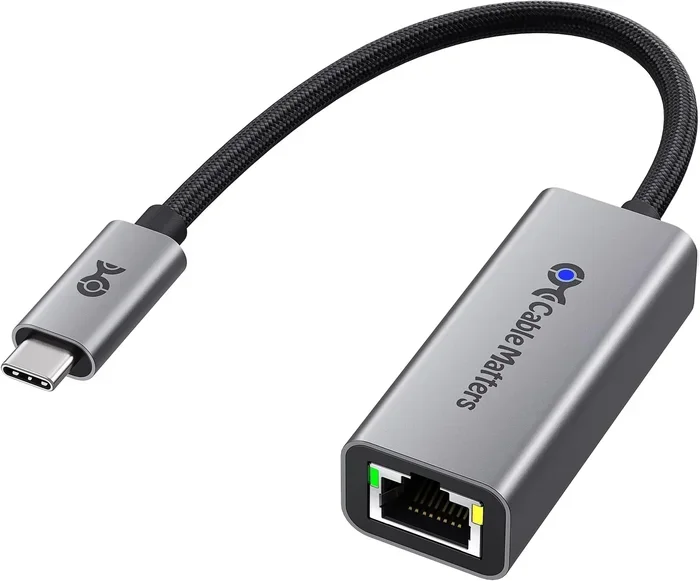
- Cable Matters USB-C to HDMI Cable: This is a reliable and affordable option. It supports 4K resolution and works with most modern laptops and tablets.
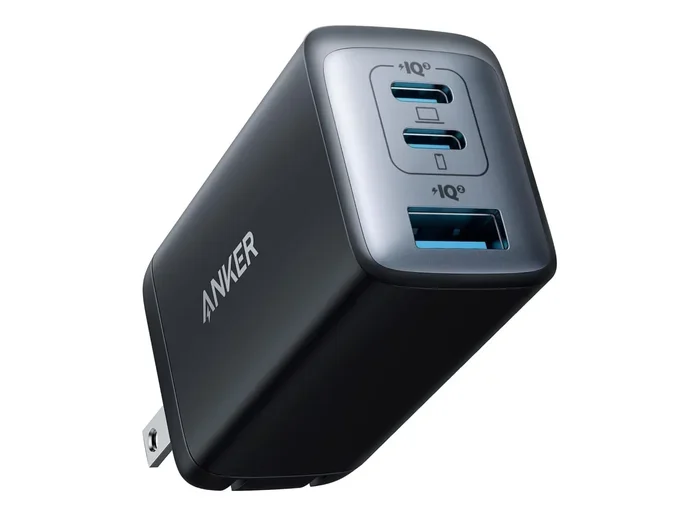
- Anker USB-C to HDMI Adapter: Anker is a trusted brand in the accessories world. This adapter is compact and supports high-resolution output.
- Belkin USB-C to HDMI Cable: Belkin is known for quality. Their cable is durable and offers smooth video transfer with no lag.
Top Picks for USB-A to HDMI
- StarTech USB 3.0 to HDMI Active Adapter: This active adapter works well with desktop computers that have USB-A ports. It supports 1080p and is easy to set up.
- IOGEAR USB to HDMI Adapter: This is another solid choice for USB-A devices. It is plug and play and does not require extra software.
What to Look for When Buying
When shopping for an adapter, keep these things in mind:
- Resolution support: Make sure the adapter supports at least 1080p. If you want 4K, check the specs carefully.
- USB version: USB 3.0 or USB-C adapters will give you better performance than USB 2.0 adapters.
- Active vs. passive: For USB-A ports, always go with an active adapter. For USB-C, a passive cable may work if your device supports it.
- Brand reputation: Stick with well-known brands to avoid compatibility issues.
Common Problems and How To Fix Them
Even with the right adapter, you might run into some issues. Here are the most common problems people face with HDMI over USB and how to fix them.
No Signal on the TV or Monitor
This is the most common issue. If you see no signal, try these steps:
- Check that the HDMI cable is plugged in securely at both ends.
- Make sure your TV or monitor is set to the correct HDMI input.
- Try a different USB port on your device.
- Unplug the adapter, wait a few seconds, and plug it back in.
Low Resolution or Blurry Image
If your display looks blurry or the resolution is low, here is what you can do:
- Go to your display settings and manually set the resolution to the native resolution of your TV or monitor.
- Make sure you are using a USB 3.0 or USB-C adapter, not a USB 2.0 one.
- Update your device drivers. Outdated drivers can cause display issues.
Audio Not Working
Sometimes the video works but there is no sound. This usually happens because the audio output is not set correctly. Go to your sound settings and make sure the HDMI display is selected as the audio output device. On most systems, this is a quick fix.
Adapter Not Recognized by the Device
If your device does not recognize the adapter at all, try these steps:
- Update your USB and display drivers.
- Try a different USB port.
- Test the adapter on another device to rule out a faulty adapter.
- Restart your device and try again.
Flickering or Intermittent Signal
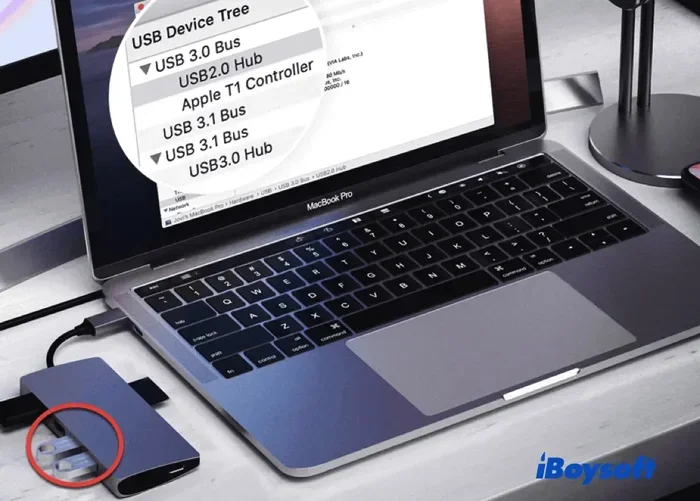
A flickering signal can be frustrating. This is often caused by a loose connection or a low-quality cable. Try using a different HDMI cable or a higher-quality adapter. Also, make sure the USB port is providing enough power. If you are using a USB hub, try plugging the adapter directly into the device.
Expert Insight
According to tech experts, the biggest mistake people make is buying cheap, unbranded adapters. A slightly more expensive adapter from a trusted brand will save you a lot of headaches. Look for adapters that are certified for your specific device type.
Quick Tips for the Best Experience
Here are some quick tips to make your HDMI through USB experience as smooth as possible:
- Always use the shortest HDMI cable you can. Longer cables can cause signal loss.
- Keep your device drivers updated. This fixes most compatibility issues.
- If you are using a laptop, make sure it is plugged in or has a full battery. Some devices reduce USB power output to save battery.
- Close unnecessary apps when screen mirroring or extending. This frees up resources for smooth video playback.
- Test your setup before an important meeting or movie night. Do not wait until the last minute to figure out something is not working.
Can You Do Hdmi Through Usb With Different Devices?
The short answer is yes, but the experience varies by device. Here is a quick look at how HDMI over USB works with different devices.
Laptops
Most modern laptops have USB-C ports that support video output. You can use a simple USB-C to HDMI cable to connect to a TV or monitor. Older laptops with USB-A ports will need an active adapter, but it still works well for basic use.
Desktop Computers
Desktop computers often have multiple USB ports. If your desktop has a USB-C port, you can use it for HDMI output just like a laptop. If it only has USB-A ports, an active adapter will get the job done.
Tablets and Smartphones
Many tablets and smartphones now have USB-C ports. This makes it easy to connect them to a TV for streaming or gaming. Just use a USB-C to HDMI cable or adapter, and your phone or tablet screen will appear on the TV.
Gaming Consoles and Streaming Devices
Some gaming consoles and streaming devices have USB ports but may not support video output through them. Always check the device specifications before trying to use HDMI through USB with these devices.
Conclusion
So, can you do HDMI through USB? Absolutely. With the right adapter or cable, you can easily connect your laptop, tablet, or desktop to any HDMI display. The key is knowing which type of USB port you have and choosing the right HDMI over USB solution for your needs.
USB-C is the best option for most people because it supports high resolutions and often works with a simple cable. If you have an older device with USB-A ports, an active adapter will get the job done. Just remember to check your device compatibility, choose a quality adapter, and keep your drivers updated.
Getting HDMI through USB working is not as hard as it might seem. With the steps and tips in this guide, you should be able to set up your display output in minutes. Whether you are streaming a movie, giving a presentation, or just extending your workspace, this simple setup gives you a lot of flexibility.
Now that you know how to make it work, go ahead and try it out. You will be surprised at how easy and useful this connection can be. Happy streaming!
Frequently Asked Questions
Can I use any USB cable to get HDMI output?
No, not all USB cables support video output. You need a specific USB-C to HDMI cable or an active adapter for USB-A ports. Make sure the adapter or cable is designed for display output before purchasing.
What is the difference between an active and passive HDMI USB adapter?
An active adapter has its own chip to convert the video signal, while a passive adapter relies on your device’s hardware. Active adapters work with more devices and support higher resolutions, making them the safer choice for most users.
Can I get 4K resolution through USB?
Yes, but only with a USB-C port or a USB 3.0 connection. Older USB 2.0 ports usually max out at 1080p. Make sure your adapter and cable are rated for 4K if you want the highest quality picture.
Why is there no sound when I connect HDMI through USB?
This usually happens because the audio output is not set to the HDMI display. Go to your sound settings and select the HDMI device as the audio output. This is a quick fix that solves the problem in most cases.
Do I need to install drivers for HDMI over USB?
Most modern adapters are plug and play and do not require drivers. However, if your device does not recognize the adapter, updating your USB and display drivers may help. Check the adapter manufacturer’s website for any required software.
Can I connect a USB hub and an HDMI adapter at the same time?
Yes, but make sure the USB hub is powered. Unpowered hubs may not provide enough power for the adapter to work correctly. For the best results, plug the adapter directly into your device or use a powered USB hub.
=== CONCLUSION ===
Setting up HDMI through USB is easier than most people think. With the right adapter, a compatible device, and a few simple steps, you can turn any USB port into an HDMI output. We covered how it works, which ports are best, what adapters to buy, and how to fix common problems.
The most important thing to remember is to check your device compatibility first. Not every USB port supports video output, so knowing what you have before you buy an adapter saves time and money. Choose a quality adapter from a trusted brand, keep your drivers updated, and follow the setup steps in this guide.
We hope this article helped you understand can you do HDMI through USB and how to get it working. Now go ahead and connect your devices with confidence. Enjoy your bigger screen, smoother streaming, and more productive workspace. You have got this!