Can You Run Hdmi Through Usb A And How To Connect It
Yes, you can run HDMI through USB A using the right adapter or active converter. This guide covers everything from basic connections to advanced setups, helping you display video and audio from your computer or laptop through a standard USB port. Whether you need an external monitor for work or a simple streaming setup, understanding how HDMI and USB A work together is essential for a smooth digital connection.
Have you ever looked at your computer and thought, “I need more screen space”? Maybe you are working from home and want to connect an external monitor. Or perhaps you are setting up a presentation and need to hook your laptop up to a projector. Whatever the reason, the question can you run HDMI through USB A comes up a lot. The short answer is yes, but there are some important things you need to know before you plug anything in.
Connecting an HDMI display through a USB A port is totally doable. You just need the right adapter, a little patience, and some basic know-how. In this guide, we will walk you through every step of the process. You will learn how the connection works, which adapters to buy, and how to troubleshoot common problems. By the end, you will feel confident setting up your own HDMI through USB A display without any headaches.
The world of ports and cables can feel confusing. USB A has been around for decades, and HDMI has been the go-to standard for high-definition video for just as long. But these two technologies serve different purposes. USB A was designed mainly for data transfer and powering peripherals. HDMI was built specifically for carrying uncompressed video and audio signals. So bridging the gap between them requires a little help from an adapter or active converter. Let us break it all down in simple terms.
Key Takeaways
- HDMI can run through USB A: You need an active adapter or converter to bridge the two different signal types and display high-quality video.
- Active adapters are essential: Passive cables alone cannot convert the digital video signal from USB A to HDMI output reliably.
- Check compatibility first: Not all USB A ports support video output, so verify your device specifications before purchasing an adapter.
- Resolution matters: The right adapter supports various display resolutions from 1080p up to 4K depending on the USB version and adapter quality.
- Common issues are fixable: Most problems with HDMI through USB A connections stem from driver issues, cable quality, or port limitations.
- USB-C is the modern alternative: If your device supports USB-C with DisplayPort Alt Mode, you may have more options for external display connections.
📑 Table of Contents
- What Does It Mean To Run HDMI Through USB A
- How Does HDMI Over USB A Actually Work
- Types Of Adapters And Cables For HDMI Through USB A
- Step-By-Step Guide To Connecting HDMI Through USB A
- Common Problems And How To Fix Them
- When Should You Use HDMI Through USB A
- Expert Insights On HDMI Through USB A
- Key Takeaways
- Conclusion
What Does It Mean To Run HDMI Through USB A
When we talk about running HDMI through USB A, we mean sending a video and audio signal from a USB A port to an HDMI display. This could be a monitor, a television, or a projector. The USB A port on your computer or laptop does not natively output video in most cases. So you need a helper device to make the conversion happen.
Think of it like a translator between two people who speak different languages. The USB A port speaks a data language, and the HDMI cable speaks a video language. The adapter is the translator that makes them understand each other. Without it, the two simply cannot communicate.
There are two main types of devices that make this possible. The first is a passive adapter, which simply reshapes the physical connector. The second is an active adapter, which contains a chip that actually converts the signal. For most users, an active adapter is the way to go. It does the heavy lifting and ensures your video signal comes through clearly on the display.
Why Would You Need This Connection
There are many reasons someone might want to connect an HDMI display through a USB A port. Maybe your laptop only has USB A ports and no HDMI output. Perhaps you are using a desktop computer with limited ports. Or you might be traveling and need a lightweight setup that works with what you already have. Whatever the reason, knowing that this connection is possible opens up a world of flexibility.
Many people use this setup for dual monitor workstations. Having two screens can boost productivity by up to 30 percent according to various studies. Others use it for streaming movies on a bigger TV screen from their laptop. Some professionals need to connect to conference room displays during presentations. No matter the use case, the HDMI through USB A method makes it achievable.
How Does HDMI Over USB A Actually Work
Understanding the technology behind this connection helps you make better purchasing decisions. Let us look under the hood and see what is really happening when you plug in an adapter.
The Role Of The Active Adapter
An active adapter is the key player in this setup. It contains a small processor chip that takes the data signal from the USB A port and converts it into a format that an HDMI display can understand. This process is called signal conversion. The chip handles the heavy lifting of translating digital data into a video signal that your monitor or TV can display.
Not all USB A ports can do this. Your computer needs to support a feature called USB display or virtual display technology. Many modern laptops and desktops do support this, but older machines might not. Before buying an adapter, check your device specifications to confirm it can output video through USB.
The adapter also needs enough bandwidth to carry the video signal. USB 3.0 and USB 3.1 ports offer much better bandwidth than USB 2.0 ports. If you want to run 1080p or even 4K resolution, you will need a USB 3.0 connection or higher. USB 2.0 might work for basic display, but you will likely face lag and low resolution issues.
Bandwidth And Signal Quality
Bandwidth is the amount of data that can travel through a connection at one time. Think of it like a highway. USB 2.0 is a narrow country road, while USB 3.0 is a wide multi-lane highway. The wider the road, the more data (or video quality) you can push through at once.
For standard 1080p video, USB 2.0 might technically work in some cases. But for smooth, lag-free performance, USB 3.0 is strongly recommended. If you want 4K resolution at 60Hz, you will need USB 3.1 or USB-C with the right capabilities. Always check the adapter specifications to make sure it matches your bandwidth needs.
Types Of Adapters And Cables For HDMI Through USB A
Not all adapters are created equal. There are several options available, and choosing the right one depends on your specific needs. Let us look at the most common types.
USB A To HDMI Active Adapters
This is the most popular option for people asking can you run HDMI through USB A. An active adapter plugs into your USB A port on one side and has an HDMI output on the other side. You then connect a standard HDMI cable from the adapter to your monitor or TV.
These adapters are usually plug and play, which means you do not need to install special software in most cases. Just plug it in, and your computer should recognize the external display. Some adapters may require a driver download, but the majority work right out of the box.
When shopping for an active adapter, look for these features:
- USB 3.0 or USB 3.1 compatibility for better bandwidth
- Support for 1080p or 4K resolution
- Built-in signal conversion chip from a reputable brand
- Good customer reviews and reliable build quality
- Plug and play capability without complex setup
USB A To HDMI Cables (All-In-One)
Some manufacturers sell all-in-one cables that have a USB A connector on one end and an HDMI connector on the other. These are convenient because you do not need a separate adapter and cable. However, they still contain an active conversion chip inside the cable itself.
The advantage of these cables is simplicity. The disadvantage is that if the internal chip fails, you need to replace the entire cable. For most users, buying a separate active adapter and a quality HDMI cable gives you more flexibility and better value.
Docking Stations With HDMI Output
If you need more than just an HDMI connection, a docking station might be the best choice. These devices connect to your USB A port and offer multiple outputs including HDMI, USB ports, Ethernet, and sometimes even SD card readers. They are perfect for professionals who need a full workstation setup from a single laptop.
Docking stations tend to be more expensive than simple adapters, but they offer much more versatility. If you frequently connect to external displays and other peripherals, the investment is well worth it. Just make sure the docking station explicitly supports video output through its USB A port.
Step-By-Step Guide To Connecting HDMI Through USB A
Now that you understand the technology and know which adapter to buy, let us walk through the actual setup process. This guide assumes you have an active USB A to HDMI adapter ready to go.
Step 1: Check Your USB Port
Before you do anything else, check the USB port on your computer. Look for the USB 3.0 or USB 3.1 logo next to the port. USB 3.0 ports are usually blue inside. If you only have USB 2.0 ports, your setup will still work, but you may experience lower resolution or slight lag. Ideally, use a USB 3.0 port for the best results.
Step 2: Connect The Adapter
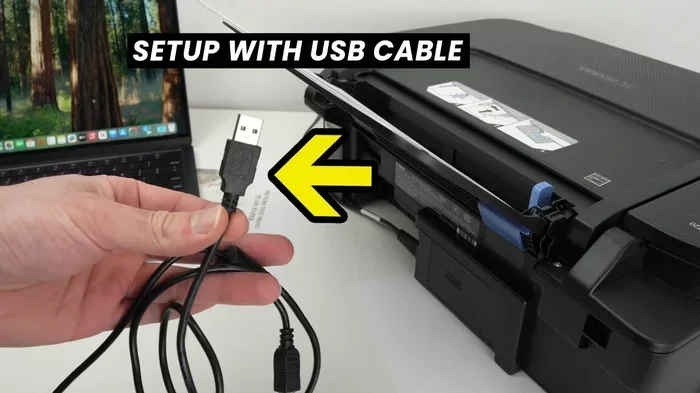
Plug the USB A end of your adapter into the USB port on your computer. Make sure it clicks into place firmly. If the adapter has a USB power cable, connect that to another USB port as well. Some adapters draw power from the data connection alone, but others need extra power to handle higher resolutions.
Step 3: Attach The HDMI Cable
Take your HDMI cable and plug one end into the adapter. Plug the other end into your monitor, TV, or projector. Make sure both connections are secure and snug.
Step 4: Power On And Switch Input
Turn on your external display and use the source or input button on the monitor or TV to select the HDMI port you connected to. Your computer should detect the new display automatically in most cases.
Step 5: Configure Display Settings
If the display does not show up right away, do not panic. Go to your computer display settings and look for an option to detect or add a second display. You can choose to extend your desktop, mirror your screen, or use only the external display. This is where you can also adjust the resolution and orientation to match your setup.
Quick Tip: If your display shows up but the image looks blurry, go into your display settings and manually set the resolution to match your monitor’s native resolution. This will give you the sharpest picture possible.
Common Problems And How To Fix Them
Even with the right equipment, you might run into some issues. Here are the most common problems people face when setting up HDMI through USB A and how to solve them.
No Signal On The Display
This is the most common issue. First, check that all cables are firmly connected. Try unplugging and replugging the adapter. If that does not work, try a different USB port. Sometimes the port itself might not be providing enough power or data bandwidth.
If you are still getting no signal, check your display settings to make sure the computer is set to output to an external display. On Windows, press the Windows key plus P to bring up the projection menu. On Mac, go to System Preferences and look for Displays.
Low Resolution Or Blurry Image
This usually happens when the adapter is connected to a USB 2.0 port instead of USB 3.0. Switch to a USB 3.0 port if possible. Also, make sure you have the latest display drivers installed on your computer. Outdated drivers can limit the resolution and refresh rate of your external display.
Flickering Or Intermittent Signal
A flickering signal often points to a loose connection or a low-quality adapter. Make sure all cables are secure. Try a different HDMI cable to rule out a faulty cable. If the problem persists, the adapter itself might be defective or incompatible with your device. Consider investing in a higher-quality adapter from a trusted brand.
Audio Not Working Through HDMI
Some adapters only carry video and do not transmit audio. Check your adapter specifications to see if it supports audio output. If it does, go into your computer sound settings and set the HDMI display as the default audio output device.
Driver Issues On Windows
Windows sometimes needs a specific driver to recognize USB display adapters. Visit the adapter manufacturer’s website and download the latest driver. After installing, restart your computer and try connecting again. This solves the problem in the majority of cases.
When Should You Use HDMI Through USB A
This connection method is great for specific situations. It is not always the ideal solution, but it works well in the right context. Here are some scenarios where running HDMI through USB A makes a lot of sense.
Traveling professionals who need to connect to hotel TVs or conference room displays often carry lightweight adapters instead of bulky docking stations. Students in dorm rooms can extend their laptop screen to an external monitor without needing special ports. Home office workers can set up a dual monitor configuration using available USB A ports.
It is also useful when you are using a computer that has limited video outputs. Some budget laptops and mini PCs only have USB A ports and no dedicated HDMI or DisplayPort outputs. In these cases, a USB A to HDMI adapter is your best bet for connecting to an external display.
However, for permanent setups or high-performance needs, consider using native video outputs whenever possible. A direct HDMI connection from your device will always provide better quality and lower latency than going through a USB adapter. Use the USB A method as a flexible solution, not a permanent one.
Expert Insights On HDMI Through USB A
Industry experts consistently recommend checking your device compatibility before purchasing any adapter. The advantages and disadvantages of proprietary operating systems can sometimes affect how well third-party adapters work. For instance, some operating systems have built-in driver support for USB display adapters, while others might require manual driver installation. Understanding your system’s capabilities helps you avoid frustration and wasted money.
Network connectivity also plays a role when you are using adapters for remote display or streaming scenarios. The advantages and disadvantages of using a value added network for electronic commerce communication highlight how network infrastructure can impact the quality of digital signal transmission. While this might seem unrelated, the same principles apply to how your USB data connection handles video signal conversion and transmission.
Experts also advise buying adapters from reputable brands. Cheap no-name adapters might save you a few dollars upfront, but they often have poor signal conversion chips that lead to low-quality video, audio sync issues, and frequent disconnections. Spending a little more on a quality adapter pays off in reliability and performance.
Key Takeaways
- HDMI can run through USB A: You need an active adapter to convert the signal from USB A to HDMI output for external displays.
- USB 3.0 or higher is recommended: For the best resolution and performance, always use a USB 3.0 port or higher with your adapter.
- Active adapters do the conversion: Passive cables alone cannot convert the signal. Always choose an active adapter with a built-in conversion chip.
- Check compatibility first: Verify your device supports video output through USB before buying an adapter to avoid wasted time and money.
- Driver updates matter: Keep your display drivers up to date to ensure smooth performance and avoid common connection issues.
- Audio may need separate setup: Not all adapters carry audio. Check specifications and configure sound settings if you need sound through HDMI.
- Quality adapters make a difference: Invest in a reputable brand for reliable signal conversion and long-lasting performance.
Conclusion
So, can you run HDMI through USB A? Absolutely. With the right active adapter and a compatible USB port, you can connect any HDMI display to your computer or laptop. Whether you need an extra monitor for work, a bigger screen for entertainment, or a reliable setup for presentations, this connection method gives you the flexibility you need.
The key is choosing the right adapter for your setup. Check your USB port version, confirm your operating system supports USB display output, and invest in a quality active adapter from a trusted brand. Follow the step-by-step setup guide, and you will have your external display running in minutes.
Most problems you encounter are easy to fix. Check your cables, update your drivers, and switch to a USB 3.0 port if you experience resolution or signal issues. With a little patience and the right equipment, HDMI through USB A is a practical and effective solution for extending your display wherever you need it.
Now that you have all the knowledge you need, go ahead and set up your external display. You will be amazed at how much more productive and comfortable your workflow becomes with an extra screen. Happy connecting!
Frequently Asked Questions
Can any USB A port output HDMI video?
Not all USB A ports can output video. Your device needs to support USB display or virtual display technology. Most modern computers and laptops do support this feature, but older machines may not. Check your device specifications or manual to confirm before purchasing an adapter.
Do I need a special adapter to connect HDMI through USB A?
Yes, you need an active USB A to HDMI adapter. Passive cables will not work because they do not convert the signal. The active adapter contains a chip that translates the USB data signal into an HDMI video and audio signal your display can understand.
What resolution can I expect from HDMI through USB A?
This depends on your USB port version and the quality of your adapter. USB 3.0 ports typically support 1080p and sometimes 4K resolution. USB 2.0 ports may work for basic 1080p but could experience lag. Always check the adapter specifications for supported resolutions before buying.
Why is my HDMI through USB A connection not working?
Several factors can cause this. Try checking your cable connections first, then switch to a USB 3.0 port. Make sure your display drivers are up to date. If the problem persists, the adapter may be incompatible with your device or defective. Try a different adapter or contact the manufacturer for support.
Can I get audio through HDMI when using a USB A adapter?
Some adapters support audio transmission while others only carry video. Check your adapter specifications to confirm. If audio is supported, go to your computer sound settings and set the HDMI display as the default audio output device to route sound through your external monitor or TV.
Is HDMI through USB A good for gaming?
It can work for casual gaming, but it is not ideal for competitive or high-performance gaming. The USB connection introduces some latency compared to a direct HDMI or DisplayPort connection. For fast-paced games, a native video output will always provide better responsiveness and smoother gameplay.
=== INTERNAL LINKS ===
Understanding how different technologies interact is important when setting up display connections. For example, knowing the advantages and disadvantages of proprietary operating systems can help you understand why some adapters work better with certain platforms than others. Operating system compatibility plays a big role in how smoothly your HDMI through USB A setup will perform.
Additionally, if you are using network-based display solutions or remote streaming setups, you might want to explore the advantages and disadvantages of using a value added network for electronic commerce communication. These insights can help you understand how network infrastructure affects digital signal quality in broader connectivity scenarios.
For more tips on optimizing your display setup and understanding cable compatibility, check out our other resources on proprietary operating system compatibility and network-based connection methods.