Can You Use Any Paper With Canon Ivy Photo Printer
The Canon Ivy photo printer works best with specific paper types designed for thermal dye printing. You can use Canon genuine paper, adhesive backed sheets, glossy paper, and matte paper, but regular copy paper will not work. This guide covers every paper option so you can get the best print quality from your portable printer.
If you have a Canon Ivy photo printer, you already know how fun and easy it is to print photos, stickers, and labels on the go. But one question comes up again and again: can you use any paper with Canon Ivy? The answer might surprise you. Not all paper works well with this compact portable printer, and using the wrong kind can lead to frustrating results.
The Canon Ivy photo printer is designed to work with specific paper types that match its thermal dye printing system. This means your choice of photo printing paper directly affects how your prints look, feel, and last. Whether you are making printable stickers, printing photo paper for albums, or creating custom labels, picking the right sheet makes all the difference.
In this guide, we will walk you through every paper option that works with the Canon Ivy photo printer. You will learn what to use, what to avoid, and how to get the best print quality every single time. Whether you are printing sticker paper, glossy photo paper, or something else, this article has you covered.
By the end, you will feel confident choosing the right photo printing paper for your Canon Ivy photo printer. No guesswork. No wasted paper. Just clear, practical advice you can use right away.
Key Takeaways
- Thermal Printing System: The Canon Ivy photo printer uses thermal dye technology, not inkjet ink, so paper must have a compatible coating.
- Canon Genuine Paper Is Best: Canon branded paper delivers the most consistent and vibrant results with the Canon Ivy photo printer.
- Sticker Paper Works Great: Adhesive backed paper is perfect for printable stickers, labels, and custom decor projects.
- Glossy vs Matte Matters: Glossy paper makes colors pop, while matte paper offers a subtle, non-reflective finish for everyday use.
- Never Use Copy Paper: Regular copy paper lacks the coating needed for thermal dye transfer and will produce poor results.
- Check Paper Size Compatibility: The Canon Ivy Mini supports 2×3.5-inch sheets and multi-image layouts. Always verify size before buying.
- Third-Party Options Exist: Reputable third-party thermal-compatible paper can be a budget-friendly alternative to Canon genuine paper.
📑 Table of Contents
What Paper Does the Canon Ivy Photo Printer Accept?
The Canon Ivy photo printer uses a thermal dye printing process. This means it does not use ink cartridges like a traditional inkjet printer. Instead, it transfers dye from a ribbon onto specially coated paper. Because of this unique system, the paper you choose must have a compatible coating that accepts the thermal dye.
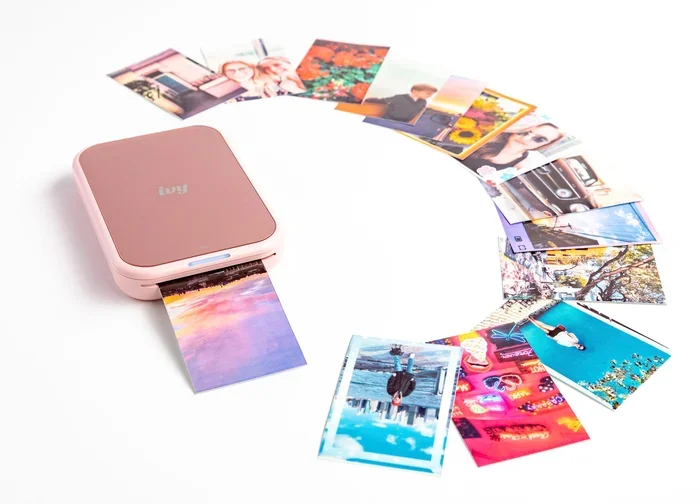
Canon designed the Canon Ivy Mini to work with their own branded paper. This includes Canon photo paper sheets and adhesive sheets. These papers are specifically treated to produce vibrant colors, sharp details, and water-resistant prints.
However, you are not limited to Canon-branded paper alone. Many third-party photo printing paper options also work well. The key is finding paper that is compatible with thermal dye printers and matches the right paper size for the Canon Ivy photo printer.
Supported Paper Sizes
The Canon Ivy photo printer supports specific paper sizes. The most common size is 2×3.5 inches, which is perfect for printable stickers and small photos. Canon also offers sheets that print multiple images per page. Always check the paper size compatibility before you buy a new pack of sheets.
How the Thermal Printing System Works
Understanding how your Canon Ivy photo printer works helps you choose better paper. The printer uses a thermal head that heats the ribbon. The heated dye then transfers onto the paper coating. If the paper coating is too thick, too thin, or incompatible, the dye will not adhere properly. This leads to faded colors, smudging, or prints that peel off easily.
Quick Tip: Always store your photo printing paper in a cool, dry place. Heat and humidity can damage the coating before you even print on it. Keep your sheets flat and in their original packaging until you are ready to use them.
Best Paper Types for Canon Ivy Printing
Not all paper is created equal when it comes to the Canon Ivy photo printer. Some papers deliver stunning results, while others leave you disappointed. Here are the best paper types that work great with this portable printer.
Canon Genuine Photo Paper
The safest and most reliable option is Canon genuine photo paper. Canon designed this paper specifically for their thermal printers. It produces sharp images, true-to-life colors, and prints that resist fading. If you want consistent, high-quality results, Canon photo paper is the way to go.
Adhesive Backed Paper for Stickers
One of the most popular uses for the Canon Ivy photo printer is creating printable stickers. Adhesive backed paper lets you print a design and then peel off the backing to stick it on laptops, water bottles, notebooks, and more. Look for adhesive paper that is specifically rated for thermal printers.
Glossy Photo Paper
Glossy paper gives your photos a shiny, vibrant finish. Colors pop against the glossy surface, and images look professional. This is a great choice for photo printing that you want to display or give as gifts. Just know that glossy paper can be more reflective, which may not be ideal for all uses.
Matte Photo Paper
Matte paper offers a smooth, non-reflective finish. It is perfect for Canon Ivy photo printer users who want a more subtle, elegant look. Matte prints are also less prone to fingerprints and glare, making them great for everyday use. If you are printing label paper or cards, matte paper works beautifully.
Inkjet Printable Labels
Some users wonder if they can use inkjet printable labels with the Canon Ivy photo printer. The answer is generally no. The Canon Ivy uses thermal dye technology, not inkjet ink. However, some thermal-compatible adhesive label sheets do work. Always check the product description to confirm thermal printer compatibility.
Comparison Table: Paper Types for Canon Ivy
| Paper Type | Best For | Finish | Compatibility |
|---|---|---|---|
| Canon Genuine Photo Paper | Photos, albums, gifts | Semi-gloss | Excellent |
| Adhesive Backed Paper | Stickers, labels, decor | Varies | Excellent |
| Glossy Photo Paper | Vibrant photos, displays | Shiny | Good |
| Matte Photo Paper | Cards, labels, everyday prints | Flat, non-reflective | Very Good |
| Thermal Label Paper | Shipping labels, name tags | Matte or glossy | Good |
| Cardstock | Invitations, greeting cards | Varies | Moderate |
Expert Insight: According to printing experts, Canon genuine paper delivers the most consistent results with the Canon Ivy photo printer. Third-party papers can work well too, but quality varies. Always buy from reputable brands to avoid wasting paper and ink ribbons.
Can You Use Regular Copy Paper With Canon Ivy?
The short answer is no. You should not use regular copy paper with your Canon Ivy photo printer. Here is why.
Regular copy paper is not coated for thermal dye transfer. The dye from the ribbon will not bond properly with the plain paper surface. This leads to several problems:
- Faded colors that look washed out
- Smudging that happens when you touch the print
- Uneven coverage with blank spots or streaks
- Short print life since the dye flakes off easily
- Paper jams because copy paper thickness differs from coated sheets
Using copy paper also wastes your thermal ribbon. Since the dye does not transfer correctly, you burn through ribbon life without getting good results. That means more cost and more frustration.
Common Mistake: Some people try to use regular paper as a test print before using their good photo printing paper. Do not do this with the Canon Ivy photo printer. The thermal process is designed for coated paper only. A test print on copy paper will not give you accurate results anyway.
If you need a budget-friendly option, look for affordable thermal-compatible paper rather than plain copy paper. Many brands offer photo printing paper at reasonable prices that still deliver great print quality. Saving a few dollars on paper is not worth ruining your prints or your printer.
Quick Tip: If you are on a tight budget, buy thermal-compatible paper in bulk. Many online retailers offer discounts on larger packs. This saves money per sheet and ensures you always have enough Canon Ivy paper on hand for your projects.
Sticker Paper and Adhesive Options for Canon Ivy
One of the best features of the Canon Ivy photo printer is its ability to create printable stickers. Whether you want to decorate your laptop, label your belongings, or start a small sticker business, adhesive paper opens up a world of possibilities.
Types of Adhesive Paper
Not all adhesive backed paper is the same. Here are the main types that work with the Canon Ivy photo printer:
- Full-sheet adhesive paper: You print on the entire sheet and then cut out individual stickers. Great for custom designs and batch printing.
- Die-cut sticker sheets: These come with pre-cut shapes. You print inside the shapes and peel off ready-made stickers. Very convenient for beginners.
- Roll-style adhesive paper: Some third-party options come in rolls that fit the Canon Ivy Mini. These are ideal for high-volume sticker printing.
- Removable adhesive paper: This type has a gentle adhesive that does not leave residue. Perfect for temporary stickers on walls, windows, or mirrors.
Tips for Printing Stickers
Getting great sticker prints takes a little practice. Here are some tips to help you succeed:
- Use the right paper setting in the Canon Ivy app. Select the sticker or adhesive paper option for the best results.
- Let prints dry for a few minutes before peeling or handling them. The dye needs time to set into the adhesive coating.
- Store sticker sheets flat to prevent curling. Curled sheets can jam the printer and ruin your prints.
- Test print on one sheet first before running a full batch. This saves paper and lets you adjust colors or sizing.
- Use borderless printing when possible. The Canon Ivy photo printer supports borderless photo printing, which gives your stickers a professional, edge-to-edge look.
Quick Tip: If you are selling printable stickers, use high-contrast designs. The Canon Ivy photo printer produces vibrant colors, but very light or pastel designs may look different on certain adhesive papers. Always do a test print first.
Expert Insight: Sticker designers recommend using adhesive backed paper with a matte finish for the most natural look. Glossy adhesive paper can create glare in photos, which may not be ideal for certain designs. Matte also hides minor print imperfections better.
Glossy vs Matte Paper for Canon Ivy Photos
Choosing between glossy paper and matte paper is one of the most common decisions Canon Ivy photo printer users face. Both options produce beautiful results, but they look and feel very different.
When to Use Glossy Paper
Glossy paper is the classic choice for photo printing. It gives your images a shiny, vibrant finish that makes colors pop. Here are the best times to choose glossy:
- You are printing photos for albums or frames
- You want rich, saturated colors that really stand out
- You are creating gift prints or wedding photos
- You want a professional, polished look for your images
The downside of glossy paper is that it reflects light. This can be a problem if you are viewing your prints at an angle. Glossy prints also show fingerprints more easily than matte prints.
When to Use Matte Paper
Matte paper offers a smooth, non-shiny surface. It absorbs light instead of reflecting it, which gives prints a softer, more elegant appearance. Choose matte when:
- You are printing label paper or address labels
- You want a modern, understated look for your photos
- You are creating cards, invitations, or stationery
- You need prints that do not show fingerprints easily
- You are printing in bright or outdoor lighting conditions
Matte paper also tends to be more forgiving with minor print imperfections. Small details that might look slightly off on glossy paper often blend in better on matte surfaces.
Comparison Table: Glossy vs Matte for Canon Ivy
| Feature | Glossy Paper | Matte Paper |
|---|---|---|
| Color Vibrancy | High – colors pop | Moderate – softer tones |
| Reflectivity | High – shiny surface | Low – non-reflective |
| Fingerprint Visibility | High – shows marks | Low – hides marks |
| Best For | Photos, displays, gifts | Labels, cards, everyday use |
| Water Resistance | Good with Canon coating | Good with Canon coating |
| Price | Similar to matte | Similar to glossy |
| Borderless Printing | Supported | Supported |
Quick Tip: If you are not sure which to choose, start with matte paper. It is more versatile and works well for almost any Canon Ivy photo printer project. You can always experiment with glossy paper once you are comfortable with your prints.
Common Mistakes When Choosing Paper for Canon Ivy
Even experienced Canon Ivy photo printer users make paper mistakes sometimes. Here are the most common errors and how to avoid them.
Mistake 1: Using the Wrong Paper Size
The Canon Ivy photo printer is designed for specific paper sizes. Using the wrong size can cause jams or damage the printer. Always check that your paper size matches what the printer supports. The standard size for the Canon Ivy Mini is 2×3.5 inches for individual prints.
Mistake 2: Ignoring Paper Coating Compatibility
Not all coated papers are the same. Some have coatings designed for inkjet printers, not thermal printers. Using inkjet-coated paper with your Canon Ivy will give poor results. Always look for paper labeled as compatible with thermal printers or specifically with Canon Ivy.
Mistake 3: Buying Cheap, Unbranded Paper
It can be tempting to buy the cheapest photo printing paper you find online. But low-quality paper often has inconsistent coatings that lead to poor print quality. You may end up wasting paper, ribbons, and time. Stick with reputable brands or Canon genuine paper for the best results.
Mistake 4: Overloading the Paper Feed
The Canon Ivy photo printer has a small paper feed. Do not try to load too many sheets at once. Overloading causes jams and misfeeds. Load only 10 sheets or fewer at a time, and make sure the paper is flat and aligned properly.
Mistake 5: Forgetting to Update the Printer App
The Canon Ivy app includes paper type settings that optimize print quality for different papers. If you do not update the app, you might miss new paper profiles and settings. Keep your app updated to get the best results from every type of photo printing paper you use.
Common Mistake: Many users assume that because the Canon Ivy photo printer is small and portable, it can handle any paper. This is not true. The thermal printing system is precise, and it needs the right paper to work correctly. Treat your paper choice with the same care you would treat an ink cartridge in a larger printer.
Conclusion
The Canon Ivy photo printer is a wonderful device that makes photo printing fun and portable. But the paper you choose plays a huge role in the results you get. Now you know the answer to the question: can you use any paper with Canon Ivy? The truth is, you need the right kind of paper to get the best print quality.
Stick with Canon genuine paper or trusted third-party thermal-compatible sheets. Avoid regular copy paper and uncoated sheets. Choose glossy paper for vibrant photos or matte paper for a more subtle look. Use adhesive backed paper for printable stickers and labels. And always make sure your paper size matches what your Canon Ivy Mini supports.
With the right photo printing paper and a little practice, your Canon Ivy photo printer will produce stunning results every time. Experiment with different paper types, have fun with your projects, and enjoy the freedom of printing wherever you go.
Key Takeaway: The Canon Ivy photo printer works best with coated thermal-compatible paper. Your paper choice directly impacts print quality, durability, and ease of use. Choose wisely, and your prints will look amazing.
Frequently Asked Questions
Can I Use Cardstock With My Canon Ivy Photo Printer?
Thin cardstock may work with the Canon Ivy photo printer, but it is not recommended. The printer is designed for thin, coated sheets. Thick cardstock can cause jams and may not feed properly through the small paper path. If you want to print on cardstock, look for ultra-thin cardstock sheets specifically rated for thermal printers.
What Paper Size Does the Canon Ivy Use?
The Canon Ivy photo printer primarily uses 2×3.5-inch sheets for individual prints. It also supports sheets that print multiple images per page, such as 2×7-inch strips or full-sheet layouts. Always check the packaging to confirm the paper size is compatible with your specific Canon Ivy model.
Is Canon Ivy Paper the Same as Regular Photo Paper?
Not exactly. Canon Ivy paper is specially coated for thermal dye transfer, which is different from the inkjet coating on regular photo paper. While some third-party thermal-compatible papers work well, standard inkjet photo paper will not produce good results with the Canon Ivy photo printer. The thermal coating is essential for proper dye adhesion and vibrant colors.
Can I Use Sticker Paper for Labels and Shipping?
Yes, you can use adhesive backed paper for labels and shipping tags with the Canon Ivy photo printer. Just make sure the adhesive paper is compatible with thermal printers. Some inkjet printable labels are not thermal-compatible, so always check the product description. For shipping labels, look for thermal label paper that is specifically designed for your printer type.
Does Canon Ivy Support Borderless Printing?
Yes, the Canon Ivy photo printer supports borderless printing. This means you can print images that extend all the way to the edges of the paper with no white borders. Borderless printing works best with Canon genuine photo printing paper and compatible third-party sheets. It is a great feature for creating polished printable stickers and photo prints.
What Happens if I Use the Wrong Paper?
Using the wrong paper with your Canon Ivy photo printer can cause several issues. Poor print quality is the most common problem, including faded colors, smudging, and uneven coverage. In some cases, the wrong paper can jam the printer or damage the thermal head. To avoid these problems, always use paper that is specifically compatible with thermal dye printers.