Do All Monitors Have Hdmi Ports Heres What You Need to Know
Do all monitors have HDMI ports? The short answer is no. While HDMI is the most common display connection today, many monitors use DisplayPort, USB-C, VGA, or DVI instead. Understanding your monitor connection options ensures you pick the right display for your setup.
Have you ever unboxed a shiny new monitor only to realize it doesn’t have the port you need? You plug in your laptop or gaming console and then… nothing. The cable doesn’t fit. This is a more common problem than you might think. Not all monitors have HDMI ports, and understanding why can save you a lot of time and money.
HDMI has become the go-to standard for display connections over the past decade. It carries both video and audio through a single cable. But the tech world doesn’t stand still. Newer standards like DisplayPort, USB-C, and Thunderbolt are changing how we connect our screens. Whether you are building a home office, setting up a gaming rig, or just looking for a second display, knowing your connection options matters.
In this guide, we will break down every monitor port type you might encounter. We will explain which monitors have HDMI, which don’t, and how to handle mismatched connections. By the end, you will feel confident choosing the right monitor for your needs.
Key Takeaways
- Not all monitors include HDMI ports: Many modern displays use DisplayPort, USB-C, or other connection types.
- HDMI is the most common standard: Most consumer monitors ship with at least one HDMI port for broad compatibility.
- Older monitors may only have VGA or DVI: Legacy connections are still found on budget and vintage displays.
- Adapters and converters solve compatibility issues: You can easily connect devices with mismatched ports using the right adapter.
- USB-C and DisplayPort offer advanced features: These connections often support higher resolutions and refresh rates than standard HDMI.
- Check your devices before buying a monitor: Matching your source device outputs to monitor inputs prevents frustration.
📑 Table of Contents
- What Is an HDMI Port and Why Does It Matter?
- Do All Monitors Have HDMI Ports?
- Common Monitor Connection Types You Will Encounter
- How to Choose the Right Monitor for Your Needs
- Do Smart Monitors Have Different Ports?
- Common Mistakes People Make With Monitor Connections
- Quick Tips for a Smooth Monitor Setup
- The Future of Monitor Connections
- Final Thoughts
What Is an HDMI Port and Why Does It Matter?
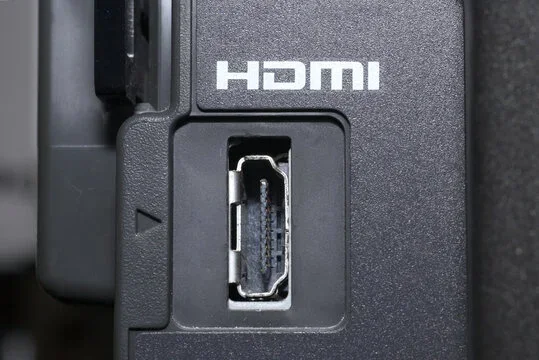
HDMI stands for High-Definition Multimedia Interface. It is a digital connection standard that transmits both video and audio signals through one cable. This makes it incredibly convenient. Instead of running separate cables for picture and sound, HDMI handles everything in a single connection.
Most people encounter HDMI on their TVs, laptops, and gaming consoles. It is the default connection for many devices because it is simple and reliable. The standard has evolved over the years too. HDMI 2.0 supports 4K resolution at 60Hz, while HDMI 2.1 can handle 4K at 120Hz or even 8K at 60Hz.
For the average user, HDMI is the easiest option. You grab a cable, plug it in, and it works. There is no need for adapters or special drivers. This is why most budget and mid-range monitors include at least one HDMI port. It gives buyers peace of mind and broad compatibility with everything from Blu-ray players to streaming sticks.
HDMI Versions Explained
Not all HDMI ports are created equal. Different versions support different features. Here is a quick look at the main versions you will find:
- HDMI 1.4: Supports 4K at 30Hz. Good for basic 4K monitors but not ideal for fast gaming.
- HDMI 2.0: Supports 4K at 60Hz. This is the sweet spot for most 4K displays.
- HDMI 2.1: Supports 4K at 120Hz and 8K at 60Hz. Found on high-end gaming monitors and TVs.
When shopping for a monitor, always check which HDMI version it supports. A monitor with HDMI 2.0 will handle most tasks just fine. But if you are a serious gamer or work with high-resolution video, HDMI 2.1 gives you the headroom you need.
Do All Monitors Have HDMI Ports?
The direct answer is no. While HDMI is widely used, it is not universal. Some monitors come without any HDMI port at all. Others include HDMI alongside other connection types. The port selection depends on the monitor’s target audience, price point, and intended use case.
Budget monitors sometimes skip HDMI to cut costs. They rely on older standards like VGA or DVI instead. On the other end of the spectrum, premium monitors may favor DisplayPort or USB-C for their higher bandwidth capabilities. The trend toward USB-C is especially strong in the laptop and ultrabook world.
Before you buy any monitor, always check the back panel or the product specifications. Do not assume HDMI is included just because most monitors have it. Taking two minutes to verify the ports can save you from buying an adapter you did not plan for.
Why Some Monitors Skip HDMI
There are a few reasons a manufacturer might leave HDMI off a monitor:
- Target audience: Professional monitors aimed at creatives often prioritize DisplayPort and USB-C over HDMI.
- Design philosophy: Some brands believe USB-C alone is enough for most users since it handles video, data, and power.
- Cost savings: Removing HDMI can shave a few dollars off the manufacturing cost.
- Space constraints: Ultra-th monitors may not have room for an HDMI port alongside other connectors.
These reasons make sense from a manufacturer’s perspective. But they can be a headache for consumers who only have HDMI cables on hand. This is where adapters come to the rescue, which we will cover in a later section.
Common Monitor Connection Types You Will Encounter
Monitors today come with a surprising variety of input options. Let us walk through each one so you know exactly what you are dealing with.
VGA (Video Graphics Array)
VGA is the oldest connection type on this list. It dates back to the 1980s and uses a chunky blue connector with 15 pins. VGA carries an analog video signal only. It does not support audio and cannot handle modern high-resolution displays well.
You will still find VGA on some older monitors and projectors. Many people also keep VGA cables around from older equipment. If you have a VGA-only source, you will need a VGA-to-HDMI converter to connect it to a modern display. The image quality is noticeably lower than digital alternatives, so try to avoid VGA when possible.
DVI (Digital Visual Interface)
DVI came after VGA and offered a digital signal for sharper images. It was popular in the 2000s and early 2010s. DVI comes in three varieties: DVI-A (analog), DVI-D (digital), and DVI-I (integrated, supporting both).
DVI does not carry audio. It also maxes out at 1080p on single-link connections. Dual-link DVI can push 1440p, but it is still limited compared to HDMI and DisplayPort. You will mostly find DVI on older monitors or specialized equipment like some industrial displays.
DisplayPort
DisplayPort is a strong competitor to HDMI. It was developed by the Video Electronics Standards Association (VESA) and offers excellent bandwidth. DisplayPort 1.4 supports 4K at 120Hz and even 8K at 60Hz with compression.
Many monitors designed for PC gaming or professional work come with DisplayPort. It also supports daisy-chaining, which means you can connect multiple monitors to a single output. If you are building a multi-monitor setup, DisplayPort is often the better choice. DisplayPort is the go-to for high-refresh-rate gaming monitors and ultrawide displays.
USB-C and Thunderbolt
USB-C is rapidly becoming the most versatile port on modern devices. When a monitor has a USB-C input, it can carry video, audio, and data all through one cable. Many modern laptops output video through USB-C, making this a very convenient option.
Thunderbolt is a supercharged version of USB-C developed by Intel and Apple. Thunderbolt 3 and Thunderbolt 4 can drive multiple high-resolution displays from a single connection. If you have a newer laptop, there is a good chance it uses USB-C or Thunderbolt as its primary video output.
Some monitors now include USB-C ports that also deliver power. This means a single cable can charge your laptop while displaying video. It is a clean, cable-free setup that many people love for their home office setup.
How to Choose the Right Monitor for Your Needs
Choosing a monitor is not just about screen size or resolution. The connection options matter just as much. A beautiful 4K monitor is useless if you cannot connect it to your computer or console.
Start by looking at what your source devices have to offer. Do your laptop and desktop have HDMI outputs? Do you use a USB-C docking station? Make a list of all your devices and their available ports. This simple step prevents a lot of frustration later.
Next, think about what you will use the monitor for. A casual user browsing the web has different needs than a competitive gamer or a video editor. Here are some quick guidelines:
- General use and office work: HDMI is perfectly fine. Look for a monitor with at least one HDMI input and a USB-C option for convenience.
- Gaming: Prioritize monitors with HDMI 2.1 or DisplayPort 1.4. These support high refresh rates and low input lag for a smooth experience.
- Creative work: DisplayPort and USB-C are ideal. They support higher color depths and resolutions that matter for photo and video editing.
- Multi-monitor setups: DisplayPort’s daisy-chaining feature is a huge advantage here.
Always read the product specifications before purchasing. If HDMI is important to you, confirm that the monitor includes it. Do not rely on product images alone, as they can be misleading.
What If Your Devices Have Different Ports?
Mismatched ports are very common. You might have a laptop with USB-C output and a monitor with only HDMI input. This is not a problem. Adapters and converters solve this easily.
You can grab a USB-C to HDMI adapter for under fifteen dollars. These small devices convert the signal from one format to another. They work reliably and do not require any software installation. Just plug the adapter into your laptop, connect an HDMI cable, and you are good to go.
Similarly, DisplayPort to HDMI adapters are widely available and affordable. They let you connect a modern graphics card to an older HDMI monitor without any issues. These adapters are a lifesaver when you are working with mixed equipment.
Some people also use streaming devices like Chromecast or Amazon Fire Stick, which connect to HDMI ports on TVs and monitors. These devices rely on built-in WiFi capabilities, and the quality of their wireless performance can depend on the internal antenna design, similar to how the design of internal WiFi antennas affects overall wireless performance in other devices. So it is worth keeping in mind that wireless streaming quality can vary depending on the hardware inside these compact devices.
Do Smart Monitors Have Different Ports?
Smart monitors are a growing category in the display market. These monitors have built-in apps, streaming capabilities, and sometimes even built-in speakers. They blur the line between a computer monitor and a television.
Most smart monitors include HDMI ports because they are designed to work with streaming devices and cable boxes. Some also feature USB-C for direct laptop connections. A few models even include WiFi connectivity built in, allowing you to cast content without any external hardware. This is where the internal WiFi antenna design becomes important for maintaining a stable wireless connection.
The port selection on smart monitors tends to be more varied than on standard monitors. They often include a mix of HDMI, USB-C, and sometimes even Bluetooth for wireless audio. If you are considering a smart monitor, make sure the connection options match your usage habits.
Common Mistakes People Make With Monitor Connections
Even tech-savvy people sometimes make mistakes when connecting their monitors. Here are a few to watch out for:
- Assuming all HDMI cables are the same: An older HDMI cable may not support 4K or high refresh rates. Always check the cable specification.
- Forcing a cable into the wrong port: HDMI, DisplayPort, and USB-C all look different. Forcing a cable can damage the port.
- Ignoring audio output settings: If your monitor has HDMI but no sound, check your computer’s audio output settings. HDMI carries audio, but your system may default to speakers instead.
- Buying a monitor without checking its ports: Always verify the input options before you buy. The product page and user manual list all available ports.
- Using cheap adapters: A five-dollar adapter might seem like a good deal. But poor-quality adapters can cause signal loss, flickering, or no signal at all.
Avoiding these mistakes saves you time and money. A little research goes a long way when setting up your display.
Quick Tips for a Smooth Monitor Setup
Here are some practical tips to make your monitor setup hassle-free:
- Keep your cables organized: Use cable ties or a cable management tray to keep your desk clean.
- Label your cables: If you have multiple monitors, label each cable so you know which goes where.
- Update your graphics drivers: New drivers often improve display compatibility and performance.
- Test your setup before mounting: Set up your monitor on the desk first. Make sure everything works before you wall-mount it.
- Buy quality adapters: Spend a little more on reputable adapter brands. They deliver better signal quality and reliability.
- Check for firmware updates: Some monitors receive firmware updates that improve port compatibility and fix bugs.
These small steps make a big difference. A clean, well-planned setup looks better and works better too.
The Future of Monitor Connections
Display technology is always evolving. USB-C and Thunderbolt are becoming the new standard for many laptops and monitors. These ports offer incredible versatility in a single, compact connector.
HDMI is not going away anytime soon. It remains the most widely supported standard for TVs, consoles, and budget monitors. But the trend is clearly moving toward USB-C and wireless connections. Some newer monitors even support wireless screen mirroring through WiFi, though a wired connection still offers the most reliable performance.
As wireless display technology improves, we may see monitors with fewer physical ports. Technologies like Miracast and Chromecast already let you cast your screen without cables. However, wired connections still offer lower latency and more consistent performance. For now, the best approach is to have a monitor with multiple input options so you are ready for anything.
The key takeaway is simple. Do all monitors have HDMI ports? No, they do not. But with the right knowledge and a few affordable accessories, you can connect virtually any device to any monitor. Plan ahead, check your ports, and enjoy a seamless display experience.
Final Thoughts
Navigating the world of monitor connections does not have to be confusing. HDMI remains the most common and user-friendly option, but it is not the only one. DisplayPort, USB-C, VGA, and DVI all have their place depending on your needs and equipment.
The most important thing is to know what ports your devices have and what your monitor supports. A quick check of the specifications saves hours of frustration. And if you run into a mismatch, adapters are an inexpensive and reliable solution.
Whether you are shopping for a new monitor or troubleshooting an existing setup, understanding your connection options puts you in control. You will make better buying decisions, set up faster, and enjoy a smoother experience every time you turn on your display.
Take the time to learn about your ports. Your future self will thank you when everything plugs in perfectly the first time.
Frequently Asked Questions
Can I use an HDMI cable with a DisplayPort monitor?
Not directly. HDMI and DisplayPort use different connectors and signal protocols. However, you can use an active DisplayPort-to-HDMI adapter or cable to bridge the gap. These adapters are affordable and widely available online and in electronics stores.
Why does my monitor not have an HDMI port?
Some monitors skip HDMI to reduce costs or because they target professional users who prefer DisplayPort or USB-C. Budget monitors and older models are more likely to lack HDMI. Always check the specifications before purchasing if HDMI is important to you.
Can I connect a gaming console to a monitor without HDMI?
Yes, but it depends on the console and monitor. Some consoles offer alternative outputs, and you can use adapters to convert signals. However, HDMI is the standard for most modern consoles, so a monitor without HDMI may require extra adapters or a different connection approach.
Is USB-C the same as HDMI?
No, USB-C and HDMI are different connection types. However, USB-C can carry video signals through protocols like DisplayPort Alt Mode and Thunderbolt. A USB-C monitor can accept video from a USB-C laptop, but it is not the same as a native HDMI connection.
Do all HDMI cables support 4K?
No. Only HDMI cables rated for 4K (HDMI 2.0 or higher) support 4K resolution. Older HDMI cables may only support 1080p or lower. Check the cable specifications to make sure it can handle the resolution you need.
What is the best monitor connection type for gaming?
DisplayPort 1.4 and HDMI 2.1 are the best options for gaming. They support high refresh rates, low input lag, and high resolutions. For most gamers, a monitor with either of these connections will deliver an excellent gaming experience.
=== CONCLUSION ===
Do all monitors have HDMI ports? The answer is a clear no. While HDMI is the most common connection type found on modern monitors, many displays use DisplayPort, USB-C, VGA, or DVI instead. The port options vary based on the monitor’s price, target audience, and intended use.
Understanding your connection options helps you make smarter buying decisions and avoid setup headaches. Check your source devices, verify the monitor’s inputs, and keep a few adapters on hand for unexpected situations. With the right knowledge and a little preparation, you can connect any device to any monitor with confidence.
Take a moment today to review your current setup. Are you using the best connection type for your needs? A small change could make a big difference in your display quality and overall experience.