Do Chromebooks Have A Password Everything You Need To Know
Do Chromebooks have a password? Yes, every Chromebook requires a password or PIN to keep your data safe. You can set up a Google account password, a PIN code, or even use biometric options on supported devices. This guide covers Chromebook password setup, security tips, and troubleshooting steps you can follow right now.
Do Chromebooks have a password? The short answer is yes. Every Chromebook comes with built-in password protection to keep your data safe and your device secure. When you first set up a Chromebook, you are asked to create a sign-in method. This is usually tied to your Google account password. But there is more to it than that.
Chromebooks offer several sign-in options beyond just a traditional password. You can set up a PIN code, use fingerprint recognition, or even rely on screen lock features that make signing in fast and easy. Whether you are new to Chromebooks or have been using one for years, understanding how password protection works on your device is important.
In this guide, we will walk through everything you need to know about Chromebook passwords. We will cover how they work, how to set them up, how to change them, and how to keep your device passcode strong and secure. Let us get started.
Key Takeaways
- Chromebooks require a password to protect your data and device from unauthorized access.
- Multiple sign-in options are available, including Google account passwords, PIN codes, and fingerprint unlock.
- Setting up your password is simple and happens during the initial device setup.
- Resetting a forgotten password is possible through your Google account recovery options.
- Guest mode and supervised users offer password-free access for other people using your device.
- Strong password habits keep your Chromebook secure and your personal data protected.
- Screen lock settings let you control how often your device asks for a password.
📑 Table of Contents
- What Is a Chromebook Password and How Does It Work
- Setting Up Your Chromebook Password
- Different Password Options Available on Chromebooks
- How to Change or Reset Your Chromebook Password
- Chromebook Password Security Tips
- Common Problems with Chromebook Passwords
- Expert Insights on Chromebook Password Security
- Key Takeaways
- Conclusion
What Is a Chromebook Password and How Does It Work
A Chromebook password is a form of authentication that verifies you are the owner or authorized user of the device. When you turn on your Chromebook or wake it from sleep, you are prompted to enter your credentials. This ensures that no one else can access your files, apps, or personal data.
How the Sign-In Process Works
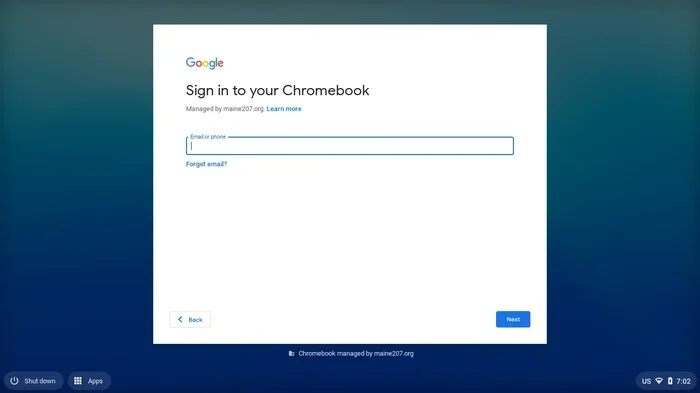
When you power on your Chromebook login screen appears. You type in your Google account password or PIN. The device then communicates with Google servers to verify your identity. Once verified, your desktop loads with all your settings, apps, and files ready to go.
This process is different from traditional laptops. A Windows or Mac laptop might store passwords locally. A Chromebook relies on cloud-based authentication. This means your password protection is tied directly to your Google account. It also means you can sign into any Chromebook in the world and access your data.
Why Password Protection Matters
Device passcode security is crucial for several reasons:
- Personal data protection: Your emails, photos, and documents stay private.
- Financial safety: Saved payment methods and browsing data remain secure.
- Identity protection: Prevent others from accessing your Google account.
- Work security: Keep work-related files and emails safe from unauthorized users.
Without proper password protection, anyone who picks up your Chromebook can browse your data, make purchases, or even reset your device. This is why setting a strong device passcode is the first step every Chromebook user should take.
Setting Up Your Chromebook Password
Setting up your Chromebook password is straightforward. The process begins during the initial device setup and can be adjusted later in your settings. Here is how it works.
During Initial Setup
When you first turn on a new Chromebook, the setup wizard guides you through several steps. You will be asked to:
- Connect to Wi-Fi.
- Sign in with your Google account password.
- Set up a PIN code for faster unlock.
- Agree to terms and privacy settings.
During this process, your Chromebook login credentials are established. The Google account password becomes your primary sign-in method. The PIN is an optional shortcut that lets you unlock your device quickly without typing your full password each time.
Setting Up a PIN for Faster Access
A PIN code is a quick and easy alternative to typing your full Google account password. Chromebook PINs are typically 4 to 6 digits long. They are device-specific, which means your PIN only works on that particular Chromebook.
To set up or change your PIN:
- Go to Settings in the bottom-right corner of your screen.
- Click on People or Accounts.
- Select Change PIN or Set up PIN.
- Follow the on-screen prompts to create your code.
Using a PIN makes your Chromebook unlock process much faster. You just type a few numbers and you are in. Just make sure your PIN is not something easy to guess like “1234” or your birthday.
Enabling Screen Lock
Your screen lock settings control how your Chromebook behaves when you close the lid or stop using it for a while. By default, your Chromebook locks automatically when you walk away. To check or change these settings:
- Open Settings.
- Go to the Security and Privacy section.
- Look for Screen Lock options.
- Toggle the feature on or off based on your preference.
Enabling screen lock means your device will ask for your device passcode every time you resume use. This adds an extra layer of password protection without slowing you down.
Different Password Options Available on Chromebooks
Not everyone wants to use the same sign-in options. Chromebooks offer several methods to keep your device secure while making access as convenient as possible. Let us look at each one.
Google Account Password
The Google account password is the most common and primary authentication method on Chromebooks. It is tied to your Google account, which means it works across all Google services. Your password manager can also save this password for easy retrieval.
This is the most secure option because Google enforces strong password requirements. Your password must meet certain complexity standards to be accepted. This helps protect against brute-force attacks and unauthorized Chromebook access.
PIN Code
A PIN code is a shorter, numeric alternative to your full password. It is perfect for quick unlocks throughout the day. However, PINs are device-specific and less complex than full passwords.
Quick Tip: Use at least a 6-digit PIN and avoid obvious number patterns. This keeps your Chromebook security strong even with a shorter code.
Fingerprint Unlock
Some newer Chromebooks come with fingerprint sensors. This biometric authentication method lets you unlock your device with a simple touch. It is fast, convenient, and highly secure.
To set up fingerprint unlock:
- Go to Settings.
- Navigate to Security or Biometrics.
- Follow the prompts to register your fingerprint.
Keep in mind that not all Chromebooks support fingerprint sensors. Check your device specifications before relying on this method for Chromebook authentication.
Guest Mode and Supervised Users
Chromebooks also offer guest mode, which allows someone to use the device without entering any device passcode. Guest mode does not save any data or browsing history. It is useful when a friend or family member needs quick access to the internet.
Supervised users are another option. This feature lets parents or administrators set up accounts for children or employees. Supervised users can access the internet with certain restrictions, but they do not need a separate password protection setup of their own.
Smart Lock and Automatic Sign-In
Chromebooks support Smart Lock, which uses your phone’s location to automatically unlock your device. When your phone is nearby, your Chromebook stays unlocked. When you walk away, it locks again. This is a great screen lock feature for people who want convenience without sacrificing secure browsing.
How to Change or Reset Your Chromebook Password
There will come a time when you need to change your Chromebook password. Maybe you forgot it. Maybe you just want to make it stronger. Either way, the process is simple.
Changing Your Google Account Password
Since your Chromebook login is tied to your Google account, changing your Google password changes your Chromebook password too. Here is how:
- Go to myaccount.google.com on any browser.
- Sign in with your current Google account password.
- Navigate to Security.
- Click on Signing in to Google.
- Select Password.
- Enter your new password and save.
After changing your password, you will need to sign out of your Chromebook and sign back in with the new credentials. This keeps your Chromebook security up to date.
Resetting a Forgotten Password
Forgot your Google account password? No worries. Google provides several password recovery options:
- Recovery email: Google sends a reset link to your backup email.
- Recovery phone: A verification code is sent to your registered phone number.
- Security questions: Answer previously set questions to regain access.
If none of these options work, you can visit the Google Account Recovery page for additional help. The process may take a few days, but it will restore your Chromebook access.
Resetting Your Chromebook to Factory Settings
If you are locked out of your device entirely and cannot recover your Google account password, you can perform a powerwash. This resets your Chromebook to factory settings. All local data will be erased, but your cloud data remains safe in your Google account.
To powerwash your Chromebook:
- Go to Settings.
- Scroll down to Advanced.
- Click on Reset settings.
- Select Powerwash.
- Follow the on-screen instructions.
After a powerwash, you will set up your device passcode again from scratch. This is a last resort but an effective way to regain Chromebook access.
Chromebook Password Security Tips
Having a password protection system is only useful if you use it correctly. Here are some practical tips to keep your Chromebook security strong.
Create a Strong Password
Your Google account password should be long, unique, and complex. Use a mix of uppercase letters, lowercase letters, numbers, and symbols. Avoid common words or personal information like your name or birth date.
Quick Tip: Use a password manager like Google Password Manager or a third-party tool to generate and store strong passwords. This removes the burden of remembering complex codes.
Enable Two-Factor Authentication
Two-factor authentication (2FA) adds an extra layer of Chromebook authentication. Even if someone guesses your device passcode, they still need a second form of verification. This is usually a code sent to your phone or generated by an authenticator app.
To enable 2FA:
- Go to myaccount.google.com.
- Navigate to Security.
- Find Two-Step Verification.
- Follow the setup prompts.
Enabling 2FA is one of the best things you can do for secure browsing and overall Chromebook access protection.
Keep Your Software Updated
Chromebooks receive automatic updates from Google. These updates often include security patches that fix vulnerabilities. Keeping your device updated ensures your password protection is not undermined by outdated software.
To check for updates:
- Open Settings.
- Go to About ChromeOS.
- Click Check for updates.
Avoid Sharing Your Credentials
Never share your Google account password or PIN code with anyone you do not trust completely. Even well-meaning friends or family members can accidentally compromise your Chromebook security. If someone needs temporary access, use guest mode instead.
Review Your Sign-In Activity
Google lets you review recent sign-in activity for your account. This helps you spot any unauthorized Chromebook access attempts. If you see a sign-in from an unfamiliar device or location, change your password immediately.
To review sign-in activity:
- Go to myaccount.google.com.
- Navigate to Security.
- Scroll down to Your devices.
- Review all listed devices and remove any you do not recognize.
Common Problems with Chromebook Passwords
Even with the best setup, you may run into issues with your Chromebook password. Here are the most common problems and how to fix them.
Password Not Working
If your Google account password is not working, try these steps:
- Check that Caps Lock is off.
- Make sure you are typing the correct email address.
- Try signing in on a different device to rule out keyboard issues.
- Reset your password if needed.
Sometimes keyboard layouts cause issues. If you recently changed your keyboard language, your password characters may have shifted.
Stuck at the Sign-In Screen
If your Chromebook is stuck at the Chromebook login screen, try restarting the device. A simple reboot often resolves temporary authentication glitches. Hold down the power button for 10 seconds, then turn the device back on.
PIN Not Working After Update
Chromebook system updates sometimes reset your PIN code. If this happens, you will need to sign in with your Google account password and set up a new PIN. This is a security measure and not something to worry about.
Too Many Failed Attempts
After several failed Chromebook access attempts, your device may temporarily lock you out. Wait for the lockout period to pass, then try again. If you cannot remember your password, use the password recovery options through your Google account.
Expert Insights on Chromebook Password Security
Chromebook security is designed with simplicity and protection in mind. Unlike traditional laptops that store credentials locally, Chromebooks rely on Google’s cloud-based authentication system. This means your password protection benefits from Google’s world-class security infrastructure.
Security experts recommend using a combination of a strong Google account password, two-factor authentication, and a device-specific PIN for the best protection. This layered approach ensures that even if one method is compromised, your device passcode and cloud data remain safe.
Another expert tip is to regularly review your sign-in activity and connected devices. This simple habit can catch unauthorized Chromebook authentication attempts before they become a serious problem. Most people never check this setting, which makes it an easy target for attackers.
Finally, always keep your screen lock enabled. It is tempting to disable it for convenience, but the small extra step of entering your device passcode every time you walk away can prevent unauthorized access. Convenience should never come at the cost of secure browsing.
Key Takeaways
- Chromebooks require a password to protect your data and device from unauthorized access.
- Multiple sign-in options are available, including Google account passwords, PIN codes, and fingerprint unlock.
- Setting up your password is simple and happens during the initial device setup.
- Resetting a forgotten password is possible through your Google account recovery options.
- Guest mode and supervised users offer password-free access for other people using your device.
- Strong password habits keep your Chromebook secure and your personal data protected.
- Screen lock settings let you control how often your device asks for a password.
Conclusion
Do Chromebooks have a password? Absolutely. Every Chromebook comes with robust password protection built right in. Whether you use a Google account password, a PIN code, fingerprint unlock, or a combination of these methods, your device passcode keeps your data safe and your secure browsing experience intact.
Setting up your Chromebook login credentials is quick and easy. Changing them when needed is just as simple. And with features like screen lock, two-factor authentication, and password manager integration, you have all the tools you need to keep your Chromebook security strong.
Take a few minutes today to review your password protection settings. Make sure your Google account password is strong and unique. Enable two-factor authentication if you have not already. And turn on your screen lock if it is not already active. These small steps make a huge difference in protecting your personal and work data.
Your Chromebook is designed to be both convenient and secure. By understanding how password protection works and using the available tools, you get the best of both worlds. Stay safe, stay secure, and enjoy the speed and simplicity that Chromebooks are known for.
Frequently Asked Questions
Can I use my Chromebook without setting a password?
No, Chromebooks require some form of authentication during setup. You must sign in with a Google account password or set up a PIN. This ensures your device passcode protects your data from the start.
How is a Chromebook PIN different from a regular password?
A PIN code is a shorter numeric code that unlocks your device quickly. It is device-specific, meaning it only works on that particular Chromebook. Your Google account password is the full credential tied to your Google account and works across all devices.
Can someone else use my Chromebook without knowing my password?
Yes, through guest mode. Guest mode allows temporary Chromebook access without requiring a password protection sign-in. However, guest users cannot access your personal files or data.
What happens if I forget my Chromebook password?
You can reset your Google account password through Google’s recovery options. Use your recovery email, phone number, or security questions to regain access. If all else fails, a powerwash resets the device to factory settings.
Is fingerprint unlock available on all Chromebooks?
No, fingerprint sensors are only available on certain Chromebook models. Check your device specifications before relying on biometric Chromebook authentication. Most modern and higher-end Chromebooks do support this feature.
How often should I change my Chromebook password?
There is no set rule, but security experts recommend changing your Google account password every few months. Always change it immediately if you suspect unauthorized Chromebook access or if you have been using the same password for a long time.