Are You Wondering Do I Need To Connect Irobot To Wi Fi
Do I Need To Connect iRobot To Wi-Fi? is a common question among new robot vacuum owners. Connecting your iRobot to WiFi unlocks smart features like remote control, scheduled cleaning, and smart mapping technology. Without WiFi, your robot still works but with limited capabilities. This guide covers everything you need to know about iRobot WiFi setup, benefits, and offline use.
If you just bought an iRobot vacuum or are thinking about getting one, you might be asking yourself, do I need to connect iRobot to WiFi. The short answer is no, you do not have to. But the longer answer is that connecting your iRobot to WiFi opens up a lot of great features that make your life much easier.
Many people set up their robot vacuum and never think about WiFi. They just press the clean button and let the robot do its thing. That works fine. But if you want to control your vacuum from your phone, set cleaning schedules, or use smart home features, WiFi is a must.
In this guide, we will walk through everything you need to know about iRobot WiFi connection. We will cover why WiFi matters, how to set it up, what happens if you skip it, and how to fix common problems. Whether you are a tech lover or someone who just wants a clean floor, this article has you covered.
The goal is simple. Help you make the best decision for your home and your cleaning routine. Let us dive in.
Key Takeaways
- WiFi connection is optional but highly recommended: It unlocks the full potential of your iRobot device.
- Basic cleaning still works offline: Your robot vacuum can clean without WiFi, just with fewer smart features.
- Setup is simple and fast: You can connect iRobot to WiFi in under 10 minutes using the iRobot app.
- Smart home integration requires WiFi: Alexa, Google Home, and other smart home devices need a WiFi connection.
- Common WiFi issues are easy to fix: Most connection problems have simple solutions you can do yourself.
- Scheduled cleaning depends on WiFi: You cannot set up automated cleaning schedules without an internet connection.
- Firmware updates need WiFi: Keeping your iRobot updated requires a stable wireless connection.
📑 Table of Contents
- What Happens When You Connect iRobot to WiFi
- How to Connect iRobot to WiFi: Step-by-Step Guide
- Can You Use iRobot Without WiFi
- Comparison: iRobot With WiFi vs Without WiFi
- Common iRobot WiFi Connection Problems and Fixes
- Expert Tips for Better iRobot WiFi Performance
- Should You Connect iRobot to WiFi
- Conclusion
What Happens When You Connect iRobot to WiFi
Connecting your iRobot to WiFi changes the whole experience. It turns a basic cleaning machine into a smart home device. Here is what you gain when you connect.
Remote Control From Your Phone
Once your iRobot is connected to WiFi, you can control it from anywhere in your home. You are on the couch and notice the kitchen floor needs a quick sweep? Just open the iRobot app on your phone and start a cleaning session. No need to walk to the robot or press any buttons on the device itself.
This is one of the biggest perks of having a wireless connection. It gives you freedom and convenience that you simply do not get with a standalone device.
Scheduled Cleaning Sessions
WiFi lets you set up scheduled cleaning times. You can tell your iRobot to clean every weekday at 10 AM while you are at work. This is part of home automation and it saves you a ton of time.
Without WiFi, you have to manually start the robot every time. That might not sound like a big deal, but over weeks and months, it adds up.
Smart Mapping and Navigation
Newer iRobot models use smart mapping technology to learn your home layout. This feature needs WiFi to send map data to the app. With smart maps, your robot knows which rooms it has cleaned and which areas need more attention.
You can also label rooms in the app and tell the robot to clean just the kitchen or the living room. This level of control is only possible with a strong WiFi signal.
Smart Home Integration
If you use Alexa, Google Home, or other smart home devices, WiFi lets your iRobot work with them. You can say, “Hey Google, clean the living room,” and your robot starts right up.
This kind of home automation makes your home feel truly smart. It is a small thing that makes a big difference in your daily routine.
Firmware and Software Updates
iRobot releases updates that improve performance, fix bugs, and add new features. These updates download over WiFi. Without a connection, your robot stays on the same software version forever.
Keeping your device updated means better cleaning, fewer errors, and access to the latest tools. It is an important part of iRobot maintenance.
How to Connect iRobot to WiFi: Step-by-Step Guide
Setting up WiFi on your iRobot is straightforward. Most people finish the process in less than 10 minutes. Here is exactly how to do it.
Step 1: Download the iRobot App
Go to the App Store on iPhone or Google Play Store on Android. Search for “iRobot Home” and download the free app. Make sure your phone is connected to the same WiFi network you want your robot to use.
Step 2: Create or Sign Into Your Account
Open the app and create an account if you do not have one yet. If you already have an iRobot account, just sign in. This account links your robot to your phone and lets you manage settings remotely.
Step 3: Add Your Robot
Tap the “Add Robot” button in the app. Follow the on-screen instructions to put your robot into pairing mode. Usually, this means holding down a specific button on the robot for a few seconds.
Step 4: Select Your WiFi Network
The app will show a list of available WiFi networks. Pick your home network and enter the password. Make sure you use the correct password, as WiFi passwords are case-sensitive.
Step 5: Wait for Connection
Give the robot a moment to connect. You will see a checkmark or a confirmation message in the app once the connection is successful. Your robot is now online and ready for smart features.
Quick tip: If the connection fails, move your robot closer to the router and try again. Walls and distance can weaken the signal and cause setup problems.
Can You Use iRobot Without WiFi
Yes, you absolutely can. Your iRobot will still clean your floors even if it is not connected to WiFi. The basic cleaning functions work independently of any internet connection. But there are trade-offs you should know about.
What Still Works Without WiFi
Here are the features that remain available when your robot is offline:
- Basic cleaning: The robot will still sweep and mop your floors just fine.
- Manual start and stop: You can press the button on the robot to begin or end a cleaning session.
- Spot cleaning: Most models let you clean a specific area without WiFi.
- Return to dock: The robot will still find its charging dock on its own.
- Scheduled cleaning (if set before going offline): Any schedules already saved will still run.
What You Lose Without WiFi
Now here is what you miss out on when there is no wireless connection:
- Remote control: You cannot start or stop cleaning from your phone.
- Cleaning schedules: You cannot create new schedules or change existing ones.
- Smart maps: Room labeling and zone cleaning are not available.
- Smart home integration: Alexa and Google Home commands will not work.
- Firmware updates: Your robot stays on the current software version.
- Cleaning reports: You will not get summaries of cleaning sessions in the app.
So the answer to do I need to connect iRobot to WiFi depends on how much you value these smart features. If you just want a robot that cleans and does not care about apps or voice control, skip the WiFi. But for most people, the connection makes the experience much better.
Comparison: iRobot With WiFi vs Without WiFi
To help you decide, here is a side-by-side look at what changes when you connect or disconnect your iRobot from WiFi.
| Feature | With WiFi | Without WiFi |
|---|---|---|
| Remote control via app | Yes | No |
| Scheduled cleaning | Yes | Limited (pre-set only) |
| Smart room mapping | Yes | No |
| Voice control (Alexa/Google) | Yes | No |
| Firmware updates | Yes | No |
| Cleaning reports | Yes | No |
| Basic cleaning | Yes | Yes |
| Manual start/stop | Yes | Yes |
| Spot cleaning | Yes | Yes |
| Return to dock | Yes | Yes |
| Zoned cleaning | Yes | No |
| No-go zones setup | Yes | No |
As you can see, WiFi adds a lot of value. The basic cleaning functions stay the same, but everything else gets a big boost with a connection.
Common iRobot WiFi Connection Problems and Fixes
Sometimes connecting your iRobot to WiFi does not go smoothly. Here are the most common issues and how to fix them.
Robot Not Finding Your WiFi Network
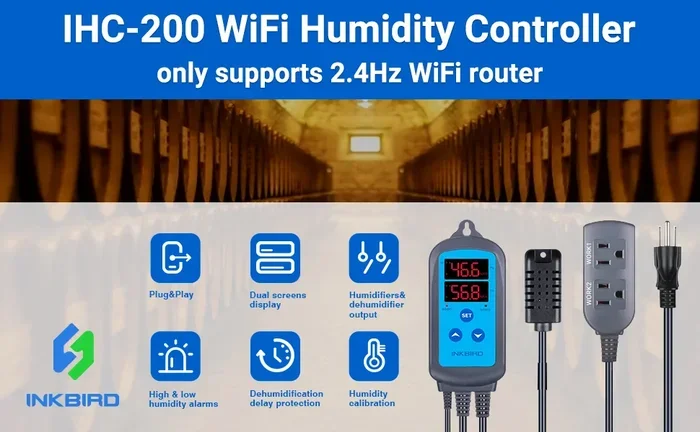
If your robot does not show your WiFi network in the app, try these steps. First, make sure your router is turned on and working. Second, move the robot closer to the router. Third, check that your network is a 2.4GHz band. Most iRobot models do not support 5GHz WiFi networks.
If you have a dual-band router, try splitting the bands or temporarily turning off the 5GHz band during setup.
Wrong Password Error
This is the most common setup problem. Double-check your WiFi password for typos. Make sure caps lock is off. If you recently changed your password, update it in the app and try again.
Connection Keeps Dropping
If your iRobot connects but then loses the signal often, your WiFi might be weak in that part of the house. Try moving your router to a more central location. You can also buy a WiFi extender to boost the signal in rooms far from the router.
App Shows Offline Status
Sometimes the app says your robot is offline even though it is connected. This usually happens when your phone is on a different WiFi network or using mobile data. Make sure your phone is on the same network as the robot, or switch to mobile data and check the app again.
Robot Stops Responding to Commands
If your robot is connected but not responding to app commands, restart both the robot and your router. Unplug the router for 30 seconds, plug it back in, and then restart the robot. This fixes most temporary connection issues.
Expert Tips for Better iRobot WiFi Performance
Want to get the most out of your iRobot WiFi connection? Here are some expert tips that really make a difference.
Place Your Router Centrally
WiFi signals spread out from the router in all directions. If your router is in a back room, the signal might be weak in the front of the house. Moving it to a central location helps your robot stay connected everywhere.
Use a WiFi Extender if Needed
Big homes or homes with thick walls can block WiFi signals. A simple WiFi extender or mesh network system can solve this problem. Place the extender halfway between your router and the areas where your robot cleans the most.
Keep Your Router Updated
Just like your iRobot needs updates, your router does too. Check for firmware updates on your router regularly. An updated router provides better stability and faster speeds for all connected devices.
Limit Connected Devices
If too many devices are on your network, the bandwidth gets shared and your robot might lag. Try to limit the number of devices connected at the same time, especially during cleaning sessions.
Restart Your Robot Weekly
A simple restart clears out small glitches and keeps things running smoothly. Turn the robot off, wait a few seconds, and turn it back on once a week.
Check for Interference
Microwaves, baby monitors, and cordless phones can interfere with WiFi signals. Keep your router away from these devices for a stronger, more stable connection.
Should You Connect iRobot to WiFi
After reading through all of this, you might still be on the fence. Let us help you decide.
If you are someone who likes to control things from your phone, set routines, and use smart home features, then yes, you should absolutely connect your iRobot to WiFi. The experience is so much better and more convenient.
If you are someone who just wants a robot to clean the floor and does not care about apps or schedules, you can skip the WiFi setup. Your robot will still do a great job cleaning.
For most people, the answer to do I need to connect iRobot to WiFi is a clear yes. The setup takes only a few minutes and the benefits are significant. It turns a good cleaning tool into a great one.
Think about how you use your smart home devices. If you already have other WiFi-connected gadgets, adding your iRobot to the network makes everything work together more smoothly. It is all about building a connected home that works for you.
One more thing to keep in mind: WiFi needs can change over time. You might not need it right now, but later on you might want to use features that require a connection. Setting it up early means you are ready when you need it.
Bottom line: connecting your iRobot to WiFi is a small effort with a big payoff. It is one of the best things you can do after unboxing your new robot vacuum.
Conclusion
So, do I need to connect iRobot to WiFi. The answer depends on what you want from your robot vacuum. Without WiFi, your iRobot still cleans your floors effectively. But with WiFi, you get remote control, smart scheduling, smart mapping, voice commands, and automatic updates.
The setup process is quick and easy. Most people connect their robot in under 10 minutes using the iRobot app. And if you run into problems, the fixes are usually simple and straightforward.
We hope this guide has given you everything you need to know about iRobot WiFi connection. Whether you decide to connect or keep things offline, your robot will help keep your home clean. But we strongly recommend connecting to WiFi if you can. The smart features really do make a difference in your daily routine.
Take a few minutes today to set up your WiFi connection. Your future self will thank you when you can start a cleaning session from your couch or tell Alexa to clean the kitchen. It is a small step that makes your iRobot so much more useful.
Frequently Asked Questions
Can I use my iRobot without ever connecting it to WiFi?
Yes, you can. Your iRobot will clean your floors just fine without WiFi. You just lose access to smart features like remote control, scheduling, and smart maps. The robot works as a standalone cleaning machine when offline.
How long does it take to connect iRobot to WiFi?
Most people finish the WiFi setup in under 10 minutes. You need the iRobot app, your WiFi password, and your phone connected to the same network. The app walks you through each step with clear instructions.
Why does my iRobot keep disconnecting from WiFi?
Weak WiFi signal is the most common cause. Move your router closer to where the robot cleans, or use a WiFi extender. Also check that your router firmware is up to date and that too many devices are not hogging the bandwidth.
Does my iRobot need 5GHz WiFi?
No, most iRobot models only support 2.4GHz WiFi networks. If your router uses both bands, make sure your phone is connected to the 2.4GHz network during setup. This is a very common mistake that causes connection failures.
Can I connect multiple iRobot devices to the same WiFi network?
Yes, you can. The iRobot app supports multiple robots on one account. Each robot connects to your home WiFi separately. This is great if you have different models for different rooms or floors in your home.
Will my iRobot still clean if my internet goes down?
Yes, it will. Your robot does not need the internet to clean. It only needs WiFi for smart features and app control. If your internet goes out, the robot will keep working normally using its built-in sensors and programming.