Does Bluetooth Automatically Connect to Your Devices
Does Bluetooth automatically connect to your devices? The answer depends on your settings, device type, and Bluetooth version. Bluetooth automatic connection works when devices are paired and trusted, but you can control how and when this happens. This guide covers everything from Bluetooth pairing to troubleshooting common wireless connectivity issues.
Have you ever walked into a room and noticed your headphones instantly connected to your phone? Or maybe your speaker turned on and started playing music the moment you entered the kitchen. This seamless experience comes from Bluetooth automatically connecting to trusted devices. It is one of the most convenient features of modern wireless technology.
But how does this actually work? And more importantly, can you control it? Does Bluetooth automatically connect every time you turn on a device, or does it need your permission? In this article, we will break down everything you need to know about Bluetooth auto-connection. We will cover how it works, why it happens, and how to fix it when things go wrong.
Whether you use Bluetooth headphones, wireless speakers, car audio systems, or smart home devices, understanding auto-connect behavior helps you get the most out of your gear. Let us dive in.
Key Takeaways
- Bluetooth can auto-connect: When devices are paired and trusted, Bluetooth will reconnect automatically within range.
- Settings matter: You control auto-connect behavior through your device’s Bluetooth settings menu.
- Bluetooth versions differ: Newer versions like Bluetooth 5.0 offer better auto-connection range and stability.
- Troubleshooting is simple: Most auto-connection issues can be fixed by resetting Bluetooth or updating firmware.
- Battery impact exists: Auto-connecting Bluetooth devices can drain battery faster if not managed properly.
- Multiple devices work: You can set priority levels for which devices connect first automatically.
- Security stays intact: Auto-connect does not compromise your Bluetooth security when set up correctly.
📑 Table of Contents
- How Does Bluetooth Automatic Connection Work?
- Which Devices Support Automatic Bluetooth Connection?
- Bluetooth Versions and Auto-Connect Performance
- How to Control Bluetooth Auto-Connect Behavior
- Common Bluetooth Auto-Connect Problems and Fixes
- Does Auto-Connect Drain Battery?
- Is Auto-Connect Secure?
- Expert Tips for Better Bluetooth Auto-Connect
- Conclusion
How Does Bluetooth Automatic Connection Work?
Bluetooth automatic connection relies on a process called pairing and trust. When you first connect two devices, they exchange information and create a bond. This bond is stored in the memory of both devices. After that, whenever the devices are within Bluetooth range (usually 30 feet or 10 meters), they can reconnect without your input.
The Pairing Process Explained
Pairing is the first step. When you go to your Bluetooth settings and select a device, both devices verify each other. They share a unique identifier and often a passkey. Once this handshake completes, the devices become paired. Your phone or computer then marks the device as “trusted.”
From that point forward, the trusted device will automatically connect whenever Bluetooth is turned on and both devices are nearby. This is why your Bluetooth headphones jump back to your phone the moment you power them on.
What Makes a Device “Trusted”?
A trusted device is one your phone or computer has saved in its Bluetooth memory. You do not need to re-enter passwords or re-approve connections. The trust relationship is stored locally on each device. Here is what makes a device trusted:
- The device has been paired successfully at least once
- Both devices stored each other’s unique identifiers
- The connection was not manually removed from the paired devices list
- Bluetooth is enabled on both devices
Which Devices Support Automatic Bluetooth Connection?
Most modern devices support Bluetooth auto-connect. However, the experience varies depending on the device type and its Bluetooth version. Let us look at the most common devices that use Bluetooth connectivity.
Smartphones and Tablets
Almost all Bluetooth enabled devices in the smartphone category support auto-connect. Both iPhones and Android phones remember paired devices and reconnect to them automatically. This includes wireless headphones, speakers, smartwatches, and even car audio systems.
For example, if you pair your Bluetooth headphones with your phone, they will reconnect every time you turn the headphones on and enable Bluetooth on your phone. This works seamlessly in the background.
Televisions and Home Entertainment
Smart TVs and home entertainment systems also support automatic Bluetooth pairing. If you have ever wondered can I use Bluetooth headphones with my TV, the answer is yes, and they can auto-connect after the initial pairing. Many modern TVs even remember multiple Bluetooth devices and switch between them based on which one is active.
Similarly, if you have set up your stereo with a Bluetooth adapter, it can auto-connect to your phone when you walk into the room. This is especially useful for wireless streaming music and podcasts.
Car Audio Systems
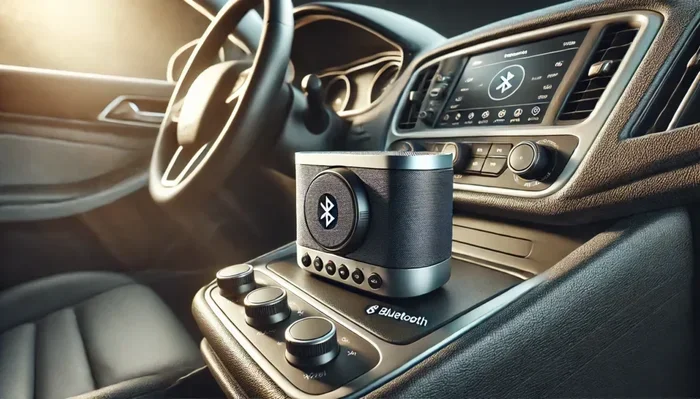
Car Bluetooth systems are designed to auto-connect for safety and convenience. When you enter your vehicle and turn the ignition, your phone connects to the car’s audio system automatically. This lets you answer calls hands-free and stream music without touching your phone. You can also use a Bluetooth transmitter for your car to add this feature to older vehicles.
Bluetooth Versions and Auto-Connect Performance
Not all Bluetooth technology is the same. The version of Bluetooth your device uses affects how well and how far auto-connect works. Let us compare the major versions.
| Bluetooth Version | Range | Auto-Connect Speed | Best For |
|---|---|---|---|
| Bluetooth 4.0 | 30 feet | Moderate | Basic headphones and speakers |
| Bluetooth 4.2 | 30 feet | Fast | Smartphones and wearables |
| Bluetooth 5.0 | 800 feet | Very Fast | Smart home and audio |
| Bluetooth 5.3 | 800+ feet | Instant | Latest devices and IoT |
Newer versions like Bluetooth 5.0 and above offer significantly better auto-connection performance. They reconnect faster and maintain a stronger wireless signal over longer distances. If your devices support the latest Bluetooth protocol, you will notice fewer disconnections and quicker reconnections.
Why Version Matters for Auto-Connect
Older Bluetooth versions sometimes struggle with device synchronization. They may take longer to reconnect or drop the connection more often. If you have an older device, updating its firmware can sometimes improve auto-connect performance. Some devices do not support firmware updates, which is why Bluetooth version matters when buying new gear.
How to Control Bluetooth Auto-Connect Behavior
You are not stuck with whatever auto-connect settings your device chooses. You can control how and when Bluetooth automatically connects. Here is how to manage it on different devices.
On iPhone
Open the Settings app and tap Bluetooth. Find your paired device and tap the “i” icon next to it. You will see options for Auto-Connect and Connect Before Checking. Toggle these settings to control behavior. You can also remove a device from the trusted list by tapping “Forget This Device.”
On Android
Android phones offer similar controls. Go to Settings > Bluetooth. Tap on a paired device to access connection preferences. You can choose whether the device auto-connects or requires manual approval each time. Some Android phones also let you set priority levels for different devices.
On Windows and Mac Computers
On a Windows PC, go to Settings > Devices > Bluetooth. Click on a paired device and manage its connection settings. On a Mac, open System Preferences > Bluetooth. Your paired devices appear in the sidebar, and you can control their auto-connect behavior from there.
Quick Tips for Managing Auto-Connect
- Remove devices you no longer use from your paired list
- Turn off Bluetooth when not in use to save battery
- Keep your device firmware updated for the best performance
- Restart Bluetooth if auto-connect stops working
- Place devices closer together for faster reconnection
Common Bluetooth Auto-Connect Problems and Fixes
Even with the best Bluetooth technology, auto-connect issues can happen. Here are the most common problems and how to solve them.
Device Won’t Auto-Reconnect
This usually happens when a device is no longer on the trusted list. Check your Bluetooth settings and make sure the device is still paired. If it is, try toggling Bluetooth off and back on. If that does not work, remove the device and pair it again from scratch.
Auto-Connect Happens at the Wrong Time
Sometimes your headphones connect to your phone when you want them connected to your TV. This happens because both devices are in range. The fix is to manually disconnect the device from one source before connecting it to another. You can also adjust Bluetooth priority settings on some devices.
Auto-Connect Is Slow or Delayed
Delays often stem from interference or outdated firmware. Move closer to the device you want to connect with. If the problem persists, check for firmware updates. Restarting both devices can also speed up the wireless connection process.
Bluetooth Keeps Connecting and Disconnecting
This is a sign of weak signal or interference. Other wireless devices nearby can cause this issue. Move away from Wi-Fi routers and other Bluetooth devices. If the problem continues, reset your Bluetooth adapter or restart your device.
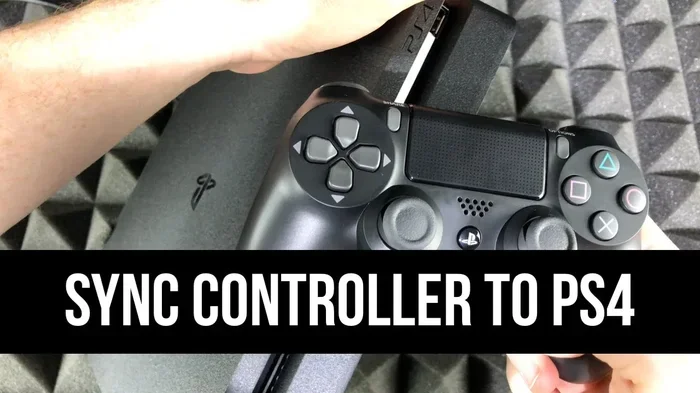
For more tips on managing Bluetooth connections across different devices, check out Can I Use Bluetooth Headphones With PS4 for gaming-specific Bluetooth guidance.
Does Auto-Connect Drain Battery?
A common concern with Bluetooth wireless streaming is battery usage. When Bluetooth auto-connects, it keeps a low-level connection alive between devices. This does use some battery power, but the impact is usually small.
Modern devices are designed to handle Bluetooth connectivity efficiently. Your phone and headphones use very little power when simply maintaining a paired connection. However, if you have many devices auto-connecting at once, the cumulative effect can be noticeable.
To minimize battery drain, turn off Bluetooth on devices you are not actively using. You can also disable auto-connect for devices you rarely use. This simple step can extend your battery life significantly.
Similarly, if you have set up your car stereo with Bluetooth capabilities, you might want to explore Can I Turn My Car Radio Into Bluetooth for tips on managing car audio connectivity and battery impact.
Is Auto-Connect Secure?
Security is a valid concern with any wireless technology. The good news is that Bluetooth auto-connect is generally safe. Modern Bluetooth uses encryption to protect data during transmission. When two devices pair, they establish a secure connection that others cannot easily access.
However, there are some precautions you should take. Never pair devices in public places where someone could intercept the connection. Keep your Bluetooth settings private and only pair devices you trust. If you sell or give away a device, always remove your paired devices from its memory first.
For more on managing Bluetooth connections, you can also read Can I Uninstall Bluetooth to understand how to remove Bluetooth components from your system if needed.
Expert Tips for Better Bluetooth Auto-Connect
Here are some professional tips to improve your Bluetooth auto-connect experience:
- Keep devices updated. Firmware updates often include improvements to Bluetooth pairing stability and speed.
- Limit paired devices. The more devices you pair, the longer it takes to search and connect. Remove old or unused devices regularly.
- Use Bluetooth 5.0 or higher. If you are buying new headphones or speakers, choose devices with the latest Bluetooth version for the best auto-connect experience.
- Restart regularly. A simple restart of both devices can fix most auto-connect issues. This clears temporary glitches and refreshes the connection.
- Check for interference. USB 3.0 ports, Wi-Fi routers, and microwaves can all interfere with Bluetooth signal. Keep your Bluetooth devices away from these sources.
- Set connection priorities. On devices that support it, set your most-used device as the primary auto-connect target.
For those looking to add Bluetooth to non-Bluetooth devices, consider reading Can I Make My TV Bluetooth With an Adapter for practical solutions to extend wireless connectivity to older equipment.
Conclusion
Does Bluetooth automatically connect? Yes, it does, and it is one of the most useful features of modern wireless technology. When devices are paired and trusted, they reconnect automatically within range. This creates a seamless experience for wireless audio, hands-free calling, and smart home integration.
You have full control over this behavior. You can manage which devices auto-connect, adjust priority settings, and troubleshoot issues when they arise. Understanding Bluetooth connectivity helps you get the most from your devices without frustration.
Keep your devices updated, manage your paired list, and pay attention to battery usage. With these simple habits, Bluetooth auto-connect will work smoothly every time. Embrace the convenience of wireless technology and enjoy the freedom it brings to your daily life.
Frequently Asked Questions
Why does my Bluetooth not automatically connect to my device?
This usually happens when the device is no longer on your trusted list or when Bluetooth is turned off. Check your Bluetooth settings and make sure both devices are paired and Bluetooth is enabled. Removing and re-pairing the device often fixes this issue.
Can I stop Bluetooth from automatically connecting?
Yes, you can. Go to your device’s Bluetooth settings and toggle off auto-connect for specific devices. On most phones, you can also put Bluetooth devices in manual mode so they only connect when you approve the connection.
How far can Bluetooth auto-connect between devices?
The standard range is about 30 feet or 10 meters for older versions. Bluetooth 5.0 and newer versions can reach up to 800 feet or more under ideal conditions. Walls, interference, and device quality affect the actual range.
Does auto-connecting Bluetooth use more battery?
It uses a small amount of battery to maintain the paired connection, but the impact is minimal on modern devices. If you notice significant battery drain, check how many devices are auto-connecting and disable the ones you rarely use.
Is it safe to let Bluetooth auto-connect in public?
Generally yes, as modern Bluetooth uses encryption. However, it is best to be cautious in crowded public spaces. Turn off auto-connect for sensitive devices when you are in high-traffic areas to minimize any potential security risks.
Can I connect multiple Bluetooth devices at the same time?
Yes, most modern devices support connecting to multiple Bluetooth devices simultaneously. However, auto-connect behavior may vary. Some devices prioritize the most recently used device, while others connect to all trusted devices at once. Check your device settings to manage this behavior.