Does Netgear Extender Work With Xfinity Routers Setup
Yes, a Netgear extender works with Xfinity routers. You can boost your Xfinity WiFi signal, eliminate dead zones, and get faster speeds in every room. This guide walks you through the full Netgear extender setup, compatibility checks, and common fixes.
Have you ever walked into a room and your WiFi signal just drops? You are not alone. Many Xfinity users deal with weak signals in certain parts of their home. A Netgear extender can fix this problem fast. But the big question is: does Netgear extender work with Xfinity routers? The short answer is yes. But there are a few things you need to know before you buy and set one up.
In this guide, we will walk you through everything. You will learn about compatibility, setup steps, placement tips, and how to troubleshoot common problems. Whether you have a small apartment or a large house, this article has you covered. Let us dive right in.
Key Takeaways
- Full Compatibility: Most Netgear extenders work seamlessly with Xfinity routers and gateways.
- Easy Setup: You can set up your extender using the WPS button, the Netgear Genie app, or a web browser.
- Better Coverage: A Netgear extender helps eliminate WiFi dead zones in larger homes.
- Dual Band Support: Many models support both 2.4 GHz and 5 GHz bands for optimal speed.
- Common Issues Are Fixable: Most connection problems can be solved with a simple reset or firmware update.
- Placement Matters: Where you put your extender has a big impact on performance.
📑 Table of Contents
- What Is a Netgear Extender and Why Do You Need One?
- Does Netgear Extender Work With Xfinity Routers?
- How to Set Up Your Netgear Extender With Xfinity
- Best Placement Tips for Your Netgear Extender
- Common Problems and How to Fix Them
- Netgear Extender vs. Xfinity xFi Mesh: Which Is Better?
- How to Optimize Your Netgear Extender for Best Performance
- Can a Netgear Extender Work With Xfinity Away From Home?
- Final Thoughts
What Is a Netgear Extender and Why Do You Need One?
A Netgear WiFi range extender is a small device that boosts your existing WiFi signal. It picks up the signal from your Xfinity router and repeats it to areas that have weak or no coverage. Think of it as a signal booster for your home network.
Here are a few reasons why people use a network extender:
- Dead zones: Rooms far from the router where the signal disappears.
- Slow speeds: Areas where the WiFi is too weak for streaming or gaming.
- Large homes: Houses with thick walls or multiple floors need extra coverage.
- Smart home devices: Devices like smart locks and cameras need a strong, stable connection.
When you pair a Netgear extender with your Xfinity router, you get a much better internet experience. You can browse, stream, and game without interruptions.
Does Netgear Extender Work With Xfinity Routers?
The short answer is a solid yes. Most Netgear extenders are designed to work with any standard WiFi router, including Xfinity gateways. Xfinity provides its own modem-router combo units, often called the Xfinity xFi gateway. These devices work perfectly with Netgear extenders.
Here is what you need to know about compatibility:
Xfinity WiFi and Netgear Extenders
Xfinity routers use standard WiFi protocols. This means they communicate with Netgear extenders just like any other router would. Whether you have the xFi Gateway or a third-party Xfinity router, a Netgear extender should connect without issues.
Some popular Netgear models that work great with Xfinity include:
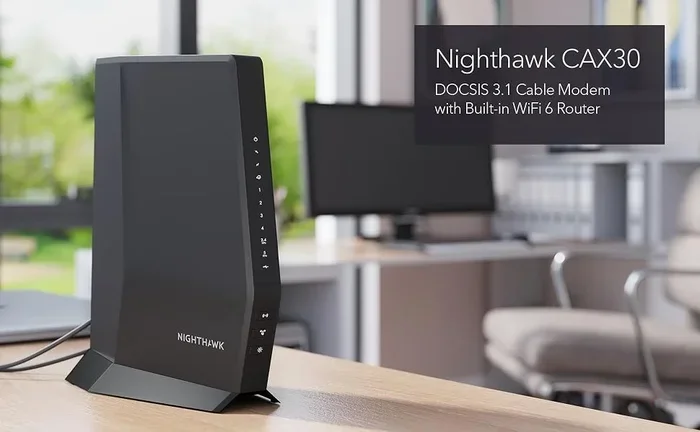
- Netgear Nighthawk X6 – A tri-band extender for large homes.
- Netgear EX6120 – A budget-friendly dual-band option.
- Netgear EX7000 – A high-performance model for heavy users.
- Netgear RE450 – Compact and reliable for small to medium spaces.
Before you buy, check the extender’s specifications. Make sure it supports the same WiFi bands as your Xfinity router. Most modern Xfinity gateways support dual-band WiFi, so a dual-band extender is the best match.
How to Set Up Your Netgear Extender With Xfinity
Setting up a Netgear extender with Xfinity is straightforward. You do not need to be a tech expert. There are three main ways to set it up. Let us look at each one.
Method 1: Use the WPS Button
The WPS method is the fastest way to connect your extender. Here is what to do:
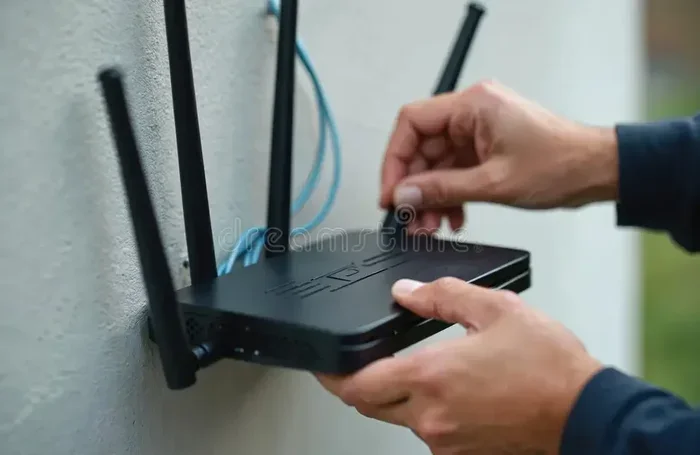
- Plug in your Netgear extender near the Xfinity router.
- Wait for the power LED to turn solid green.
- Press the WPS button on your Xfinity router.
- Press the WPS button on the Netgear extender within two minutes.
- Wait for the LED to turn solid. This means the connection is successful.
Once connected, you can move the extender to a better location. Place it halfway between your router and the area with weak signal.
Method 2: Use the Netgear Genie App
The Netgear Genie app makes setup even easier. You can use your phone to configure everything.
- Download the Netgear Genie app from the App Store or Google Play.
- Plug in your extender and wait for it to power on.
- Open the app and follow the on-screen instructions.
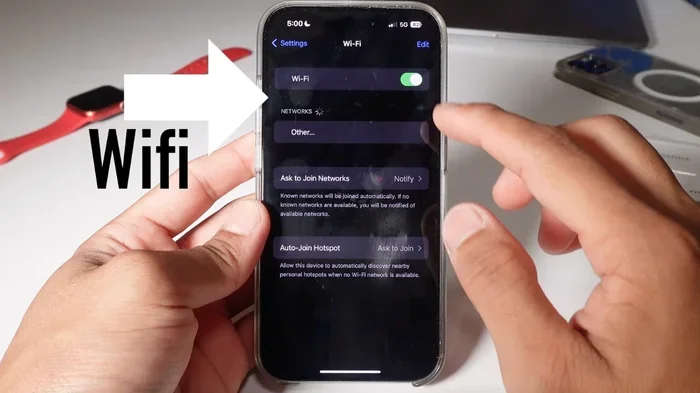
- The app will scan for your Xfinity WiFi network.
- Select your network and enter the password.
- The app will configure the extender automatically.
This method works well if the WPS button on your Xfinity router is not available or not working.
Method 3: Use a Web Browser
If you prefer a more manual approach, you can use a web browser. Here is how:
- Connect your computer to the extender using an Ethernet cable.
- Open a web browser and go to mywifiext.net.
- Follow the setup wizard on the screen.
- Select your Xfinity WiFi network from the list.
- Enter your WiFi password and save the settings.
Using a browser gives you more control over the settings. You can change the WiFi name, password, and channel settings if needed.
Best Placement Tips for Your Netgear Extender
Where you place your extender matters a lot. A poor placement can lead to slow speeds and dropped connections. Here are some tips to get the best results.
Where to Put Your Extender
- Halfway between the router and the dead zone: This gives the extender a strong signal to repeat.
- In an open area: Avoid placing it inside cabinets or behind furniture.
- Away from thick walls: Concrete and brick walls block WiFi signals.
- Elevated position: Place it on a shelf or table for better coverage.
- Near a power outlet: You want a stable power source for consistent performance.
Where NOT to Put Your Extender
- Do not place it too far from the router. The extender needs a strong signal from the source.
- Avoid placing it near microwaves or cordless phones. These devices cause interference.
- Do not put it in a basement or closet. Walls block the signal.
- Keep it away from large metal objects that can block WiFi waves.
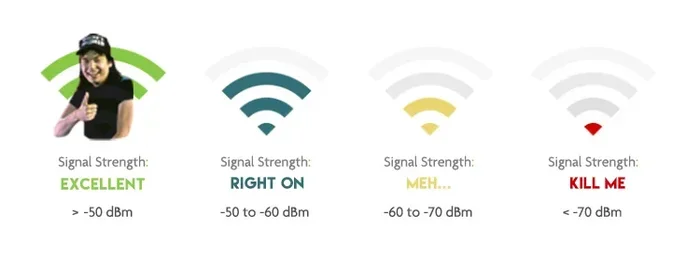
A good rule of thumb is to place the extender where it still gets at least two bars of signal from your Xfinity router. If the signal is too weak at the extender location, it will repeat a weak signal to the other rooms.
Common Problems and How to Fix Them
Even with the best setup, you might run into issues. Here are the most common problems and their solutions.
Extender Not Connecting to Xfinity Router
If your Netgear extender not connecting to Xfinity, try these steps:
- Restart both the extender and the Xfinity router.
- Make sure the extender is within range of the router.
- Check if the Xfinity router’s WiFi is turned on.
- Try resetting the extender to factory settings.
- Use a different setup method, like the app instead of WPS.
Slow WiFi Speeds After Setup
If your speeds are slow after connecting the extender, here is what to do:
- Move the extender closer to the router.
- Switch to the 5 GHz band for faster speeds.
- Change the WiFi channel on your Xfinity router to reduce interference.
- Update the extender firmware through the Netgear Genie app.
- Limit the number of devices connected to the extender.
Extender Keeps Disconnecting
A Netgear extender that keeps disconnecting is frustrating. Try these fixes:
- Check the power source. A loose plug can cause intermittent disconnections.
- Update the firmware on both the extender and the Xfinity router.
- Move the extender to a different location.
- Reduce the distance between the extender and the router.
Cannot Access the Extender Setup Page
If you cannot open mywifiext.net, try these steps:
- Make sure your device is connected to the extender’s WiFi network.
- Try using a different browser.
- Clear your browser cache and cookies.
- Connect the extender directly to your computer using an Ethernet cable.
Netgear Extender vs. Xfinity xFi Mesh: Which Is Better?
Some Xfinity users wonder if they should use a Netgear extender or the Xfinity xFi mesh system. Both options improve your WiFi coverage, but they work differently.
Here is a quick comparison:
- Netgear Extender: Affordable, easy to set up, and works with most routers. It extends your existing WiFi signal to one area. Great for fixing a single dead zone.
- Xfinity xFi Mesh: A whole-home mesh system that replaces your router. It provides seamless coverage throughout your home with multiple nodes. More expensive but offers better overall performance.
If you just need to fix one or two weak spots, a Netgear extender is a great choice. It is simple, affordable, and effective. If you need full-home coverage and are willing to spend more, the Xfinity xFi mesh system might be the better option.
You can also check your Xfinity WiFi away from home settings if you travel often, as your extender setup will not follow you. For more on managing WiFi settings remotely, you can visit our guide on connecting to Xfinity WiFi away from home.
How to Optimize Your Netgear Extender for Best Performance
Once your extender is set up, you can take a few extra steps to get the best performance. These small changes can make a big difference.
Update the Firmware
Always keep your extender’s firmware up to date. Netgear releases updates that fix bugs and improve performance. You can check for updates in the Netgear Genie app or at mywifiext.net.
Use the Right WiFi Band
Most Netgear extenders support both 2.4 GHz and 5 GHz bands. The 2.4 GHz band covers a wider area but is slower. The 5 GHz band is faster but has a shorter range. For best results, use the 5 GHz band for streaming and gaming, and the 2.4 GHz band for smart home devices.
Change the WiFi Channel
WiFi congestion can slow down your connection. Use your Xfinity router settings to switch to a less crowded channel. This is especially helpful in apartment buildings where many networks are close together.
Secure Your Network
Make sure your extender is using WPA2 or WPA3 encryption. This keeps your network safe from unauthorized users. A secure network also performs better because it is not bogged down by unwanted traffic.
For more tips on managing your home network, check out our article on controlling your ceiling fan with your phone, which covers smart home connectivity with Xfinity.
Can a Netgear Extender Work With Xfinity Away From Home?
Some users wonder if they can use a Netgear extender with Xfinity when they are away from home. The short answer is no. A WiFi extender works within your home network. It extends the signal from your Xfinity router to other parts of your house.
However, if you want to access your home network remotely, you can use Xfinity’s remote access features. You can also look into using Xfinity WiFi hotspots when you are away. For more information, check our guide on connecting to Xfinity WiFi away from home.
Keep in mind that a WiFi range extender is not a portable device. It is designed to stay in one location and boost the signal in that area.
Final Thoughts
So, does Netgear extender work with Xfinity? Absolutely. A Netgear extender is a reliable and affordable way to boost your Xfinity WiFi signal. It eliminates dead zones, improves speeds, and gives you a better internet experience throughout your home.
Whether you use the WPS method, the Genie app, or a web browser, the setup process is simple. Place your extender in the right spot, keep the firmware updated, and you will enjoy strong WiFi in every room. If you run into issues, the troubleshooting tips in this guide should help you resolve them quickly.
For more networking tips and guides, visit our site. We also have a helpful article on connecting to Xfinity WiFi away from home if you are interested in remote access options. And if you want to learn about other smart home devices, check out our piece on controlling your ceiling fan with your phone.
A strong WiFi connection makes life easier. With the right Netgear extender and your Xfinity router, you can enjoy fast, reliable internet everywhere in your home.
Frequently Asked Questions
Can I use any Netgear extender with my Xfinity router?
Most Netgear extenders work with Xfinity routers because they use standard WiFi protocols. Check the extender’s specifications to confirm it supports dual-band WiFi, which matches most Xfinity gateways. Popular models like the Nighthawk X6 and EX6120 are known to work well with Xfinity setups.
How do I reset my Netgear extender if it stops working with Xfinity?
To reset your extender, press and hold the reset button on the back for about 10 seconds. The LED lights will blink, indicating a factory reset. After the reset, you will need to set up the extender again using the Genie app or mywifiext.net.
Why is my Netgear extender showing a solid orange light?
A solid orange light usually means the extender is not connected to the Xfinity router properly. Try moving the extender closer to the router. You can also try resetting the extender and setting it up again using the WPS method or the Genie app.
Does a Netgear extender slow down my internet speed?
A WiFi extender can reduce speeds slightly because it receives and retransmits the signal. However, a good-quality Netgear extender will only cause a small speed drop. Using the 5 GHz band and placing the extender in the right spot helps minimize any speed loss.
Can I connect multiple devices to my Netgear extender?
Yes, you can connect multiple devices to your Netgear extender. The extender creates a new WiFi network that your phones, laptops, and smart home devices can all join. For the best performance, keep the number of connected devices reasonable.
Do I need a special password to set up the Netgear extender with Xfinity?
No, you just need your Xfinity WiFi password. During setup, the extender will ask you to enter your existing WiFi network name and password. This allows the extender to connect to your Xfinity router and extend the signal.