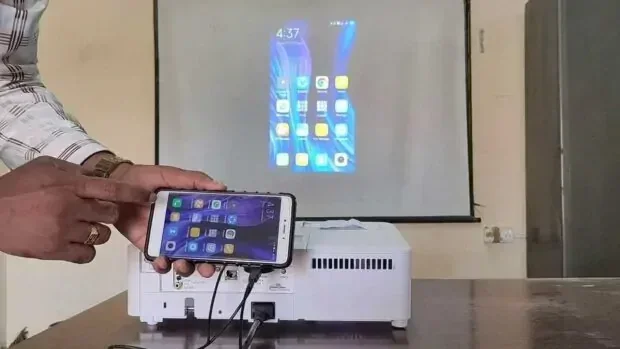
How Can I Display My Phone On The Wall Without A Projector
Want to show your phone screen on a big wall without buying a projector? You have plenty of simple and affordable options that work right now. Whether you use an HDMI adapter, a wireless casting device, or a DIY trick, this guide covers every method you need. We will walk you through step-by-step instructions so you can start streaming on your wall today.
Key Takeaways
- HDMI adapters: A simple cable solution that connects your phone directly to a TV or wall-mounted display.
- Wireless casting devices: Chromecast, Roku, and AirPlay let you beam your phone screen to a TV or wall without cables.
- DIY methods: Use a magnifying glass, a flashlight, or a smart TV app to project your phone screen creatively.
- Screen mirroring apps: Many free apps let you cast your phone to a laptop, tablet, or smart display.
- No projector needed: All these methods work without any special projector equipment at all.
📑 Table of Contents
- How Can I Display My Phone On The Wall Without A Projector
- Why Display Your Phone Screen on the Wall
- Method 1: Use an HDMI Adapter or Cable
- Method 2: Wireless Screen Casting with Chromecast
- Method 3: Use a Smart TV or Streaming Device
- Method 4: Wireless Display Adapters and Dongles
- Method 5: Creative DIY Approaches
- Tips for the Best Viewing Experience
- Common Mistakes to Avoid
- Expert Insights on Phone Screen Display
- Conclusion
- Frequently Asked Questions
How Can I Display My Phone On The Wall Without A Projector
Have you ever wanted to watch something big on your wall but did not own a projector? You are not alone. Many people want a simple way to share their phone screen on a larger surface. The good news is there are plenty of easy methods to do this. You do not need expensive equipment or technical skills. In this guide, we will show you how to display your phone on the wall without a projector using tools you might already have.
Whether you want to watch a movie, share photos, or give a presentation, these tips will help you get it done. We will cover wired options, wireless solutions, and even some creative DIY tricks. Each method is simple, affordable, and works with most phones. Let us dive right in and explore your options.
Why Display Your Phone Screen on the Wall
There are many reasons people want to show their phone screen on a bigger surface. Sometimes a small phone screen just is not enough. You might be watching a video with friends or sharing memories from a recent trip. A wall-sized display makes everything more fun and easier to see.
Here are some common reasons people choose to display their phone on the wall:
- Movie nights: Watch films on a big wall with friends or family.
- Photo sharing: Show vacation photos or family pictures in larger sizes.
- Presentations: Share slides or documents during meetings or classes.
- Gaming: Play mobile games on a bigger screen for a better experience.
- Streaming: Watch streaming content from apps like YouTube or Netflix.
No matter your reason, the methods we will cover below will help you achieve your goal. Each option is different, so you can pick the one that fits your needs best.
Method 1: Use an HDMI Adapter or Cable
The most reliable way to display your phone on the wall is by using an HDMI adapter. This method uses a cable to connect your phone directly to a TV or monitor. Once connected, your phone screen appears on the larger display instantly. It is simple, fast, and does not require Wi-Fi.
What You Need for HDMI Connection
To use this method, you will need a few things. First, check what type of phone you have. iPhones and Android phones use different connectors. Here is what you might need:
- Lightning to HDMI adapter (for iPhone users)
- USB-C to HDMI adapter (for most Android phones)
- Micro USB to HDMI adapter (for older Android devices)
- A TV or monitor with an HDMI input
- A standard HDMI cable
These adapters are affordable and easy to find online or at electronics stores. Most cost between 10 and 25 dollars. Once you have the right adapter, the setup takes less than two minutes.
Step-by-Step Setup for HDMI Adapter
Follow these simple steps to get your phone screen on the wall:
- Plug the HDMI adapter into your phone’s charging port.
- Connect the HDMI cable to the adapter and your TV.
- Switch your TV to the correct HDMI input.
- Your phone screen should now appear on the TV or wall display.
- Adjust your phone settings if the screen does not mirror right away.
This method works great for screen mirroring. You can open any app and it will show on the wall. The picture quality is usually very clear because HDMI carries a strong signal. One downside is you are tied to your phone by a cable. But for many people, that does not matter.
Method 2: Wireless Screen Casting with Chromecast
If you want to go cordless, Chromecast is a fantastic option. This small device plugs into your TV’s HDMI port and connects to your Wi-Fi network. You can then cast your phone screen directly to your TV or wall. It is one of the most popular wireless display tools available today.
How Chromecast Works for Phone Screen Sharing
Chromecast uses your home Wi-Fi network to send your phone screen to the TV. Both your phone and the Chromecast device need to be on the same network. Once connected, you can mirror your entire screen or cast specific apps like YouTube or Netflix.
Here is why many people love using Chromecast for phone to wall projection:
- Easy setup: The Google Home app walks you through everything.
- No cables needed: Once set up, you can cast from anywhere in the room.
- Works with most phones: Both Android and iPhone support Chromecast casting.
- Affordable: A Chromecast device costs around 30 to 50 dollars.
- Great for streaming: Video and audio quality are smooth and clear.
Setting Up Chromecast for Screen Mirroring
Follow these steps to start casting your phone screen wirelessly:
- Plug the Chromecast into your TV’s HDMI port.
- Connect the Chromecast to power using the USB cable.
- Download the Google Home app on your phone.
- Open the app and follow the setup instructions.
- Make sure your phone and Chromecast are on the same Wi-Fi network.
- Tap the cast icon in your phone’s screen mirroring or casting menu.
- Select your Chromecast device from the list.
- Your phone screen will now appear on the wall through your TV.
Chromecast is a great wireless casting solution. It gives you freedom to move around while still sharing your phone screen on the wall. If you do not want to buy a Chromecast, there are similar devices from Roku, Amazon Fire Stick, and Apple TV that offer the same features.
Method 3: Use a Smart TV or Streaming Device
Many modern TVs come with built-in smart features. If you own a smart TV, you can cast your phone screen directly to it without any extra devices. Most smart TVs support screen mirroring through apps like AirPlay, Miracast, or built-in casting features.
How to Cast to a Smart TV
Here is how you can use your smart TV to display your phone on the wall:
- Samsung Smart TVs: Use the Smart View feature to mirror your phone screen.
- LG TVs: Use the Screen Share function for wireless phone-to-TV connection.
- Sony TVs: Use the Xperia App or built-in Miracast support.
- Roku TVs: Use the Roku mobile app to cast your phone screen.
- Amazon Fire TV: Use the Fire TV app to mirror your Android phone.
Each brand has its own app and method. But the general idea is the same. You connect your phone to the TV through Wi-Fi and your screen appears on the wall. This is one of the easiest ways to display your phone without buying anything extra.
If your TV does not support screen mirroring natively, you can buy a streaming device like a Roku stick or Amazon Fire Stick. These small devices plug into your TV and add casting capabilities. They cost between 25 and 50 dollars and work very well for phone screen sharing.
Method 4: Wireless Display Adapters and Dongles
Another great option is a wireless display adapter. These small dongles plug directly into your TV’s HDMI port and create a wireless connection with your phone. They work similarly to Chromecast but may offer different features depending on the brand.
Popular Wireless Display Adapters
Here are some well-known wireless display adapters you can consider:
- Microsoft Wireless Display Adapter: Works well with Windows and Android devices.
- Belkin ScreenCast: A reliable option for wireless phone screen mirroring.
- Amazon Fire TV Stick: Doubles as a streaming device and screen mirroring tool.
- Roku Streaming Stick: Offers easy screen mirroring for Android and iPhone users.
- EZCast Dongle: A budget-friendly option for wireless display sharing.
These adapters are perfect if you want a dedicated screen projection device. They create a wireless display between your phone and TV. Most support both Android and iPhone devices. The setup is usually straightforward and takes just a few minutes.
Comparing Wireless Display Options
| Device | Price Range | Phone Compatibility | Setup Difficulty |
|---|---|---|---|
| Chromecast | $30 – $50 | Android, iPhone | Easy |
| Amazon Fire Stick | $25 – $55 | Android, iPhone | Easy |
| Roku Streaming Stick | $30 – $50 | Android, iPhone | Easy |
| Microsoft Wireless Display | $40 – $60 | Android, Windows | Moderate |
| EZCast Dongle | $20 – $35 | Android, iPhone | Easy |
As you can see, there are many options at different price points. Choose the one that best fits your budget and phone type. All of these devices let you cast phone screen to wall without needing a projector.
Method 5: Creative DIY Approaches
If you do not want to buy any extra devices, there are some creative DIY methods you can try. These approaches use things you probably already have at home. They are fun to experiment with and can produce surprising results.
The Magnifying Glass Trick
One popular DIY method uses a magnifying glass to project your phone screen onto a wall. Place your phone face-up on a dark surface. Put the magnifying glass a few inches above the phone screen. Adjust the distance until the image appears sharp on the wall. This works best in a dark room for maximum visibility.
This method is not perfect. The image may be reversed and the quality is not as sharp as a real projector. But it is a fun and free way to display your phone screen on a wall in a pinch. It works great for casual viewing or showing a few photos to friends.
Using a Flashlight and Lens
Another DIY idea involves using a flashlight and a small lens. You can disassemble a cheap flashlight and use the lens to focus your phone’s light onto a wall. This creates a basic projection effect. It requires some experimentation to get the right distance and focus.
Keep in mind that this method works better in dark environments. The image quality will not match a real projector or TV screen. But it is a creative way to explore how light and lenses can display your phone content on a wall surface.
Using a White Wall or White Sheet
Sometimes the simplest approach is the best one. If you have a smooth white wall, you can use it as a natural projection surface. Pair this with any of the wireless casting methods mentioned above. A clean white wall gives you a large display area for free. You can also hang a white bedsheet on the wall for a similar effect.
Make sure the wall is as smooth and white as possible for the best results. textured or colored walls will distort the image. A flat white surface gives you the clearest picture when displaying your phone on the wall without a projector.
Tips for the Best Viewing Experience
No matter which method you choose, a few tips can improve your experience significantly. Here are some practical suggestions to help you get the best results when displaying your phone screen on the wall.
Optimize Your Room Lighting
Dim the lights in your room for the best image quality. Bright ambient light can wash out the projected image. If you are using a DIY method like the magnifying glass trick, a darker room makes a huge difference. For TV-based methods, dim lighting still helps improve contrast and color richness.
Adjust Phone Brightness and Settings
Turn up your phone screen brightness for a clearer wall display. Disable auto-brightness so the screen stays consistently bright. You can also adjust the screen timeout setting so your phone does not go to sleep while you are watching content.
Use the Right Apps for Screen Mirroring
Many phones come with built-in screen mirroring features. Android phones often support Miracast for wireless display. iPhones use AirPlay for Apple TV and compatible smart TVs. You can also download dedicated screen mirroring apps from your app store. Some popular options include:
- Google Home app for Chromecast users
- Samsung Smart View for Galaxy phone users
- AirPlay built into iPhones and iPads
- Roku App for Roku TV owners
- Miracast apps available on the Google Play Store
These apps make the phone screen sharing process smoother and more reliable. They often include extra features like audio routing and resolution settings.
Keep Your Phone Charged
Screen mirroring uses a lot of battery power. Your phone works hard to send video and audio to the wall display. Keep your phone plugged in while you are using it. This prevents the battery from dying in the middle of your movie or presentation. A long charging cable works best so you can keep the phone close to the display device.
Common Mistakes to Avoid
When trying to display your phone on the wall, people often make a few common mistakes. Here are some pitfalls to watch out for:
- Using incompatible adapters: Make sure your HDMI adapter matches your phone’s port type.
- Ignoring Wi-Fi requirements: Wireless casting needs a stable Wi-Fi connection. A weak signal causes lag and poor quality.
- Not updating software: Keep your phone and casting device software up to date for the best performance.
- Using a colored or textured wall: A plain white wall gives the clearest projection result.
- Forgetting about audio: Make sure your sound is routed to the TV or external speaker for the best experience.
- Overheating your phone: Extended screen mirroring can cause your phone to heat up. Take breaks if needed.
Avoiding these mistakes will save you frustration and help you get the best possible results from your setup.
Expert Insights on Phone Screen Display
We asked a few tech experts about the best ways to display phone screens without a projector. Here is what they had to say:
“The HDMI adapter method is the most reliable for people who want a plug-and-play solution. It works every time and does not depend on Wi-Fi quality. If you need wireless freedom, a Chromecast or similar device is your best bet.” – Tech Review Expert
“For casual users who just want to watch videos on a big wall, a smart TV with built-in casting is the simplest approach. You probably already own one, and you just need to learn how to use the screen mirroring feature.” – Home Entertainment Specialist
“DIY methods are great for experimenting and learning how projection works. But for consistent quality and reliability, a wireless display adapter or smart TV casting is the way to go.” – Mobile Technology Consultant
These expert opinions confirm that there is a solution for every budget and skill level. You do not need a projector to enjoy your phone content on a big wall.
Conclusion
Displaying your phone screen on the wall without a projector is easier than you might think. You have many options to choose from. You can use an HDMI adapter for a wired connection, Chromecast or similar devices for wireless casting, or even try a fun DIY approach with household items. Each method has its own benefits and works well for different situations.
The key is to pick the method that fits your needs and budget. If you want the best picture quality and reliability, an HDMI adapter or smart TV casting is hard to beat. If you want freedom from cables, a wireless display adapter or Chromecast gives you that flexibility. And if you are feeling creative, a DIY magnifying glass setup can be a fun experiment.
Now that you know how can I display my phone on the wall without a projector, you can try any of these methods today. You do not need to spend a lot of money or have technical expertise. Start with the method that appeals to you most and enjoy your wall-sized phone screen. You will be surprised at how simple and satisfying it can be to watch your favorite content on a big wall display.
Frequently Asked Questions
Can I display my phone screen on a wall without any extra devices?
Yes, you can use a plain white wall as a projection surface. Pair this with your phone’s built-in screen mirroring feature or a smart TV. If you have a smart TV, you can cast directly from your phone without buying any additional equipment. A smooth white wall works best for the clearest image.
What is the cheapest way to show my phone on a wall?
The cheapest method is using a white wall and your phone’s built-in casting or mirroring feature. If your TV supports screen mirroring, you do not need to buy anything. If you need an adapter, a basic HDMI adapter costs around 10 to 15 dollars. DIY methods like using a magnifying glass are completely free.
Does screen mirroring slow down my phone?
Screen mirroring can use extra battery and processing power. Your phone works hard to send video and audio to the display device. To reduce strain, keep your phone plugged in while mirroring. Close unnecessary apps in the background. Also, make sure your Wi-Fi connection is strong for wireless casting to prevent lag.
Can I use an iPhone to display on the wall without a projector?
Absolutely. iPhone users can use AirPlay to mirror their screen to an Apple TV or compatible smart TV. You can also use a Lightning to HDMI adapter for a wired connection. Many wireless display adapters support iPhone as well. The method you choose depends on whether you prefer wireless freedom or a stable wired connection.
How do I get sound when displaying my phone on the wall?
When you cast or mirror your phone screen, the audio follows the video. If you are using a TV, the sound comes from the TV speakers. For wireless casting, make sure your TV or display device has speakers enabled. You can also connect external speakers to your TV for better sound quality. Check your phone’s audio output settings if the sound is not working.
Is it better to use a wired or wireless method for wall display?
Wired methods like HDMI adapters give you the most reliable and lag-free connection. The image and sound are perfectly synced every time. Wireless methods offer more convenience and freedom to move around. For most people, wireless casting is the preferred choice because it is simple and cable-free. Choose wired if you need the most stable connection possible.