Can I Use An Hdmi Splitter To Extend Not Duplicate
Using an HDMI splitter will duplicate your laptop screen, not extend it. A splitter sends the same signal to both monitors, so you cannot spread your workspace across two displays. To truly extend your display, you need a docking station, USB-C adapter, or a laptop with multiple native output ports.
Many laptop users want to expand their workspace by adding a second monitor. The idea is simple. You plug in a second screen, and boom — you have more room to work. But here is the problem. A lot of people reach for an HDMI splitter and expect it to extend their display. It does not work that way. An HDMI splitter duplicates your screen. It sends the same image to both monitors. If you want to extend your laptop screen across two displays, you need a different approach entirely.
This guide will explain exactly why an HDMI splitter cannot extend your display. We will walk you through what a splitter actually does. Then we will show you the right ways to extend your laptop screen to two monitors. Whether you are a remote worker, a gamer, or a content creator, you will find practical solutions here. Let us break this down step by step.
Key Takeaways
- HDMI splitters duplicate, not extend: They send identical content to both screens.
- You need a different solution for extending: Docking stations, USB-C adapters, or multi-port laptops work best.
- Check your laptop’s output options first: Some laptops have multiple ports that allow direct extension.
- Display settings matter: Windows and macOS have built-in tools to configure extended desktops easily.
- Budget-friendly options exist: Affordable USB adapters can give you the extension you need.
- Resolution and refresh rate may be affected: Cheap splitters or adapters can lower display quality.
- Always match your cables to your ports: Using the right HDMI cable or adapter prevents common issues.
📑 Table of Contents
- What Does an HDMI Splitter Actually Do?
- How to Actually Extend Your Laptop Screen to Two Monitors
- HDMI Splitter vs. Docking Station: A Comparison
- Setting Up Your Extended Display: Step-by-Step
- Common Mistakes People Make with HDMI Splitters
- Expert Tips for a Better Dual Monitor Setup
- Can You Use Any HDMI Splitter for This Purpose?
- What About Wireless Display Options?
- FAQ
- Conclusion
What Does an HDMI Splitter Actually Do?
An HDMI splitter takes one video signal and copies it to multiple outputs. Think of it like a photocopier for your screen. You feed in one HDMI signal from your laptop, and the splitter sends that exact same signal out through two or more HDMI ports. Both monitors show the same image. They show the same window. They show the same everything.
This is called screen mirroring or screen duplication. It is useful in some situations. For example, you might want to show the same presentation on a projector and a laptop screen at the same time. Or you might want a TV in the living room to mirror what is on your computer. In those cases, a splitter works great.
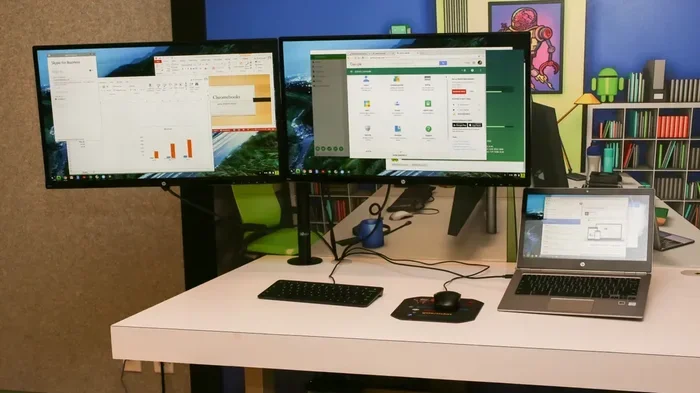
But extending a display is a completely different thing. When you extend a display, your laptop treats the two monitors as one big desktop. You can drag windows from one screen to the other. Each monitor shows different content. This is what most people mean when they say they want to “extend” their screen.
Why a Splitter Cannot Extend Your Display
Here is the core reason. A splitter has no intelligence. It does not process or manage your display output. It simply copies the signal. Your laptop sees the splitter as one single display output. So Windows or macOS treats both connected monitors as one screen. You cannot drag a window to a second monitor because the system does not recognize two separate displays.
To extend a display, your laptop needs two independent video outputs. Each output connects to a different monitor. The operating system then sees two separate screens and lets you arrange them. A splitter does not provide two independent outputs. It provides one signal split into two copies. That is the fundamental difference.
How to Actually Extend Your Laptop Screen to Two Monitors
If an HDMI splitter will not work, how do you extend your display? There are several reliable methods. The right one depends on your laptop’s ports and your budget. Let us look at each option.
Option 1: Use a Docking Station
A docking station is one of the best ways to extend your laptop screen. You connect the dock to your laptop with a single cable. Then you plug two monitors into the dock. The dock communicates with your laptop’s graphics card and presents each monitor as a separate display. This gives you a true extended desktop.
Docking stations come in many shapes and sizes. Some connect via USB-C or Thunderbolt. Others use a proprietary connection. Look for a dock that supports dual monitors and matches your laptop’s port type. Brands like CalDigit, Anker, and Dell make popular options.
One big advantage of a docking station is simplicity. You plug in one cable, and everything works. Your laptop recognizes both monitors instantly. You can open display settings and arrange the screens however you like. It is clean, fast, and reliable.
Option 2: Use a USB-C or USB Adapter
If your laptop has a USB-C port, you can use an adapter to add an extra display output. Many USB-C adapters support HDMI or DisplayPort output. You plug the adapter into your laptop, connect a monitor to the adapter, and use your laptop’s built-in HDMI port for the second monitor.
This method works well for most modern laptops. Just make sure your laptop’s USB-C port supports video output. Not all USB-C ports can carry a video signal. Look for ports labeled with a DisplayPort icon or a lightning bolt (Thunderbolt). These ports support video output.
USB adapters are usually cheaper than docking stations. They are a great budget option if you only need to add one extra monitor. You can find reliable adapters for under $30 in many cases.
Option 3: Use Your Laptop’s Built-In Ports
Some laptops come with more than one video output. Older laptops might have both an HDMI port and a VGA port. Newer models sometimes have HDMI plus USB-C with video support. If your laptop has two separate video outputs, you can connect two monitors directly without any extra hardware.
To set this up, plug each monitor into its respective port. Then go to your display settings. On Windows, right-click the desktop and select Display Settings. On macOS, go to System Settings and click Displays. Look for the option to extend your desktop across the displays. Arrange the monitors to match their physical positions on your desk.
This is the simplest method if your laptop supports it. No extra cables or adapters needed. Just plug and play. But it only works if your laptop has two video outputs, which not all laptops do.
HDMI Splitter vs. Docking Station: A Comparison
It helps to see the differences side by side. Here is a quick comparison of an HDMI splitter and a docking station for extending your display.
| Feature | HDMI Splitter | Docking Station |
|---|---|---|
| Duplicates screen | Yes | No |
| Extends display | No | Yes |
| Number of independent displays | 1 (mirrored) | 2 or more |
| Price range | $10 – $30 | $50 – $200+ |
| Setup complexity | Very simple | Simple |
| Resolution support | Limited by splitter quality | Usually supports high res |
| Best use case | Presentations, mirroring | Extended workspace |
The table makes it clear. If your goal is to extend your laptop screen, a docking station is the right choice. A splitter will only mirror your display. Save yourself the frustration and pick the right tool for the job.
Setting Up Your Extended Display: Step-by-Step
Once you have the right hardware, setting up your extended display is straightforward. Here is how to do it on Windows and macOS.
Windows Setup
- Connect your monitors to your laptop or docking station.
- Right-click on your desktop and select Display Settings.
- You should see two display icons labeled 1 and 2.
- Click Detect if you do not see them right away.
- Under Multiple Displays, choose Extend these displays.
- Drag the display icons to match your physical monitor layout.
- Click Apply, then Keep changes.
macOS Setup
- Connect your monitors to your MacBook or dock.
- Open System Settings and click Displays.
- Wait a moment for macOS to detect the displays.
- Click Arrangement at the top of the settings panel.
- Drag the display rectangles to match your physical setup.
- Uncheck Mirror Displays if it is enabled.
- Your desktop should now extend across both screens.
Once your extended display is set up, you can move windows between screens. You can also set different wallpapers for each monitor. You can even set one monitor as your primary display, where your taskbar and desktop icons live.
Common Mistakes People Make with HDMI Splitters
Many people buy an HDMI splitter expecting it to extend their display. When it does not work, they get frustrated. Here are some common mistakes to avoid.
- Assuming a splitter extends: This is the number one mistake. A splitter duplicates. Always double-check what a product does before buying.
- Buying a cheap splitter: Low-quality splitters can cause signal loss, flickering, or no signal at all. Spend a little more on a reputable brand.
- Ignoring cable quality: A bad HDMI cable can cause display issues even with a good splitter or dock. Use high-speed HDMI cables rated for the resolution you need.
- Not checking port compatibility: Make sure your HDMI splitter matches your laptop’s output. A standard HDMI splitter will not work with a Mini DisplayPort output without an adapter.
- Forgetting to update drivers: Sometimes display issues are caused by outdated graphics drivers. Update your GPU drivers before troubleshooting hardware problems.
Expert Tips for a Better Dual Monitor Setup
Once you have your extended display working, a few tips can make the experience even better. These small adjustments can boost your productivity and comfort.
First, match your monitor sizes and resolutions if possible. Using two different monitors with different resolutions can make windows look stretched or misaligned. If you can, use two identical monitors for the most seamless experience.
Second, use monitor arms or stands to position your screens at eye level. Poor monitor placement causes neck strain and eye fatigue. Your top monitor edge should be at or slightly below eye level. Your screens should be about an arm’s length away.
Third, use keyboard shortcuts to move windows between screens quickly. On Windows, press Windows key plus Shift plus Left or Right arrow. On macOS, use the Mission Control gesture or drag windows manually. These shortcuts save a ton of time once you get used to them.
Finally, consider your cable management. A messy desk with tangled cables is distracting and can cause connection issues. Use cable ties or a cable management tray to keep things neat. A clean setup also makes it easier to disconnect and reconnect your monitors when needed.
Can You Use Any HDMI Splitter for This Purpose?
The short answer is no. No HDMI splitter can extend your display. The technology behind a splitter simply does not support it. A splitter copies a signal. It does not create a second independent display output.
Some people try to get creative with splitter settings. They tweak resolution or refresh rate options. But no matter what settings you adjust, a splitter will always mirror your screen. If a product claims to extend your display using a splitter, it is misleading or false advertising.
Save your money. Do not buy an HDMI splitter expecting it to extend your laptop screen. Instead, invest in a proper docking station or USB adapter. These tools are designed for exactly this purpose and will give you the extended workspace you want.
What About Wireless Display Options?
If running cables feels limiting, you might wonder about wireless options. Technologies like Miracast, AirPlay, and Chromecast can send your laptop screen to a TV or monitor wirelessly. But like an HDMI splitter, these tools typically mirror your screen rather than extend it.
Some wireless display adapters do support extended mode. For example, the Microsoft Wireless Display Adapter can extend a Windows desktop. Apple’s AirPlay also supports extended displays in some configurations with third-party software. However, wireless options often have more latency and lower image quality than wired connections.
If you need a reliable, lag-free extended display, a wired connection through a docking station or adapter is still the best choice. Reserve wireless options for situations where cables are impractical, like presenting in a meeting room.
FAQ
Can I use an HDMI splitter to extend my laptop screen?
No. An HDMI splitter duplicates your screen, it does not extend it. The splitter sends the same image to both monitors. To extend your display, you need a docking station, USB-C adapter, or a laptop with multiple video outputs.
What is the difference between duplicating and extending a display?
Duplicating shows the same content on both screens. Extending creates one large desktop spread across both monitors. With extension, you can drag windows from one screen to the other and display different content on each.
Do I need a special HDMI cable for dual monitors?
You need a high-speed HDMI cable that supports your desired resolution. For 1080p, a standard High Speed HDMI cable works. For 4K, use a Premium High Speed HDMI cable or an Ultra High Speed HDMI cable. Using the right cable prevents signal issues.
Can a USB-C hub extend my display?
Yes. A USB-C hub or dock with video output can extend your display. Just make sure the USB-C port on your laptop supports video output. Look for Thunderbolt or DisplayPort Alternate Mode support on your laptop’s USB-C port.
Why does my second monitor show nothing after connecting?
This usually happens because the display is set to duplicate instead of extend. Go to Display Settings on Windows or Arrangement on macOS and switch to Extend mode. Also check that your cable is securely connected and that your adapter is functioning properly.
Can I extend my display with an HDMI switch?
No. An HDMI switch lets you toggle between multiple input sources on one output. It does not extend your display. For extending, you need a docking station or a device that provides independent video outputs for each monitor.
Conclusion
So, can you use an HDMI splitter to extend not duplicate your laptop screen? The answer is a clear no. An HDMI splitter copies your signal to two monitors. It does not create an extended desktop. If you want to spread your workspace across two screens, you need the right tools. A docking station, a USB-C adapter, or a laptop with dual video outputs will get the job done.
Understanding the difference between duplicating and extending is the first step. Once you know what you need, setting up your dual monitor workspace becomes easy. Pick the right hardware. Configure your display settings correctly. And enjoy the boost in productivity that comes with a true extended display.
Take action today. Check your laptop’s ports. Choose the right extension solution for your needs. Set up your extended desktop and start working smarter, not harder. Your second monitor will thank you.