Can I Buy Windows 10 On A USB Flash Drive Right Now
You can absolutely buy Windows 10 on a USB flash drive directly from Microsoft or authorized retailers. A Windows 10 USB drive gives you a clean install option, easy recovery, and portable access to your operating system. This guide walks you through every step, from choosing the right USB to completing your installation smoothly.
So, can you buy Windows 10 on a USB flash drive? The short answer is a definite yes. Whether you are setting up a new PC, reinstalling a broken system, or just want a backup copy of your operating system, a Windows 10 USB drive is one of the most convenient options available today.
Many people still download the ISO file and create their own bootable drive. But there is something really satisfying about walking into a store or ordering online and getting a ready-to-use Windows 10 USB right out of the box. No fiddling with tools. No worrying about corrupted downloads. Just plug it in and go.
In this guide, I will walk you through everything you need to know. We will cover where to buy Windows 10 on a USB, what versions are available, how much it costs, and step-by-step instructions for getting it all set up. By the end, you will feel confident making your purchase and installing Windows 10 like a pro.
Key Takeaways
- You can buy Windows 10 on a USB: Microsoft and third-party sellers offer Windows 10 on USB flash drives for easy installation.
- USB installation is faster and more reliable: Installing from a USB drive avoids download issues and gives you a clean slate.
- You need at least an 8GB USB drive: Smaller drives won’t hold the Windows 10 files needed for installation.
- You can create your own bootable USB: Using the Media Creation Tool, you can turn any USB into Windows 10 installation media.
- Prices vary by retailer: Expect to pay anywhere from $10 to $140 depending on the version and seller.
- A Windows 10 product key is still required: The USB contains the OS files, but you need a valid license to activate Windows.
- Back up your data first: Always save important files before installing Windows 10 from a USB drive.
📑 Table of Contents
- Where Can You Buy Windows 10 on a USB Flash Drive?
- What Versions of Windows 10 Come on USB?
- How Much Does a Windows 10 USB Cost?
- How to Create a Bootable Windows 10 USB Drive Yourself
- How to Install Windows 10 from a USB Flash Drive
- Common Mistakes to Avoid When Buying Windows 10 on USB
- Benefits of Having Windows 10 on a USB Flash Drive
- Frequently Asked Questions
- Final Thoughts
Where Can You Buy Windows 10 on a USB Flash Drive?
Finding a Windows 10 USB drive is easier than most people think. You have several solid options, and each one comes with its own perks. Let me break them down for you.
Buy Directly from Microsoft
Microsoft used to sell Windows 10 USB drives directly through their online store. However, they shifted their approach over the past few years. Today, Microsoft primarily offers digital downloads and product keys through their website. You can still purchase a Windows 10 product key from Microsoft and use it to activate your copy.
That said, Microsoft does partner with authorized resellers who bundle the USB drive with a product key. These are often labeled as “Windows 10 USB installation kits.” They come with everything you need right out of the package.
Authorized Retailers and Electronics Stores
Stores like Best Buy, Amazon, Newegg, and Walmart carry Windows 10 USB drives in their computer sections. You will often find them near the other operating system CDs and installation media. These retail versions come with a printed product key on the packaging, which makes activation straightforward.
When buying from a physical store, make sure you check the seal on the packaging. You want an unopened, original product. Also, compare prices across different retailers because they can vary quite a bit.
Online Marketplaces
Amazon, eBay, and other online marketplaces are full of Windows 10 USB options. Some sellers offer great deals, while others charge way too much. Here is a quick tip: stick with sellers who have strong ratings and reviews. Look for listings that clearly state the Windows 10 edition and include a valid product key.
Be careful with deals that seem too good to be true. A suspiciously cheap Windows 10 USB might be an OEM key or even a reused license. Those can cause headaches during activation.
Microsoft Authorized Resellers
Sites like CDKeys, Kinguin, and G2A sell Windows 10 product keys at discounted prices. Some of them include a USB drive, while others sell just the digital key. If you already have a USB drive, buying just the key and creating your own bootable media can save you money.
Always verify that the reseller is authorized by Microsoft. Unauthorized keys can be revoked, leaving you without a working license. It is not worth the risk, no matter how good the price looks.
What Versions of Windows 10 Come on USB?
Not all Windows 10 USB drives are the same. Microsoft offers several editions, and each one targets a different type of user. Let me walk you through the main versions you will encounter.
Windows 10 Home
Windows 10 Home is the most popular edition. It is designed for everyday users who browse the web, stream videos, play games, and handle basic productivity tasks. Most new computers come preloaded with Windows 10 Home, so this is the version you will see most often on USB drives.
If you are a casual user or setting up a computer for family members, Windows 10 Home on a USB drive is probably all you need. It includes Cortana, Microsoft Edge, the Start menu, and all the core features most people rely on daily.
Windows 10 Pro
Windows 10 Pro adds advanced features for power users and businesses. It includes BitLocker encryption, Remote Desktop, Group Policy management, and the ability to join a domain. If you run a small business or need more control over your system, Windows 10 Pro is the way to go.
The Pro version costs more than Home, but it gives you a lot more flexibility. Many IT professionals prefer having Windows 10 Pro on a USB drive for quick deployments and system recoveries.
Windows 10 Education and Enterprise
These editions are designed for schools and large organizations. You generally cannot buy them as retail USB drives. They are licensed through volume agreements and are not available to the average consumer. If you see a Windows 10 Education USB for sale, be very cautious about its legitimacy.
How Much Does a Windows 10 USB Cost?
The price of a Windows 10 USB drive depends on where you buy it and which edition you choose. Here is a general breakdown to give you a clear picture.
- Windows 10 Home USB: Typically ranges from $10 to $30 on online marketplaces. Retail store versions might cost $130 to $140.
- Windows 10 Pro USB: Usually priced between $20 and $50 online. Retail versions can go up to $200 or more.
- Bundled USB kits: Some sellers include a USB drive with a product key for around $15 to $40.
- Digital keys only: If you already own a USB drive, you can buy just the key for as low as $5 to $15 from authorized resellers.
Keep in mind that prices fluctuate based on demand, sales, and the seller. Always check for genuine Microsoft licensing before making a purchase. A cheap key is not worth it if it gets deactivated a month later.
How to Create a Bootable Windows 10 USB Drive Yourself
If you decide to skip the pre-made USB and create your own, the process is actually quite simple. Microsoft offers a free tool called the Media Creation Tool that makes this easy for anyone. Let me show you how it works.
What You Will Need
- A USB flash drive with at least 8GB of storage
- A working computer with an internet connection
- A valid Windows 10 product key (optional during creation, required for activation)
- The Media Creation Tool downloaded from Microsoft’s official website
Step-by-Step Instructions
First, plug your USB flash drive into your computer. Make sure it has at least 8GB of free space. All data on the drive will be erased during this process, so back up anything important first.
Next, head to Microsoft’s website and download the Media Creation Tool. Open the tool and accept the license terms. You will see two options: “Upgrade this PC now” and “Create installation media for another PC.” Choose the second option.
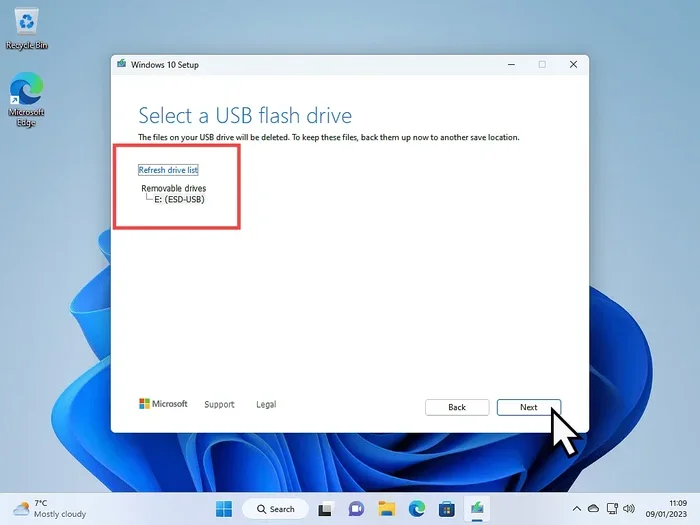
Select your language, edition, and architecture. For most users, the default settings work perfectly. Click next and choose the USB flash drive option. The tool will download the Windows 10 files and write them directly to your USB drive.
Wait for the process to finish. This usually takes 15 to 30 minutes depending on your internet speed. Once done, you have a fully bootable Windows 10 USB drive ready to use on any compatible computer.
Quick Tips for a Smooth Creation Process
- Use a high-quality USB flash drive from a reputable brand like SanDisk or Kingston.
- Format the USB drive as NTFS before starting if you run into errors.
- Make sure your BIOS is set to boot from USB before starting the installation.
- Disable Secure Boot temporarily if your system has trouble recognizing the USB drive.
- Keep your USB drive plugged in throughout the entire process to avoid corruption.
How to Install Windows 10 from a USB Flash Drive
Once you have your Windows 10 USB ready, the installation process is straightforward. Whether you bought a pre-made USB or created your own, the steps are essentially the same. Let me walk you through it.
First, plug the USB flash drive into the computer where you want to install Windows 10. Restart the computer and enter the BIOS or boot menu. This is usually done by pressing F2, F12, Del, or Esc during startup, depending on your computer brand.
In the boot menu, select your USB drive as the primary boot device. Save the changes and exit. Your computer will restart and load the Windows 10 setup screen.
Follow the on-screen prompts. Choose your language, time format, and keyboard layout. Click “Install Now” and enter your product key when prompted. Accept the license terms and choose “Custom: Install Windows only” for a clean installation.
Select the drive where you want Windows 10 installed. If you are replacing an old operating system, you may want to delete the existing partitions first. Click next and let the installation begin. Your computer will restart several times during this process.
Once the installation is complete, go through the initial setup screens. Create a user account, connect to Wi-Fi, and configure your privacy settings. You are now running a fresh copy of Windows 10 from your USB flash drive installation.
Common Mistakes to Avoid When Buying Windows 10 on USB
Buying a Windows 10 USB drive sounds simple, but mistakes happen more often than you might think. Here are the most common pitfalls and how to avoid them.
Buying from Unauthorized Sellers
The biggest mistake people make is purchasing from sketchy sellers with unbelievable prices. These keys often turn out to be OEM keys meant for manufacturers, not retail keys for individual users. When Microsoft detects this, the key gets blacklisted, and you lose your license.
Always buy from authorized resellers or directly from Microsoft. Check the seller’s reputation and read reviews before committing. A few extra dollars spent on a legitimate key saves you from a world of trouble.
Using a Damaged or Counterfeit USB Drive
Some cheap USB drives sold online are counterfeit or have low-quality flash memory. These drives can fail during installation, corrupt your files, or stop working after a few uses. Stick with trusted brands and buy from reputable sellers.
If you are creating your own bootable USB, format the drive properly before starting. A corrupted USB drive can cause the installation to fail midway, leaving your system in an unusable state.
Skipping the Backup Step
Installing Windows 10 from a USB drive wipes your hard drive clean during a clean install. If you have not backed up your files, you could lose everything. Always back up your important data to an external drive or cloud storage before starting the installation process.
Choosing the Wrong Windows 10 Edition
Make sure you know which edition you need before buying. Windows 10 Home and Pro have different features and pricing. If you buy Home but need Pro features like BitLocker, you will have to upgrade later. Check your system requirements and feature needs before making a purchase.
Benefits of Having Windows 10 on a USB Flash Drive
There are several real advantages to owning a Windows 10 USB drive beyond just the initial installation. Let me share some of the best ones.
- Portability: You can carry your Windows 10 installation with you anywhere. Need to fix a friend’s computer? Just plug in your USB drive and get to work.
- Fast recovery: If your system crashes or gets corrupted, a Windows 10 USB drive lets you reinstall quickly without waiting for a download.
- Clean installs: A USB-based Windows 10 installation gives you a completely fresh start. No bloatware, no leftover files, no lingering issues from the old system.
- Multiple uses: One Windows 10 USB drive can be used to install the operating system on several computers, as long as you have a valid license for each.
- No internet dependency: Once the files are on the USB drive, you do not need a constant internet connection to install Windows 10.
- Emergency troubleshooting: A bootable Windows 10 USB can help you access recovery tools and fix startup problems when your system won’t boot normally.
Frequently Asked Questions
Can I buy a Windows 10 USB flash drive at Walmart or Best Buy?
Yes, both Walmart and Best Buy carry Windows 10 USB drives in their electronics sections. You can also check their websites for online ordering. Make sure the product is sealed and comes with a valid product key included in the package.
Do I need a product key if I already have a Windows 10 USB drive?
Yes, the USB drive contains the installation files, but you still need a valid Windows 10 product key to activate the operating system. Without a key, you can install and use Windows 10 temporarily, but you will see watermark notifications and lose access to personalization settings.
Is it cheaper to buy a digital key and create my own USB?
Absolutely. Buying a digital Windows 10 product key and using the free Media Creation Tool to create your own bootable USB is usually much cheaper than buying a pre-made USB drive. This approach gives you more control and often saves you 50% or more on the cost.
Can I use the same Windows 10 USB on multiple computers?
Yes, the physical USB drive can be used on any compatible computer. However, each computer needs its own valid Windows 10 license or product key for proper activation. The USB drive itself is just the installation media and does not contain a license.
What size USB flash drive do I need for Windows 10?
You need a USB flash drive with at least 8GB of storage. A 16GB drive is recommended if you want extra space for updates or additional tools. Avoid drives smaller than 8GB, as the Windows 10 files will not fit.
Can I upgrade from Windows 7 or 8.1 using a Windows 10 USB drive?
Yes, you can use a Windows 10 USB drive to upgrade from Windows 7 or Windows 8.1. During installation, select the “Upgrade” option instead of a clean install. This preserves your files, apps, and settings while moving you to the new operating system.
Final Thoughts
Buying Windows 10 on a USB flash drive is a smart, practical choice for anyone who wants a reliable and portable way to install or reinstall the operating system. Whether you grab a pre-made USB from a trusted retailer or create your own bootable drive using the Media Creation Tool, the process is simpler than most people expect.
Just remember to buy from authorized sellers, choose the right Windows 10 edition for your needs, and always back up your data before installing. A Windows 10 USB drive gives you peace of mind and complete control over your system. It is one of those tools that every computer user should have in their toolkit.
So go ahead, grab that Windows 10 USB flash drive, and take charge of your computing experience. You will be glad you did.