Can A Lenovo Thinkpad Be Touch Screen Explained Here
Yes, a Lenovo ThinkPad can absolutely be a touchscreen. Several ThinkPad lines, including the X1 Yoga, L series, and E series, offer touch-enabled displays as either a built-in option or a standard feature. Whether you need a convertible laptop for creative work or a 2-in-1 laptop for everyday productivity, Lenovo has touchscreen options that fit different budgets and use cases. This guide covers every detail you need to know.
Have you ever looked at your Lenovo ThinkPad and wondered if it could do more? Maybe you have seen someone using a touchscreen laptop at a coffee shop and thought, “I wish my ThinkPad could do that.” The good news is that many Lenovo ThinkPad models do support touchscreen functionality. But not every single one. And the details matter a lot if you are trying to decide which model to buy.
In this article, I will walk you through everything you need to know about Lenovo ThinkPad touchscreen options. I will cover which models offer it, what the benefits are, and whether a touch-enabled display is worth the extra cost. By the end, you will have a clear answer to the question “Can a Lenovo ThinkPad be touchscreen?” and the confidence to make the right choice.
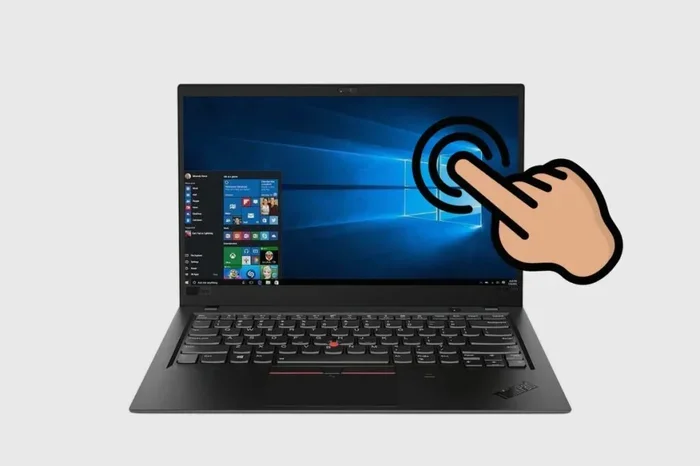
Let us start with the basics. A touchscreen display is a monitor that responds to finger input. Instead of only using a keyboard and trackpad, you can tap, swipe, pinch, and zoom directly on the screen. Lenovo has embraced this technology across several of its ThinkPad lines. But the availability depends on the model, the generation, and the specific configuration you choose.
Key Takeaways
- Touchscreen ThinkPads exist: Multiple Lenovo ThinkPad lines offer touch-enabled displays, including the X1 Yoga, L series, E series, and P series.
- Not all models support touch: Traditional ThinkPad models like the T series and X1 Carbon often come without touch unless you choose the touch variant.
- Convertible designs are popular: The X1 Yoga and Lenovo Yoga series are 2-in-1 laptops that fold into tablets for maximum flexibility.
- Touchscreen adds cost: Expect to pay more for a touch-enabled display compared to a standard non-touch model.
- You can add touch later: External touchscreen monitors or DIY upgrades are possible, though they come with limitations.
- Touchscreen improves productivity: Tasks like scrolling, zooming, and drawing become more intuitive with a touch-enabled display.
📑 Table of Contents
- What Makes a Lenovo ThinkPad Touch Screen?
- Which Lenovo ThinkPad Models Offer Touchscreen?
- Benefits of a Touchscreen ThinkPad
- Drawbacks and Things to Consider
- How to Add Touchscreen to a Non-Touch ThinkPad
- Common Mistakes When Choosing a Touchscreen ThinkPad
- Expert Insights on Lenovo ThinkPad Touchscreens
- Key Takeaways
- Conclusion
What Makes a Lenovo ThinkPad Touch Screen?
The technology behind a touchscreen ThinkPad is simpler than most people think. A touch-enabled display uses a layer of sensors built into the screen panel. These sensors detect the electrical charge from your finger. When you tap or swipe, the sensors send signals to the laptop’s processor. The processor then interprets those signals as commands.
Here is how it works in plain terms:
- Touch sensor layer: A thin film sits between the LCD panel and the protective glass. This film detects finger contact.
- Controller board: A small circuit board inside the laptop processes touch signals and sends them to the operating system.
- Driver software: Windows and other operating systems include built-in support for touchscreen input. No extra software is usually needed.
- Display panel: The screen itself must be manufactured as a touch-compatible panel. You cannot add touch to a regular non-touch screen without replacing it.
Lenovo uses a technology called projected capacitive touch (or PCAP) in its touchscreen ThinkPads. This is the same technology found in smartphones and modern tablets. It supports multi-touch gestures, which means you can use two or more fingers at the same time for actions like zooming in on a photo or rotating an image.
Does Touchscreen Affect Display Quality?
A common concern is whether adding a touch layer hurts the display quality. The answer is: it can, slightly. A touchscreen panel may have a tiny bit less brightness or a faint reflection from the extra glass layer. However, modern touchscreen ThinkPads are very well optimized. The difference is barely noticeable in everyday use. If you are doing color-sensitive work like photo editing, look for models with an IPS or OLED touchscreen for the best results.
Which Lenovo ThinkPad Models Offer Touchscreen?
Not every ThinkPad comes with a touchscreen. Lenovo reserves the touch option for specific lines and configurations. Here is a breakdown of the most popular Lenovo ThinkPad models that offer touchscreen support.
Lenovo ThinkPad X1 Yoga
The ThinkPad X1 Yoga is the flagship convertible ThinkPad. It is a 2-in-1 laptop that can fold all the way back into a tablet. Every generation of the X1 Yoga comes with a touchscreen as a standard feature. This is the go-to model for professionals who want touchscreen productivity on the go. It features a 360-degree hinge, a built-in stylus, and a premium display.
Lenovo ThinkPad L Series
The ThinkPad L series is Lenovo’s budget-friendly business line. Several models in this series, such as the L14 and L15, offer touchscreen as an option. These are great for small businesses and students who want a reliable touchscreen laptop without paying premium prices. The L series balances affordability with the practicality of touch input.
Lenovo ThinkPad E Series
The E series is Lenovo’s entry-level ThinkPad line. Models like the E14 and E16 sometimes include touchscreen variants. These are perfect for everyday tasks like browsing, email, and document editing. If you are on a tight budget and want a touch-enabled experience, the E series is worth looking at.
Lenovo ThinkPad P Series
The P series is designed for creative professionals and engineers. Models like the P1 and P16 offer touchscreen options with high-resolution displays. These are mobile workstations that handle heavy tasks like 3D rendering and video editing. The touchscreen adds a creative dimension that professionals in design and architecture really appreciate.
Lenovo ThinkPad T Series
The T series is the most popular ThinkPad line for business users. However, touchscreen is not always standard in the T series. Some newer models and specific configurations do include a touch-enabled display. You need to check the exact model number and specifications before purchasing. The T series is more focused on traditional productivity and durability than on touch input.
| ThinkPad Model | Touchscreen Available? | 2-in-1 Convertible? | Price Range |
|---|---|---|---|
| ThinkPad X1 Yoga | Yes, standard | Yes | $1,200 – $2,500 |
| ThinkPad L Series (L14/L15) | Yes, optional | No | $600 – $1,000 |
| ThinkPad E Series (E14/E16) | Yes, on some models | No | $400 – $800 |
| ThinkPad P Series (P1/P16) | Yes, optional | No | $1,500 – $3,500 |
| ThinkPad T Series (T14/T16) | Yes, on select configs | No | $900 – $1,800 |
| ThinkPad X1 Carbon | Yes, on some configs | No | $1,100 – $2,200 |
As you can see from the table, the Lenovo Yoga series and the X1 Yoga lead the way in touchscreen availability. Other lines offer touch as an option or on select configurations. Always double-check the product page or spec sheet before buying.
Benefits of a Touchscreen ThinkPad
So why would you want a touchscreen ThinkPad? There are several real-world benefits that make touch input genuinely useful.
More Intuitive Navigation
Scrolling through a long web page or spreadsheet feels more natural with your finger. You just swipe up or down instead of reaching for the trackpad. This might sound like a small thing, but once you get used to it, you do not want to go back. Touchscreen productivity improves for everyday browsing, reading, and navigating apps.
Great for Creative Work
If you draw, sketch, or take handwritten notes, a touchscreen is a game-changer. Pair your touch-enabled display with a Lenovo ThinkPad stylus, and you have a digital sketchpad. Artists, designers, and students benefit a lot from this kind of setup. The Lenovo ThinkPad X1 Yoga and P series are especially good for creative professionals.
Better Presentation and Collaboration
In meetings, you can flip through slides by simply tapping the screen. You do not need to click a mouse or press a keyboard shortcut. This makes presentations feel smoother and more engaging. A convertible laptop that folds into a tablet is perfect for walking around a conference room and showing your screen to clients or colleagues.
Windows Touch Gestures
Windows 10 and Windows 11 are designed with touch input in mind. You get gestures like pinch-to-zoom, swipe from the edge to open the action center, and three-finger switching between apps. These gestures make the touchscreen laptop experience feel polished and integrated. Lenovo’s touchscreen ThinkPads take full advantage of these built-in features.
Flexible Form Factors
With a 2-in-1 Lenovo convertible, you get four modes: laptop, tablet, tent, and display. This flexibility is perfect for different work situations. You can type an email in laptop mode, sketch a diagram in tablet mode, and watch a video in tent mode. The Lenovo Yoga series pioneered this concept, and it has become a standard feature in many modern laptops.
Drawbacks and Things to Consider
A touchscreen is not perfect for everyone. Before you decide, consider these potential downsides.
Higher Cost
Touchscreen models usually cost more than their non-touch counterparts. The price difference can range from $100 to $300 depending on the model. If you are on a tight budget, this extra cost might not be worth it for your needs.
Slightly Heavier and Thicker
The touch sensor layer adds a small amount of weight and thickness to the display assembly. For ultraportable laptops like the X1 Carbon, this difference is minimal. But for lighter models, every gram counts, and the touch option can add bulk.
Glare and Reflections
Touchscreen panels tend to have a slightly more reflective surface than non-touch screens. In bright environments or near windows, this can cause glare. If you work outdoors or in very bright offices, you might notice this more on a touchscreen display compared to a matte non-touch panel.
Fingerprint Smudges
Touchscreens attract fingerprints. Your screen will need more frequent cleaning, especially if you use it heavily throughout the day. Some models come with anti-glare or matte touch coatings that reduce fingerprints, but no touchscreen is completely smudge-proof.
Battery Life Impact
The touch sensor layer and extra display components consume slightly more power. This means a touchscreen ThinkPad may have slightly shorter battery life than a non-touch model of the same configuration. The difference is usually small, maybe 30 minutes to an hour, but it is something to be aware of.
Not Always Necessary for Business Work
If your work is mostly email, spreadsheets, and document editing, a touchscreen might not add much value. The trackpad and keyboard on a ThinkPad are already excellent for these tasks. A touchscreen shines for creative work, presentations, and media consumption.
How to Add Touchscreen to a Non-Touch ThinkPad
What if you already own a non-touch ThinkPad and wish it had a touchscreen? There are a few options, though none are perfect.
External Touchscreen Monitor
The easiest solution is to connect an external touchscreen monitor to your ThinkPad via USB or HDMI. Many portable touchscreen monitors are available for under $200. Brands like Lenovo, AOC, and ViewSonic make compact options that work well with ThinkPads. This gives you a touch-enabled second screen for presentations or creative work.
DIY Display Replacement
Some people replace the non-touch display panel with a touchscreen panel from the same model line. This requires technical skill and the right parts. You need to find a compatible touchscreen panel, open the laptop, and swap the display. This is not recommended for most users because it voids the warranty and can be risky if done incorrectly.
Use a Touch-Enabled Tablet Instead
If touch is essential for your workflow, consider using a Lenovo Yoga tablet or a separate tablet alongside your ThinkPad. This gives you the best of both worlds without modifying your existing laptop.
Quick Tips for Touchscreen ThinkPad Users
- Keep your screen clean: Use a microfiber cloth to remove fingerprints and smudges regularly.
- Use a stylus: A Lenovo ThinkPad stylus makes touch input more precise for drawing and note-taking.
- Adjust touch sensitivity: Windows settings let you tweak how responsive the touchscreen is to different types of input.
- Enable glove mode: Some touchscreen laptops have a setting that improves touch response when wearing gloves.
- Calibrate regularly: If touch input feels off, recalibrate the touchscreen through Windows display settings.
Common Mistakes When Choosing a Touchscreen ThinkPad
Here are some mistakes to avoid when shopping for a touch-enabled ThinkPad.
- Assuming all ThinkPads have touch: This is the biggest mistake. Most ThinkPad models do not come with touchscreen by default. Always check the specs.
- Ignoring the hinge type: If you want a 2-in-1, make sure the model has a 360-degree hinge. Not all touchscreen ThinkPads convert to tablets.
- Overlooking the stylus: A touchscreen without a stylus is limiting for creative work. Check if the model supports a digital pen.
- Forgetting to check the OS: Windows is the best operating system for touchscreen laptops. ChromeOS and some Linux distributions have limited touch support.
- Not comparing prices: Touchscreen models can vary widely in price. Compare the exact same model with and without touch to see the real cost difference.
Expert Insights on Lenovo ThinkPad Touchscreens
Industry experts generally agree that touchscreen ThinkPads are a great addition to the ThinkPad lineup. According to laptop review sites and professional reviewers, the ThinkPad X1 Yoga consistently ranks as one of the best touchscreen business laptops available. Its combination of build quality, display quality, and touch performance sets a high standard.
Reviewers also note that the Lenovo ThinkPad touchscreen experience has improved significantly over the past few generations. Earlier touchscreen ThinkPads sometimes felt laggy or imprecise. Modern models with Windows 11 and updated drivers offer smooth, responsive touch input that rivals consumer touchscreen laptops.
One expert from a major tech publication said, “The ThinkPad X1 Yoga proves that business laptops can be touch-friendly without sacrificing durability or performance.” This sentiment reflects the general consensus in the laptop review community.
Who Should Get a Touchscreen ThinkPad?
Based on expert recommendations, here is who benefits most from a touchscreen ThinkPad:
- Creative professionals who draw, sketch, or design.
- Salespeople and consultants who present to clients frequently.
- Students who take handwritten notes on their laptop.
- Executives who want a versatile 2-in-1 device.
- Anyone who prefers finger navigation over trackpad and keyboard shortcuts.
Key Takeaways
Let us recap the most important points about Lenovo ThinkPad touchscreen capability.
- Many ThinkPad models support touch: The X1 Yoga, L series, E series, P series, and select T series models all offer touchscreen options.
- Convertible designs are the most flexible: The X1 Yoga and other 2-in-1 models let you use the laptop as a tablet, tent, or traditional clamshell.
- Touch adds cost but adds value: The extra price is worth it if you need touch input for creative work, presentations, or everyday navigation.
- Not all models have touch: Always verify the specifications before purchasing. The default configuration is often non-touch.
- External options exist: If your ThinkPad does not have touch, you can use an external touchscreen monitor for added functionality.
Conclusion
So, can a Lenovo ThinkPad be a touchscreen? The answer is a clear yes. Lenovo has made touchscreen available across several ThinkPad lines, from the premium X1 Yoga to the budget-friendly E series. Whether you are a creative professional, a business user, or a student, there is likely a touch-enabled ThinkPad that fits your needs and budget.
The key is to choose the right model and configuration. Check the specifications carefully, compare prices, and think about how you actually use your laptop. If touch input would genuinely improve your workflow, a touchscreen ThinkPad is a smart investment. If you mostly type documents and send emails, a non-touch model might save you money without sacrificing much.
Ultimately, Lenovo has done a great job of bringing touchscreen technology to its trusted ThinkPad line. The result is a range of laptops that combine the durability and reliability ThinkPads are known for with the modern convenience of touch input. Whether you pick the X1 Yoga, an L series model, or a P series workstation, you can enjoy the benefits of a touchscreen laptop built for serious work.
Take the time to explore the options, read reviews, and find the perfect Lenovo ThinkPad touchscreen model for your needs. You will be glad you did.
Frequently Asked Questions
Can I add touchscreen to any Lenovo ThinkPad?
No, you cannot add touchscreen functionality to a non-touch ThinkPad without replacing the entire display panel. The touch sensor layer is built into the screen during manufacturing. Your best option is to use an external touchscreen monitor if you need touch input on a non-touch ThinkPad.
Which Lenovo ThinkPad has the best touchscreen?
The ThinkPad X1 Yoga is widely considered the best touchscreen ThinkPad. It offers a 360-degree hinge, a high-quality OLED or IPS touchscreen, and stylus support. For a more budget-friendly option, the ThinkPad L series and E series also provide solid touchscreen experiences.
Does a touchscreen ThinkPad have worse battery life?
Touchscreen ThinkPads may have slightly shorter battery life than non-touch models of the same configuration. The difference is usually small, around 30 minutes to an hour. Modern Lenovo models are well optimized, so the impact is minimal for most users.
Can I use a stylus with a Lenovo ThinkPad touchscreen?
Yes, many touchscreen ThinkPads support active styluses. The ThinkPad X1 Yoga and P series are especially compatible with Lenovo’s digital pens. A stylus makes touch input more precise and is great for drawing, note-taking, and signing documents.
Are touchscreen ThinkPads good for gaming?
ThinkPads are not primarily designed for gaming. However, touchscreen models in the P series with dedicated GPUs can handle casual and mid-range games. The touch input is more useful for creative tasks than for gaming, where a mouse and keyboard remain the preferred input methods.
How do I know if my ThinkPad has a touchscreen?
Check the product specifications on Lenovo’s website or the label on your laptop. Look for terms like “touchscreen,” “touch-enabled display,” or “multi-touch.” You can also test it yourself by trying to tap and swipe on the screen. If it responds to finger input, your ThinkPad has a touchscreen.