Are Apps Available On Laptops And Desktop Computers
Yes, apps are available on laptops and desktop computers across all major operating systems. You can download native desktop apps, use web-based apps in your browser, and even run mobile apps on some laptops. Whether you use Windows, macOS, or Chrome OS, there is a wide world of software waiting for you.
Have you ever sat down at your laptop and wondered if the apps you love on your phone would work on a bigger screen? The short answer is yes. Apps are available on laptops in more ways than most people realize. Whether you are browsing the web, streaming videos, or editing documents, there is an app for nearly everything.
The world of laptop apps has grown fast in recent years. Today, you can find desktop applications, web-based tools, and even mobile apps that run on your laptop. This guide will walk you through everything you need to know about finding and using apps on laptops and desktop computers. Let us dive in.
Key Takeaways
- Apps work on laptops: You can install and run apps on laptops just like you do on desktop computers, regardless of your operating system.
- Multiple app types exist: Native desktop apps, web apps, and mobile apps can all run on laptops with the right setup.
- App stores make it easy: The Microsoft Store, Mac App Store, and Chrome Web Store let you find and install apps safely.
- Mobile apps can run on laptops: Tools like Windows Subsystem for Android let you use Android apps on Windows laptops.
- Cross-platform apps are everywhere: Popular apps like Spotify, Zoom, and Slack work on all devices and operating systems.
- Compatibility matters: Always check system requirements before downloading any app for your laptop.
- Web apps need no installation: Many apps work right in your browser, giving you instant access without downloads.
📑 Table of Contents
How Apps Work on Laptops and Desktop Computers
Understanding how apps work on laptops is the first step to getting the most out of your device. Unlike phones, laptops run full operating systems that support a wide range of software. This gives you more freedom and power when choosing apps.
The App Ecosystem Explained
An app ecosystem is the collection of apps, stores, and tools available for a specific platform. Each operating system has its own ecosystem. Windows has the Microsoft Store. macOS has the Mac App Store. Chrome OS has the Chrome Web Store. Linux has several options too, like Snap and Flatpak.
When you think about apps available on laptops, you are really thinking about three main categories. First, there are native desktop apps built specifically for a laptop operating system. Second, there are web apps that run in your browser. Third, there are mobile apps that can be adapted to run on a laptop screen.
Each type has its strengths. Native apps tend to be the fastest and most feature-rich. Web apps are convenient because they need no installation. Mobile apps bring your favorite phone tools to a bigger screen. The best part is that most laptops support all three types.
Operating Systems and Their App Support
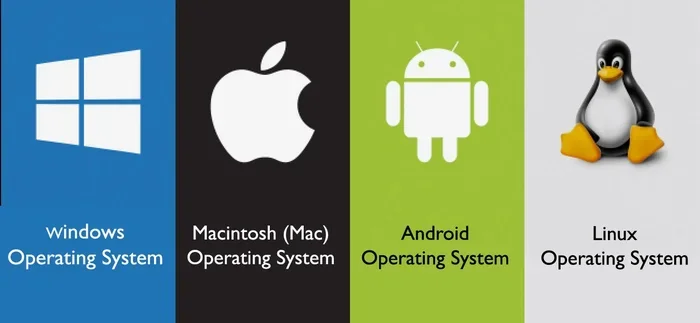
Different laptops run different operating systems, and each one handles apps differently. Here is a quick look at the big three.
Windows is the most popular laptop operating system in the world. It supports a massive library of desktop applications and has its own app store. You can also run Android apps on Windows 11 through the Windows Subsystem for Android. This makes Windows laptops incredibly versatile.
macOS powers Apple laptops like the MacBook. The Mac App Store offers thousands of apps. macOS also supports web apps and can run iOS apps in some cases. Apple has been expanding its app ecosystem to give Mac users more choices every year.
Chrome OS is Google’s laptop operating system. It is designed around web apps and the Chrome Web Store. While it is more limited than Windows or macOS, it still offers a solid range of apps for laptops, especially for everyday tasks like browsing, email, and document editing.
Types of Apps You Can Run on a Laptop
Not all apps are created equal. When you search for apps available on laptops, you will find different types. Each type works in a unique way and suits different needs. Let us break them down.
Native Desktop Applications
Native desktop apps are built specifically for a laptop operating system. They install directly onto your hard drive and run using your laptop’s full power. Examples include Microsoft Word, Adobe Photoshop, and Spotify desktop app.
These apps tend to be the most reliable and fastest option. They can access your laptop’s hardware directly, which means better performance. You can usually download them from the official app store or the developer’s website.
Here are some great things about native desktop apps:
- Fast performance: They use your laptop’s processor and memory directly.
- Full features: You get all the tools and functions the developer intended.
- Offline access: Most native apps work without an internet connection.
- Better integration: They connect smoothly with your laptop’s file system and other software.
Web-Based Apps
Web apps run inside your browser. You do not need to download or install anything. You simply open a website, and the app works right there. Popular examples include Google Docs, Canva, and Figma.
Web apps are incredibly convenient. They work on any laptop, regardless of the operating system. You can access them from any device with a browser and an internet connection. This makes them perfect for people who use multiple devices.
The main downside is that web apps need an internet connection to work. Some also run slower than native apps because they rely on your browser. However, for most everyday tasks, web apps are more than enough.
Mobile Apps on Laptops
Did you know you can run some mobile apps on your laptop? This is a newer trend, but it is growing fast. Windows 11 lets you run Android apps natively. Some third-party tools let you run Android or iOS apps on any laptop.
This is great if you have a favorite phone app that does not have a desktop version. For example, you can use TikTok, Instagram, or mobile games on your laptop. The experience is not always perfect, but it works surprisingly well in many cases.
App Stores and Where to Find Apps for Laptops
Finding the right apps for your laptop is easier than ever. Each operating system has its own app store where you can browse, search, and download apps safely. Let us look at the main options.
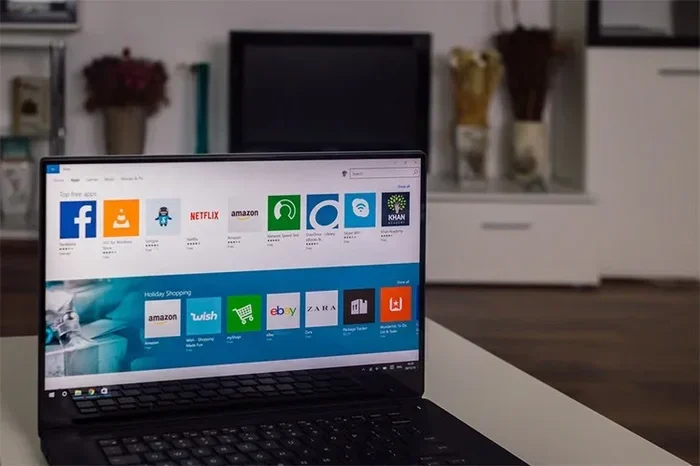
Microsoft Store for Windows Laptops
The Microsoft Store is the go-to place for apps on Windows laptops. It offers thousands of apps across many categories. You can find productivity tools, games, social media apps, and more.
Using the Microsoft Store has several benefits. Apps are scanned for safety before they are listed. Updates happen automatically. And you can manage all your installed apps from one place. Simply open the Store, search for what you need, and click install.
Some popular apps on the Microsoft Store include:
- Microsoft Office Suite – Word, Excel, PowerPoint, and more
- Spotify – Stream music and podcasts
- Zoom – Video calls and meetings
- Netflix – Stream movies and shows
- Notion – Note-taking and project management
Mac App Store for macOS Laptops
If you use a MacBook or any Apple laptop, the Mac App Store is your best friend. It is built right into macOS and makes finding apps simple. Apple reviews every app before it goes on the store, so you can trust what you download.
The Mac App Store has a strong selection of desktop applications. You will find apps for photo editing, music production, video editing, and everyday productivity. Some popular picks include Final Cut Pro, Logic Pro, and the ever-popular Slack.
One nice thing about the Mac App Store is that it often features exclusive apps. Developers sometimes launch their apps on macOS first, giving Mac users early access to new tools.
Chrome Web Store for Chrome OS
Chrome OS laptops rely heavily on the Chrome Web Store. This store is full of web apps and extensions that enhance your browsing experience. You can find apps for note-taking, task management, photo editing, and much more.
The Chrome Web Store is perfect for Chromebook users. Since Chrome OS is built around the browser, web apps feel like native apps on this platform. The store is easy to navigate, and most apps are free or offer free tiers.
Third-Party Sources for App Downloads
Sometimes the app you want is not in the official store. That is where third-party sources come in. Websites like the developer’s own site, GitHub, or trusted software platforms like Softpedia and FileHippo offer software downloads for laptops.
Be careful with third-party sources, though. Only download from trusted websites. Avoid sites that look sketchy or ask for unnecessary permissions. Always check reviews and ratings before downloading anything.
Here are some quick tips for safe downloading:
- Stick to official websites when possible.
- Check for HTTPS in the website URL.
- Read user reviews before installing.
- Use antivirus software to scan downloads.
- Avoid “cracked” or pirated software at all costs.
Running Mobile Apps on Your Laptop
One of the coolest developments in recent years is the ability to run mobile apps on laptops. This opens up a whole new world of possibilities. You can use your favorite phone apps on a bigger screen with a keyboard and trackpad.
Android Apps on Windows Laptops
Windows 11 made a big change by supporting Android apps natively. You can access the Amazon Appstore directly from your Windows laptop. This means you can download and run Android apps just like you would on a phone.
The experience is not flawless. Some apps do not scale perfectly to a laptop screen. Touchscreen laptops work best for mobile apps, but even non-touch laptops can run them using a mouse. Still, it is a game-changer for people who want their favorite mobile apps on a bigger display.
iOS and iPad Apps on Mac Laptops
Apple has also been working on bringing iOS apps to Mac laptops. With macOS, you can now run some iPhone and iPad apps directly on your MacBook. Apple has been slowly expanding this feature, and it is getting better with each update.
This is especially useful for apps that only exist on iOS. If there is a mobile-only app you love, there is a good chance it might work on your Mac laptop now or in the near future.
Using Emulators for Mobile Apps
Emulators are another way to run mobile apps on laptops. An emulator creates a virtual phone environment on your computer. You can then install and use mobile apps just like you would on a real device.
Popular emulators include BlueStacks for Android apps on any laptop. These tools are free and easy to set up. They are especially popular among gamers who want to play mobile games on a bigger screen.
Cross-Platform Apps That Work Everywhere
One of the best things about today’s app world is cross-platform support. Many popular apps work on laptops, desktops, tablets, and phones. This means you can start a task on one device and pick it up on another.
Here are some of the most popular cross-platform apps that work on laptops:
- Slack – Team communication and messaging
- Zoom – Video conferencing and screen sharing
- Spotify – Music streaming
- Notion – Notes, databases, and project management
- Google Drive – Cloud storage and file sharing
- Canva – Graphic design and photo editing
- Discord – Chat, voice, and video for communities
- Trello – Project and task management
These apps are designed to work seamlessly across devices. You can install them on your laptop, log in with the same account, and pick up right where you left off. This is incredibly helpful for people who work across multiple devices every day.
Common Problems and How to Fix Them
While using apps on laptops is generally smooth, you may run into some issues. Here are the most common problems and how to solve them.
Compatibility Issues
Not every app works on every laptop. Some apps are designed only for Windows, while others only work on macOS. Before downloading an app, always check the system requirements. Look for information about which operating systems and versions the app supports.
If an app is not compatible with your laptop, try these solutions:
- Check for a web version of the app that works in your browser.
- Use an emulator to run apps designed for a different platform.
- Update your operating system to the latest version.
- Contact the developer and ask about future compatibility.
Performance Concerns
Some apps can slow down your laptop, especially if your laptop has limited RAM or an older processor. If you notice performance issues, try closing other apps while using the demanding one. You can also check your laptop’s task manager to see which apps are using the most resources.
For smoother performance, consider these tips:
- Close unused apps and browser tabs.
- Restart your laptop regularly to clear memory.
- Update your apps to the latest versions.
- Upgrade your laptop’s RAM or storage if possible.
App Updates and Maintenance
Keeping your apps up to date is important for security and performance. Most app stores offer automatic updates. You can also check for updates manually in your app store settings. Make it a habit to update your apps at least once a week.
Final Thoughts on Apps Available on Laptops
The world of apps available on laptops is vast and growing every day. Whether you use a Windows laptop, a Mac, or a Chromebook, you have access to thousands of powerful tools and fun apps. From native desktop applications to web apps and mobile apps, there is truly something for everyone.
Do not limit yourself to just one type of app. Explore different options and find what works best for your workflow. Try web apps for quick tasks. Use native apps for heavy-duty work. And don’t be afraid to experiment with mobile apps on your laptop screen.
The key is to stay curious and keep exploring. As technology keeps advancing, the apps available on laptops will only get better. Start trying new tools today, and you will be amazed at what your laptop can do.
Frequently Asked Questions
Can I run phone apps on my laptop?
Yes, you can run many phone apps on your laptop. Windows 11 supports Android apps natively through the Amazon Appstore. Mac laptops can run some iOS apps. You can also use third-party emulators like BlueStacks to run Android apps on any laptop.
What is the difference between a web app and a desktop app?
A web app runs in your browser and does not need to be installed. A desktop app is downloaded and installed directly on your laptop. Desktop apps usually offer more features and better performance, while web apps are more convenient and work on any device.
Are free apps safe to download on laptops?
Most free apps are safe, especially those from official app stores like the Microsoft Store or Mac App Store. However, you should always download from trusted sources. Avoid websites that offer pirated software, and use antivirus protection to scan any downloads.
Do all apps work on every laptop operating system?
No, not all apps work on every operating system. Some apps are built only for Windows, while others are macOS-only. Always check the app’s system requirements before downloading. Web apps are the most universal since they work in any browser.
How do I find the best apps for my laptop?
The best way to find apps is through your operating system’s official app store. You can also search for “best apps for [your operating system]” online. Read reviews, check ratings, and try free versions before committing to paid apps.
Can I use laptop apps offline?
Many native desktop apps work offline without an internet connection. Web apps usually need the internet to function, though some offer limited offline modes. Always check the app’s features if offline access is important to you.
=== CONCLUSION ===
Apps are available on laptops in more forms than most people realize. From powerful native desktop applications to convenient web apps and even mobile apps, your laptop can do almost anything a phone or desktop computer can do. The key is knowing where to look and how to choose the right apps for your needs.
Take some time to explore the app stores and options available for your laptop. Try new tools, experiment with different types of apps, and build a setup that makes your work and life easier. With the right apps, your laptop becomes an incredibly powerful and versatile tool. Start exploring today and make the most of your device.