How Can I Get Connected To Wi Fi In Just A Few Steps
Getting connected to Wi-Fi is easier than most people think. Whether you are setting up a new device, fixing a connection issue, or trying to access a network for the first time, this guide walks you through every step. You will learn the basics, explore advanced options, and discover quick fixes that work for phones, laptops, tablets, and smart home devices.
Have you ever stood in front of your device, staring at the Wi-Fi icon, and thought, “How can I get connected to Wi-Fi right now?” You are not alone. Millions of people search for this exact question every single day. The good news is that connecting to a wireless network is something anyone can do in just a few minutes.
Whether you are at home, at work, or on the go, getting online does not have to be complicated. This guide breaks everything down into simple, easy-to-follow steps. You do not need to be a tech expert. By the end of this article, you will know exactly how to connect any device to a wireless network, fix common problems, and keep your connection strong and secure.
Key Takeaways
- Basic Connection: Connecting to Wi-Fi only takes a few taps or clicks on any device.
- Router Setup Matters: A properly configured router ensures fast and stable wireless network access.
- Troubleshooting Is Simple: Most Wi-Fi problems can be solved with easy resets or setting adjustments.
- Hotspot Alternatives Exist: You can get internet without a traditional setup using mobile hotspots or Wi-Fi extenders.
- Security Is Key: Always use strong passwords and proper encryption to keep your network safe.
- Range Can Be Improved: A few adjustments can boost your wireless signal across your home or office.
📑 Table of Contents
- What Does It Mean to Get Connected to Wi-Fi?
- How to Connect to Wi-Fi on Different Devices
- Setting Up Your Router for the First Time
- Troubleshooting Common Wi-Fi Connection Problems
- Alternative Ways to Get Online Without a Traditional Router
- Tips to Keep Your Wi-Fi Fast and Secure
- Comparison: Wi-Fi Connection Methods
- Common Mistakes People Make When Connecting to Wi-Fi
- Expert Tips for Better Wi-Fi Performance
- Final Thoughts on Getting Connected to Wi-Fi
What Does It Mean to Get Connected to Wi-Fi?
Before we dive into the steps, let us quickly understand what we are talking about. Wi-Fi is a technology that lets your devices connect to the internet without wires. A wireless router sends out a signal, and your phone, laptop, or tablet picks it up. Think of it like a radio station broadcasting music. The router is the station, and your device is the radio.
When you say, “How can I get connected to Wi-Fi,” you are really asking how to find and join that invisible signal. Every wireless network has a name, called an SSID. You just need to find the right name, type the password, and you are in. That is the core idea behind every connection method.
How to Connect to Wi-Fi on Different Devices
The process varies slightly depending on what device you are using. Below, we walk through the steps for the most common devices. Each method follows the same basic logic: find the network, select it, enter the password, and connect.
Connecting a Smartphone
Both iPhone and Android phones make it very easy to join a wireless network. Here is what you need to do:
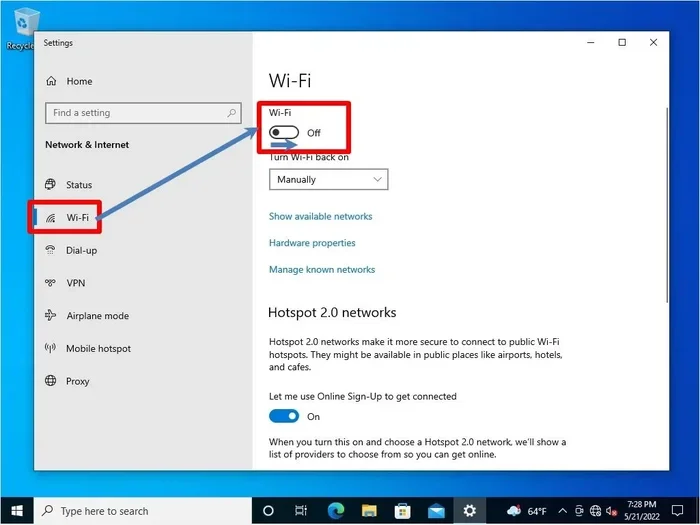
- Open your Settings app.
- Tap on Wi-Fi or Network & Internet.
- Make sure the Wi-Fi toggle is turned on.
- Wait for the list of available networks to appear.
- Tap on the network name you want to join.
- Enter the password and tap Connect.
Most phones will remember networks you have used before. So the next time you are in range, your phone connects automatically. This is one of the biggest conveniences of modern internet connectivity.
Connecting a Laptop or Computer
Laptops follow a similar process. On Windows, click the Wi-Fi icon in the bottom-right corner of your screen. On a Mac, look for the Wi-Fi symbol in the top-right menu bar. From there, you select your network and type in the password. Some laptops may also need a Wi-Fi adapter installed if they do not have built-in wireless capability.
Connecting a Tablet
Tablets like iPads and Android tablets work almost identically to smartphones. You go to Settings, find Wi-Fi, and pick your network. Tablets are often used for streaming and browsing, so a strong connection matters a lot.
Connecting Smart Home Devices
Smart speakers, security cameras, and smart plugs all need Wi-Fi too. The setup usually happens through a companion app on your phone. You open the app, choose “Add Device,” and follow the prompts. These devices often use a 2.4 GHz frequency, which has a longer range but slower speeds compared to 5 GHz.
Setting Up Your Router for the First Time
If you are setting up a brand-new router, the process is slightly different. You are not just joining a network. You are creating one. Here is how to do it step by step.
Step 1: Place Your Router in a Good Spot
Where you put your router matters a lot. Place it in a central location in your home. Keep it away from walls, metal objects, and large appliances. A Wi-Fi signal travels best through open air, so avoid hiding your router in a closet or behind a TV.
Step 2: Connect the Router to Your Internet Source
Plug the router into your modem using an Ethernet cable. The modem brings the internet into your home, and the router spreads it wirelessly. Once both lights are on, you are ready to configure the settings.
Step 3: Access the Router Settings
Open a web browser on a connected device. Type in your router’s IP address, which is usually something like 192.168.1.1 or 192.168.0.1. Log in with the default username and password found on the router’s label. From there, you can set your network name and password.
Step 4: Secure Your Network
Always use WPA3 or WPA2 encryption. This protects your network from strangers. Create a strong password that is at least 12 characters long. A weak password is the number one reason people get unauthorized users on their network.
Troubleshooting Common Wi-Fi Connection Problems
Even when you follow all the steps, things can go wrong. Slow speeds, dropped connections, and networks that simply do not show up are all common issues. Here is how to fix them.
The Network Is Not Showing Up
If you cannot find your network in the list, try these fixes:
- Restart your router by unplugging it for 30 seconds.
- Make sure your device’s Wi-Fi is turned on.
- Move closer to the router.
- Check if the router is broadcasting its SSID.
Slow Internet Speeds
Slow speeds can ruin your experience. Try switching to the 2.4 GHz band if you are far from the router. It reaches farther than the 5 GHz band. You can also check if too many devices are connected at once, which can slow things down.
Connected But No Internet
This is a frustrating but common problem. Your device shows it is connected to the network, but pages will not load. Try restarting your modem and router. You can also forget the network on your device and reconnect from scratch.
When to Call Your Internet Service Provider
If none of the above fixes work, the issue might be with your internet provider. Contact them for help. They can run remote diagnostics and check if there is an outage in your area.
Alternative Ways to Get Online Without a Traditional Router
Not everyone has a router or a traditional home setup. There are several alternative methods to get online. These options are perfect for travelers, renters, or anyone who needs internet on the go.
Mobile Hotspots
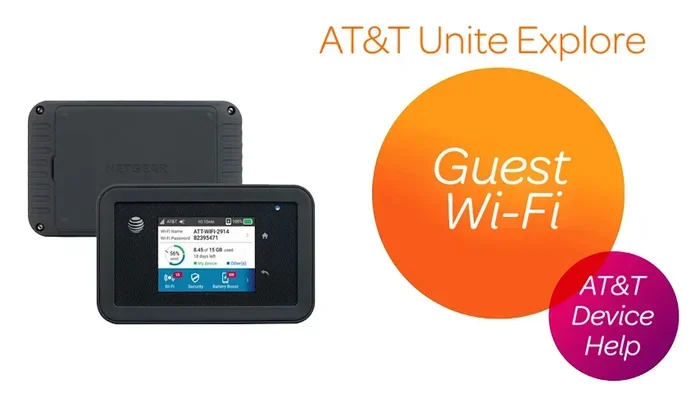
Most smartphones can share their cellular data connection with other devices. This is called a mobile hotspot. You turn it on in your phone settings, and other devices can connect just like they would to a regular Wi-Fi network. If you are wondering whether you can get unlimited hotspot data, the answer depends on your carrier and plan.
Getting Wi-Fi Without a Router
You do not always need a router to access a wireless network. Some devices can connect directly to a hotspot or use built-in cellular capabilities. If you are curious about options that do not require a traditional router setup, you can explore ways to get Wi-Fi without a router.
Using a Wi-Fi Extender
If your signal does not reach every room, a Wi-Fi extender can help. This small device plugs into an outlet and rebroadcasts your existing signal. It is one of the easiest and most affordable ways to improve coverage. For longer distances, you might also consider extending your Wi-Fi to 200 feet or more with the right equipment.
Public Wi-Fi Networks
Libraries, coffee shops, airports, and hotels often offer free Wi-Fi. These are great for quick tasks like checking email or browsing the web. However, always be careful when using public networks. Avoid entering sensitive information like bank details unless you are using a VPN.
Tips to Keep Your Wi-Fi Fast and Secure
Once you are connected, you want to keep things running smoothly. Here are some proven tips that make a big difference.
- Restart your router regularly. A simple reboot once a week clears glitches and refreshes the connection.
- Update your router firmware. Manufacturers release updates that improve performance and fix security holes.
- Use a strong, unique password. Never use “password123” or your name. Make it long and random.
- Limit connected devices. Too many devices slow down the network. Disconnect ones you are not using.
- Change the Wi-Fi channel. If your neighbors use the same channel, interference can slow your speeds.
- Place the router on a high shelf. Signals travel downward better than upward. Elevating the router improves coverage.
Comparison: Wi-Fi Connection Methods
Not sure which method is right for you? Here is a quick comparison of the most common ways to get connected.
| Method | Best For | Speed | Cost |
|---|---|---|---|
| Home Router | Daily home use | Fast | Monthly ISP fee |
| Mobile Hotspot | Travel and on-the-go | Moderate | Data plan |
| Public Wi-Fi | Quick browsing | Variable | Free |
| Wi-Fi Extender | Large homes | Good | One-time purchase |
| No-Router Setup | Temporary access | Moderate | Varies |
Each method has its strengths. Your choice depends on your needs, budget, and location. For most households, a good router setup with a reliable internet plan is the best option.
Common Mistakes People Make When Connecting to Wi-Fi
Avoiding these simple mistakes can save you a lot of frustration.
- Ignoring the password case. Wi-Fi passwords are case-sensitive. “Password123” is not the same as “password123.”
- Connecting to the wrong band. If you are far from the router, the 5 GHz band may not reach you. Switch to 2.4 GHz for better range.
- Skipping router updates. Outdated firmware can cause security vulnerabilities and slow performance.
- Using the default network name. A generic SSID makes it easier for others to guess your router model and exploit weaknesses.
- Not restarting the device. A quick restart often fixes connection issues. Many people forget this simple step.
These mistakes are easy to make and easy to avoid. A little attention to detail goes a long way toward keeping your wireless network running smoothly.
Expert Tips for Better Wi-Fi Performance
Want to squeeze every bit of speed out of your connection? Here are some expert-backed tips that make a real difference.
Use the right frequency band. The 5 GHz band offers faster speeds but shorter range. The 2.4 GHz band is slower but reaches farther. Choose based on where you are in your home.
Keep your devices updated. Software updates often include improvements to wireless connectivity. An outdated device may struggle to connect to modern networks.
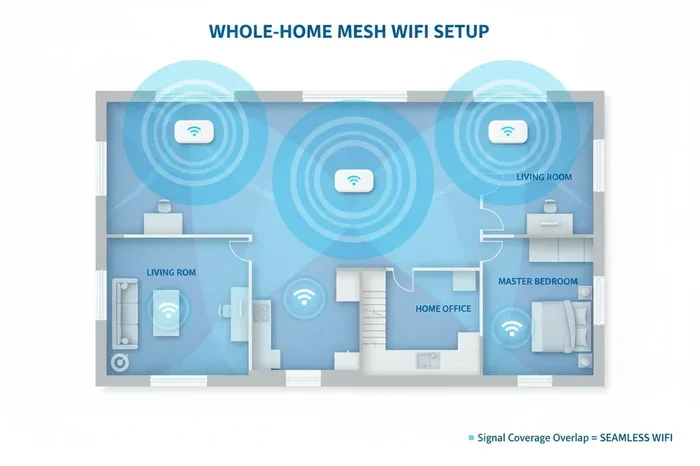
Consider a mesh network. If you have a large home, a mesh router system replaces one single router with multiple nodes. This eliminates dead zones and provides seamless coverage throughout your space.
Monitor connected devices. Most routers let you see which devices are connected. If you see unfamiliar ones, change your password immediately. This keeps your internet access safe and private.
Use Ethernet for critical devices. Gaming consoles, desktop computers, and smart TVs benefit from a wired connection. It is faster and more stable than wireless.
Final Thoughts on Getting Connected to Wi-Fi
So, how can I get connected to Wi-Fi? The answer is simpler than you probably thought. Whether you are using a phone, laptop, tablet, or smart home device, the steps are straightforward. Find the network, enter the password, and you are online.
Of course, staying connected involves more than just joining a network. You need a good router, a solid internet plan, and a few smart habits to keep things running well. Troubleshooting common problems, avoiding mistakes, and following expert tips will all help you get the most out of your wireless connection.
The world is more connected than ever, and getting online should not be a barrier. With the knowledge you have gained from this guide, you can connect any device, fix most issues on your own, and enjoy a fast, reliable wireless experience every day.
Start applying these steps today. The next time someone asks you, “How can I get connected to Wi-Fi,” you will have all the answers ready.
Frequently Asked Questions
Can I connect to Wi-Fi without a password?
Some public networks do not require a password. However, home networks should always be password-protected. An open network is convenient but leaves your data vulnerable to hackers and snoopers.
Why does my Wi-Fi keep disconnecting?
Frequent disconnections are often caused by signal interference, outdated router firmware, or too many connected devices. Try restarting your router and moving closer to it. If the problem persists, check for firmware updates or contact your internet provider.
How many devices can connect to one Wi-Fi network?
Most modern routers support between 25 and 50 connected devices. However, performance drops as more devices share the same bandwidth. For best results, limit the number of active devices streaming or downloading at the same time.
Is it safe to use public Wi-Fi?
Public Wi-Fi is convenient but not always safe. Hackers can intercept data on open networks. Always use a VPN when accessing sensitive information on public Wi-Fi, and avoid logging into bank accounts or entering personal details.
Can I get Wi-Fi without an internet service provider?
You can access the internet without a traditional ISP using mobile hotspots, public Wi-Fi, or satellite internet. Some carriers also offer standalone hotspot plans that do not require a home internet subscription.
What is the difference between 2.4 GHz and 5 GHz Wi-Fi?
The 2.4 GHz band provides a wider range but slower speeds. The 5 GHz band offers faster speeds but a shorter range. For the best experience, use 5 GHz when you are close to the router and 2.4 GHz when you are farther away.