How Can I Retrieve My AOL Favorites and Get Them Back
You can retrieve your AOL favorites by signing into your AOL account, using your browser’s bookmark manager, or restoring from a previous backup. Whether you lost your AOL favorites due to a browser update, accidental deletion, or account issue, there are several proven methods to restore favorites and get your saved links back. This guide walks you through every step with clear, actionable instructions.
Losing your AOL favorites can feel like losing a piece of your internet life. Those saved links represent hours of browsing, shopping, and research. Whether you accidentally deleted them or they vanished after a browser update, the panic is real. The good news is that retrieving your AOL favorites is usually straightforward. You have several options to get those important links back.
In this guide, we will walk you through every method to restore favorites on AOL. From signing into your account to using browser tools, we cover it all. You will learn how to recover lost bookmarks, prevent future loss, and know when to reach out for help. Let us get your saved links back where they belong.
Key Takeaways
- Multiple Recovery Methods: You can retrieve AOL favorites through your AOL account settings, browser bookmark manager, or backup files.
- Prevention Is Key: Regularly backing up your favorites and using sync features helps prevent future data loss.
- Browser Tools Help: Most modern browsers have built-in bookmark recovery tools that can restore lost favorites automatically.
- AOL Support Is Available: If self-service methods fail, AOL customer support can help recover your saved links.
- Stay Organized: Using a bookmark manager or exporting favorites regularly keeps your saved links safe and accessible.
📑 Table of Contents
Understanding AOL Favorites and Why They Disappear
What Are AOL Favorites?
AOL favorites are a collection of saved web pages that you can access quickly. They act like a personal library of websites you visit often. When you save a page as a favorite, AOL stores the URL and page title for easy access later. This feature has been part of the AOL experience for many years.
Many users rely on their AOL favorites for daily browsing. Whether it is checking email, visiting news sites, or accessing shopping pages, these saved links save time. Losing them can disrupt your routine and make browsing frustrating.
Common Reasons You Lose Your Favorites
Several things can cause your favorite links to disappear. Understanding why they vanish helps you prevent it from happening again.
- Browser Updates: Sometimes updates reset your browser settings and clear saved data.
- Accidental Deletion: It is easy to delete favorites by mistake during cleanup.
- Account Sign-Out: If you sign out of AOL without syncing, your favorites may not save properly.
- Cache and Cookie Clearing: Clearing your browser data can remove saved favorites along with temporary files.
- Software Conflicts: Antivirus or cleanup software sometimes removes bookmark data unintentionally.
Knowing what caused the loss helps you choose the right recovery method. If a browser update caused the issue, you may be able to restore from a previous version. If you accidentally deleted them, your browser may still have a backup.
Step-by-Step Methods to Retrieve Your AOL Favorites
Method 1: Sign In to Your AOL Account
The first and easiest way to retrieve bookmarks is to sign back into your AOL account. Your favorites are often tied to your account profile. When you sign in from any device, they should sync automatically.
Here is how to do it:
- Go to the AOL homepage and click the sign-in button.
- Enter your AOL username and password.
- Once signed in, navigate to the favorites or bookmarks section.
- Check if your saved links have reappeared.
If your favorites do not show up immediately, try refreshing the page or signing out and back in. Sometimes the sync takes a few moments. Make sure you are using the same AOL account you used before the favorites disappeared.
Method 2: Check Your Browser Bookmark Manager
Most browsers store bookmarks separately from AOL itself. Even if AOL favorites vanish, your browser may still have them saved. Every major browser has a built-in bookmark manager you can use to restore favorites.
For Google Chrome:
- Click the three dots in the top-right corner.
- Go to Bookmarks and then Bookmark Manager.
- Look for your AOL favorites in the list.
- If found, you can drag them back to your bookmarks bar.
For Mozilla Firefox:
- Click the library icon or go to Bookmarks in the menu.
- Select Show All Bookmarks.
- Search for your AOL favorites in the list.
- Restore any missing bookmarks from the backup.
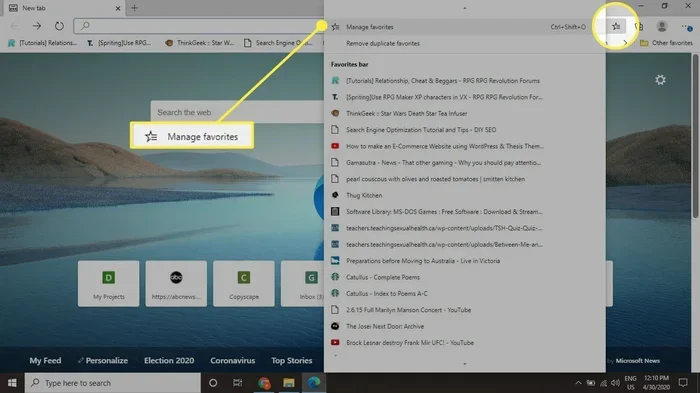
For Microsoft Edge:
- Click the three dots and select Favorites.
- Manage all favorites to see your saved links.
- Look for your AOL bookmarks in the list.
If you find your favorites in the browser manager but not on AOL, you can import them back. This method works well when the issue is with AOL syncing rather than actual data loss.
Method 3: Restore from a Previous Backup
If you have been backing up your browser data regularly, you can restore your AOL favorites from a previous backup. This is one of the most reliable data recovery methods available.
Here is how to restore from a backup in Chrome:
- Open Chrome settings and go to Autofill and then Passwords and Accounts.
- Click on Sync and Google services.
- Look for the option to restore bookmarks from a previous sync.
- Select the date when your favorites were still intact.
In Firefox, you can restore from a JSON backup file:
- Go to the Firefox Help menu and select More Troubleshooting Information.
- Under Profile Folder, click Open Folder.
- Look for a file named places.sqlite or bookmarks-backup.html.
- Copy this file to your Firefox profile folder to restore your favorites.
If you use Internet Explorer, you can import favorites from a saved file:
- Open Internet Explorer and go to Favorites.
- Click Import and Export.
- Choose to import favorites from a file.
- Select the backup file you saved earlier.
Restoring from a backup is the best option if you have been diligent about saving your data. It gives you a complete snapshot of your favorites at a specific point in time.
Recovering Favorites Through Your AOL Account Settings
Accessing AOL Account Recovery Tools
AOL provides account recovery tools that can help you retrieve lost data, including your AOL favorites. These tools are designed to help users who have experienced data loss or account issues.
To access AOL account recovery:
- Visit the AOL help center and search for account recovery.
- Select the option to recover your account data.
- Follow the prompts to verify your identity.
- Once verified, you can access your account backup and restore favorites.
AOL also offers a bookmark manager within its interface. You can access it by logging into your AOL account and navigating to the favorites section. From there, you can view, organize, and restore your saved links.
Using AOL Desktop Software
If you use AOL Desktop software, your favorites are stored locally on your computer. The AOL Desktop application has its own bookmark system that is separate from your web browser.
To access favorites in AOL Desktop:
- Open the AOL Desktop application on your computer.
- Click on the Favorites tab in the navigation bar.
- Right-click on the favorites folder and select Import or Export.
- If you have a backup file, import it to restore your favorites.
If you do not have a backup file, you can try checking the AOL Desktop data folder on your computer. The favorites are usually stored in a file called favorites.dat or a similar location in your user profile folder.
Checking AOL Mail Favorites
AOL Mail also has its own favorites system for email contacts and folders. If you lost your AOL Mail favorites, you can recover them through the AOL Mail settings. Go to the AOL Mail interface, click on the Contacts or Favorites icon, and look for a restore option in the dropdown menu.
Using Browser Tools to Restore Lost Favorites
Browser Sync Features
Most modern browsers offer sync features that back up your bookmarks across devices. If you had sync enabled before losing your AOL favorites, you may be able to recover them from another device.
To use browser sync for recovery:
- Sign in to your browser account on a different device.
- Check if your bookmarks are synced to that device.
- If found, export them from the other device and import them back.
Google Chrome, Firefox, and Edge all support sync features. Make sure you are signed in with the same browser account on all devices for the best results.
Recovering Favorites Through Browser History
If you cannot find your favorites but remember visiting the sites recently, you can use your browser history to find them. This is not a perfect solution, but it can help you locate important links.
To recover favorites through history:
- Open your browser history by pressing Ctrl+H (or Cmd+H on Mac).
- Search for keywords related to the sites you saved as favorites.
- Once you find a site, add it back to your favorites or bookmarks.
- Repeat for each site you need to recover.
This method takes more time but can be effective if you have not cleared your browser history. It works well as a backup plan when other recovery methods fail.
Third-Party Bookmark Recovery Tools
Several third-party tools can help you recover lost bookmarks and favorites. These tools scan your browser data and attempt to restore lost information.
Some popular options include:
- Recuva: A free data recovery tool that can scan for deleted bookmark files.
- EaseUS Data Recovery: Offers bookmark recovery as part of its broader data recovery suite.
- Browser Backup Extensions: Extensions like Bookmark Backup and Backup Bookmarks can help you restore lost data.
Be cautious when using third-party tools. Only download software from reputable sources and scan files for viruses before opening them. Always back up your current browser data before attempting any recovery.
Preventing Future Loss of AOL Favorites
Enable Automatic Syncing
The best way to prevent losing your AOL favorites again is to enable automatic syncing. This ensures your bookmarks are backed up across devices and can be recovered easily if something goes wrong.
To enable syncing in your browser:
- Go to your browser settings and find the Sync option.
- Turn on bookmark syncing.
- Make sure you are signed in to your browser account.
- Your favorites will now automatically back up to the cloud.
If you want to view your favorites on a larger screen, you can connect your phone to an HDMI TV to display your bookmarked pages on a bigger display. Similarly, if you use multiple devices, you can extend your PC screen to a laptop to organize your favorites across both screens.
Export Favorites Regularly
Make it a habit to export your AOL favorites to a file regularly. This creates an offline backup that you can use to restore your favorites anytime.
To export favorites:
- Open your browser and go to the Favorites or Bookmarks menu.
- Select Import and Export.
- Choose to export favorites to an HTML file.
- Save the file to a safe location like an external drive or cloud storage.
Doing this once a month is a good schedule. You can also export before making any major browser changes, such as updating or switching browsers.
Use a Bookmark Manager Extension
Bookmark manager extensions add an extra layer of protection for your saved links. They automatically back up your bookmarks and offer organization tools to keep your favorites neat and accessible.
Popular bookmark manager extensions include:
- Raindrop.io: A powerful bookmark manager with cloud backup and organization features.
- Evernote Web Clipper: Lets you save web pages and organize them into notebooks.
- Pocket: Saves articles and links for later reading with cloud sync.
Using a bookmark manager means your saved links are stored in multiple locations. Even if one method fails, you have others to fall back on. This is especially helpful if you also want to connect your iPhone to a USB cable to transfer backup files to your computer for extra security.
Keep Your Browser Updated
Keeping your browser updated helps prevent compatibility issues that can cause favorites to disappear. Browser updates often include fixes for bookmark-related bugs and improve sync reliability. Make sure to enable automatic updates so you always have the latest version.
When to Contact AOL Support for Help
If you have tried all the methods above and still cannot retrieve your AOL favorites, it may be time to contact AOL support. Their team can help with account-specific issues and advanced recovery options that are not available through self-service methods.
Here is when you should reach out to AOL support:
- You have tried all recovery methods without success.
- Your AOL account has been compromised or hacked.
- You are experiencing persistent syncing issues across devices.
- You believe your favorites were lost due to a server-side issue.
To contact AOL support, visit the AOL Help Center and select the appropriate topic. You can chat with a representative, send an email, or request a callback. Have your account information ready and describe the issue clearly. Mention that you have tried the standard recovery methods so the support team can focus on advanced solutions.
You can also check if you can listen to your Samsung TV with Bluetooth headphones while you wait for AOL support to respond. Sometimes troubleshooting takes time, and having a comfortable setup helps you stay patient through the process.
Conclusion
Retrieving your AOL favorites is possible through several reliable methods. Whether you sign into your AOL account, use your browser bookmark manager, or restore from a backup, you have options to recover your saved links. The key is to act quickly and try multiple methods to maximize your chances of success.
Prevention is always better than cure. By enabling sync, exporting favorites regularly, and using a bookmark manager, you can protect your saved links from future loss. These simple habits save time and frustration in the long run.
If all else fails, AOL support is there to help. Do not hesitate to reach out when you need professional assistance. Your AOL favorites are an important part of your browsing experience, and getting them back is well worth the effort. Start with the methods in this guide, and you will likely have your saved links restored in no time.
Frequently Asked Questions
Can I retrieve AOL favorites if I cleared my browser data?
Yes, you may still be able to retrieve your AOL favorites even after clearing browser data. Check your browser’s bookmark manager first, as favorites are sometimes stored separately from temporary data. You can also try restoring from a previous browser backup or checking if your AOL account still has the favorites synced to the cloud.
How long does it take to recover AOL favorites?
The recovery time depends on the method you use. Signing into your AOL account and syncing favorites takes just a few minutes. Restoring from a backup file can take 5 to 10 minutes depending on the file size. Using browser history to manually re-add favorites takes longer and depends on how many links you need to recover.
Will I lose my AOL favorites if I switch browsers?
Switching browsers does not automatically delete your AOL favorites, but they may not transfer over automatically. You should export your favorites from your old browser as an HTML file and then import them into your new browser. This ensures your saved links are preserved during the transition.
Can I recover AOL favorites on a different device?
Yes, you can recover your AOL favorites on a different device if you had sync enabled. Simply sign into your AOL account or browser account on the new device, and your favorites should appear. If sync was not enabled, you can connect your old device via USB to transfer backup files and import your favorites manually.
Are AOL favorites stored in the cloud?
AOL favorites are stored in the cloud only if you have an active AOL account and sync enabled. Without an account or sync, favorites are stored locally on your device. This is why creating an AOL account and enabling sync is essential for protecting your saved links from local data loss.
What should I do if none of the recovery methods work?
If none of the standard recovery methods work, contact AOL support directly. They have access to advanced tools and server-side data that can help recover your favorites. Before contacting support, make sure you have your AOL username and any backup files ready. Also, check if you can connect your MacBook Air to HDMI to view your browser on a larger screen while working through the recovery process, as a bigger display can make it easier to navigate recovery menus.