How Do I Block Wifi Frequencies On My Wireless Network
Blocking wifi frequencies helps you take control of your wireless network by managing which bands and channels your devices use. Whether you want to reduce interference, improve security, or prioritize certain devices, knowing how to block specific frequencies is a powerful skill. This guide walks you through every method, from router settings to advanced techniques, so you can optimize your home or office network with confidence.
Managing your wireless network can feel overwhelming, but blocking specific wifi frequencies is easier than most people think. If you have ever dealt with slow speeds, dropped connections, or interference from neighboring networks, you already know how frustrating a poorly managed network can be. The good news is that you have more control over your wifi frequencies than you might realize. This guide will show you exactly how to block wifi frequencies and take back control of your wireless network.
Whether you are dealing with congestion on the 2.4 GHz band or want to restrict access to certain frequency ranges for security reasons, the steps are straightforward. We will walk you through understanding your frequency bands, accessing your router settings, and applying the right blocking methods. By the end of this article, you will have the knowledge and confidence to manage your network like a pro.
Before you dive into the technical steps, it helps to understand what wifi frequencies actually are and why you might want to block them. Let us start with the basics so everything that follows makes perfect sense.
Key Takeaways
- Understanding Frequency Bands: Knowing the difference between 2.4 GHz and 5 GHz bands is essential before you block anything.
- Router Access Is Key: You can block wifi frequencies directly through your router’s admin panel with just a few clicks.
- Multiple Methods Work: You can block frequencies using channel settings, bandwidth controls, or MAC filtering.
- Blocking Has Trade-Offs: Be aware that blocking certain bands may disconnect some older devices from your network.
- Regular Maintenance Matters: Checking your frequency settings periodically keeps your wireless network running smoothly.
📑 Table of Contents
- Understanding Wifi Frequencies And Why You Might Need To Block Them
- How To Block Wifi Frequencies On Your Router
- Advanced Methods To Control Wifi Frequency Access
- Common Mistakes People Make When Blocking Wifi Frequencies
- Expert Tips For Optimizing Your Wireless Network
- Should You Block Both 2.4 GHz And 5 GHz Frequencies?
- Final Thoughts On Blocking Wifi Frequencies
Understanding Wifi Frequencies And Why You Might Need To Block Them
Wifi frequencies are the radio signals that carry data between your router and your devices. Think of them like invisible highways that connect your phone, laptop, and smart home devices to the internet. Most modern routers operate on two main frequency bands: the 2.4 GHz band and the 5 GHz band. Each band has its own strengths and weaknesses.
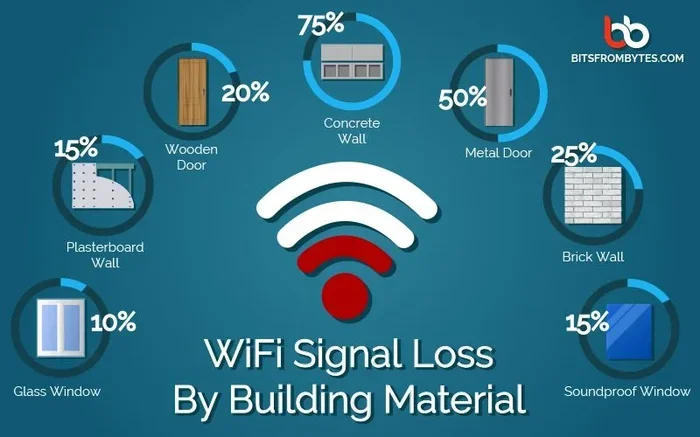
The 2.4 GHz band travels farther and penetrates walls better, making it great for large homes. However, it is also more crowded because many devices use it, including microwaves and baby monitors. The 5 GHz band offers faster speeds but has a shorter range. It is less congested, which makes it ideal for streaming and gaming.
So why would you want to block wifi frequencies? There are several valid reasons:
- Reducing interference: Blocking a congested frequency can improve overall network performance.
- Improving security: Limiting access to certain bands reduces the attack surface of your wireless network.
- Managing bandwidth: Blocking specific frequencies helps you control which devices get priority.
- Troubleshooting issues: Sometimes blocking a frequency helps you isolate and fix connectivity problems.
- Optimizing for specific devices: You can force newer devices to use the faster 5 GHz band while keeping older devices on 2.4 GHz.
Understanding your frequency bands gives you the foundation you need for the steps that follow. Now let us look at the two main bands in more detail.
What Is The 2.4 GHz Band?
The 2.4 GHz band is the older and more widely used frequency range. It supports longer ranges and works well through walls and obstacles. However, it only has three non-overlapping channels, which means congestion is a real problem in most neighborhoods. If you live in an apartment or a densely populated area, the 2.4 GHz band can become a bottleneck fast.
Many smart home devices still rely on 2.4 GHz because it is the standard for older technology. Devices like smart plugs, basic security cameras, and older printers typically only support this band. Before you block 2.4 GHz, make sure none of your essential devices depend on it.
What Is The 5 GHz Band?
The 5 GHz band is the newer standard that offers faster data rates and more available channels. It handles high-bandwidth activities like 4K streaming, video calls, and online gaming with ease. The trade-off is that 5 GHz signals do not travel as far and struggle more with physical barriers like walls and floors.
Most modern smartphones, laptops, and tablets support both bands. If you want the best performance for bandwidth-heavy tasks, the 5 GHz band is your go-to option. Blocking this band would be a bad idea unless you have a very specific reason, such as troubleshooting a device that keeps dropping connections.
How To Block Wifi Frequencies On Your Router
Now that you understand the basics, let us get into the practical steps. The most common way to block wifi frequencies is through your router’s administration panel. Every router is slightly different, but the general process is very similar across brands like Netgear, TP-Link, ASUS, and Linksys.
Step 1: Access Your Router Admin Panel
First, you need to log into your router’s settings. Open a web browser on a device connected to your network and type in your router’s IP address. The most common addresses are 192.168.0.1 or 192.168.1.1. You can also find this information on the sticker on the bottom of your router.
Enter your username and password when prompted. If you have never changed these, the default credentials are usually printed on the same sticker. Common defaults are “admin” for both the username and password. Once logged in, you will see the main dashboard for your router settings.
Step 2: Navigate To Wireless Settings
Look for a section labeled “Wireless,” “Wi-Fi Settings,” or “Radio Settings.” This is where you control your frequency bands. Some routers show both bands on one page, while others require you to switch between them.
Here you will find options for your 2.4 GHz and 5 GHz networks. You can change the network name, password, and most importantly, enable or disable each band. To block a frequency, simply disable it by toggling the switch or unchecking the box next to that band.
Step 3: Save And Reboot
After making your changes, click “Save” or “Apply.” Your router may need to restart for the changes to take effect. Once it reboots, your devices will reconnect using only the frequency bands you have allowed. Check your phone or laptop to confirm that the blocked frequency is no longer available.
Keep in mind that blocking a frequency affects all devices on your network. If you have older smart home devices that only work on 2.4 GHz, blocking that band will disconnect them. Always double-check your device compatibility before making changes.
Advanced Methods To Control Wifi Frequency Access
Disabling an entire band is just the beginning. There are several advanced methods you can use to block or restrict wifi frequencies with more precision. These techniques give you finer control over how your wireless network operates.
Method 1: Channel Selection And Width Control
Instead of blocking an entire frequency band, you can block specific channels within a band. Each band is divided into multiple channels, and some channels overlap or suffer from more interference than others. By selecting the least congested channel, you can effectively block the problem frequencies without disabling an entire band.
For the 2.4 GHz band, channels 1, 6, and 11 are the best choices because they do not overlap. For the 5 GHz band, you have many more options, but channels 36, 40, 44, and 48 are commonly used for the UNII-1 range. You can use a wifi analyzer app on your phone to see which channels are least crowded in your area.
You can also adjust the channel width. A narrower channel width, such as 20 MHz on the 2.4 GHz band, reduces interference and improves stability. A wider channel width, like 80 MHz on the 5 GHz band, maximizes speed but can be more susceptible to interference.
Method 2: MAC Address Filtering
MAC address filtering lets you control which devices can connect to your network at the frequency level. Every device has a unique MAC address, and your router can use this to allow or block specific connections. This method is more targeted than disabling an entire band.
To set this up, find the MAC address of each device in its settings. Then, go to your router’s admin panel and look for “MAC Filtering” or “Access Control.” Add the MAC addresses of devices you want to allow, and set the filter mode to “Allow Only.” This blocks all other devices from connecting, regardless of frequency.
Method 3: Disable Specific Bands Through Guest Network Settings
Many modern routers let you create a guest network with separate frequency settings. You can set up a guest network that only uses the 5 GHz band, for example, and keep your main network on 2.4 GHz. This effectively blocks certain frequencies for specific users without affecting your primary devices.
This approach is especially useful if you have visitors who need internet access but you do not want them using your main network’s resources. You can also use guest networks to isolate smart home devices from your personal devices for added security.
Method 4: Use Quality Of Service (QoS) Settings
QoS settings let you prioritize certain types of traffic on your network. While QoS does not directly block frequencies, it can limit bandwidth for specific devices or applications. This is useful when you want to manage how your network resources are used without completely blocking a frequency band.
Look for “QoS” or “Bandwidth Control” in your router settings. You can set priority rules for streaming, gaming, or browsing. Some routers even let you set rules by device, so you can ensure your work laptop gets priority over a guest’s phone.
For more tips on managing your network performance, check out this guide on Can I Increase Wi Fi Signal to learn additional strategies for optimizing your wireless setup.
Common Mistakes People Make When Blocking Wifi Frequencies
Blocking wifi frequencies is not without its pitfalls. Many people make avoidable mistakes that cause more problems than they solve. Here are the most common errors and how to prevent them.
- Blocking 2.4 GHz without checking device compatibility: Many smart home devices, older printers, and budget electronics only support 2.4 GHz. Blocking this band will disconnect them from your network.
- Not saving settings before rebooting: Always click “Save” or “Apply” before restarting your router. Unsaved changes will be lost after a reboot.
- Forgetting to update firmware: Outdated router firmware can cause compatibility issues with frequency settings. Always check for updates before making changes.
- Overcomplicating the setup: You do not need to block every frequency. Start with the basics and only use advanced methods if needed.
- Ignoring interference sources: Sometimes the problem is not the frequency band but physical interference from other electronics. Move your router away from microwaves, cordless phones, and Bluetooth devices.
One mistake that catches people off guard is assuming that blocking a frequency will automatically improve speeds. In reality, blocking a band can sometimes make things worse if your devices have no alternative connection available. Always test your network after making changes to ensure everything still works as expected.
Expert Tips For Optimizing Your Wireless Network
Blocking wifi frequencies is just one piece of the puzzle. To get the best performance from your wireless network, consider these expert tips that go beyond simple frequency blocking.
Position Your Router Strategically
Where you place your router matters more than you might think. Put it in a central location in your home, elevated off the floor, and away from walls and metal objects. Avoid hiding it in a closet or behind furniture, as this weakens the signal and reduces coverage.
If you have a large home, consider using a mesh wifi system. A mesh network uses multiple access points to blanket your home with strong coverage. You can connect a mesh router to an existing router to extend coverage without sacrificing speed.
Regularly Scan For Interference
Use a wifi analyzer app to scan your network regularly. These apps show you which channels are congested and which ones are clear. Switching to a less crowded channel can dramatically improve your connection quality without any hardware changes.
Keep Your Devices Updated
Outdated device firmware can cause compatibility issues with modern frequency settings. Make sure your router, phones, laptops, and smart home devices all have the latest firmware installed. Updates often include performance improvements and security patches that keep your network running smoothly.
Consider External Antennas
If your router has detachable antennas, upgrading to high-gain antennas can improve your signal range and strength. Better antennas help you cover more area without needing to boost the frequency power. You can learn more about antenna upgrades in this article on Can I Add An Antenna To My Wifi Router.
Monitor Your Network Regularly
Set a schedule to check your router settings every few months. Look at connected devices, review frequency usage, and adjust channel settings as needed. Networks change over time as you add new devices or as neighbors set up new networks that cause interference.
For devices that need a strong and stable connection, understanding how different frequencies behave is important. If you have ever wondered about managing frequency preferences on mobile devices, you might find this article on Can I Force My Phone To Use 2 4 Ghz Wifi helpful for managing device-level frequency settings.
Should You Block Both 2.4 GHz And 5 GHz Frequencies?
In most cases, you should not block both frequency bands at the same time. Doing so would effectively shut down your entire wireless network. The only reason to block both bands would be for security purposes, such as when you want to completely disable wireless connectivity and rely only on a wired ethernet connection.
If you do need to block both bands temporarily, make sure you have an alternative way to access the internet, such as a wired connection. This is a rare scenario, but it can be useful during network troubleshooting or when you want to force all traffic through a wired connection for maximum stability.
For most home users, the best approach is to keep both bands active but manage them intelligently. Use the 2.4 GHz band for devices that need range and the 5 GHz band for devices that need speed. This balanced approach gives you the best of both worlds without the drawbacks of blocking either frequency entirely.
Final Thoughts On Blocking Wifi Frequencies
Blocking wifi frequencies is a practical and effective way to improve your wireless network performance, security, and reliability. Whether you choose to disable entire bands, restrict specific channels, or use MAC filtering, the key is to understand your network needs before making changes.
Start with the basics, test your results, and only move to advanced methods if needed. Remember that every network is different, and what works for one home might not work for another. The goal is to create a setup that delivers the best possible experience for all your connected devices.
Take some time today to review your frequency settings and make adjustments where needed. A well-managed network makes a noticeable difference in everyday use, from smoother video calls to faster downloads and fewer dropped connections. With the knowledge you have gained from this guide, you are now equipped to take full control of your wireless network and block wifi frequencies with confidence.
Keep experimenting, keep learning, and remember that network management is an ongoing process. As new devices join your network and new technologies emerge, your approach may need to evolve. Stay curious, stay proactive, and your network will reward you with reliable performance for years to come.
Frequently Asked Questions
Can I block only the 2.4 GHz frequency and keep 5 GHz active?
Yes, absolutely. Most routers let you disable individual bands through the wireless settings page. Simply log into your router admin panel, find the wireless settings, and turn off the 2.4 GHz band while keeping the 5 GHz band enabled. This is a common setup for homes with mostly modern devices.
Will blocking a wifi frequency disconnect my smart home devices?
It depends on which frequency your smart home devices use. Many smart home gadgets only support the 2.4 GHz band. If you block 2.4 GHz, those devices will lose their connection. Always check your device specifications before blocking any frequency band.
Do I need special equipment to block wifi frequencies?
No special equipment is needed. You can block wifi frequencies directly through your existing router’s settings. All you need is access to your router’s admin panel, which is available through any web browser on a connected device.
Can I block wifi frequencies on a mesh network system?
Yes, most mesh wifi systems allow you to manage frequency settings through their companion app or web interface. The process is similar to a standard router, but the interface may vary depending on the brand. Check your mesh system’s documentation for specific instructions.
How do I know which wifi frequency is causing interference?
Use a wifi analyzer app on your phone to scan for congestion. These apps show you which channels are crowded and which are clear. If you notice many neighboring networks on the same channel as yours, that frequency is likely causing interference.
Is it legal to block wifi frequencies in my home network?
Yes, it is completely legal to manage and block wifi frequencies on your own wireless network. You have full control over your router settings and can configure them however you see fit for your home or office environment.
=== INTERNAL LINKS USED ===
1. https://technologydecoding.com/can-i-force-my-phone-to-use-2-4-ghz-wifi/
2. https://technologydecoding.com/can-i-add-an-antenna-to-my-wifi-router/
3. https://technologydecoding.com/can-i-increase-wi-fi-signal/
4. https://technologydecoding.com/can-i-connect-a-mesh-router-to-an-existing-router/