How Do I Change Spectrum Wifi Name And Password Without App
You can easily change your Spectrum WiFi name and password without downloading the app. By accessing your router’s admin page through a web browser, you gain full control over your network settings. This guide shows you exactly how to do it quickly and safely from any connected device.
Key Takeaways
- No app needed: You can manage your Spectrum WiFi settings through any web browser.
- Two easy methods: Use the router admin page or the my.spectrum.com portal to update your network.
- Security matters: Changing your WiFi name and password regularly helps protect your wireless network from unauthorized access.
- Quick process: The entire setup takes less than 10 minutes once you know the steps.
- Default credentials work: Your Spectrum router comes with default login info you can find on the device label.
- Troubleshooting is simple: Common issues like login failures have easy fixes you can try at home.
📑 Table of Contents
- How to Change Your Spectrum WiFi Name and Password Without the App
- What You Need Before You Start
- How to Access Your Spectrum Router Settings
- Step-by-Step: Changing Your WiFi Name Without the App
- Step-by-Step: Changing Your WiFi Password Without the App
- Comparison: Changing WiFi Settings With and Without the App
- Quick Tips to Keep Your Spectrum WiFi Secure
- Common Mistakes to Avoid
- Troubleshooting: What to Do If Something Goes Wrong
- Frequently Asked Questions
- Final Thoughts
How to Change Your Spectrum WiFi Name and Password Without the App
Your WiFi network name and password matter more than you might think. They are the front door to your home internet. If you have never changed them from the defaults, your network could be at risk. The good news is that you do not need the Spectrum app to make these changes. You can do it all through your web browser. This guide will walk you through every step clearly and simply.
Many people rely on the Spectrum app for everything. But what happens when the app is not working? Or what if you just prefer using a browser? Maybe your phone is slow or the app keeps crashing. Whatever the reason, knowing how to change Spectrum WiFi name and password without app access is a valuable skill. It gives you freedom and control over your network. You will never feel stuck again.
In this article, we cover everything you need. We start with what you need before you begin. Then we walk through accessing your router settings step by step. You will learn how to update both your network name and your wireless password. We also share quick tips for keeping your network safe. And if something goes wrong, we have a troubleshooting section for you. By the end, you will feel confident managing your Spectrum WiFi all on your own.
Why Change Your WiFi Name and Password?
Before we dive into the how, let us talk about the why. There are several good reasons to update your Spectrum WiFi name and password regularly. First, default network names often reveal your router brand. This makes it easier for hackers to target your system. Second, default passwords are widely known online. Anyone can look them up. Third, changing your credentials improves your overall network security. It keeps strangers off your wireless network.
Another reason is simply personal preference. Maybe you want a fun or unique network name. Perhaps your old password is too simple. Or you might have shared your password with too many people. Whatever the reason, updating these settings is quick and easy. You do not need any special tools or technical skills.
What You Need Before You Start
Getting ready is simple. You do not need any fancy equipment. Here is what you should have on hand before you begin the process of changing your Spectrum WiFi name and password without the app.
- A computer, tablet, or smartphone connected to your Spectrum WiFi network.
- Your router nearby so you can check the label on the bottom or back.
- A web browser like Chrome, Firefox, Safari, or Edge.
- Your current WiFi password in case you need to reconnect devices afterward.
- A notepad or phone to write down your new credentials.
That is it. No downloads. No special software. Everything you need is already in your home. If you are not currently connected to your Spectrum WiFi, you can use an Ethernet cable to connect your computer directly to the router. This ensures you stay connected during the process.
How to Access Your Spectrum Router Settings
To change your WiFi name and password, you first need to reach your router’s admin page. This is where all the magic happens. Your Spectrum router uses a default gateway address to let you access its settings. Think of it like a control panel hidden inside your network.
Finding Your Router’s IP Address
Most Spectrum routers use one of two IP addresses. The most common ones are 192.168.0.1 or 192.168.1.1. You can also find this address on the sticker at the bottom of your router. Look for words like “Default Gateway” or “Router IP.” Write this number down.
Here is how to find it on your device:
- On Windows: Click the Start menu. Type “cmd” and open the Command Prompt. Type ipconfig and press Enter. Look for “Default Gateway.”
- On Mac: Click the Apple menu. Go to System Preferences. Click Network. Select your WiFi connection. Click Advanced. Find the TCP/IP tab. The router address is listed there.
- On Phone or Tablet: Go to Settings. Tap WiFi. Find your connected network. Look for the router or gateway address.
Logging Into the Router Admin Page
Once you have your IP address, open your web browser. Type the address into the URL bar at the top of your browser. Press Enter. You will see a login screen. This is your router’s admin panel.
Now you need your login credentials. Most Spectrum routers use these default settings:
- Username: admin or user
- Password: password or admin
You can also find these credentials on the router label. If you have already changed them and forgot, you may need to reset your router. We will cover that later. For now, try the defaults first.
Quick Tip: Bookmark the router admin page after you log in for the first time. This saves you time the next time you need to make changes.
Step-by-Step: Changing Your WiFi Name Without the App
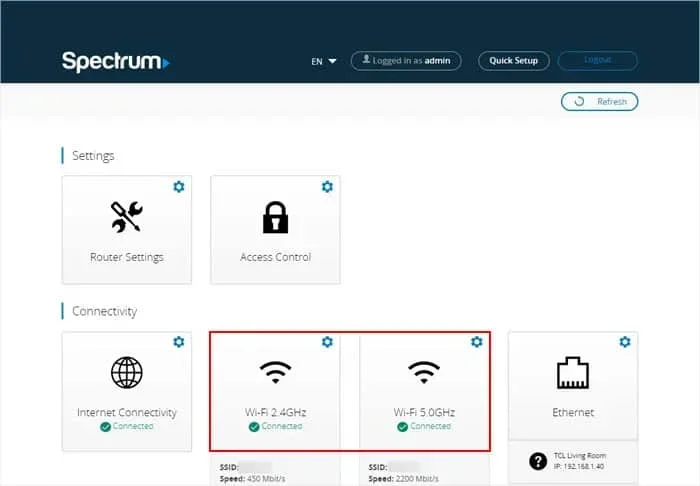
Now that you are logged in, let us change your Spectrum WiFi network name. The network name is also called the SSID. This is what people see when they search for WiFi networks on their phones or laptops.
Step 1: Navigate to the Wireless Settings
After logging in, look for a tab or menu labeled “Wireless,” “WiFi Settings,” or “Network Settings.” Different router models have slightly different layouts. But the option is usually on the main dashboard. Click on it to open the wireless configuration page.
Step 2: Find the SSID Field
On the wireless settings page, look for a field called “SSID,” “Network Name,” or “WiFi Name.” This is where your current network name appears. Click inside the field to select the existing name.
Step 3: Enter Your New Network Name
Type in your new WiFi network name. Make it something you recognize easily. Avoid using personal information like your full name or address. Here are some ideas:
- A fun nickname like “TheWiFiFamily”
- A creative name like “InternetExplorer”
- A simple name like “HomeNetwork”
Do not use:
- Your real name or address
- Anything offensive or inappropriate
- Your router brand or model number
Step 4: Save Your Changes
Scroll down or look for a “Save,” “Apply,” or “Submit” button. Click it. Your router may restart briefly. This is normal. After the reboot, your new network name should appear in the list of available WiFi networks on all your devices.
Common Mistake: Forgetting to save your changes is the most common error. Always double-check that you clicked “Save” or “Apply” before closing the page.
Step-by-Step: Changing Your WiFi Password Without the App
Changing your WiFi password is just as important as changing your network name. A strong password keeps your wireless network safe from intruders. Let us walk through the process.
Step 1: Stay on the Wireless Settings Page
You should still be on the wireless settings page from the previous section. If you navigated away, go back to it. Look for a field labeled “Password,” “Passphrase,” “Network Key,” or “Security Key.” This is your wireless password field.
Step 2: Choose the Right Security Type
Before entering your new password, check the security type. Look for a dropdown menu labeled “Security Mode” or “Authentication Type.” Here are your options:
- WPA3: The newest and most secure option. Use this if your router supports it.
- WPA2: Very secure and widely compatible. This is the best choice for most users.
- WPA/WPA2 Mixed: A good middle ground for older devices.
- WEP: Avoid this. It is outdated and easy to crack.
Always choose WPA3 or WPA2 for the best network security.
Step 3: Create a Strong New Password
Now type your new WiFi password into the password field. Make it strong and unique. Here are some guidelines:
- Use at least 12 characters.
- Mix uppercase and lowercase letters.
- Include numbers and special symbols like !, @, or #.
- Avoid common words like “password123” or your birthday.
- Do not reuse passwords from other accounts.
Example of a strong password: Blue$ky2024!Wave
Example of a weak password: john1234
Step 4: Save and Reconnect
Click “Save” or “Apply” again. Your router will update the settings. All your connected devices will disconnect temporarily. You will need to reconnect each device using your new WiFi password. Write your new password down and keep it somewhere safe.
Comparison: Changing WiFi Settings With and Without the App
You might wonder how the browser method compares to using the Spectrum app. Here is a quick side-by-side look:
| Feature | Without the App (Browser) | With the Spectrum App |
|---|---|---|
| Requires Download | No | Yes |
| Works on Any Device | Yes | Limited to app-supported devices |
| Access to Advanced Settings | Full access | Limited access |
| Internet Connection Required | No (can use Ethernet) | Yes |
| Ease of Use | Moderate | Very easy |
| Time to Complete | 5–10 minutes | 3–5 minutes |
As you can see, using the browser gives you more control. The app is simpler, but it limits what you can do. Knowing both methods makes you more flexible and independent.
Quick Tips to Keep Your Spectrum WiFi Secure
Changing your WiFi name and password is just the beginning. Here are some expert-backed tips to keep your wireless network safe and running smoothly.
Tip 1: Change Your Router Admin Password Too
Most people forget about the router login password. If someone gets access to your admin page, they can change everything. Go to the “Administration” or “Management” section in your router settings. Change the default admin password to something strong. This adds an extra layer of network security.
Tip 2: Update Your Router Firmware
Router manufacturers release updates to fix security holes and improve performance. Check for a “Firmware Update” option in your router settings. If an update is available, install it. This keeps your Spectrum router running at its best.
Tip 3: Disable WPS (Wi-Fi Protected Setup)
WPS makes it easy to connect devices, but it also creates a security weakness. Hackers can exploit WPS to gain access to your network. Go to your wireless settings and turn WPS off. It is a small change that makes a big difference.
Tip 4: Create a Guest Network
If you often have visitors, set up a guest network. This gives them internet access without letting them see your main network. Most Spectrum routers have a “Guest Network” option in the wireless settings. Use a separate password for it.
Tip 5: Restart Your Router Regularly
A simple restart can fix many connection issues and improve speed. Unplug your router for 30 seconds. Plug it back in. Wait a minute or two for it to fully restart. This clears the cache and refreshes your Spectrum internet connection.
Expert Insight: Cybersecurity experts recommend changing your WiFi password every three to six months. It is a simple habit that pays off in long-term security.
Common Mistakes to Avoid
Even when following instructions carefully, people sometimes make mistakes. Here are the most common ones and how to avoid them.
- Using a weak password: Simple passwords are easy to guess. Always use a mix of characters and make it at least 12 characters long.
- Forgetting to save changes: If you do not click “Save” or “Apply,” your changes will not take effect. Always confirm the save before moving on.
- Writing down passwords on sticky notes: This seems convenient but is a security risk. Use a password manager app instead.
- Using personal information in your network name: Avoid names that reveal your identity or location.
- Ignoring firmware updates: Outdated firmware can have security vulnerabilities. Check for updates regularly.
- Not recording new credentials: After changing your password, make sure you save the new one somewhere safe before disconnecting devices.
Troubleshooting: What to Do If Something Goes Wrong
Sometimes things do not go as planned. Do not worry. Most issues are easy to fix. Here are solutions to common problems you might face when trying to change your Spectrum WiFi name and password without the app.
Problem: Cannot Access the Router Admin Page
If typing the IP address does not open the login page, try these fixes:
- Double-check the IP address. Try both 192.168.0.1 and 192.168.1.1.
- Make sure you are connected to your Spectrum WiFi network.
- Restart your router and try again.
- Try a different web browser.
- Clear your browser cache and cookies.
Problem: Forgot Your Router Login Password
If you changed your admin password and forgot it, you will need to reset your router. Look for a small reset button on the back of your router. Use a paperclip to press and hold it for 10 seconds. This restores factory settings, including default login credentials. You will need to set up your WiFi name and password again from scratch.
Problem: Devices Will Not Connect After the Change
After changing your password, all your devices will lose connection. This is expected. Simply go to each device’s WiFi settings, select your new network name, and enter the new password. Make sure you type the password exactly as you created it, including any capital letters or symbols.
Problem: The New Network Name Does Not Appear
If your new network name does not show up, wait a few minutes. Sometimes it takes a moment for the router to fully reboot. You can also try restarting your device’s WiFi. If it still does not appear, log back into the router admin page and make sure you saved the SSID change.
Frequently Asked Questions
Can I change my Spectrum WiFi name and password from my phone?
Yes, you absolutely can. As long as your phone is connected to the Spectrum WiFi network, open any web browser and type your router’s IP address. Log in and follow the same steps we described above. You do not need a computer or the app.
What is the default IP address for Spectrum routers?
The most common default IP addresses are 192.168.0.1 and 192.168.1.1. You can also find this on the sticker at the bottom of your router. Look for the “Default Gateway” or “Router IP” label.
Will changing my WiFi name disconnect all my devices?
Yes, changing your WiFi network name will cause all devices to disconnect temporarily. You will need to reconnect each device using the new name and your current password. If you also changed the password, use the new password during reconnection.
What should I do if I forget my new WiFi password?
If you forget your new password, you can reset your router to factory settings. Press and hold the reset button on the back of the router for 10 seconds. This restores the default WiFi name and password found on the router label. You will then need to set a new password through the admin page.
Can I change my WiFi settings using my smart TV or gaming console?
Yes, any device connected to your Spectrum WiFi can access the router admin page through a web browser. Open the browser on your smart TV or gaming console, type in the router IP address, and log in. From there, you can update your Spectrum WiFi name and password just like you would on a computer.
How often should I change my Spectrum WiFi password?
Cybersecurity experts recommend changing your WiFi password every three to six months. You should also change it immediately if you suspect someone unauthorized has access. Regular password changes are one of the simplest and most effective ways to protect your wireless network.
Final Thoughts
Changing your Spectrum WiFi name and password without the app is easier than most people think. You do not need to be a tech expert. You just need a web browser and a few minutes of your time. By following the steps in this guide, you took control of your home network. You learned how to access your router settings, update your network name, and create a strong new password. You also picked up tips to keep your wireless network safe and secure.
Remember, your WiFi network security is in your hands. Regular updates and strong passwords make a huge difference. Share this guide with family and friends who might be struggling with the Spectrum app. Sometimes the simplest solutions are the best ones. Now go ahead and update your Spectrum WiFi settings with confidence. Your network will be safer and more personal than ever before.