How Do I Change The Size Of My Wallpaper On Any Device
Changing your wallpaper size is easier than you think. Whether you use a Windows PC, Mac, Android phone, or iPhone, you can adjust your desktop background in just a few taps. This guide shows you exactly how to change the size of my wallpaper on every device, so your images always look sharp and professional.
Changing your wallpaper is one of the simplest ways to personalize your device. But many people struggle with getting the right fit. A beautiful image can look stretched, cropped, or blurry if the wallpaper size is wrong.
Whether you want to change the size of my wallpaper on a laptop, phone, or tablet, this guide has you covered. You will learn the exact steps for every major device and operating system. By the end, you will know how to make any image look perfect on your screen.
The process is simpler than most people think. You do not need to be a tech expert. With just a few clicks or taps, you can adjust your desktop background to fit your screen perfectly. Let us walk through it together.
Key Takeaways
- Every device has built-in tools to resize your wallpaper without any extra software.
- Screen resolution and aspect ratio are the two most important factors for a perfect fit.
- Windows, Mac, Android, and iPhone all offer simple settings to adjust your background image.
- Third-party apps can help if you need more control over cropping and scaling.
- Avoid common mistakes like stretching images or using low-resolution photos.
- Quick tips save time and give you better-looking wallpapers every time.
📑 Table of Contents
- Understanding Wallpaper Size and Screen Resolution
- How Do I Change The Size Of My Wallpaper on Windows
- How Do I Change The Size Of My Wallpaper on Mac
- How Do I Change The Size Of My Wallpaper on Android
- How Do I Change The Size Of My Wallpaper on iPhone and iPad
- Quick Tips and Common Mistakes to Avoid
- Final Thoughts on Changing Your Wallpaper Size
Understanding Wallpaper Size and Screen Resolution
Before you change anything, it helps to understand a few basic concepts. Your screen has a specific screen resolution, which is the number of pixels it displays. When your background image size does not match that resolution, the image may look blurry or cut off.
The aspect ratio is another key factor. It describes the width-to-height relationship of your screen. Common ratios include 16:9 for widescreen monitors and 9:16 for phones. If your image has a different ratio than your screen, you will need to crop wallpaper or adjust it to fit properly.
Here is a simple way to think about it. Imagine your screen is a frame. Your image is a picture. You want the picture to fill the frame without bending or cutting off important parts. That is exactly what the right wallpaper settings help you do.
What Is Screen Resolution?
Screen resolution tells you how many pixels your display uses. Higher resolution means more detail. For example, a Full HD screen has 1920 by 1080 pixels. A 4K screen has 3840 by 2160 pixels. The more pixels, the sharper your desktop background will look.
When you pick a wallpaper resolution that matches your screen, everything looks crisp. If the resolution is too low, the image will appear pixelated. If it is too high, your system will scale it down, which wastes memory and can slow things down.
You can check your screen resolution in your device settings. On Windows, go to Settings and then Display. On Mac, click the Apple menu and choose About This Mac. On phones, check the display settings. Knowing your resolution helps you pick the right image every time.
Why Aspect Ratio Matters
The aspect ratio determines whether your image fits naturally. A 16:9 image on a 16:9 screen looks perfect. But the same image on a 4:3 screen will have black bars on the sides. On a phone with a 9:16 ratio, it would need to be rotated or cropped.
Most devices let you choose how to handle mismatched ratios. You can stretch wallpaper, tile wallpaper, or center wallpaper. Each option gives a different look. We will cover these in detail below. The key takeaway is that matching your aspect ratio saves you from a lot of headaches.
Expert Insight: Always check your device’s native resolution before picking a wallpaper. This one step saves you from blurry or distorted images every time. A quick search for your device model plus “screen resolution” gives you the answer instantly.
How Do I Change The Size Of My Wallpaper on Windows
Wallpaper on Windows is easy to adjust. Whether you use Windows 10 or Windows 11, the built-in tools make it simple. You do not need to download anything special to get a great result.
Using Windows Settings
Here is the fastest way to adjust wallpaper size on Windows:
- Right-click on an empty space on your desktop.
- Select “Personalize” from the menu.
- Click on “Background” in the left panel.
- Choose your image from the list or click “Browse” to add a new one.
- Click on the image and select a fit option: Fill, Fit, Stretch, Tile, or Center.
The Fill option scales the image to cover the entire screen. It may crop parts of the image, but it usually looks the best. The Fit option shows the whole image but may add borders on the sides. Stretch pulls the image to fit, which can distort it. Tile repeats the image across the screen. Center places it at full size in the middle.
For most users, the Fill option works best. It fills the screen without adding ugly borders. But if you have a detailed image with important edges, try Fit instead and accept the small borders.
Using Third-Party Tools for More Control
If the built-in options are not enough, try a free tool like Wallpaper Engine or DisplayFusion. These apps give you more control over wallpaper settings. You can set timers, use live wallpapers, and fine-tune the scaling with precision.
Wallpaper Engine is especially popular. It lets you use animated wallpapers, 3D scenes, and even web-based backgrounds. You can also adjust the image fit with much more control than the built-in tools offer. It is a great choice if you want more than just a static picture on your laptop background.
DisplayFusion is another solid option. It works well with multiple monitors. You can set different wallpapers for each screen and adjust the background image size independently. This is perfect for users with dual or triple monitor setups.
How Do I Change The Size Of My Wallpaper on Mac
Wallpaper on Mac works a bit differently than on Windows. But it is still straightforward. macOS gives you several options to change desktop background and adjust how your image looks on the screen.
Using System Preferences
Here is how to adjust your laptop background on a Mac:
- Click the Apple menu in the top-left corner.
- Select “System Settings” on macOS Ventura or later, or “System Preferences” on older versions.
- Click on “Wallpaper” or “Desktop & Screen Saver.”
- Choose your image from the Apple collections or click “Add Photo” to use your own.
- Select how you want the image to fit: Fill Screen, Fit to Screen, Stretch to Fill Screen, Center, or Tile.
The Fill Screen option scales the image to cover the display. The Fit to Screen option keeps the full image visible but may add borders. Stretch to Fill Screen can distort the image, so use it carefully. Center places the image at its original size in the middle of the screen.
Apple also lets you set different wallpapers for different desktops if you use Spaces. This is a nice feature for users who switch between workspaces often.
Using the Preview App for Precise Adjustments
If you need more control, use the Preview app. Open your image in Preview. Go to the “Tools” menu and select “Adjust Size.” You can change the pixel dimensions to match your screen resolution exactly. This is a great way to fit to screen without losing any quality.
For example, if your Mac screen is 2560 by 1600 pixels, resize your image to those exact dimensions in Preview. Then set it as your wallpaper. It will look perfectly sharp and crisp. This trick works for any wallpaper resolution mismatch you might encounter.
How Do I Change The Size Of My Wallpaper on Android
Wallpaper on Android phones is quick and easy. Most Android devices have built-in tools that let you adjust wallpaper size right from the home screen. The exact steps may vary slightly depending on your phone brand, but the process is similar across all devices.
Using Default Settings
Here is how to change your phone wallpaper on Android:
- Long-press on an empty space on your home screen.
- Tap “Wallpaper” or “Background” from the menu that appears.
- Choose an image from your gallery or select a default option.
- Pinch to zoom in or out to adjust the size.
- Drag the image to position it correctly on the screen.
- Tap “Set Wallpaper” and choose Home Screen, Lock Screen, or Both.
The pinch-to-zoom feature is very helpful. It lets you crop wallpaper exactly how you want it. You can focus on the part of the image you like most. This works great for phone wallpaper because phone screens are tall and narrow.
Some Android phones also let you scroll the wallpaper slightly when you swipe between home screens. This creates a nice parallax effect. Check your wallpaper settings to see if this option is available on your device.
Using Third-Party Wallpaper Apps
If you want more options, try apps like Backdrops or Walli. These apps offer thousands of curated wallpapers. They also give you fine control over image fit and cropping. You can adjust the background image size to match your specific phone model perfectly.
These apps are especially useful if your phone has a unique screen shape, like a notch or a hole-punch camera. They help you avoid having important parts of your image covered by system UI elements. You can also find wallpapers optimized for foldable phones and tablets through these apps.
How Do I Change The Size Of My Wallpaper on iPhone and iPad
Wallpaper on iPhone and iPad is simple to adjust. Apple makes it easy to personalize your desktop background with just a few taps. The process is similar across all iOS devices, including the latest iPhones and iPads.
Using iOS Settings
Here is how to change the size of my wallpaper on an iPhone or iPad:
- Open the “Settings” app on your device.
- Tap “Wallpaper.”
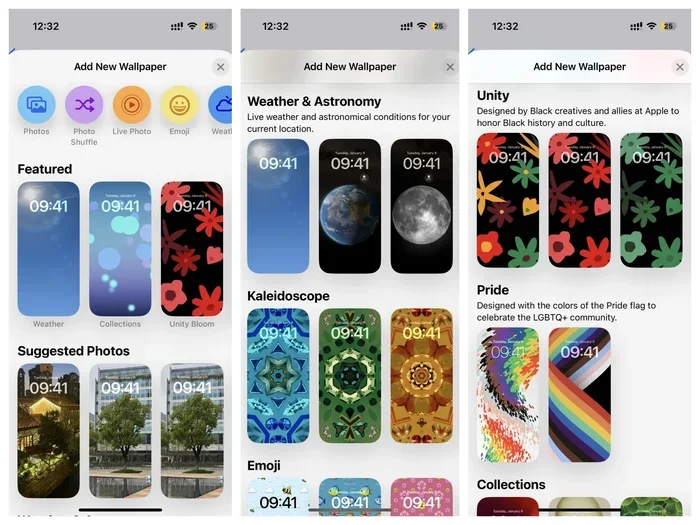
- Tap “Add New Wallpaper.”
- Choose a photo from your library or pick an Apple suggestion.
- Pinch to zoom in or out on the preview screen.
- Drag the image to position it correctly.
- Tap “Set” and choose Set Lock Screen, Set Home Screen, or Set Both.
The pinch-to-zoom and drag features give you precise control. You can focus on the exact part of the image you want to show. This works great for phone wallpaper and tablet backgrounds alike. The live wallpaper feature on newer iPhones also lets you see how the wallpaper looks with motion before you set it.
Using the Photos App for Quick Changes
You can also set a wallpaper directly from the Photos app. Open any photo. Tap the Share button. Scroll down and tap “Use as Wallpaper.” Then pinch to zoom and drag to adjust. Tap “Set” when you are happy with the result.
This method is the fastest way to change your wallpaper on an iPad or iPhone. It takes just a few seconds and gives you full control over the image fit. You do not even need to leave the Photos app to get it done.
One tip for iPad users: the iPad has a different aspect ratio than the iPhone. An image that looks great on your phone may not work as well on your iPad. Always check how the wallpaper looks on each device separately.
Quick Tips and Common Mistakes to Avoid
Quick Tips for Perfect Wallpapers Every Time
- Match your image resolution to your screen resolution for the sharpest result possible.
- Use high-quality images from reputable sources like Unsplash, Pexels, or Wallhaven.
- Preview your wallpaper before setting it permanently on your device.
- Consider dark mode when choosing colors, as it reduces eye strain during long work sessions.
- Save multiple versions of the same image at different sizes for different devices in your collection.
- Use the Fill or Fit options first before trying Stretch or Tile, as they usually give the best results.
- Check your aspect ratio before picking a new wallpaper to avoid unwanted cropping.
- Avoid images with important details near the edges, since they may get cropped on some devices.
Common Mistakes to Avoid When Resizing Wallpapers
- Using low-resolution images that look blurry on high-resolution screens like 4K monitors.
- Stretching images that have a different aspect ratio than your screen, which causes distortion.
- Ignoring the crop area when using the Fill option, which can cut off important parts of the image.
- Forgetting to check both lock and home screens on phones, which may display different parts of the image.
- Using images with text near the edges, which may get cropped differently on different devices.
- Not testing your wallpaper in different lighting conditions, since bright images can be distracting in dark rooms.
Expert Insight: The best wallpaper resolution matches your screen exactly. If you are unsure, search for wallpapers by your device model. Sites like Wallhaven and Unsplash let you filter by resolution. This ensures your change desktop background experience is always top-notch.
Comparison Table: Wallpaper Fit Options Across Devices
| Fit Option | What It Does | Best For | Device Support |
|---|---|---|---|
| Fill | Scales image to cover the entire screen; may crop edges | Photos with a centered subject | All devices |
| Fit | Scales image to fit entirely within the screen; may add borders | Landscape and portrait photos | All devices |
| Stretch | Stretches image to fill the screen; may distort the image | Simple patterns and solid colors | Windows, Mac |
| Tile | Repeats the image across the screen | Small patterns and textures | Windows, Mac |
| Center | Places image at original size in the middle of the screen | Small logos and icons | All devices |
Final Thoughts on Changing Your Wallpaper Size
Now you know exactly how to change the size of my wallpaper on every device. Whether you use wallpaper on Windows, wallpaper on Mac, wallpaper on Android, or wallpaper on iPhone, the process is simple and fast. You do not need expensive software or technical skills.
The key is to match your background image size to your screen resolution and aspect ratio. Use the Fill or Fit options for the best results. Avoid stretching low-resolution images. And always preview before you set your wallpaper permanently.
Remember, your desktop background is one of the first things you see every time you open your device. Taking a few extra minutes to get it right makes a big difference. Your screen will look sharper, your images will look better, and your device will feel more personal.
So go ahead and adjust wallpaper size on all your devices today. Try different images, experiment with fit options, and find what works best for you. Once you get the hang of it, you will never settle for a blurry or poorly fitting background again. Your devices deserve to look their best.
Frequently Asked Questions
Can I use any image as my wallpaper regardless of size?
You can, but the results depend on the image resolution. Low-resolution images will look blurry when stretched to fit a high-res screen. It is best to match your image size to your device screen resolution for the clearest result.
What is the best wallpaper size for a 1080p screen?
For a 1080p screen, use an image that is 1920 by 1080 pixels. This matches the screen resolution exactly and ensures a crisp, clear desktop background without any scaling or distortion issues.
How do I stop my wallpaper from being stretched on my phone?
Use the Fit or Fill option instead of Stretch when setting your phone wallpaper. On most devices, you can pinch to zoom and drag the image to position it correctly before setting it. This keeps the image proportions intact.
Can I use the same wallpaper on multiple devices?
Yes, but the image may look different on each device due to varying screen sizes and resolutions. It is a good idea to save different versions of the same image optimized for each device to get the best results across all your screens.
Why does my wallpaper look blurry after I change the size?
This usually happens when the image resolution is lower than your screen resolution. When the system stretches a small image to fill a large screen, it becomes blurry. Always use images that match or exceed your device screen resolution for a sharp look.
Are there free websites to download properly sized wallpapers?
Yes, sites like Unsplash, Pexels, and Wallhaven offer high-quality wallpapers that you can filter by resolution. These sites make it easy to find images that match your device screen size perfectly for the best wallpaper settings experience.