How Do I Connect My External Speakers To Bluetooth
Connecting your external speakers to Bluetooth is easier than you think. Whether you have a stereo system, portable speakers, or an older setup, you can go wireless with the right steps. This guide walks you through pairing, troubleshooting, and optimizing your Bluetooth speaker connection for the best sound.
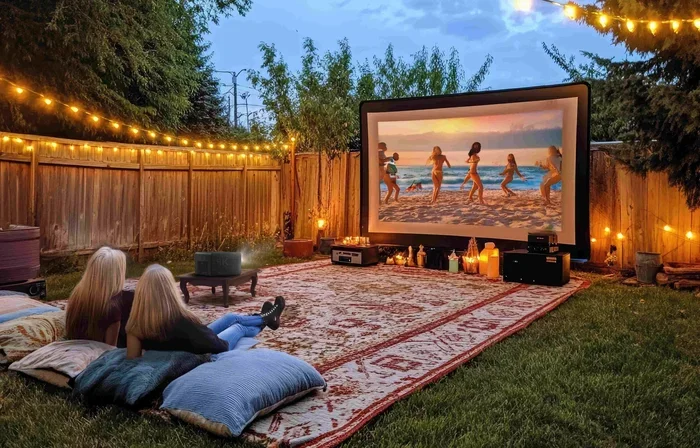
There is nothing quite like filling a room with your favorite music without tangled wires holding you back. Connecting external speakers to Bluetooth opens up a world of freedom. You can move around your living room, backyard, or office while your audio streams seamlessly. Whether you want to connect external speakers to Bluetooth for a party or just simplify your daily listening, this guide has you covered.
The process might seem intimidating at first, especially if your speakers are older models. But here is the good news. Most setups take less than five minutes to pair. You do not need to be a tech expert. With a few simple steps, your wireless speakers will be up and running. Let us dive into everything you need to know.
Key Takeaways
- Bluetooth connectivity lets you stream audio wirelessly: You can free yourself from cables and enjoy music from any device.
- Most external speakers need a Bluetooth adapter: Older or non-Bluetooth speakers can become wireless with a simple transmitter or adapter.
- Pairing is straightforward: Put your speaker in pairing mode, select it from your device, and you are connected in seconds.
- Common issues have simple fixes: Problems like interference, low volume, or failed pairing can usually be solved quickly.
- Audio quality improves with the right settings: Adjusting EQ, reducing distance, and minimizing obstacles helps your wireless audio sound better.
- Compatibility matters: Check that your speaker supports Bluetooth or that your adapter matches the speaker type before buying.
📑 Table of Contents
- Understanding Bluetooth Connectivity for External Speakers
- Step-by-Step Guide to Connecting Your External Speakers to Bluetooth
- Using a Bluetooth Adapter or Transmitter with Non-Bluetooth Speakers
- Common Problems When Connecting External Speakers to Bluetooth
- Tips for Better Bluetooth Audio Quality
- Connecting Specific Devices to External Bluetooth Speakers
- Should You Use a Bluetooth Transmitter or Buy New Bluetooth Speakers?
- Final Thoughts
Understanding Bluetooth Connectivity for External Speakers
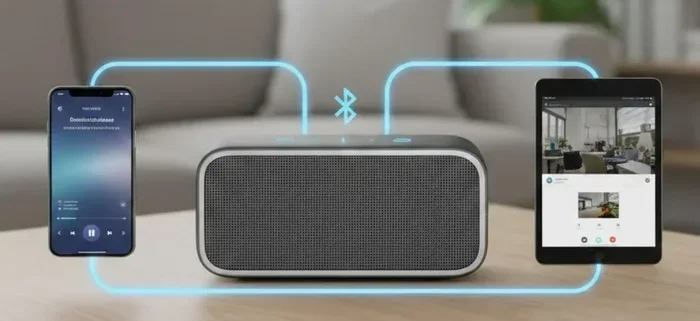
Before you start plugging things in, it helps to understand what you are working with. Bluetooth technology allows devices to communicate over short distances without cables. When you connect external speakers to Bluetooth, your phone, laptop, or TV sends audio signals through the air to the speaker.
How Bluetooth Audio Streaming Works
Bluetooth uses something called profiles. The most common one for audio is called A2DP, which stands for Advanced Audio Distribution Profile. Think of it as a language your devices use to share music. When your phone and speaker both speak this language, they pair up and audio flows freely.
Another important concept is Bluetooth range. Most speakers work well within 30 feet of the source device. Walls and furniture can reduce this distance. If you plan to place your speaker in another room, keep that in mind.
Types of External Speakers You Can Connect
Not all speakers are the same. Here are the most common types you might want to connect to Bluetooth:
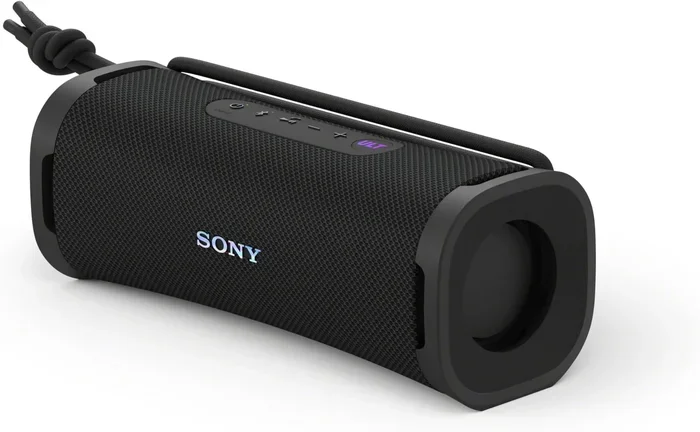
- Portable Bluetooth speakers: These have built-in Bluetooth. You just turn them on and pair.
- Desktop stereo speakers: These often need an external Bluetooth adapter to go wireless.
- Home theater systems: Some support Bluetooth natively, while others require a transmitter.
- Older or vintage speakers: These usually lack Bluetooth but can be upgraded with a simple add-on device.
- Car audio systems: You can add Bluetooth connectivity to your car stereo with a transmitter or adapter.
Knowing which type you have helps you choose the right approach. If your speakers already have Bluetooth built in, you are halfway done. If not, do not worry. We will cover that too.
Step-by-Step Guide to Connecting Your External Speakers to Bluetooth
Now let us get into the actual process. Follow these steps carefully and you will be listening to wireless audio in no time.
Step 1: Check Your Speaker’s Bluetooth Capability
Look at your speaker or check the manual. Does it say Bluetooth somewhere? Many modern speakers have a Bluetooth logo on them. If you see it, your speaker supports wireless connection. If not, you will need a Bluetooth adapter or transmitter to add this feature.
If you have an older stereo system or bookshelf speakers, they likely do not have Bluetooth. That is perfectly fine. You can still make them wireless. More on that in a moment.
Step 2: Put Your Speaker in Pairing Mode
Every Bluetooth speaker has a pairing mode. This is how it announces to other devices that it is ready to connect. Here is how to activate it:
- Turn on your speaker.
- Press and hold the Bluetooth button for a few seconds.
- Look for a flashing light or hear a voice prompt saying “Pairing.”
- Your speaker is now discoverable by other devices.
Some speakers enter pairing mode automatically the first time you turn them on. Check your manual if you are unsure. The light pattern or sound cue varies by brand, so do not be alarmed if yours looks different.
Step 3: Enable Bluetooth on Your Source Device
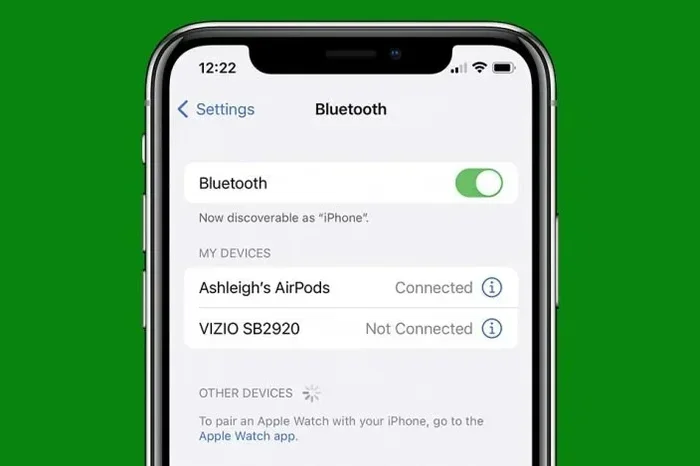
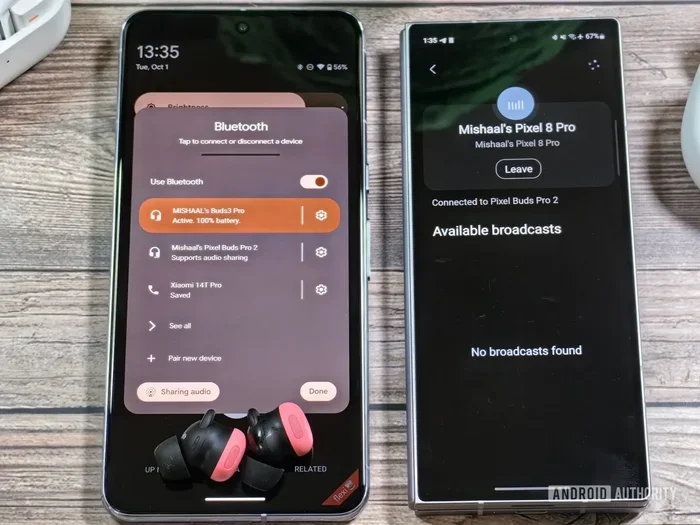
On your phone, tablet, laptop, or TV, go to the Bluetooth settings. Turn Bluetooth on. Your device will start scanning for nearby devices. This is called device pairing. You should see your speaker appear in the list of available devices.
Tap or click on the speaker name. Wait a few seconds. You will usually hear a confirmation sound from the speaker. That means the wireless connection is established.
Step 4: Test the Connection
Play some music or a video. Does the sound come through your external speakers? Great! You are connected. If not, do not panic. Move on to the troubleshooting section below.
Step 5: Adjust Audio Settings for Best Performance
Once connected, you may want to tweak a few settings. Check the volume on both your source device and the speaker. Some devices have an audio output setting where you can select your Bluetooth speaker as the default output device.
If you are using a Bluetooth transmitter, make sure it is set to the correct input mode. Many transmitters have both Bluetooth and wired inputs. You want to make sure the audio is routing through the Bluetooth path.
Using a Bluetooth Adapter or Transmitter with Non-Bluetooth Speakers
If your external speakers do not have Bluetooth built in, you are not out of luck. A Bluetooth adapter or Bluetooth transmitter can bring wireless capability to almost any speaker setup. This is a game changer for anyone who wants to connect external speakers to Bluetooth without buying new equipment.
What Is a Bluetooth Transmitter?
A Bluetooth transmitter plugs into your audio source. It takes the audio signal and sends it wirelessly to your speaker. You connect the transmitter to your phone or laptop via Bluetooth, and the transmitter sends the audio out through a cable or 3.5mm audio jack to your speakers.
Think of it as a bridge. Your phone talks Bluetooth, and your speaker talks wires. The transmitter translates between them.
What Is a Bluetooth Receiver?
A Bluetooth receiver does the opposite. It plugs into your speaker and receives a Bluetooth signal from your phone or laptop. This is ideal if your speaker has a standard audio input like a 3.5mm jack or RCA ports.
Here is a quick comparison:
- Transmitter: Sends audio out wirelessly from a source device. Use this when your source has Bluetooth but your speaker does not.
- Receiver: Receives a Bluetooth signal and feeds it into your speaker. Use this when your speaker has an audio input but no Bluetooth.
Both devices are affordable and widely available. You can find reliable options for under $20. If you want to learn more about using Bluetooth with your TV setup, check out Can I Use A Bluetooth Adapter On My Tv for additional guidance.
How to Set Up a Bluetooth Adapter
Setting up a Bluetooth adapter is simple:
- Plug the adapter into your speaker or audio system.
- Turn on the adapter and put it in pairing mode.
- Go to your phone or laptop Bluetooth settings.
- Find the adapter in the list of available devices.
- Tap to pair and start streaming.
That is it. Your non-Bluetooth speakers are now wireless speakers. You can move them around the room without worrying about cables.
Common Problems When Connecting External Speakers to Bluetooth
Even with the simplest setups, things can go wrong sometimes. Here are the most common issues people face when they try to connect external speakers to Bluetooth, and how to fix them.
Speaker Not Showing Up in Device List
This is the number one complaint. Your speaker is in pairing mode but your device cannot find it. Try these fixes:
- Make sure your speaker is close to your source device. Stay within 10 feet for the best results.
- Turn Bluetooth off and back on your source device.
- Restart your speaker and try again.
- Check if another device is already connected to the speaker. Disconnect it first.
- Remove old pairings from the speaker’s memory and start fresh.
Poor Audio Quality or Lag
If your music sounds choppy or the audio lags behind the video, a few things could be causing this:
- Distance: Move closer to the speaker. Walls and obstacles weaken the Bluetooth signal.
- Interference: Other wireless devices like microwaves or Wi-Fi routers can interfere. Move away from them.
- Bluetooth version: Older Bluetooth versions have lower audio quality. Newer versions handle audio streaming much better.
- Codec support: Some speakers support advanced codecs like aptX or LDAC. Check if your device supports the same codec for better sound.
Connection Keeps Dropping
A stable Bluetooth connection should stay solid within range. If it keeps disconnecting, try the following:
- Update the firmware on your speaker or adapter.
- Reduce the number of Bluetooth devices in the area.
- Check for software updates on your source device.
- Reset the speaker and re-pair from scratch.
Volume Is Too Low
Sometimes the audio is connected but the volume is very quiet. This often happens because the volume is controlled from the source device instead of the speaker. Try adjusting the volume on both devices. Also, check if your speaker has a volume limiter or night mode that might be reducing the output.
Expert Insight
One thing many people overlook is speaker compatibility. Not all Bluetooth codecs work with all speakers. If you are buying a Bluetooth transmitter, make sure it supports the codecs your speaker uses. This one detail can make a huge difference in audio quality.
Tips for Better Bluetooth Audio Quality
Once you have your external speakers connected, you want the best sound possible. Here are some tips to improve your wireless audio experience.
Keep Your Devices Close
The closer your source device is to the speaker, the stronger the signal. Try to keep them in the same room with no more than one or two walls between them. This reduces latency and keeps the audio crisp.
Minimize Wireless Interference
Bluetooth operates on the 2.4 GHz frequency band. This is the same band used by Wi-Fi and microwaves. If you notice audio issues, try moving away from other wireless devices. Switching your Wi-Fi to the 5 GHz band can also help free up the 2.4 GHz space.
Update Your Firmware
Manufacturers regularly release firmware updates that improve Bluetooth connectivity and audio performance. Check the app or website for your speaker brand and install any available updates.
Use High-Quality Source Files
Bluetooth compresses audio to some degree. If you stream high-quality audio files or use a good streaming service, you will notice a difference. Audio streaming from services like Spotify or Apple Music at higher quality settings can improve what you hear through your external speakers.
Experiment with EQ Settings
Many phones and music apps have equalizer settings. Try adjusting the bass, midrange, and treble to find a sound profile that works well with your speaker setup. Some speakers also have built-in EQ modes you can switch between.
If you are looking for ways to upgrade your existing speaker setup, you might want to check out Can I Make My Old Bose Speakers Bluetooth for helpful tips on retrofitting older Bose models with wireless capability.
Connecting Specific Devices to External Bluetooth Speakers
Different source devices have slightly different connection processes. Here is how to handle the most common ones.
From a Smartphone or Tablet
This is the easiest path. Open your Bluetooth settings, find your speaker, and tap to pair. Most modern phones handle this automatically. Once paired, your phone will remember the speaker and connect it whenever Bluetooth is on and the speaker is nearby.
From a Laptop or Desktop Computer
Laptops with built-in Bluetooth are simple. Go to Settings, then Bluetooth, and select your speaker. Desktop computers sometimes lack Bluetooth. In that case, you need a USB Bluetooth dongle. Plug it in, install any drivers, and you can connect external speakers to Bluetooth just like you would with a laptop.
From a Smart TV
Many smart TVs have Bluetooth built in. Go to your TV settings, look for audio output or Bluetooth devices, and pair your speaker. If your TV does not support Bluetooth, you can use a Bluetooth transmitter plugged into the TV’s audio output. This sends the audio wirelessly to your speakers.
For more details on using Bluetooth with your TV, you can explore Can I Use A Bluetooth Adapter On My Tv to find the right setup for your television.
From a Gaming Console or Media Player
Some gaming consoles and media players support Bluetooth audio output. Check the settings menu for an audio or Bluetooth section. If your device does not support Bluetooth directly, a Bluetooth transmitter connected via the headphone jack or optical output will do the trick.
Should You Use a Bluetooth Transmitter or Buy New Bluetooth Speakers?
This is a common question. The answer depends on your situation. Here is a quick breakdown:
- Buy a Bluetooth adapter or transmitter if: Your current speakers sound great but lack Bluetooth. This is the most cost-effective way to go wireless.
- Buy new Bluetooth speakers if: Your current speakers are old, damaged, or low quality. A new wireless speaker will give you both better sound and wireless freedom.
- Keep wired if: You are an audiophile who cares about the highest possible audio quality. Wired connections still offer the best uncompressed audio.
For most people, adding a Bluetooth adapter to existing speakers is the sweet spot. You get wireless convenience without replacing your entire setup. And if you ever want to go back to wired, you can always disconnect the adapter.
If you are considering upgrading your car audio, Can I Turn My Car Radio Into Bluetooth offers great insights on making your car stereo wireless without a full replacement.
Final Thoughts
Connecting your external speakers to Bluetooth is one of the best upgrades you can make to your audio setup. It takes minutes, costs very little, and completely changes how you enjoy music, movies, and games. No more cables. No more sitting in one spot. Just pure, wireless audio wherever you go.
Start by checking if your speakers already have Bluetooth. If they do not, grab a Bluetooth adapter or transmitter and follow the steps in this guide. You will be streaming in no time. Remember to keep your devices close, minimize interference, and update your firmware for the best experience.
Wireless audio is the future. And the future starts with a simple pairing process. Go ahead, connect your external speakers to Bluetooth, and enjoy the freedom. Your ears will thank you.
If you are also curious about using Bluetooth with other devices in your home, check out Can I Turn My Stereo Into Bluetooth for more practical advice on retrofitting your stereo system.
Frequently Asked Questions
Can I Connect Any External Speaker to Bluetooth?
Most external speakers can be connected to Bluetooth, but it depends on the speaker. Speakers with built-in Bluetooth pair directly. Older or non-Bluetooth speakers need a Bluetooth adapter or transmitter to go wireless. Check your speaker’s specifications before purchasing an adapter.
How Do I Know if My Speaker Supports Bluetooth?
Look for a Bluetooth logo on the speaker or check the product manual. You can also go to your device’s Bluetooth settings and see if the speaker appears in the list of available devices when it is powered on and in pairing mode.
What Is the Difference Between a Bluetooth Transmitter and a Bluetooth Receiver?
A Bluetooth transmitter sends audio wirelessly from a source device to a speaker. A Bluetooth receiver receives a Bluetooth signal and feeds it into a speaker. If your speaker has an audio input but no Bluetooth, you need a receiver. If your source device has Bluetooth but your speaker does not, you need a transmitter.
Why Does My Bluetooth Audio Sound Low Quality?
Several factors affect Bluetooth audio quality. Distance, walls, and interference from other wireless devices can degrade the signal. Also, older Bluetooth versions compress audio more than newer ones. Using a transmitter that supports advanced codecs like aptX can significantly improve sound quality.
Can I Connect Multiple Speakers to One Bluetooth Source?
Some speakers support multi-device pairing or stereo pairing. However, most standard Bluetooth speakers connect to one source device at a time. If you want multiple speakers, look for models that support party mode or buy a multi-output Bluetooth transmitter.
Is Bluetooth Safe for Long Listening Sessions?
Yes. Bluetooth uses low-power radio waves that are considered safe for everyday use. There is no evidence of harm from typical Bluetooth audio streaming. If you are concerned about exposure, keep your source device at a reasonable distance and take breaks as you would with any audio device.