Can You Share Bluetooth Audio On Iphone With Friends
Yes, you can share Bluetooth audio on iPhone with friends using built-in features like SharePlay and Bluetooth multipoint. This guide walks you through every method, from simple pairing to advanced audio sharing setups. You will learn how to connect multiple devices, troubleshoot common issues, and get the best wireless audio experience with your crew.
Key Takeaways
- iPhone supports Bluetooth audio sharing through SharePlay, Bluetooth multipoint, and third-party apps.
- You can share audio with up to multiple friends using AirPlay or Bluetooth splitter adapters.
- Setting up shared Bluetooth audio is simple and does not require technical expertise.
- Compatibility matters — not all Bluetooth headphones and speakers support shared listening.
- Common issues like lag or disconnection can be fixed with basic troubleshooting steps.
- Bluetooth 5.0 and newer offer better range and stability for shared audio experiences.
- AirPlay is often a better option than Bluetooth for sharing audio with multiple friends at once.
📑 Table of Contents
- Can You Share Bluetooth Audio On Iphone With Friends?
- What Is Bluetooth Audio Sharing on iPhone?
- How to Share Bluetooth Audio on iPhone with Friends
- Compatible Devices for iPhone Bluetooth Audio Sharing
- Tips for the Best Bluetooth Audio Sharing Experience
- Common Problems When Sharing Bluetooth Audio on iPhone
- Bluetooth Audio Sharing vs AirPlay: Which Is Better?
- Frequently Asked Questions
- Conclusion
Can You Share Bluetooth Audio On Iphone With Friends?
Have you ever been at a party or a road trip and thought, “It would be awesome if we could all listen to the same music through Bluetooth?” Well, you absolutely can share Bluetooth audio on iPhone with your friends. Apple has built several features into iOS that make wireless audio sharing possible, whether you are at home, in the car, or on the go.
The good news is that you do not need to be a tech expert to figure this out. Sharing Bluetooth audio on iPhone is easier than most people think. In this guide, we will walk you through every method, every compatible device, and every tip you need to know. By the end, you will be the friend everyone wants to hang out with because you always have the best sound going.
Bluetooth audio sharing on iPhone works in a few different ways. You can use Apple’s built-in SharePlay feature, take advantage of Bluetooth multipoint connections, or even use a Bluetooth adapter to expand your options. Each method has its own strengths, and we will break them all down for you. So let us dive right in and explore how you can share Bluetooth audio on iPhone with the people around you.
Before we get into the step-by-step instructions, let us talk about why this matters. Music is social. Whether you are hanging out at a barbecue, working on a group project, or just chilling in the backyard, sharing audio creates a shared experience. iPhone Bluetooth audio sharing makes that experience seamless and wireless. No cables, no hassle, no fighting over who gets to pick the next song.
What Is Bluetooth Audio Sharing on iPhone?
Bluetooth audio sharing is the ability to send audio from your iPhone to more than one Bluetooth device at the same time. This means your friends can hear the same music, podcast, or video audio through their own headphones or speakers. Apple introduced this capability with iOS 13 and has improved it with every major update since then.
The most common way to share Bluetooth audio on iPhone is through the SharePlay feature. SharePlay lets you and your friends sync up and listen to the same content in real time. It works with Apple Music, Netflix, Disney+, and many other popular apps. You can start a SharePlay session right from the playback screen on your iPhone.
Another method involves using Bluetooth multipoint technology. Some Bluetooth headphones and speakers can connect to two devices simultaneously. This means you can pair your iPhone with a speaker, and your friend can connect their device to the same speaker. Not all devices support this, but many modern ones do.
If you want even more flexibility, you can use a Bluetooth adapter or splitter. These small devices plug into an audio source and create multiple Bluetooth connections. They are affordable and work with almost any speaker or headphones. We will cover this in more detail later in the article.
How to Share Bluetooth Audio on iPhone with Friends
Now let us get into the practical steps. There are three main ways to share Bluetooth audio on iPhone with your friends. Each method works differently, so pick the one that fits your situation best.
Method 1: Using SharePlay
SharePlay is Apple’s built-in feature for shared audio and video listening. Here is how to use it:
- Open the app you want to share from (Apple Music, Netflix, etc.).
- Start playing the content you want to share.
- Tap the SharePlay icon (it looks like a triangle with a person next to it).
- Select “SharePlay” from the menu.
- Invite your friends through Messages, FaceTime, or AirDrop.
- Once they accept, everyone hears the same audio at the same time.
SharePlay is the easiest way to share Bluetooth audio on iPhone because it requires no extra hardware. However, all participants need an iPhone or iPad running iOS 13 or later. Also, some apps may not support SharePlay, so check before you start.
Method 2: Using Bluetooth Multipoint Speakers
Some Bluetooth speakers support multipoint connections, which means two phones can connect to the same speaker at the same time. Here is how it works:
- Turn on your Bluetooth speaker and put it in pairing mode.
- On your iPhone, go to Settings > Bluetooth and connect to the speaker.
- Have your friend do the same on their iPhone.
- Both phones can now play audio through the shared speaker.
Keep in mind that not every speaker supports this. Brands like JBL, Sony, and Bose often include multipoint in their higher-end models. If you are unsure, check the product manual or search online for your specific model. Also, connecting Bluetooth headphones this way may not work as smoothly, since most headphones only support one active connection at a time.
Method 3: Using a Bluetooth Adapter or Splitter
If your speaker or headphones do not support multipoint, a Bluetooth adapter can help. These devices plug into the audio output of a speaker and create a Bluetooth receiver. Some adapters also act as transmitters, allowing you to send audio to multiple Bluetooth speakers at once.
- Plug the Bluetooth adapter into your speaker’s audio input.
- Pair your iPhone with the adapter.
- Pair your friend’s device with the same adapter (if it supports multiple connections).
- Enjoy shared audio together.
This method is great for older speakers that do not have Bluetooth built in. You can also use this approach to make your old Bose speakers Bluetooth capable, which opens up a whole new world of sharing options.
Compatible Devices for iPhone Bluetooth Audio Sharing
Not all Bluetooth devices work the same way when it comes to sharing audio on iPhone. Here is a breakdown of what works and what does not.
Bluetooth Headphones
Most Bluetooth headphones connect to only one device at a time. This means your friend cannot connect their headphones to your iPhone while you are playing audio. However, some premium headphones now support Bluetooth multipoint, which allows two connections at once. If you want to talk on the phone with Bluetooth headphones while sharing audio, make sure your headphones support this feature.
For a better shared experience, consider using a Bluetooth transmitter that sends audio to multiple headphone receivers. This is especially useful in situations where you do not want to disturb others around you.
Bluetooth Speakers
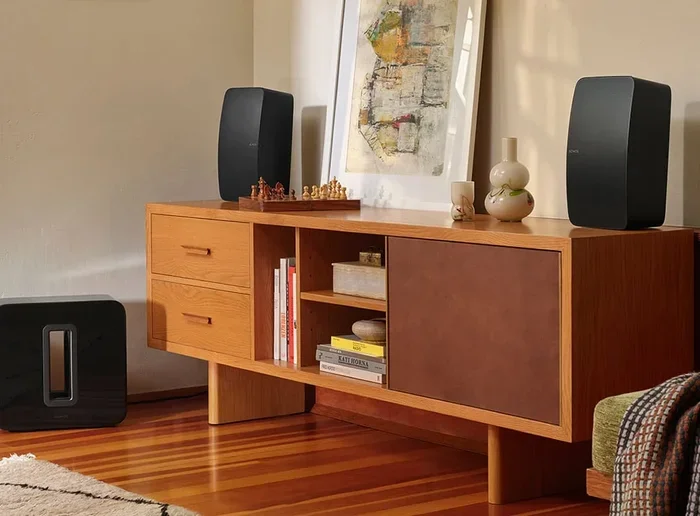
Bluetooth speakers are the best option for sharing audio on iPhone with a group. Many modern speakers support multipoint or have companion apps that allow multiple phone connections. Here are some popular options:
- JBL Flip series — Supports Bluetooth 5.0 and multipoint in newer models.
- Sony S series — Offers excellent range and multi-device pairing.
- Bose SoundLink — Great sound quality and reliable Bluetooth connectivity.
- Anker Soundcore — Affordable options with solid Bluetooth sharing features.
If your current speaker does not support Bluetooth, you can always turn your stereo into Bluetooth using a simple adapter. This is a cost-effective way to upgrade your setup for shared listening.
Car Audio Systems
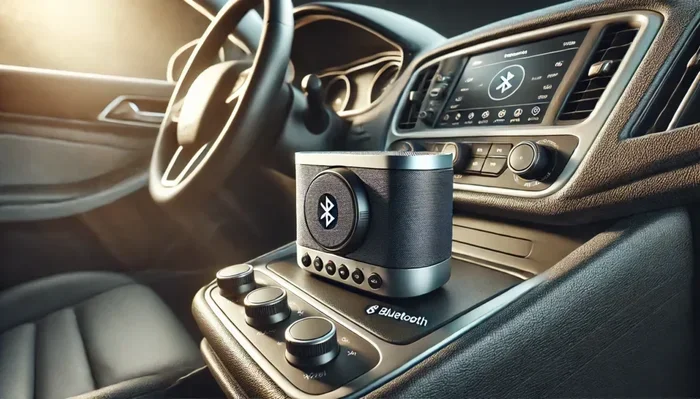
Sharing audio in the car is a different story. Most car audio systems only allow one Bluetooth connection at a time. However, you can use a Bluetooth transmitter for your car to create a shared listening experience. Some transmitters also allow you to replace your car radio with Bluetooth capability, giving you more flexibility for road trips with friends.
Tips for the Best Bluetooth Audio Sharing Experience
Getting Bluetooth audio on iPhone to work smoothly with friends takes a little know-how. Here are some practical tips to make your experience the best it can be.
Keep Your Devices Close
Bluetooth has a typical range of about 30 feet (10 meters). If you and your friends are spread out too far apart, the audio may cut out or lag. Stay within range for the smoothest wireless audio sharing experience.
Use Bluetooth 5.0 or Newer
Bluetooth 5.0 offers better range, faster connections, and improved stability. If your iPhone and your speaker both support Bluetooth 5.0, you will get a much better sharing experience. Older Bluetooth versions may struggle with audio sync and connection drops.
Reduce Interference
Wi-Fi networks, microwaves, and other Bluetooth devices can interfere with your connection. If you notice audio dropouts, try moving away from other wireless devices. Boosting your Wi-Fi signal in the area can also help reduce interference, since Bluetooth and Wi-Fi share the same 2.4 GHz frequency band.
Update Your iOS
Apple regularly improves Bluetooth performance through iOS updates. Make sure your iPhone is running the latest version of iOS. This ensures you have access to the newest Bluetooth audio sharing features and bug fixes.
Check App Compatibility
Not all apps support SharePlay or Bluetooth audio sharing. Before you start a session, check that the app you are using has sharing features. Popular apps like Apple Music, Spotify, and YouTube all support some form of shared listening, but the experience may vary.
Common Problems When Sharing Bluetooth Audio on iPhone
Sharing Bluetooth audio on iPhone is not always perfect. Here are the most common issues and how to fix them.
Audio Delay or Lag
If you notice that the audio is out of sync between devices, this is a common Bluetooth issue. The delay happens because Bluetooth transmits data in small packets, and there is a slight processing lag. To reduce lag, keep your devices close together and avoid using multiple wireless connections at the same time.
Connection Drops
Bluetooth connections can drop unexpectedly, especially in crowded areas with lots of wireless signals. If this happens, turn Bluetooth off and back on, or restart your iPhone. You can also try uninstalling Bluetooth from your settings and re-pairing your devices from scratch.
Only One Device Connects
If your speaker or headphones only connect to one phone, it likely does not support multipoint. In this case, you will need a Bluetooth splitter or adapter to share audio with multiple friends. These adapters are inexpensive and work with almost any speaker or headphone setup.
Poor Audio Quality
Bluetooth audio quality depends on the codec being used. SBC is the standard codec and works with all devices, but it does not sound as good as AAC or aptX. If you and your friends have devices that support higher-quality codecs, you will notice better sound. Check your device specifications to see which codecs are supported.
Bluetooth Audio Sharing vs AirPlay: Which Is Better?
When it comes to sharing audio on iPhone, you have two main options: Bluetooth and AirPlay. Both have their strengths, and the best choice depends on your situation.
Bluetooth is great for direct, device-to-device connections. It works without Wi-Fi, which makes it ideal for outdoor gatherings or situations where internet access is limited. However, Bluetooth typically connects to one device at a time unless you use multipoint or a splitter.
AirPlay, on the other hand, uses Wi-Fi to stream audio to Apple devices and compatible speakers. AirPlay can send audio to multiple speakers at once, making it better for larger groups. If you have an Apple TV or a HomePod, AirPlay is often the superior choice for wireless audio sharing with friends.
Here is a quick comparison:
- Bluetooth: No Wi-Fi needed, direct connection, limited range, one-to-one or multipoint.
- AirPlay: Requires Wi-Fi, streams to multiple devices, longer range, better for groups.
For most casual sharing situations, Bluetooth works perfectly fine. But if you want the best quality and the ability to share with everyone in the room, AirPlay is the way to go. You can also use AirPlay to AirPlay without being on the same network using peer-to-peer connections, which adds even more flexibility.
Frequently Asked Questions
Can I share Bluetooth audio on iPhone with Android users?
Yes, you can share Bluetooth audio with Android users as long as the receiving device supports Bluetooth. The sharing method may differ slightly, but the core concept remains the same. You can use SharePlay for Apple users and Bluetooth multipoint or adapters for mixed device groups.
Do I need Wi-Fi to share Bluetooth audio on iPhone?
No, Bluetooth does not require Wi-Fi to work. Bluetooth creates a direct wireless connection between devices. However, if you want to use AirPlay or SharePlay for certain apps, you will need a Wi-Fi connection. For pure Bluetooth audio sharing, Wi-Fi is not necessary.
Can I connect more than two Bluetooth devices to my iPhone at once?
iPhone supports connecting to multiple Bluetooth devices, but playing audio from all of them simultaneously is not natively supported. You can use a Bluetooth splitter or adapter to route audio to multiple speakers or headphones at the same time.
Why does my Bluetooth audio keep cutting out when sharing?
Audio cutouts are usually caused by distance, interference from other wireless devices, or outdated Bluetooth versions. Keep your devices close, reduce Wi-Fi interference, and make sure your iPhone and speaker support Bluetooth 5.0 for the most stable connection.
Can I use any Bluetooth headphones for sharing audio on iPhone?
Most Bluetooth headphones can connect to your iPhone, but not all support shared listening. Headphones that support Bluetooth multipoint or those used with a Bluetooth splitter are your best bet for sharing audio with friends. Check your headphone specifications to confirm multipoint support.
Is SharePlay free to use?
Yes, SharePlay is a built-in Apple feature and does not cost anything extra to use. You do not need a special subscription or app to start a SharePlay session. Just make sure all participants have an Apple device running iOS 13 or later.
Conclusion
Sharing Bluetooth audio on iPhone with friends is easier than you might think. Whether you use SharePlay, Bluetooth multipoint, or a simple adapter, there is a method that fits every situation. The key is understanding your devices and choosing the right approach for your gathering.
Start with the built-in options like SharePlay for the simplest experience. If that does not work for your setup, explore Bluetooth adapters and multipoint speakers. And remember, Bluetooth audio sharing is all about creating a shared moment — the technology is just the tool that makes it happen.
So the next time you are with friends and someone asks, “Can we all listen to this together?” you will know exactly what to do. Share Bluetooth audio on iPhone with confidence and enjoy the music with the people you care about.