How Do I Connect My Gamecube to My Hisense Smart TV
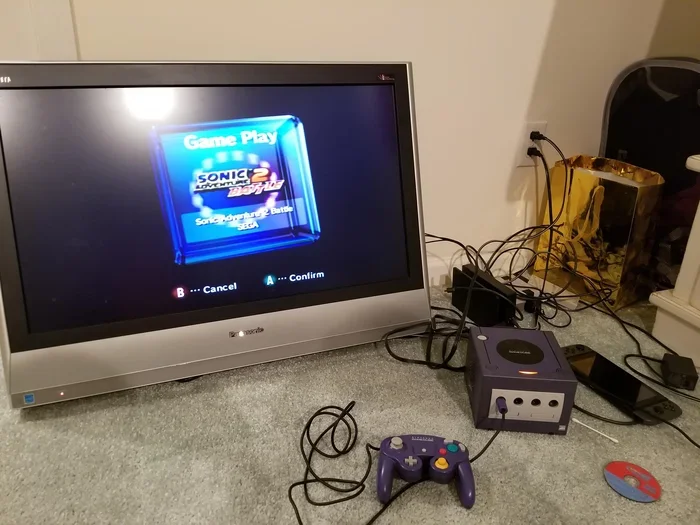
Connecting your Nintendo GameCube to a Hisense Smart TV is easier than you think. Whether you use the original AV cable or an HDMI adapter, this guide walks you through every step. You will learn which cables work, how to set up audio, and how to improve your picture quality. We also cover common issues and quick fixes so you can start playing your favorite games fast. Follow our simple instructions and get your retro setup running in minutes.
There is something special about plugging in an old Nintendo GameCube and watching it come to life on a modern Hisense Smart TV. The colors look sharper. The sound feels cleaner. And suddenly those childhood memories come flooding back. If you have been wondering how to get your GameCube connected to your Hisense TV, you are in the right place. This guide covers everything you need to know from picking the right cable to tweaking your TV settings for the best experience.
The Nintendo GameCube was a beloved console back in the early 2000s. It delivered amazing games like Super Smash Bros Melee and The Legend of Zelda: The Wind Waker. But connecting it to a modern Hisense Smart TV can feel confusing. The ports are different. The cables dont always match. And the TV settings can be tricky. Dont worry though. We will break it all down into simple steps anyone can follow.
Key Takeaways
- Multiple connection options exist: You can use the standard AV cable or an HDMI adapter for better quality.
- Hisense TVs support several input types: Composite, component, and HDMI ports make GameCube connection straightforward.
- Audio setup matters: Proper audio configuration ensures you get clear sound from your GameCube on the Hisense TV.
- Picture quality can be improved: Using the right adapter and TV settings enhances your retro gaming experience.
- Troubleshooting is simple: Most connection issues have easy fixes you can do at home.
- Retro gaming is worth the effort: A proper setup brings back the nostalgia of classic Nintendo games on a modern screen.
📑 Table of Contents
Understanding Your GameCube Connection Options
Before you plug anything in, it helps to understand what connection options your GameCube and Hisense TV support. Both devices have different ports and cable types. Knowing what you are working with saves time and frustration.
What Ports Does the GameCube Have?
The Nintendo GameCube comes with a few different output options. The most common is the standard AV Multi Out port on the back of the console. This port supports composite video and stereo audio through the included AV cable. Some GameCube models also support component video output. This gives you a better picture quality if your TV supports it. The GameCube also has a digital audio out port for optical connections. But that is less common for home setups.
The original AV cable that comes with the GameCube uses red white and yellow RCA connectors. These are the classic analog cables most people recognize. They carry both video and audio signals. The component cable option uses red green and blue RCA connectors for video plus two additional cables for audio. This gives a much clearer image on modern TVs.
What Inputs Does Your Hisense TV Support?
Hisense Smart TVs come with several input options. Most models have multiple HDMI ports. They also have composite AV inputs. Many newer Hisense models include component video inputs as well. This means you have more than one way to connect your GameCube. HDMI is the best option for picture quality. But you may need an adapter to convert the GameCube signal to HDMI.
To find your Hisense TV inputs, look at the back or side panel of your TV. You will see labeled ports like HDMI 1 HDMI 2 AV1 AV2 and maybe Component. Take note of which ports are available. This determines which cable or adapter you need to buy.
Step-by-Step Guide to Connecting Your GameCube
Now that you know what ports you are working with, lets get your GameCube connected. Follow these steps carefully and you will be gaming in no time.
Method 1: Using the Standard AV Cable
The simplest way to connect your GameCube to a Hisense TV is with the original AV cable. Here is how to do it:
- Step 1: Locate the AV Multi Out port on the back of your GameCube. It is the round port with several holes.
- Step 2: Plug the yellow red and white RCA connectors into the matching ports on the GameCube AV cable.
- Step 3: Find the AV input on your Hisense TV. It is usually labeled AV or Composite.
- Step 4: Connect the yellow plug to the video input and the red and white plugs to the audio inputs.
- Step 5: Turn on your Hisense TV and select the correct input source using your remote.
This method works great and requires no extra equipment. The picture quality is decent for a retro console. However if you want sharper visuals consider the HDMI adapter option below.
Method 2: Using an HDMI Adapter for Better Quality
For a better picture on your Hisense Smart TV an HDMI adapter is the way to go. These adapters convert the GameCube signal to HDMI output. This means you can plug directly into any HDMI port on your Hisense TV.
Here is how to set it up:
- Step 1: Purchase a GameCube to HDMI adapter. Make sure it is compatible with your specific GameCube model.
- Step 2: Connect the adapter to the AV Multi Out port on your GameCube.
- Step 3: Plug an HDMI cable into the adapter and into an available HDMI port on your Hisense TV.
- Step 4: Power on both devices and select the correct HDMI input on your TV.
- Step 5: Adjust the TV settings for the best display.
Using an HDMI adapter gives you a much cleaner image. The colors pop and the text is easier to read. If you have ever used a HDMI to RCA adapter for other devices you know how convenient these converters can be. The same idea applies here in reverse.
Setting Up Audio on Your Hisense TV
Getting the video signal right is only half the battle. Audio setup is just as important for a great gaming experience. Your GameCube outputs stereo audio through the red and white RCA cables. On a Hisense Smart TV the audio should come through automatically once you select the right input.
If you are using the standard AV cable the audio travels through the same cables as the video. Make sure the red and white plugs are firmly connected to the correct audio ports on your TV. If the sound is distorted or quiet check your TV volume and audio settings.
When using an HDMI adapter audio is transmitted through the HDMI cable. This means you get digital quality sound directly from your Hisense TV speakers. If you use external speakers or a soundbar you can connect them through your Hisense TVs audio output options. Some Hisense models also support Bluetooth audio. You can pair wireless headphones or speakers for a cable-free setup.
Quick Tip: If you experience audio lag or desync try adjusting the audio delay settings in your Hisense TV menu. This is especially common when using HDMI adapters with retro consoles.
Optimizing Picture Quality for GameCube on Hisense
Once your GameCube is connected you can tweak your Hisense TV settings to get the best possible picture. Modern smart TVs often apply image processing that can make retro games look blurry or washed out.
Adjusting TV Picture Settings
Start by going to your Hisense TV picture settings menu. Look for options like Sharpness Contrast and Color. Reducing sharpness can help remove the harsh edges that sometimes appear with retro games. Setting contrast and color to a natural level preserves the original look of the games.
Many Hisense TVs have a Game Mode or Cinema Mode. Switching to one of these modes reduces input lag and gives you a more authentic picture. Input lag is the delay between pressing a button and seeing the action on screen. Lower input lag means smoother gameplay.
Adjusting the GameCube Display Settings
On the GameCube itself you can adjust the display settings too. Go to the System Settings menu and look for video output options. If you are using a component cable you can select the component output mode. If you are using an HDMI adapter the adapter usually handles the conversion automatically.
Some GameCube games support progressive scan. This gives you a smoother image on compatible TVs. Check your Hisense TV manual to see if it supports progressive scan input. Not all Hisense models do but many newer ones do.
Troubleshooting Common Connection Issues
Even with the right setup things can go wrong sometimes. Here are the most common issues and how to fix them.
No Picture on Screen
If your Hisense TV shows no picture check a few things first. Make sure all cables are firmly plugged in. The yellow RCA plug carries the video signal. If it is loose or damaged you will get no image. Try unplugging and replugging each connection. Also make sure you have selected the correct input source on your TV.
If you are using an HDMI adapter try a different HDMI port on your Hisense TV. Sometimes specific ports have issues. You can also test the adapter with another device to rule out a faulty adapter.
No Sound or Distorted Audio
No sound is usually an easy fix. Check that the red and white audio cables are in the correct ports. On your Hisense TV make sure the volume is not muted and the audio output is set to the right source. If you hear static or buzzing try using shorter cables. Longer cables can pick up interference.
blurry or Fuzzy Image
A blurry image often means you are using composite video when component or HDMI would give better results. Switch to a component cable or HDMI adapter if possible. Also check your Hisense TV picture settings. Turning down sharpness and turning off any image enhancement features can clean up the picture.
Some Hisense TVs apply a smoothing filter by default. This can make retro games look blurry. Disabling this feature in the TV settings often fixes the problem. Look for options called Smoothing or Noise Reduction in the picture menu.
Tips for the Best Retro Gaming Experience
Now that your GameCube is connected and working on your Hisense TV here are some tips to make the experience even better.
- Use a component cable if possible: It gives you the best picture quality without spending money on an HDMI adapter.
- Keep your cables short: Shorter cables reduce signal loss and interference for a cleaner picture and sound.
- Clean your GameCube discs: Dust and fingerprints can cause read errors. A soft cloth works wonders.
- Consider a CRT for authenticity: Some retro gamers prefer the look of a CRT TV. But a modern Hisense TV works great too.
- Update your Hisense TV firmware: The latest firmware can improve compatibility with older devices and reduce input lag.
- Organize your setup: Use cable management clips to keep your setup clean and tidy. This prevents accidental disconnections.
Connecting your GameCube to a Hisense Smart TV opens up a world of classic gaming. You get the convenience of a modern TV with the charm of retro games. The process is simple once you know which cables and ports to use. Whether you choose the standard AV cable or an HDMI adapter the setup is straightforward and rewarding.
Take your time with the setup. Make sure each connection is secure. Adjust your TV settings for the best picture and sound. And most importantly enjoy the experience. There is nothing quite like revisiting your favorite GameCube games on a big Hisense screen. Grab a controller pick your favorite game and let the nostalgia wash over you.
Remember that every setup is a little different depending on your specific Hisense model and the cables you have. The steps in this guide apply to most Hisense Smart TVs and all GameCube models. If you run into issues that you cannot fix consult your Hisense TV manual or reach out to their customer support. They are usually very helpful with setup questions.
Also if you are exploring other ways to connect devices to your Hisense TV you might be interested in how to connect other gaming consoles or devices. Many of the same principles apply. Understanding how cables and ports work gives you the confidence to connect almost anything to your Hisense Smart TV.
Happy gaming and enjoy your GameCube on your Hisense TV. The classics are waiting for you.
Frequently Asked Questions
Can I connect a GameCube to a Hisense TV without an HDMI adapter?
Yes you can connect your GameCube to a Hisense TV using the original AV cable with RCA connectors. Simply plug the yellow red and white cables into the corresponding ports on your Hisense TV and select the AV input. This method works without any extra equipment and gives you a reliable connection.
What is the best cable to use for connecting a GameCube to a Hisense Smart TV?
The best option depends on your setup. For the simplest connection use the standard AV cable. For the best picture quality use a component cable or a GameCube to HDMI adapter. The HDMI adapter option gives you the sharpest image on modern Hisense TVs and is the most popular choice among retro gamers.
Why is my GameCube picture blurry on my Hisense TV?
A blurry picture usually happens when using composite video cables or when your Hisense TV applies image smoothing filters. Try switching to a component cable or HDMI adapter for sharper results. You can also adjust your TV picture settings by reducing sharpness and turning off noise reduction features.
Can I use a USB to connect my GameCube to my Hisense TV?
No the GameCube does not support USB video output. You need to use the AV Multi Out port with either RCA cables or an HDMI adapter. USB connections are not designed for video output from the GameCube console. Stick to the standard connection methods for the best results.
How do I switch the input on my Hisense TV to connect my GameCube?
Press the Input or Source button on your Hisense TV remote. Scroll through the available inputs until you find the port where your GameCube is connected. It may be labeled AV Composite Component or HDMI depending on your connection method. Select that input and your GameCube screen should appear.
Does the GameCube work with all Hisense TV models?
Yes the GameCube works with virtually all Hisense TV models that have AV or HDMI inputs. Older Hisense models may only have composite AV inputs while newer models often include HDMI ports. As long as your Hisense TV has an available input that matches your GameCube cable or adapter the connection will work.