How Do I Connect My Harley Bluetooth Helmet to My Phone
Connecting your Harley Bluetooth helmet to your phone is simple once you know the steps. This guide walks you through pairing, troubleshooting, and getting the most out of your helmet’s wireless features. Whether you ride a Harley or any other bike, you will be up and running in no time.
Riding a Harley is about freedom. The open road, the wind, and the roar of the engine. But staying connected while you ride is important too. That is where a Harley Bluetooth helmet comes in. It lets you take calls, listen to music, and stay in touch without ever taking your hands off the handlebars. But how do you actually set it up? This guide will walk you through every step of connecting your Harley Bluetooth helmet to your phone. We will cover pairing, troubleshooting, and pro tips to make the process smooth.
If you have ever tried to pair a Bluetooth device and felt frustrated, you are not alone. Bluetooth connections can be tricky sometimes. But with the right approach, it is straightforward. This article breaks it all down into simple steps. Whether you are a seasoned rider or new to the Harley lifestyle, you will find useful information here. Let us get your helmet connected and you back on the road.
Key Takeaways
- Pairing is easy: Most Harley Bluetooth helmets follow a similar pairing process with smartphones.
- Check compatibility first: Make sure your phone and helmet support Bluetooth before you start.
- Troubleshooting is normal: Connection issues are common and usually easy to fix with simple steps.
- Use the helmet safely: Take calls and listen to music without taking your hands off the handlebars.
- Keep firmware updated: Updating your helmet’s software can fix bugs and improve performance.
- Range matters: Bluetooth typically works within 30 feet, so stay close to your phone.
📑 Table of Contents
- Understanding Your Harley Bluetooth Helmet
- How to Connect Your Harley Bluetooth Helmet to Your Phone
- Troubleshooting Common Connection Issues
- Best Practices for Using Bluetooth While Riding
- Comparing Harley Bluetooth Helmets to Other Options
- Can I Use My Helmet Bluetooth for Other Devices?
- Final Thoughts
Understanding Your Harley Bluetooth Helmet
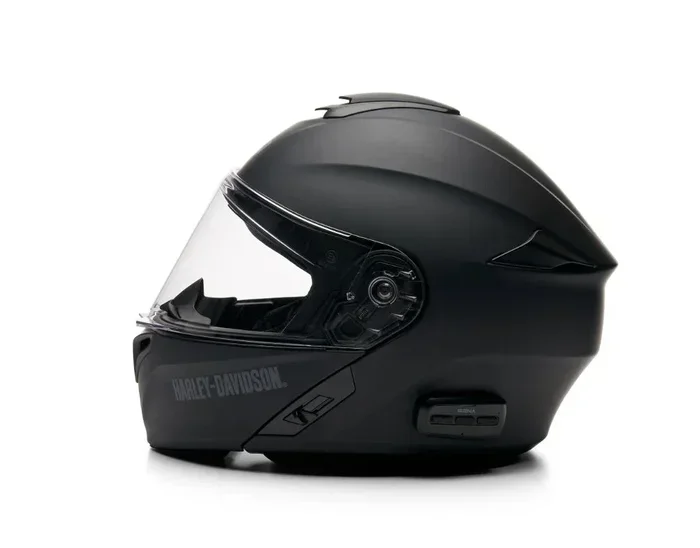
Before you start pairing, it helps to understand what you are working with. A Bluetooth motorcycle helmet is not just a regular helmet. It has built-in electronics that allow wireless communication. These helmets come with speakers, a microphone, and a control unit. The control unit is usually located near the back of the helmet or inside the cheek pads.
Most Harley Bluetooth helmets use Bluetooth version 4.0 or higher. This gives you a reliable range of about 30 feet. Some newer models support Bluetooth 5.0, which offers an even better connection. The helmet also has a battery that powers all of these features. Understanding the basics helps you troubleshoot when something goes wrong. And trust me, something will go wrong at least once.
What Makes Harley Helmets Different
Harley helmets with Bluetooth are designed specifically for riders. They are built to handle wind noise, weather, and vibration. The speakers are positioned to deliver clear audio even at highway speeds. The microphone uses noise-canceling technology so the person on the other end of the call can hear you clearly. This is very different from regular Bluetooth headphones you might use at home.
Also, Harley Bluetooth helmets often come with their own dedicated app. The app lets you customize settings, update firmware, and manage connected devices. Some models even support intercom communication between multiple riders. This is a great feature if you ride with a group. You can talk to each other without shouting over the engine.
How to Connect Your Harley Bluetooth Helmet to Your Phone
Now let us get into the actual steps. Connecting your helmet to your phone is a process called Bluetooth pairing. It is the same basic idea as connecting any Bluetooth device. But because you are dealing with a helmet, there are a few extra things to keep in mind. Here is the step-by-step process.
Step 1: Charge Your Helmet Fully
Before you do anything else, make sure your helmet battery is fully charged. A low battery can cause pairing problems. It can also interrupt an active connection. Plug your helmet in and let it charge for at least two hours. Most Harley helmets come with a USB charging cable. Some use a standard USB port, while others use a proprietary charger.
While you are at it, check your phone battery too. You want both devices to have plenty of power. A low phone battery can also interfere with Bluetooth pairing. It is a small step, but it saves a lot of headaches later.
Step 2: Turn On Bluetooth on Your Phone
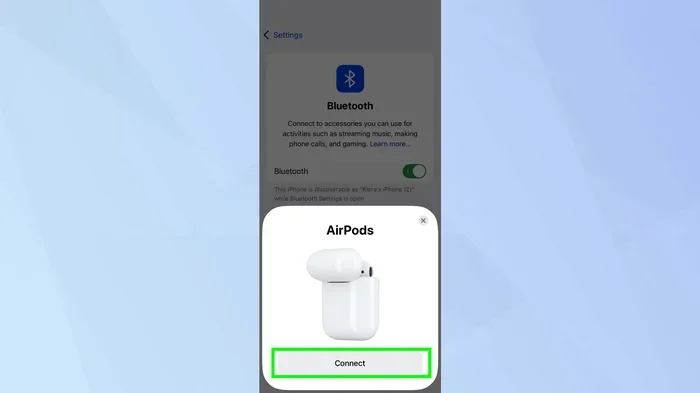
Go to your phone settings and turn on Bluetooth. On an iPhone, you go to Settings and tap Bluetooth. On an Android phone, you swipe down from the top of the screen and tap the Bluetooth icon. Make sure Bluetooth is switched on. Your phone will start scanning for nearby devices.
If you are using an iPhone and have trouble connecting, you might also want to check if your cable works. Sometimes a faulty USB connection can cause issues with device recognition. But for Bluetooth pairing, the wireless connection is what matters most here.
Step 3: Put Your Helmet into Pairing Mode
This is the step most people get wrong. Your helmet needs to be in pairing mode before your phone can find it. The process varies by model, but here is the general idea. Turn on your helmet using the power button. Then press and hold the Bluetooth button for a few seconds. You will usually see a flashing light or hear a voice prompt that says the helmet is ready to pair.
Check your helmet manual if you are unsure. The manual will tell you the exact steps for your model. Some helmets have a dedicated app that puts them into pairing mode automatically. Others require you to hold down a specific button combination. Once the helmet is in pairing mode, it will appear on your phone as a discoverable device.
Step 4: Select Your Helmet on Your Phone
On your phone, look for the helmet name in the list of available Bluetooth devices. It might show up as something like “Harley Helmet” or “H-D BT.” Tap on the name to initiate the pairing. You may be asked to enter a PIN. The default PIN for most helmets is usually 0000 or 1234. Check your manual if the default does not work.
Once you tap pair, wait a few seconds. The connection should establish. You will see a confirmation on both your phone and your helmet. Some helmets play a tone to let you know the connection is successful. Now you are ready to make calls and listen to music.
Step 5: Test the Connection
Do not just assume everything works. Test it. Make a test call to a friend or family member. Ask them if they can hear you clearly. Play some music through the helmet speakers. Check the volume on both your phone and the helmet. Adjust as needed until you are happy with the sound quality.
This testing step is important because it catches issues early. If the audio is crackly or the call drops, you can troubleshoot before you are out on the road. A good test takes about two minutes and can save you a lot of frustration later.
Troubleshooting Common Connection Issues
Even when you follow the steps perfectly, things can go wrong. Bluetooth connections are not always perfect. Here are the most common issues and how to fix them.
Helmet Not Showing Up on Phone
If your phone does not detect the helmet, the first thing to check is the pairing mode. Make sure the helmet is flashing or showing a pairing indicator. Also, make sure Bluetooth is turned on for your phone. Try turning Bluetooth off and back on again. This simple reset often fixes the problem.
Another common fix is to restart both devices. Turn off your helmet, turn off your phone, and then turn them back on in that order. This clears any temporary glitches. If the helmet still does not show up, try moving closer to your phone. Bluetooth range is limited, and being too far apart can prevent detection.
Connection Drops Frequently
A dropping connection is frustrating but common. It usually happens because of interference. Other Bluetooth devices, Wi-Fi signals, and even USB ports can cause interference. Try turning off other Bluetooth devices temporarily and see if the connection stabilizes.
Also, check the distance between your phone and helmet. Stay within 30 feet for the best results. If you are riding and your phone is in a saddlebag, the distance and obstacles can weaken the signal. Keeping your phone in a jacket pocket or handlebar mount works much better.
Poor Audio Quality
If the sound is unclear or muffled, the issue might be wind noise. Harley helmets are designed to reduce wind noise, but at high speeds, it can still interfere. Try lowering your speed or adjusting the helmet visor. Also, check that the speakers are positioned correctly against your ears.
Another cause of poor audio is a low helmet battery. When the battery drops below 20%, the audio quality can suffer. Charge your helmet fully before each ride. This is an easy habit to build and it makes a big difference.
Phone Does Not Recognize Helmet After Update
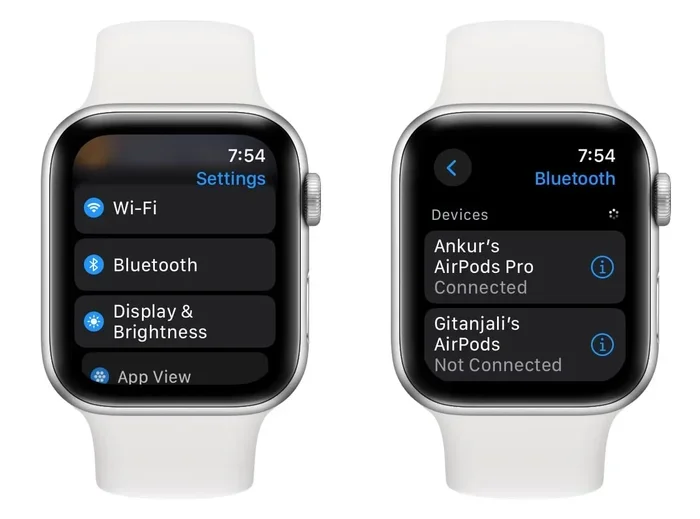
Sometimes a phone software update can break Bluetooth connections. This happens more often than you might think. If your phone recently updated and the helmet will not connect, try forgetting the device and pairing again. Go to your Bluetooth settings, find the helmet name, and select “Forget This Device.” Then start the pairing process from scratch.
You can also check for helmet firmware updates. The Harley app or the helmet manufacturer’s website will have updates available. Updating the firmware can fix compatibility issues with newer phone software. Always keep both your phone and helmet updated.
Best Practices for Using Bluetooth While Riding
Connecting your helmet is only half the battle. Using it safely and effectively while riding is just as important. Here are some best practices that every rider should follow.
Keep Your Hands on the Handlebars
The whole point of a Bluetooth helmet is to keep you connected without distracting you. Use the helmet controls to answer calls and change songs. Do not try to pull out your phone while riding. Most helmets let you answer calls with a button press on the side. This keeps your hands where they belong.
Some riders also like to use voice commands. If your phone supports Siri or Google Assistant, you can use voice commands through the helmet. This is a hands-free way to make calls, send texts, and get directions. It keeps you fully focused on the road.
Manage Your Battery Life
Bluetooth uses battery power on both your helmet and your phone. If you are going on a long ride, make sure both devices are fully charged. You can also reduce battery drain by turning off Bluetooth when you are not using it. Some helmets have an auto-off feature that saves battery when the helmet is not in use.
Carrying a portable charger is a good idea for longer rides. A small power bank in your saddlebag can keep your phone charged all day. And if your helmet has a USB port, you can even charge your phone through the helmet. This is a great feature for long trips.
Be Aware of Your Surroundings
While Bluetooth helmets are convenient, they can also be distracting. Keep the volume at a level where you can still hear traffic and other sounds. Safety should always come first. If you cannot hear a car horn or emergency siren, the volume is too loud.
Many riders use the helmet for navigation directions but keep the audio volume low. This way, you get directions without missing important sounds around you. Some helmets also have a feature that automatically lowers the volume when you are riding. This is a smart safety feature worth looking for.
Comparing Harley Bluetooth Helmets to Other Options
If you are shopping for a Bluetooth helmet, you might wonder how Harley compares to other brands. Here is a quick comparison of popular options.
- Harley Davidson Helmets: Built for Harley riders, great audio quality, strong brand support, and a dedicated app. They are pricier but offer excellent integration with the Harley ecosystem.
- Sena Helmets: A popular brand in the motorcycle Bluetooth space. Sena helmets offer intercom features, good range, and solid audio quality. They work well with all phone types.
- Cardo Helmets: Known for their Packtalk series. Cardo helmets have excellent range and clear audio. They also support intercom communication between riders.
- LS2 Helmets: A more budget-friendly option. LS2 helmets offer Bluetooth connectivity at a lower price point. They are a good choice for riders who want basic features without a high price tag.
Each brand has its strengths. Harley helmets stand out for their build quality and brand integration. But if you are looking for the best intercom features, Sena or Cardo might be a better fit. It really depends on what you value most. Do you want the Harley experience or the best Bluetooth features for the money?
Can I Use My Helmet Bluetooth for Other Devices?
Yes, you can. Your Harley Bluetooth helmet is not limited to just phone calls. You can connect it to other devices too. For example, you can pair it with a GPS device for navigation. Some riders connect their helmets to tablets for entertainment on long rides. The possibilities are pretty wide open.
Just keep in mind that Bluetooth has a limit on how many devices it can remember. Most helmets can store up to 7 or 8 paired devices. When you want to connect a new device, you may need to unpair an old one first. This keeps things manageable and prevents connection conflicts.
If you have ever connected Bluetooth headphones to a TV, the process is very similar. You put the device in pairing mode, find it on your phone or tablet, and tap to connect. The same basic steps apply here. Once you have done it a few times, it becomes second nature.
Final Thoughts
Connecting your Harley Bluetooth helmet to your phone is a straightforward process once you know the steps. Charge your helmet, turn on Bluetooth, put the helmet in pairing mode, and connect on your phone. If you run into issues, the troubleshooting tips in this guide should help you resolve them quickly. The key is patience and following the steps in order.
A Bluetooth helmet makes riding more enjoyable and safer. You can take calls, listen to music, and get directions without ever taking your hands off the handlebars. Just remember to use it responsibly. Keep the volume at a safe level, stay within range, and always prioritize safety over convenience. Once you have your helmet connected, you will wonder how you ever rode without it.
So go ahead. Charge up your helmet, grab your phone, and get connected. The open road is waiting, and now you can stay connected while you enjoy every mile. Ride safe, ride smart, and enjoy the freedom that a Harley Bluetooth helmet brings to your riding experience.