How Do I Open Wifi On My Android Phone Step by Step
Opening WiFi on your Android phone is easy and takes just a few taps. You can turn it on from the quick settings panel or through the full settings menu. This guide covers every step, from basic connection to troubleshooting and security tips.
Your Android phone is a powerful tool, and one of its most useful features is the ability to connect to a wireless network. Whether you are at home, at a coffee shop, or at the airport, having a strong WiFi connection keeps you online and productive. But sometimes, finding the right setting to turn on WiFi can be confusing. This is especially true if you are new to Android or just switched to a new device.
The good news is that opening WiFi on your Android phone is simpler than you think. In this guide, we will take you through every step. We will also cover common problems, useful settings, and expert tips to make your WiFi experience better. Let us get started.
Key Takeaways
- Quick Settings Panel: The fastest way to open WiFi is through the swipe-down panel on your home screen.
- Full Settings Route: You can also access WiFi through Settings > Network > WiFi for more options.
- Troubleshooting Helps: Restarting your phone or toggling airplane mode fixes most WiFi issues.
- Security Matters: Always check WiFi security settings to protect your data on public networks.
- Signal Boost Tips: Simple steps like moving closer to your router can improve your WiFi signal strength.
- WiFi Passwords: You can save and manage multiple WiFi passwords right from your Android settings.
📑 Table of Contents
- Why WiFi Matters on Your Android Phone
- How to Open WiFi on Your Android Phone Step by Step
- Understanding WiFi Settings on Your Android Phone
- Common WiFi Problems and How to Fix Them
- Tips to Get the Best WiFi Performance on Android
- WiFi Security: Keeping Your Connection Safe
- Expert Insights for Managing WiFi on Android
- Conclusion
Why WiFi Matters on Your Android Phone
Before we dive into the steps, let us talk about why WiFi is so important on your phone. A wireless network gives you fast internet without using your mobile data. This saves you money and keeps you connected in places where cell signal is weak. Most people rely on WiFi for streaming videos, video calls, downloading apps, and browsing the web.
Here are a few reasons why a good WiFi connection matters:
- Faster speeds: WiFi is often much faster than mobile data, especially for large downloads.
- Data savings: Using WiFi means you do not eat into your monthly data plan.
- Stable connection: Home WiFi networks tend to be more stable than cellular connections indoors.
- Smart home integration: Many smart home devices work best on a wireless network.
- Free access: Many public places offer free WiFi for customers and visitors.
Now that you understand why WiFi is essential, let us look at how to turn it on.
How to Open WiFi on Your Android Phone Step by Step
There are two main ways to open WiFi on your Android device. The first is the quick settings panel, and the second is through the full settings menu. Both methods work on most Android phones, including Samsung, Google Pixel, OnePlus, and others.
Method 1: Using the Quick Settings Panel
This is the fastest way to turn on your WiFi toggle. Follow these simple steps:
- Unlock your Android phone and go to the home screen.
- Swipe down from the top of your screen. This opens the quick settings panel.
- Swipe down again if you do not see the full panel. This reveals more icons.
- Look for the WiFi icon. It usually looks like a curved signal symbol.
- Tap the WiFi icon once. It will light up or change color when turned on.
- Your phone will now scan for available wireless networks nearby.
- Tap on the network name you want to join.
- Enter the WiFi password if required and tap Connect.
That is it! Your WiFi connection should be active within seconds. You will see the WiFi icon at the top of your screen to confirm it is working.
Method 2: Using the Full Settings Menu
If you prefer a more detailed approach, you can open WiFi through the full settings menu. This method also gives you access to advanced options:
- Unlock your phone and open the Settings app. It looks like a gear icon.
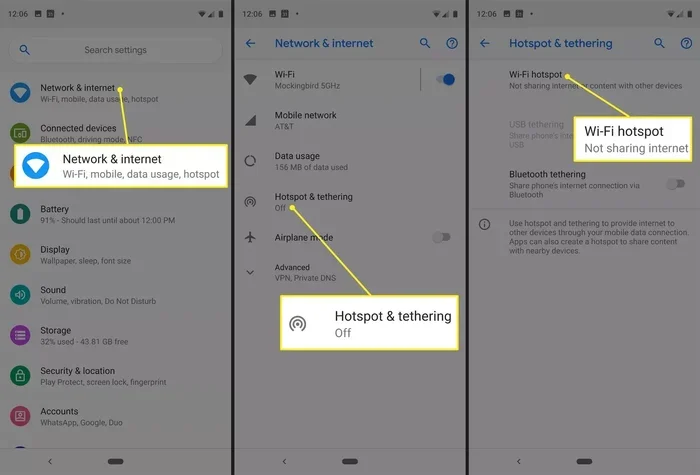
- Scroll down and tap on Network & Internet or Connections, depending on your phone brand.
- Tap on WiFi or Wi-Fi to open the WiFi settings page.
- Turn on the WiFi toggle at the top of the screen.
- Your phone will scan for available networks.
- Tap on the network you want to join.
- Enter the WiFi password and tap Connect.
Using the full settings menu is helpful when you need to manage saved networks, forget old connections, or adjust advanced settings like WiFi frequency band preferences.
Understanding WiFi Settings on Your Android Phone
Once you know how to open WiFi, it helps to understand the settings you will see. Android phones come with several useful network settings that can improve your experience.
Saved Networks
When you connect to a wireless network, your Android phone saves the WiFi password automatically. This means you do not have to type the password every time you visit the same place. You can view all saved networks by going to Settings > Network & Internet > WiFi and tapping on a saved network to see its details.
WiFi Frequency Bands
Many modern routers use two frequency bands: 2.4 GHz and 5 GHz. The 2.4 GHz band offers a wider range but slower speeds. The 5 GHz band provides faster speeds but a shorter range. Some Android phones let you choose which band to connect to, giving you more control over your WiFi connection quality.
WiFi Direct and Hotspot
Android phones also support WiFi Direct, which lets you share files between devices without needing a router. You can also turn your phone into a WiFi hotspot, sharing your mobile data with other devices. These features are found in the same network settings menu.
Bluetooth and WiFi
It is worth noting that Bluetooth and WiFi are separate technologies. Bluetooth connects devices over short distances, while WiFi provides internet access. Both use wireless signals, but they serve different purposes. You can turn both on at the same time without any issues.
Common WiFi Problems and How to Fix Them
Even when you know exactly how to open WiFi, you might run into problems sometimes. A weak WiFi signal or a connection that keeps dropping can be frustrating. Here are the most common issues and how to fix them.
WiFi Is Not Turning On
If your WiFi toggle does not respond when you tap it, try these steps:
- Restart your Android phone. A simple reboot often fixes minor software glitches.
- Make sure your phone is not in airplane mode. Airplane mode disables all wireless connections.
- Check if your phone case is blocking the antenna. Some thick cases can interfere with the WiFi adapter.
- If the problem persists, go to Settings > Apps > Show System Apps > WiFi and clear the cache.
Connected to WiFi but No Internet
This is a common issue. You see the WiFi icon, but your browser shows no connection. Try these fixes:
- Forget the network and reconnect. Go to Settings > WiFi > Tap the network > Forget, then reconnect.
- Restart your router. Unplug it, wait 30 seconds, and plug it back in.
- Check if other devices can connect. If they cannot, the problem is with your router, not your phone.
- Try changing your WiFi frequency band from 5 GHz to 2.4 GHz or vice versa.
Slow WiFi Speeds
If your WiFi connection is slow, the issue might be signal strength or network congestion. Here is what you can do:
- Move closer to your router. Walls and furniture can weaken the WiFi signal.
- Run a WiFi speed test using a free app to check your actual speeds.
- Switch to the 5 GHz band for faster speeds if you are close to the router.
- Limit the number of connected devices on your network. Too many devices slow things down.
- Update your router firmware. Old firmware can cause performance issues.
Tips to Get the Best WiFi Performance on Android
Getting your WiFi connection working is only half the battle. Keeping it fast and stable requires a few good habits. Here are some expert tips to help you get the most out of your wireless network.
Keep Your Phone Updated
Android updates often include improvements to WiFi performance and WiFi security. Make sure your phone is running the latest version of Android. Go to Settings > System > Software Update to check for updates.
Use a WiFi Analyzer App
A WiFi analyzer app shows you which channels your neighbors are using. This helps you switch to a less crowded channel on your own router, improving your WiFi signal strength. Many free analyzer apps are available on the Google Play Store.
Turn Off WiFi When Not in Use
Leaving WiFi on all the time can drain your battery and make your phone constantly search for networks. Turn it off when you do not need it. This also improves your phone’s overall network settings performance.
Forget Unused Networks
If you have saved many networks, your phone may try to connect to weak ones automatically. Go through your saved networks and forget the ones you no longer use. This keeps your WiFi connection clean and efficient.
WiFi Security: Keeping Your Connection Safe
Security is an important part of using any wireless network. Whether you are at home or using public WiFi, you should take steps to protect your data.
Use WPA3 or WPA2 Encryption
When setting up your home router, make sure it uses WPA3 or WPA2 encryption. These are the most secure WiFi security protocols available. Avoid using WEP, as it is outdated and easy to hack. You can check your router’s router settings by typing its IP address into a web browser.
Be Careful with Public WiFi
Public WiFi networks at cafes, airports, and hotels are convenient, but they can be risky. Hackers can intercept data on open networks. To stay safe:
- Avoid accessing sensitive accounts like banking on public WiFi.
- Use a VPN app to encrypt your data on public networks.
- Make sure the network you connect to is legitimate. Ask staff for the correct network name.
- Turn off auto-connect to open networks in your Android phone settings.
Manage WiFi Permissions
Android lets you control which apps can access your WiFi connection. Go to Settings > Apps > Select an App > Permissions to review and manage these settings. This adds an extra layer of WiFi security to your device.
Expert Insights for Managing WiFi on Android
Managing WiFi on your Android phone goes beyond just turning it on and off. Here are some expert insights that can help you get more from your wireless network.
Tip 1: Use WiFi Assistant features. Many Android phones have a built-in feature that automatically connects you to open WiFi hotspots when your mobile data is weak. Check under Settings > Network & Internet > WiFi Preferences to enable this.
Tip 2: Set a static IP for better stability. If your WiFi connection keeps dropping, setting a static IP address in your network settings can help. This is an advanced feature but very useful for power users.
Tip 3: Disable WiFi scanning in the background. Android constantly scans for networks even when WiFi is off. This can drain battery. You can disable this in Settings > Location > Wi-Fi Scanning.
Tip 4: Reset network settings as a last resort. If nothing else works, resetting your network settings can fix persistent WiFi issues. Go to Settings > System > Reset Options > Reset Wi-Fi, Mobile & Bluetooth. Note that this will remove all saved networks and paired devices.
Conclusion
Knowing how do I open wifi on my Android phone is a basic but essential skill for every Android user. Whether you use the quick settings panel or the full settings menu, turning on your WiFi connection takes just a few seconds. We covered the step-by-step process, common problems, security tips, and expert advice to help you get the best performance from your wireless network.
Remember to keep your WiFi settings up to date, secure your network with strong passwords, and troubleshoot issues early before they become bigger problems. With the tips in this guide, you are now equipped to handle any WiFi connection challenge on your Android device. Start applying these steps today and enjoy a faster, safer, and more reliable online experience.
Frequently Asked Questions
Why can I not find the WiFi option on my Android phone?
Try swiping down twice from the top of your screen to open the full quick settings panel. If you still do not see WiFi, go to Settings > Network & Internet and look for WiFi there. If it is missing, restart your phone or check if airplane mode is on.
How do I connect to a WiFi network on my Android phone?
Turn on WiFi using the WiFi toggle in quick settings. Your phone will scan for available networks. Tap on the network name you want to join, enter the WiFi password, and tap Connect. You will see a checkmark next to the network once connected.
Why is my WiFi connected but not working?
This usually means your router has an issue. Restart your router by unplugging it for 30 seconds. Also try forgetting the network on your phone and reconnecting. If the problem continues, check if other devices can access the internet on the same network.
How can I improve my WiFi signal strength on Android?
Move closer to your router and remove physical obstacles between your phone and the router. Switch to the 5 GHz band for faster speeds when you are nearby. You can also use a WiFi analyzer app to find the least crowded channel for your connection.
Is it safe to use public WiFi on my Android phone?
Public WiFi can be risky because hackers can intercept data on open networks. To stay safe, avoid accessing banking or sensitive accounts on public WiFi. Use a VPN app to encrypt your data, and make sure to connect to the correct network by asking staff for the official name.
How do I forget a WiFi network on my Android phone?
Go to Settings > Network & Internet > WiFi. Find the network you want to remove and tap on it. Select Forget from the menu. This will remove the saved WiFi password and connection details for that network.