How Do I Scan A QR Code On My Screen For Beginners
Discover how to scan a QR code on your screen with simple, beginner-friendly steps. This guide covers methods for iPhone, Android, Windows, and Mac devices. You will learn quick scanning tricks, common fixes, and the best apps to use. No tech skills are needed.
Have you ever seen a QR code on your screen and thought, “How do I scan a QR code on my screen?” You are definitely not alone. This question comes up every day from people of all ages and tech levels. The good news is that scanning a QR code from your screen is much simpler than most people think. You do not need any fancy equipment or special training. In just a few moments, you will be able to open websites, connect to Wi-Fi, and access information with a quick scan.
Whether you are using an iPhone, an Android phone, a Windows laptop, or a Mac computer, there is a method that works for you. This guide breaks down every step in plain language. We will walk you through each device type so you can find exactly what you need. By the time you finish reading, you will feel completely confident about scanning a QR code from any screen. Let us get started and make this easy for you.
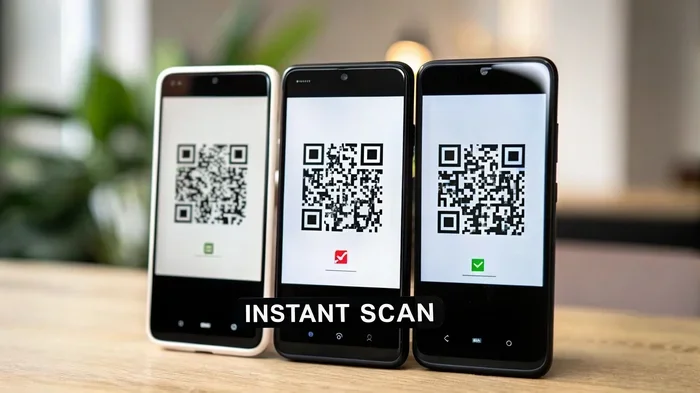
A quick response code, commonly called a QR code, is a two-dimensional barcode that stores information. When you scan it, your phone reads the data and takes you to a website, a video, a contact card, or other digital content. These codes have become everywhere in our daily lives. You see them on restaurant menus, product packaging, event tickets, and even on your own phone screen. The screen QR code is simply a QR image displayed on a digital device rather than printed on paper. Scanning it works almost the same way, but there are a few small tips that make the process smoother.
Key Takeaways
- Scanning a QR code on your screen is simple: Most smartphones have built-in tools that make this process easy and fast.
- iPhone users can use the Camera app: Just point your camera at the screen and tap the notification that appears.
- Android users have multiple options: Google Lens, the Camera app, and third-party apps all work well for scanning.
- PC and Mac users can use web-based tools: Online QR scanners let you scan codes displayed on your computer screen quickly.
- Common issues have easy fixes: Adjusting screen brightness, cleaning your camera lens, and updating your software solves most problems.
- The right app makes a big difference: A reliable QR code reader app speeds up the process and adds extra features.
- Practice makes perfect: Once you try it a few times, scanning becomes second nature.
📑 Table of Contents
What Is a QR Code and Why Scan It From Your Screen?
Understanding Quick Response Codes
A QR code looks like a square grid of black and white pixels. It was invented in Japan back in 1994 for tracking car parts. Today, QR codes serve many purposes. They store website links, Wi-Fi passwords, contact information, payment details, and more. When you point your phone camera at a QR code, the QR code scanner reads the pattern and translates it into useful data. This process happens in a fraction of a second.
The digital QR code on your screen works the same way as a printed one. The difference is that a screen display uses light and pixels instead of ink on paper. This means your camera needs to focus on a glowing image rather than a physical surface. Most modern smartphones handle this task with ease. The QR code reader built into your phone is designed to recognize both printed and digital versions.
People use QR codes on display for many reasons. Restaurants put them on tablets for contactless menus. Stores display them on screens for promotions. Event organizers show them on big screens for quick ticket scanning. Even your own phone might show a QR code for setup or sharing purposes. Knowing how to scan these codes opens up a world of convenience.
Why People Scan QR Codes From Screens
There are many everyday situations where you need to scan a QR code on screen. Maybe a friend sends you a Wi-Fi QR code in a text message. Perhaps you are at a restaurant and the menu is on a tablet. You might need to access a website link that someone shared on their phone screen. In all these cases, you need to know how to point your camera at a digital display and get the result you want.
The beauty of modern smartphones is that they make this process almost automatic. You do not need to download anything extra in most cases. Your phone already has the tools you need. Learning a few simple tricks helps you avoid frustration and saves time. Once you master the basics, you will wonder how you ever managed without this skill.
How to Scan a QR Code on iPhone
Using the Built-In Camera App
If you own an iPhone, you are in luck. Apple has made scanning QR codes incredibly simple. The iPhone scan QR process uses your built-in Camera app. You do not need to open a separate application or download anything extra. Your camera already knows how to read QR codes displayed on screens and on paper.
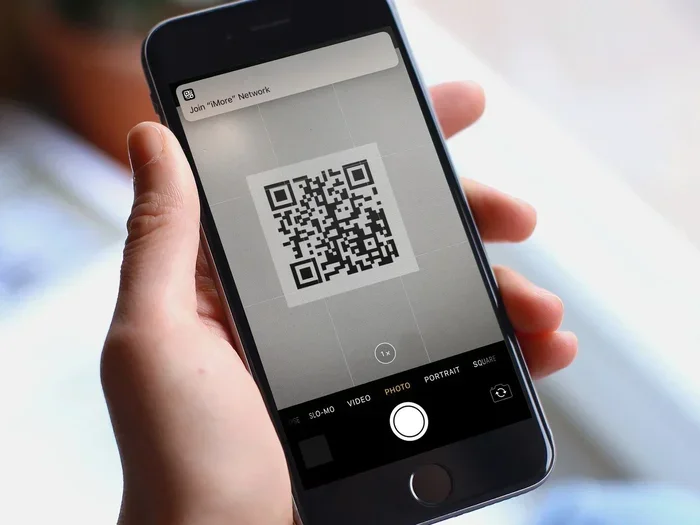
Here is exactly what to do. Open the Camera app from your home screen. Point your camera at the QR code on your screen. Hold your phone steady and make sure the code fits inside the frame. You should see a yellow banner or notification appear at the top of your screen. Tap that notification, and your phone will take you to the linked content. That is all there is to it.
A few small tips make this even easier. Make sure your screen brightness is turned up. A brighter screen makes the QR code more visible to your camera. Clean your camera lens with a soft cloth before scanning. Fingerprints and smudges can blur the image. Hold your phone about 8 to 12 inches away from the screen. Too close or too far can make it harder for your camera to focus.
Enabling QR Code Scanning in Settings
Sometimes the QR scanning feature might be turned off on your iPhone. If you point your camera at a code and nothing happens, check your settings. Go to Settings, then tap Camera. Look for the switch labeled “Scan QR Codes.” Make sure it is turned on. This simple step fixes the problem for most users.
Once this setting is enabled, your Camera app will recognize QR codes automatically. You will see the notification banner every time you point your camera at a code. This works for both printed codes and QR codes on display on your screen. If you still have trouble, try restarting your phone. A fresh start often clears up small technical glitches.
How to Scan a QR Code on Android
Using Google Lens or the Camera App
Android phones offer a few different ways to scan QR codes from your screen. Most modern Android devices have Google Lens built right into the camera. This powerful tool recognizes QR codes instantly. To use it, open your Camera app and point it at the QR code on your phone screen. Look for a small icon or notification that appears on your screen. Tap it, and your phone will open the linked content.
Some Android phones also let you long-press the home button to activate Google Lens. This brings up a scanning interface where you can point your camera at the screen. The app reads the code and shows you the result. From there, you can tap to open the link or save the information. It is a quick and convenient method that works on most Android devices.
Another option is to use the default Camera app in its standard mode. Many Android phones now support QR scanning directly in the camera viewfinder. Simply open the camera, point it at the screen, and wait for the notification. If your phone does not recognize the code automatically, try switching to “Photo” or “Scanner” mode within the camera app. Some brands like Samsung and Google Pixel have dedicated scanning modes built in.
Adjusting Android Settings for Screen Scanning
If your Android phone does not scan QR codes automatically, you may need to adjust a few settings. First, make sure your Google app is up to date. Open the Google Play Store, search for Google, and tap Update. An updated Google app improves scanning accuracy for QR codes on display and printed codes alike.
You can also check your default camera settings. Open the Camera app and look for a settings gear icon. Search for “QR code” or “Scan” in the settings menu. Enable any scanning options you find. If your phone still does not cooperate, consider downloading a free QR code scanner app from the Google Play Store. These apps are reliable and often offer extra features like history tracking and batch scanning.
How to Scan a QR Code on Windows and Mac
Scanning QR Codes on Windows PCs
Scanning a QR code on a computer screen might seem tricky, but it is actually quite simple. Windows 10 and Windows 11 have a built-in barcode scanner hidden in the camera app. Open the Camera app on your PC. Point a webcam or connected phone camera at the QR code on your computer screen. The Windows Camera app should recognize the code and display a notification. Click the notification to open the link.
If your Windows PC does not have a built-in camera app that supports QR scanning, do not worry. You have other options. Many web browsers now offer built-in QR scanning. Open Microsoft Edge or Google Chrome on your PC. Look for a QR code icon in the address bar or right-click on the page. Some browsers let you scan a QR code directly from your screen using your webcam.
Another popular method is to use an online QR scanner. Websites like QRCode Monkey or WebQR.com let you scan codes using your computer’s webcam. Simply visit the website, grant camera access, and point your webcam at the screen displaying the code. The website reads the code and shows you the result. This method works on any computer with a webcam and a modern browser. It is a great option when you do not want to install anything.
Scanning QR Codes on Mac Computers
Mac users have a few handy options for scanning a QR code from their screen. The easiest method uses your iPhone as a scanner. Open the Camera app on your iPhone and point it at the QR code displayed on your Mac screen. Your iPhone will recognize the code just like it would on any other screen. Tap the notification to open the link. This method works because your iPhone camera is highly skilled at reading QR codes.
Mac computers also support QR scanning through the built-in Preview app and Spotlight search. You can also use third-party apps available in the Mac App Store. Apps like “QR Journal” or “QuickScan” let you use your Mac’s built-in camera or an external webcam to scan codes. These apps are lightweight and easy to use. They are perfect if you scan QR codes from your screen regularly.
For a quick web-based solution, visit a site like WebQR.com in Safari or Chrome on your Mac. Grant camera access when prompted, point your webcam at the screen, and the code will be read instantly. This browser-based approach works on any Mac and requires no downloads. It is fast, simple, and effective for occasional scanning needs.
Common Problems When Scanning QR Codes on Screens
Screen Brightness and Glare Issues
One of the most common problems people face is a QR code that their camera cannot read. The first thing to check is your screen brightness. A dim screen makes the QR code hard to see. Increase your brightness to the maximum level and try again. This simple fix solves the problem more often than you might think.
Glare and reflections can also interfere with scanning. If you are in a bright room, the light bouncing off your screen can confuse your camera. Try angling your phone slightly or moving to a darker area. Adjusting the angle of your screen can reduce glare significantly. Sometimes simply cupping your hand around the phone and code creates enough shade to get a clean scan.
When the Scanner Won’t Recognize the Code
If your camera still will not read the code, try a few more things. Clean your camera lens with a soft, lint-free cloth. Smudges and dirt block the camera from reading the pattern clearly. Move your phone closer to the screen or farther away. Find the sweet spot where the code fits clearly in your viewfinder. Hold your phone steady and still. Even small shakes can blur the image enough to cause a reading failure.
Another common issue is that the QR code on your screen is too small. Zoom in on the code if possible. On a computer, you can increase the browser zoom level. On a phone, you can pinch to enlarge the image. A larger, clearer code is much easier for your camera to read. If nothing works, try taking a screenshot of the QR code and then scanning the screenshot. A still image often scans more reliably than a live screen display.
Best QR Code Scanner Apps and Quick Tips
Top-Rated QR Scanner Apps
While most phones can scan QR codes without extra apps, having a dedicated QR code app can be very helpful. These apps often scan faster and offer extra features. For iPhone users, the built-in Camera app is already excellent. But if you want more control, try apps like “QR Reader for iPhone” or “Scan.” These free apps provide a clean interface and save your scanning history.
For Android users, Google Lens is a powerful built-in option. Beyond that, apps like “QR & Barcode Scanner” by Gamma Play and “NeoReader” are popular choices. They are free, lightweight, and work well with QR codes on display. These apps often let you scan codes from your gallery as well, which is useful if you take a screenshot first.
For computer users, web-based scanners are your best friend. Websites like WebQR.com and The-QR-Coder.com let you scan codes right in your browser. No installation is needed. These tools use your computer’s webcam to read the code. They work on Windows, Mac, and even Chromebooks. Keep a couple of these sites bookmarked for easy access.
Quick Tips for a Smooth Scanning Experience
Here are some proven tips that make scanning QR codes from screens much easier. First, always ensure your screen is clean and smudge-free. A clean display gives your camera a clear image to work with. Second, hold your phone parallel to the screen. Angling your phone too much can distort the code and make it unreadable.
Third, give your camera a moment to focus. Do not rush the process. Hold steady for two or three seconds until the code is recognized. Fourth, make sure the entire QR code fits inside your camera frame. Cutting off even a small corner can prevent your phone from reading the code. Fifth, if you are scanning from a computer, use a USB webcam for better results. Built-in laptop cameras sometimes lack the focus needed for screen scanning.
Sixth, keep your mobile phone and computer software updated. Updates often improve camera and scanning performance. Finally, if you scan QR codes frequently, consider saving a reliable scanner app on your home screen. Having quick access to a good QR code reader saves you time and frustration every day.
Key Takeaways
Scanning a QR code on your screen is a skill that everyone can learn quickly. Whether you use an iPhone, Android phone, Windows PC, or Mac, the process is straightforward and takes only seconds. Start with your built-in camera or browser tools. These free options work great for most situations. If you run into trouble, adjust your screen brightness, clean your lens, and hold your phone steady.
Remember that a screen QR code works just like a printed one. Your phone’s camera reads the digital image the same way it reads a physical code. The main difference is that you are working with light and pixels instead of ink and paper. With the tips and methods shared in this guide, you are now equipped to handle any QR code you encounter on any screen. Practice a few times, and it will become second nature. Happy scanning!
Frequently Asked Questions
Can I scan a QR code that is displayed on my phone screen?
Yes, absolutely. You can scan a QR code on your phone screen using your device’s built-in camera. Simply open the Camera app, point it at the code, and tap the notification that appears. This works on both iPhone and Android devices without needing any extra apps.
Why can’t my phone scan a QR code from my computer screen?
The most common reason is low screen brightness or glare. Try increasing your monitor brightness and reducing room lighting. Also make sure your camera lens is clean. If you still have trouble, take a screenshot of the QR code and scan the image instead. This often produces better results than scanning a live screen.
Do I need a special app to scan QR codes from screens?
No, you do not need a special app in most cases. Modern iPhones and Android phones have built-in QR scanning in their default Camera apps. However, if your phone does not support it natively, a free QR code scanner app from your app store will work perfectly.
Is it safe to scan QR codes from screens?
Yes, scanning a QR code from your screen is generally safe. The code itself is just a link to digital content. However, always be cautious with QR codes from unknown sources. Make sure you trust the sender before tapping any notification that opens a link. This applies whether the code is on a screen or printed on paper.
Can I scan a QR code on a TV screen?
Yes, you can scan a QR code displayed on a TV screen. The process is the same as scanning any other screen. Use your phone’s Camera app and point it at the TV. TV screens can sometimes be tricky because of their size and brightness. Move closer to the TV or adjust your viewing angle if the code does not read right away.
What should I do if my QR code scanner keeps failing on screen?
First, increase your screen brightness to the maximum. Second, clean both your camera lens and your screen with a soft cloth. Third, try holding your phone farther from the screen or closer. Fourth, take a screenshot and scan the saved image instead. If none of these work, try a different QR code reader app or use a web-based scanner through your browser.
=== CONCLUSION ===
Learning how to scan a QR code on your screen is one of those small skills that makes everyday life much more convenient. Whether you are at a restaurant, connecting to Wi-Fi, or opening a website link, the process is quick and easy. You now know the exact steps for iPhone, Android, Windows, and Mac devices. You also know how to troubleshoot common issues and which apps work best.
The next time someone asks you, “How do I scan a QR code on my screen?” you can share this guide with them. Remember to keep your screen bright, your camera lens clean, and your phone steady. With just a few practice attempts, scanning QR codes from any screen will feel completely natural. Start trying it today, and you will wonder how you ever managed without this simple skill.