How Do I Stop My iPhone From Sharing Wifi Passwords
Your iPhone quietly shares wifi passwords with contacts and nearby devices through iCloud Keychain and AirDrop. This feature can put your home network at risk if you do not turn it off. In this guide, you will learn exactly how to stop your iPhone from sharing wifi passwords, manage your password settings, and keep your wireless network private and secure.
Your iPhone is a helpful little device. It remembers your wifi passwords, shares them with friends, and connects you to networks without you even thinking about it. But what happens when you do not want it sharing that information anymore?
Maybe a guest asked for your wifi password, and your iPhone sent it without asking you first. Or maybe you are just tired of the idea that your wireless network details are floating around through iCloud and AirDrop. Whatever the reason, learning how to stop your iPhone from sharing wifi passwords is an important step toward protecting your home network.
This guide walks you through every setting, every toggle, and every option you need to know. We keep things simple and practical. No tech jargon. No confusing menus. Just clear steps you can follow right now.
By the end of this article, you will understand exactly why your iPhone shares passwords, how to turn that feature off, and what else you can do to keep your network private. Let us get started.
Key Takeaways
- Turn Off Wifi Password Sharing: Disable iCloud Keychain and AirDrop settings to prevent your iPhone from automatically sending wifi passwords to others.
- Manage iCloud Keychain Carefully: Your Apple ID syncs passwords across devices, so reviewing these settings is essential for network privacy.
- Adjust Network Privacy Settings: Router-level controls and iPhone settings work together to protect your wireless network from unauthorized access.
- Avoid Common Mistakes: Leaving auto-fill and bluetooth sharing on can accidentally expose your wifi password to strangers.
- Regular Maintenance Matters: Periodically reviewing your iPhone network settings keeps your data safe over time.
📑 Table of Contents
- Why Does Your iPhone Share Wifi Passwords Automatically?
- How to Stop Your iPhone From Sharing Wifi Passwords
- Managing Your iCloud Keychain and Password Auto-Fill
- Strengthening Your Wireless Network Privacy
- Common Mistakes That Keep Password Sharing On
- Expert Tips for Long-Term Wifi Security
- Key Takeaways
- Conclusion
Why Does Your iPhone Share Wifi Passwords Automatically?
Apple designed the wifi password sharing feature to make life easier. When someone stands near you and asks to join your network, your iPhone can send the password through a simple popup. It works through a combination of bluetooth, wifi, and your Apple ID.
But this convenience comes with a trade-off. Your iPhone stores passwords in iCloud Keychain. It syncs them across all your Apple devices. And it can share them with contacts who also use iPhones. If you are not careful, strangers or even casual acquaintances can gain access to your wireless network without your direct permission.
Understanding how this system works is the first step. Once you know the mechanics, you can take control. You decide who gets access and who does not.
The Role of iCloud Keychain in Password Sharing
iCloud Keychain is the backbone of Apple’s password management system. It stores your wifi passwords, website logins, and credit card information. Then it syncs everything across your iPhone, iPad, and Mac.
When wifi password sharing is enabled, your iPhone uses iCloud Keychain to hand over your network details. This happens automatically when two Apple devices are close to each other. The receiving device gets a prompt, and with one tap, it connects.
For many people, this is a great feature. But if privacy matters to you, it can feel like too much access. The good news is that you can change these settings whenever you want.
How AirDrop and Bluetooth Enable Password Sharing
AirDrop plays a big role in wifi password sharing. When AirDrop is set to “Everyone” or “Contacts Only,” your iPhone can send data to nearby devices. This includes your wireless network password.
Bluetooth also contributes. When your iPhone detects another Apple device nearby, it uses a low-energy bluetooth signal to establish a secure connection. Through that connection, the password transfer happens. Both devices need bluetooth and wifi turned on for this to work.
So if you want to stop sharing, you need to look at more than just one setting. You need to check AirDrop, bluetooth, and iCloud Keychain together. Each one plays a part in the sharing process.
How to Stop Your iPhone From Sharing Wifi Passwords
Now that you understand the “why,” let us get into the “how.” Here is the step-by-step process to stop your iPhone from sharing wifi passwords with other devices and people.
Step 1: Disable iCloud Keychain
The most direct way to stop password sharing is to turn off iCloud Keychain. This stops your iPhone from syncing and distributing passwords across devices. Here is what to do:
- Open the Settings app on your iPhone.
- Tap your Apple ID at the top of the screen.
- Select iCloud from the list.
- Tap Keychain to open iCloud Keychain settings.
- Toggle off iCloud Keychain.
Once you turn this off, your iPhone stops syncing passwords. It also stops sharing them through the automatic password transfer feature. Keep in mind that this means you will need to manually enter passwords on new devices. Some people find that trade-off worth the extra privacy.
Step 2: Turn Off AirDrop Sharing
AirDrop is a great tool for sharing photos and files. But it also opens a door for wifi password sharing. Closing that door is simple:
- Open Control Center by swiping down from the top-right corner of your screen.
- Press and hold the AirDrop icon.
- Select Receiving Off to disable all incoming AirDrop requests.
You can also go to Settings > General > AirDrop and choose “Receiving Off.” This prevents any nearby Apple devices from sending data to your iPhone, including password prompts.
If you still want to use AirDrop for sharing files, set it to “Contacts Only” instead of “Everyone.” This limits who can send you things and reduces the chance of accidental password sharing.
Step 3: Disable the Wifi Password Auto-Fill Feature
Your iPhone has a built-in feature that auto-fills wifi passwords when you connect to a new network. While this is convenient, it also means your phone is actively looking for and accepting password-sharing opportunities.
To manage this:
- Go to Settings > Passwords.
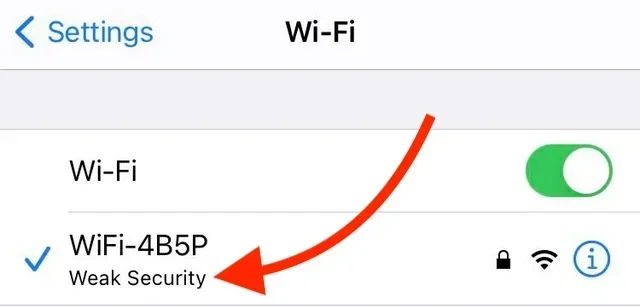
- Tap Wi-Fi Passwords (you may need Face ID or Touch ID).
- Review the list of saved networks.
- Delete any networks you no longer use or do not want shared.
This does not completely stop sharing, but it reduces your exposure. You are removing saved passwords that could be synced or accessed through iCloud.
Step 4: Adjust Your Router Settings for Extra Protection
Your iPhone is not the only place where password sharing can happen. Your wireless router also plays a role. If your router has a “guest network” feature, you should use it.
A guest network keeps visitors separate from your main network. They get internet access, but they cannot see your shared files, smart home devices, or other connected gadgets. Most modern routers support this feature. Check your router’s manual or log into its admin panel to set it up.
Also, consider changing your wifi password regularly. A strong, unique password makes it harder for anyone to gain access, even if sharing settings are not perfectly configured.
Step 5: Review Your Apple ID Security Settings
Your Apple ID is the master key to your password-sharing ecosystem. If someone gains access to your Apple ID, they can potentially access all your saved wifi passwords. Here is how to lock things down:
- Go to Settings > [Your Name].
- Tap Password & Security.
- Review your Two-Factor Authentication status.
- Make sure your Apple ID recovery key is set up.
- Check for any unknown devices signed in to your account.
Two-factor authentication is a must. It adds a second layer of protection that makes it much harder for anyone to access your Apple ID and, by extension, your wifi passwords.
Managing Your iCloud Keychain and Password Auto-Fill
iCloud Keychain is powerful. It remembers your passwords so you do not have to. But with great power comes great responsibility. If you want to keep your wifi passwords private, you need to manage this feature carefully.
What Gets Stored in iCloud Keychain?
iCloud Keychain stores more than just wifi passwords. It also saves:
- Website login credentials for Safari and supported apps.
- Credit card information for Apple Pay and online shopping.
- Wifi network names and passwords for all your known networks.
- Account passwords for email, social media, and other services.
Because it stores so much sensitive information, iCloud Keychain is a prime target for anyone who wants to access your data. Managing it properly is essential for network privacy and overall digital security.
How to Review Saved Wifi Passwords on Your iPhone
You should periodically review the wifi passwords saved on your iPhone. Here is how:
- Open Settings.
- Go to Passwords.
- Authenticate with Face ID or Touch ID.
- Tap Wi-Fi Passwords.
- Review each saved network.
- Delete any networks you no longer use.
This simple habit keeps your saved password list lean and reduces the risk of old, forgotten networks being shared accidentally.
Turning Off Password Auto-Fill for New Networks
When you join a new wifi network, your iPhone offers to save the password. It also suggests sharing it with nearby devices. To turn off auto-fill for new networks:
- Go to Settings > Passwords.
- Tap AutoFill Passwords.
- Toggle off Allow Filling From iCloud Keychain.
This stops your iPhone from automatically accepting and saving passwords when you connect. You will need to enter them manually, but you gain more control over what gets stored and shared.
Strengthening Your Wireless Network Privacy
Stopping your iPhone from sharing passwords is just one part of the equation. True network privacy requires a broader approach. Here are some additional steps you can take to protect your wireless network.
Use WPA3 Encryption on Your Router
If your router supports WPA3 encryption, turn it on. WPA3 is the latest and most secure wifi encryption standard. It protects your network from brute-force attacks and makes it much harder for unauthorized devices to connect.
If your router only supports WPA2, that is still good. But WPA3 is better. Check your router settings by logging into the admin panel through your browser. Look for the wireless security settings and select the strongest option available.
Create a Separate Guest Network
A guest network is one of the simplest and most effective ways to protect your main network. When visitors need wifi access, they connect to the guest network instead of your primary one.
This means they cannot access your shared files, printers, or smart home devices. It also means that even if their device is compromised, your main network stays safe. Most routers let you set up a guest network in the admin panel. Give it a different name and password from your main network.
Hide Your Network SSID
Hiding your network SSID makes your wifi invisible to casual users. It does not stop determined hackers, but it does reduce the number of people who even know your network exists.
To hide your SSID, log into your router settings and look for the “Hide SSID” or “Disable SSID Broadcast” option. You will need to manually enter the network name when connecting a new device, but the extra privacy is worth it.
Update Your Router Firmware Regularly
Router manufacturers release firmware updates to fix security vulnerabilities. If your router is running outdated firmware, it may have known weaknesses that attackers can exploit.
Check your router settings or the manufacturer’s website for firmware updates. Many modern routers offer automatic updates. If yours does not, make a habit of checking once a month.
Common Mistakes That Keep Password Sharing On
Even when you try to stop sharing, small mistakes can keep the feature active. Here are the most common errors people make, and how to avoid them.
Leaving AirDrop on “Everyone”
Many people leave AirDrop set to “Everyone” because it is the default. This means any nearby Apple device can send you data, including password-sharing prompts. Always set AirDrop to “Contacts Only” or “Receiving Off” when you are not actively using it.
Ignoring iCloud Keychain Syncing
If you have multiple Apple devices, iCloud Keychain syncs passwords across all of them. If one device has password sharing enabled, the others might too. You need to check the setting on every device, not just your iPhone.
Not Reviewing Saved Networks
Over time, your iPhone accumulates a long list of saved wifi networks. Many of these are networks you no longer use. Each saved network is a potential sharing point. Regularly cleaning out your saved networks reduces your risk.
Trusting Default Router Settings
Most routers ship with default settings that prioritize convenience over security. The default admin password is often “admin/admin.” Change it. Use a strong, unique password for your router admin panel. This simple step prevents unauthorized users from changing your network settings.
Expert Tips for Long-Term Wifi Security
Keeping your network secure is not a one-time task. It requires ongoing attention. Here are some expert tips to help you maintain strong wifi security over time.
Set a Schedule for Password Reviews
Make it a habit to review your wifi passwords every three to six months. Change them if you have shared them with anyone. Delete old networks from your devices. Update your router firmware. These small actions add up to big security improvements.
Use a Password Manager
Consider using a dedicated password manager instead of relying solely on iCloud Keychain. Password managers like 1Password, Bitwarden, or Dashlane offer stronger encryption and more granular control over your saved credentials. They also make it easy to share passwords selectively with specific people, rather than broadcasting them to anyone nearby.
Monitor Your Network for Unknown Devices
Most routers have a device list that shows every device currently connected to your network. Check this list regularly. If you see a device you do not recognize, change your wifi password immediately. This kicks off any unauthorized users and forces them to ask for the new password.
Enable Your Router’s Firewall
Most routers have a built-in firewall that is turned off by default. Enable it. The firewall monitors incoming and outgoing traffic and blocks suspicious activity. It is one more layer of protection that keeps your network safe from external threats.
Teach Your Family About Password Sharing Risks
If you live with family or roommates, make sure everyone understands the risks of automatic password sharing. Set ground rules about who can connect to the network and how. Education is one of the most powerful tools in network security.
Key Takeaways
- Disable iCloud Keychain to stop your iPhone from syncing and sharing passwords across devices and contacts.
- Turn Off AirDrop or set it to “Contacts Only” to prevent nearby devices from receiving your wifi password automatically.
- Manage Password Auto-Fill settings to control which networks get saved and shared on your iPhone.
- Secure Your Router with WPA3 encryption, a guest network, and a hidden SSID for maximum privacy.
- Review Saved Networks Regularly to remove old connections that could be shared accidentally.
- Enable Two-Factor Authentication on your Apple ID to protect your password vault from unauthorized access.
- Stay Proactive with regular firmware updates, password changes, and network monitoring to maintain long-term security.
Conclusion
Learning how to stop your iPhone from sharing wifi passwords gives you control over your network and your personal data. It is not about being paranoid. It is about being prepared. In a world where wireless networks carry so much of our personal and professional lives, protecting them is essential.
The steps in this guide are simple but effective. Turn off iCloud Keychain if you do not need it. Manage your AirDrop settings carefully. Review your saved networks regularly. Secure your router with strong encryption and a guest network. And always keep your Apple ID protected with two-factor authentication.
You do not need to be a tech expert to make these changes. Anyone can follow the steps outlined in this article. Start today. Take a few minutes to review your settings. Your future self will thank you when your network stays safe and your passwords stay private.
Remember, wifi password sharing is a feature designed for convenience. But convenience should never come at the cost of security. You have the power to choose. Use it wisely.
Frequently Asked Questions
Can someone access my wifi password through AirDrop?
Yes, if AirDrop is set to “Everyone,” nearby Apple devices can trigger password-sharing prompts that expose your wifi credentials. Set AirDrop to “Contacts Only” or “Receiving Off” to prevent this from happening.
Will turning off iCloud Keychain delete my saved passwords?
Turning off iCloud Keychain stops syncing passwords across devices. Your saved passwords remain on your iPhone, but they will no longer be shared or synced to your other Apple devices or iCloud.
Do I need to change my wifi password after stopping sharing?
If you suspect someone has already accessed your password through sharing features, it is a good idea to change it. Even if you are not sure, changing your password regularly is a smart security practice.
Can I still share my wifi password with specific people?
Yes. You can share your wifi password manually by telling someone the password or by scanning a QR code. This gives you control over who receives the password instead of letting your iPhone share it automatically.
Does turning off wifi password sharing affect other Apple devices?
Yes. If you turn off iCloud Keychain or disable password sharing on your iPhone, the same setting applies to all devices signed in with the same Apple ID. You may need to review settings on your iPad and Mac as well.
Is it safe to use a guest network for visitors?
Absolutely. A guest network isolates visitors from your main network. They get internet access but cannot reach your shared files, smart home devices, or other connected equipment. It is one of the best ways to protect your primary network.