How Do I Sync My Iphone And Mac Passwords In Seconds
Learning how do I sync my iphone and mac passwords is simpler than most people think. With iCloud Keychain, your login credentials, Wi-Fi passwords, and credit card details transfer seamlessly between your Apple devices. This guide walks you through every step, from initial setup to fixing common sync problems, so you can access your passwords instantly on any device.
If you have ever typed a password on your iPhone and then needed that same password on your Mac, you know the frustration. It happens all the time. You are shopping online, checking email, or logging into a work app, and suddenly you are stuck. The good news is that how do I sync my iphone and mac passwords is a question with a very simple answer. Apple built a powerful tool right into your devices that handles this automatically. It is called iCloud Keychain, and it works behind the scenes to keep your login credentials, Wi-Fi passwords, and even credit card details in sync across every Apple device you own.
In this guide, we will walk you through the entire process. You will learn how to set up password syncing, fix common issues, and keep your data secure. Whether you are new to Apple or have been using iPhones and Macs for years, this guide has something for you. Let us get started.
Key Takeaways
- iCloud Keychain is the built-in solution: It syncs your passwords automatically across all Apple devices signed into the same Apple ID.
- Setup takes under two minutes: You just need to toggle iCloud Keychain on in your settings on both your iPhone and Mac.
- Troubleshooting is straightforward: Most sync issues are caused by outdated software, weak internet, or mismatched Apple ID settings.
- Security is built in: Apple uses end-to-end encryption, so your synced passwords stay private and protected at all times.
- Passkeys are the future: Apple now supports passkeys, which offer an even more secure way to log in without storing traditional passwords.
- Third-party managers work too: If iCloud Keychain does not meet your needs, apps like 1Password and Bitwarden offer cross-platform sync options.
📑 Table of Contents
What Is iCloud Keychain and How Does It Work?
Before you dive into the setup process, it helps to understand what iCloud Keychain actually does. Think of it as a digital vault that lives in the cloud. When you save a password on your iPhone, iCloud Keychain sends a secure copy to your Mac. When you save a new Wi-Fi password on your MacBook, it appears on your iPhone moments later. Everything happens automatically, and you do not need to lift a finger once it is set up.
Apple uses end-to-end encryption for iCloud Keychain. This means that only your devices can read your stored passwords. Not even Apple can see them. This level of security is one of the reasons so many people trust the built-in solution over third-party options.
What Gets Synced Through iCloud Keychain?
iCloud Keychain is not just for website passwords. It handles a surprising amount of sensitive data. Here is what gets synced across your devices:
- Website login credentials: Usernames and passwords saved through Safari.
- Wi-Fi network passwords: So you do not have to re-enter them on every device.
- Credit card information: For faster online shopping with Apple Pay.
- Contact card details: Your name, email, and phone number stored securely.
- Passkeys: Apple’s newer, passwordless login method that replaces traditional passwords.
The more you use your Apple devices, the more valuable iCloud Keychain becomes. It saves time, reduces friction, and keeps your digital life organized. Once it is running, you will wonder how you ever managed without it.
How To Sync Your Iphone And Mac Passwords Step by Step
Now let us get into the actual setup. The process is quick and straightforward, but you need to follow each step carefully to make sure everything works correctly.
Step One: Check Your Apple ID on Both Devices
The first thing you need to do is make sure both your iPhone and Mac are signed into the same Apple ID. This is the foundation of everything. If your devices are using different Apple IDs, iCloud Keychain will not sync your passwords between them.
On your iPhone, open the Settings app and tap your name at the top of the screen. On your Mac, click the Apple menu in the top-left corner and select System Settings, then click your name. Both should show the same Apple ID email address. If they do not, sign out of one and sign back in with the correct account.
Step Two: Enable iCloud Keychain on Your iPhone
Once you have confirmed your Apple ID, it is time to turn on iCloud Keychain on your iPhone. Here is how:
- Open the Settings app on your iPhone.
- Tap your name at the top of the screen.
- Select iCloud from the list.
- Tap Keychain (it may also be listed as iCloud Keychain).
- Toggle the switch to turn it on.
- Enter your Apple ID password when prompted.
That is it for the iPhone side. Your device will now begin uploading your saved passwords to iCloud securely.
Step Three: Enable iCloud Keychain on Your Mac
Next, you need to turn on iCloud Keychain on your Mac. The steps are slightly different because of macOS settings layout:
- Click the Apple menu in the top-left corner of your screen.
- Select System Settings (or System Preferences on older Macs).
- Click on your Apple ID in the sidebar.
- Select iCloud from the options.
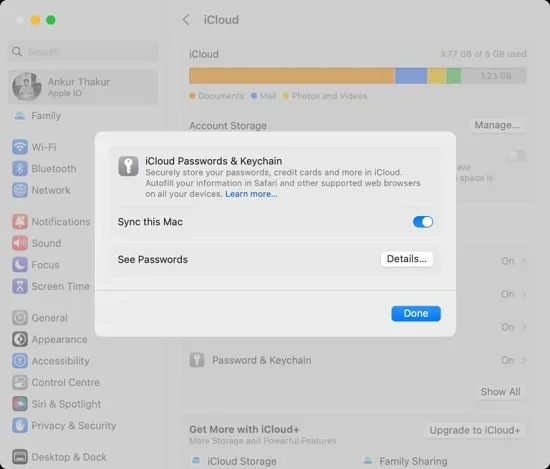
- Find Keychain and toggle it on.
- Enter your Apple ID password if asked.
After you enable it, give both devices a few moments to communicate with iCloud. Your passwords should start appearing on both devices within a few minutes. If they do not, do not worry. We will cover troubleshooting in the next section.
Quick Tips for a Smooth Setup
- Make sure both devices are connected to Wi-Fi during setup.
- Keep your devices plugged in or charged above 50 percent.
- Restart both devices before starting if you have not used them in a while.
- Update to the latest version of iOS and macOS before enabling iCloud Keychain.
Troubleshooting Common Sync Issues
Even with a proper setup, things sometimes go wrong. Password syncing between your iPhone and Mac is generally reliable, but it is not perfect. Here are the most common problems and how to fix them.
Passwords Are Not Appearing on One Device
This is the most frequent complaint. You save a password on your iPhone, but it never shows up on your Mac. The first thing to check is your internet connection. Both devices need an active Wi-Fi or cellular connection to sync with iCloud. Try opening a webpage in Safari on both devices to confirm your connection is working.
If your internet is fine, the next step is to check your iCloud settings. On your iPhone, go to Settings, tap your name, select iCloud, and make sure Keychain is turned on. On your Mac, go to System Settings, click your Apple ID, select iCloud, and verify that Keychain is enabled. Sometimes a simple toggle off and back on is all it takes to restart the sync process.
Sync Is Slow or Stuck
Occasionally, password syncing slows down or appears to get stuck. This usually happens when you have a large number of saved passwords or when iCloud servers are under heavy load. In most cases, the sync will complete on its own within an hour or two.
If it has been longer than that, try signing out of iCloud on both devices and signing back in. This refreshes the connection and often resolves the delay. You can also try restarting both your iPhone and Mac, which clears temporary glitches and forces a fresh sync attempt.
You Are Getting Duplicate Passwords
Sometimes iCloud Keychain stores multiple copies of the same password. This can happen if you save a password on one device while it is already synced from another. The good news is that iCloud Keychain usually cleans up duplicates on its own over time. If duplicates are causing confusion, you can go to your Mac, open the Keychain Access app, and manually delete the extra entries.
Two-Factor Authentication Is Required
Apple requires two-factor authentication for iCloud Keychain to work properly. If you have not set this up yet, you will see a prompt when you try to enable iCloud Keychain. Two-factor authentication adds an extra layer of security by requiring a verification code from a trusted device whenever you sign in to your Apple ID on a new device.
To set up two-factor authentication, go to Settings on your iPhone, tap your name, select Password & Security, and tap Two-Factor Authentication. Follow the on-screen prompts to complete the setup. This is a one-time process and significantly improves the security of your synced passwords.
Managing Your Passwords Across Apple Devices
Once your passwords are syncing properly, you will want to know how to manage them efficiently. Apple provides several tools to help you view, edit, and organize your saved credentials.
Using the Passwords App on iPhone
Apple introduced a dedicated Passwords app in iOS 15 and later. This app gives you a centralized place to view all your saved passwords, passkeys, Wi-Fi networks, and credit cards. To access it, open the Passwords app on your iPhone or iPad. You can search for specific logins, edit existing entries, and delete passwords you no longer need.
The app also features a Security Recommendations section. This tool alerts you if any of your saved passwords have appeared in a known data breach. It also flags passwords that you use on multiple websites, which is a security risk. Following these recommendations helps you maintain strong, unique passwords for every account.
Using Keychain Access on Mac
On your Mac, the equivalent tool is called Keychain Access. It is a built-in app that stores your passwords, certificates, and keys in an encrypted format. To open it, press Command and Spacebar together to bring up Spotlight Search, type Keychain Access, and press Enter.
Inside Keychain Access, you can browse by category, search for specific passwords, and update or remove entries. The app also allows you to add new passwords manually if you ever need to store a credential that was not created through Safari.
Adding and Editing Passwords
When you log into a new website in Safari, your iPhone or Mac will prompt you to save the password. If you choose to save it, iCloud Keychain automatically syncs it to your other devices. To edit a saved password, go to the Passwords app on your iPhone or the Keychain Access app on your Mac, find the entry, and make your changes. The updated password will sync to all your devices within minutes.
Security Features That Protect Your Synced Passwords
One of the biggest concerns people have about syncing passwords across devices is security. After all, you are storing sensitive login credentials in the cloud. Apple takes this very seriously, and iCloud Keychain includes several layers of protection.
End-to-End Encryption
As mentioned earlier, iCloud Keychain uses end-to-end encryption. This means your passwords are encrypted on your device before they are sent to iCloud. They remain encrypted while stored on Apple servers and are only decrypted when they reach your trusted devices. Apple does not hold the decryption keys, so even if a breach occurred on Apple servers, your passwords would remain unreadable.
Biometric Authentication
To access your saved passwords on your iPhone, you need to authenticate with Face ID or Touch ID. On your Mac, you can use Touch ID or enter your device password. This ensures that even if someone gains physical access to your device, they cannot easily view your stored credentials.
Passkeys: The Next Generation
Apple has been rolling out passkeys, a new standard for logging into websites and apps. Passkeys replace traditional passwords with cryptographic key pairs stored on your devices. They are resistant to phishing and data breaches, making them significantly more secure than passwords. iCloud Keychain syncs your passkeys across your Apple devices just like it does with regular passwords, so you get the same seamless experience with better security.
To create or use a passkey, simply look for the Passkeys option when logging into a supported website or app. Your iPhone or Mac will prompt you to authenticate, and the passkey is saved automatically. It is a small change that makes a big difference in your overall digital security.
Tips For A Seamless Password Syncing Experience
Getting iCloud Keychain set up is only half the battle. To keep your password sync running smoothly over the long term, follow these practical tips.
Keep Your Devices Updated
Apple regularly releases updates that improve iCloud Keychain performance and security. Make it a habit to check for updates on both your iPhone and Mac at least once a week. Go to Settings, General, Software Update on your iPhone, and System Settings, Software Update on your Mac. Keeping your devices current ensures you always have the latest features and bug fixes.
Use Strong, Unique Passwords
iCloud Keychain includes a built-in password generator that creates strong, random passwords for your accounts. Whenever you create a new account or update an existing one, let Apple generate a password for you. These passwords are much harder to crack than anything you might come up with on your own. You do not need to remember them because iCloud Keychain stores and autofills them for you.
Review Your Saved Passwords Regularly
Set a reminder to review your saved passwords once a month. Go through the Passwords app on your iPhone or Keychain Access on your Mac and delete any credentials you no longer need. This keeps your vault clean and reduces the risk of old, forgotten passwords becoming a security liability.
Consider a Third-Party Password Manager if Needed
While iCloud Keychain works great for most Apple users, it does have limitations. It only syncs across Apple devices, so if you ever use an Android phone or a Windows PC, your passwords will not be available. In that case, consider a third-party password manager like 1Password, Bitwarden, or Dashlane. These apps work across all platforms and offer features like secure sharing, dark web monitoring, and emergency access.
That said, for the vast majority of people who live inside the Apple ecosystem, iCloud Keychain is more than enough. It is free, built-in, and remarkably reliable. The question of how do I sync my iphone and mac passwords has never been easier to answer.
Conclusion
Syncing your iPhone and Mac passwords does not have to be complicated. With iCloud Keychain, Apple gives you a free, secure, and automatic way to keep your credentials in sync across all your devices. The setup takes just a few minutes, and once it is running, you barely think about it. Your passwords are there whenever you need them, on whatever device you are using.
Remember to keep your devices updated, review your saved passwords regularly, and take advantage of passkeys when they are available. These small habits add up to a significantly better and more secure digital experience. If you ever run into sync issues, the troubleshooting steps in this guide should help you resolve them quickly.
The bottom line is that how do I sync my iphone and mac passwords is a question with a clear, simple answer. iCloud Keychain handles everything for you. Once you set it up, you will wonder how you ever managed without it. Take a few minutes today to enable it, and enjoy the convenience of seamless password sync across all your Apple devices.
Frequently Asked Questions
Can I sync passwords between my iPhone and Mac without iCloud?
Yes, you can use a third-party password manager like 1Password, Bitwarden, or Dashlane. These apps sync your credentials across all platforms, including Windows and Android. However, iCloud Keychain is the easiest and most seamless option if you only use Apple devices.
Why are my iPhone and Mac passwords not syncing?
The most common reasons are a weak internet connection, different Apple IDs on each device, or iCloud Keychain being turned off on one device. Check your Wi-Fi, verify your Apple ID, and make sure Keychain is enabled in settings on both devices. Restarting both devices often resolves the issue as well.
Is iCloud Keychain secure enough for storing passwords?
Yes, iCloud Keychain uses end-to-end encryption, meaning your passwords are encrypted on your device and cannot be read by Apple or anyone else. It also requires biometric authentication or your device password to access saved credentials. This makes it a very secure option for most users.
Can I sync passwords to a Windows PC or Android device?
iCloud Keychain only syncs across Apple devices. If you need to access your passwords on Windows or Android, consider using a third-party password manager that supports multiple platforms. 1Password and Bitwarden both offer excellent cross-platform compatibility.
What is the difference between iCloud Keychain and a standalone password manager?
iCloud Keychain is built into Apple devices and syncs passwords automatically within the Apple ecosystem. Standalone password managers like 1Password or Dashlane work across all platforms and offer additional features like dark web monitoring, secure sharing, and emergency access. iCloud Keychain is simpler and free, while third-party managers offer more features and cross-platform support.
How do I set up two-factor authentication for my Apple ID?
Go to Settings on your iPhone, tap your name, select Password & Security, and tap Two-Factor Authentication. Follow the on-screen prompts to set it up. You will need a trusted phone number where Apple can send verification codes. This adds an important extra layer of security to your Apple ID and iCloud Keychain.