Can You Get A Disc Drive For A Laptop Find Out Here
Yes, you can get a disc drive for a laptop. Whether you need an external disc drive for laptop use or want to replace a broken internal one, there are plenty of options available. This guide covers everything you need to know about disc drives for laptops, including types, installation, troubleshooting, and maintenance tips.
Key Takeaways
- External disc drives are the easiest solution: You can simply plug in a USB disc drive and start using it right away without any technical skills.
- Multiple disc drive types exist: CD, DVD, Blu-ray, and combo drives all work with laptops depending on your needs and budget.
- Compatibility matters most: Always check your laptop’s USB ports, operating system, and disc format support before buying.
- Installation is usually simple: External drives need zero installation, while internal drives may require a screwdriver and some basic steps.
- Common issues are fixable: Most disc drive problems like read errors or recognition issues have easy troubleshooting solutions.
- Regular maintenance extends life: Keeping your disc drive clean and handling discs properly ensures years of reliable performance.
- Laptops are dropping optical drives: Modern laptops increasingly lack built-in disc drives, making external options more important than ever.
📑 Table of Contents
- Can You Get A Disc Drive For A Laptop? Absolutely, Here Is How
- Why Would You Need A Disc Drive For A Laptop?
- Types Of Disc Drives Available For Laptops
- How To Choose The Right Disc Drive For Your Laptop
- How To Install A Disc Drive On Your Laptop
- Troubleshooting Common Disc Drive Issues
- Tips For Maintaining Your Laptop Disc Drive
- Expert Insights And Real-World Advice
- Conclusion: Get The Disc Drive You Need And Get Back To Business
Can You Get A Disc Drive For A Laptop? Absolutely, Here Is How
If you are wondering whether you can still get a disc drive for a laptop, the answer is a clear yes. Even though modern laptops are getting thinner and dropping built-in optical drives, you can still use external disc drives or replace internal ones. Whether you need to burn a DVD, install software from a disc, or play old music CDs, there is a solution for you.
In this guide, we will walk you through everything about disc drives for laptops. You will learn about the different types available, how to pick the right one, how to install it, and what to do when things go wrong. Let us dive in and get you sorted.
Why Would You Need A Disc Drive For A Laptop?
You might be thinking, “Who still uses discs?” Well, plenty of people do. Many folks still rely on physical media for various reasons. Let us break down why you might need an external CD drive for laptop use.
Installing Software From Discs
Some programs still come on physical discs. Certain professional tools, games, and educational software require you to insert a CD or DVD to install them. Without a disc drive for a laptop, you would be stuck trying to find digital alternatives or old installation files.
Playing DVDs And CDs
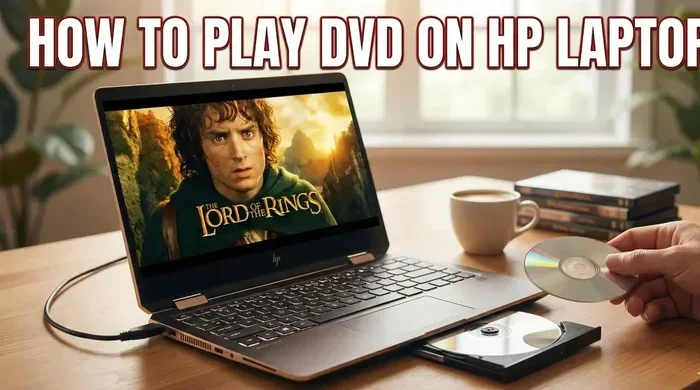
Not everyone has switched to streaming entirely. You might have a collection of DVDs, music CDs, or even old family videos stored on discs. An external DVD drive for laptop lets you enjoy all of that without any hassle.
Burning And Copying Discs
Disc burning is still useful for creating backups, sharing files, or archiving important data. A good portable disc drive lets you burn CDs and DVDs quickly and easily right from your laptop.
Working With Legacy Systems
In many workplaces and schools, older systems still use discs for data transfer. Having a reliable laptop disc drive ensures you stay compatible with these environments and do not miss a beat.
Types Of Disc Drives Available For Laptops
Not all disc drives are the same. There are several types you can choose from. Each one serves a different purpose and fits different needs. Let us look at the main options for an optical drive for laptop users.
External USB Disc Drives
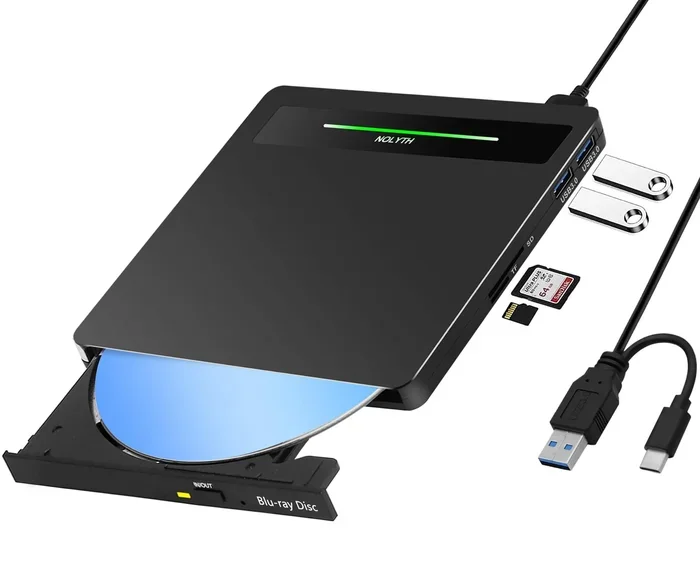
These are the most popular choice. You simply plug them into your laptop via USB, and they work instantly. External USB disc drives are portable, affordable, and require zero installation. They come in slim designs that slide easily into a laptop bag.
Most external drives support CD, DVD, and sometimes Blu-ray formats. They run on USB power, so you do not need extra cables or power adapters. This makes them the go-to laptop accessory for disc needs.
Internal Disc Drives
If your laptop once had a built-in optical drive and it stopped working, you can replace it. Internal disc drive replacement involves opening your laptop and installing a new drive in the same bay. This option works best if you have an older laptop model with a dedicated optical drive slot.
Internal drives tend to be more powerful and stable since they are permanently fixed. However, installation requires some technical comfort and a small screwdriver. You can find laptop optical drive replacement kits online with detailed guides.
Blu-ray Disc Drives
If you need high-definition disc playback, a Blu-ray drive for laptop is the way to go. Blu-ray drives read and write HD and 4K discs. They are available in both external and internal formats. While pricier than standard DVD drives, they offer much better quality for movie lovers.
Combo Drives
Combo drives can read multiple disc formats but usually only write to one type. For example, a combo drive might read both CDs and DVDs but only burn DVDs. These are budget-friendly options and work well for basic disc burning and playback tasks.
How To Choose The Right Disc Drive For Your Laptop
Picking the perfect disc drive for a laptop depends on a few key factors. You want to make sure the drive fits your needs, works with your laptop, and delivers good value. Here is what to consider before buying.
Check Compatibility First
Before anything else, check your laptop’s ports. Most external disc drives for laptop use USB 3.0 or USB-C connections. Make sure your laptop has the matching port. USB 3.0 ports are usually blue inside, while USB-C is a small oval shape.
Also, verify the drive supports your operating system. Most modern drives work with Windows, macOS, and even some Linux distributions. Check the product listing or packaging for disc drive compatibility details before purchasing.
Consider The Disc Formats You Need
Think about what discs you actually use. Do you need to read DVDs only, or do you want Blu-ray support? Here is a quick comparison of common formats:
- CD drives: Read and write audio and data CDs. Best for basic needs and older media.
- DVD drives: Read and write standard DVDs. Most common and affordable option.
- Blu-ray drives: Handle HD and 4K discs. Great for high-quality video playback and large storage needs.
- Combo drives: Read multiple formats but write to only one. Budget-friendly and practical.
Think About Portability
If you travel often, go for a slim portable CD/DVD player that runs on USB power. These are lightweight, fit in your bag, and do not need extra power sources. Some even come with protective cases for safe transport.
Speed And Performance
Disc drives come with different speed ratings. A faster drive can read and burn discs more quickly. Look for drives with at least 8x writing speed for DVDs and 24x for CDs. Higher speeds save you time, especially when burning discs frequently.
Brand And Warranty
Stick with trusted brands for reliability. Brands like LG, ASUS, Samsung, and Dell make solid laptop disc drives. Always check the warranty period. A good warranty covers defects and gives you peace of mind for at least one to two years.
Quick Tips For Choosing The Right Drive
- Always check USB port type before buying an external drive.
- Choose Blu-ray only if you actually need HD disc playback.
- Read customer reviews for real-world disc drive performance insights.
- Pick a slim design if you value portability over desk use.
- Confirm the drive supports your laptop’s operating system.
How To Install A Disc Drive On Your Laptop
Installing a disc drive is easier than you might think. The process differs slightly depending on whether you choose an external or internal drive. Let us walk through both methods.
Installing An External Disc Drive
External drives are plug-and-play. You do not need any tools or technical knowledge. Just follow these simple steps:
- Connect the USB cable from the disc drive to your laptop’s USB port.
- Wait for your laptop to recognize the new device. This usually takes a few seconds.
- If drivers are needed, they install automatically on most modern operating systems.
- Open File Explorer or Finder and locate the disc drive listed under “Devices and drives.”
- Insert your disc and start using it.
That is literally it. Most external CD/DVD drives work the moment you plug them in. No software downloads, no complicated setup, no headaches.
Installing An Internal Disc Drive
Replacing an internal laptop optical drive takes a bit more effort. Here is a general guide:
- Power off your laptop and unplug it from any power source.
- Locate the optical drive bay on the side or front of your laptop. Some models have a small eject button or a tray slot.
- Remove the old drive by sliding it out gently. Some models use screws to hold the drive in place.
- Place the new drive into the bay, making sure the connectors face the right direction.
- Secure the drive with screws or by sliding it firmly into place.
- Power on your laptop and test the new drive with a disc.
Note: If you are not comfortable opening your laptop, consider taking it to a professional. Improper handling can damage internal components. Internal disc drive troubleshooting is also easier when the drive was installed correctly from the start.
Driver Installation For Internal Drives
Sometimes your laptop does not automatically recognize a newly installed internal drive. In that case, you may need to download drivers from the manufacturer website. Search for your laptop model and the specific drive model to find the correct disc drive drivers. Most drivers install in under a minute and require a simple restart.
Troubleshooting Common Disc Drive Issues
Even with the best disc drive for a laptop, problems can happen. Here are the most common issues and how to fix them quickly.
The Drive Is Not Recognized
This is the most common complaint. If your external disc drive for laptop is not showing up, try these steps:
- Try a different USB port. Some ports may not provide enough power.
- Unplug and replug the drive. Give it 10 seconds before reconnecting.
- Restart your laptop. Sometimes a fresh boot fixes recognition issues.
- Check the USB cable for damage. A faulty cable can prevent connection.
- Update your laptop’s USB drivers through Device Manager (Windows) or System Information (Mac).
The Disc Is Not Reading
If the drive spins but cannot read your disc, the disc might be scratched or dirty. Try wiping it gently with a soft cloth. Also, make sure you are inserting the disc the correct way, with the label facing up for most drives.
For CD/DVD drive not working issues on internal drives, check if the drive is properly seated. A loose connection often causes read failures. Reseat the SATA cable and try again.
The Drive Makes Loud Noises
Some noise is normal when a disc spins. However, loud grinding or clicking sounds usually mean something is wrong. The disc might be warped, or the drive mechanism could be failing. Stop using the drive immediately to prevent further damage. Disc drive troubleshooting often reveals that a simple disc replacement solves the noise problem.
Burning Errors And Failed Disc Writes
If your disc burning keeps failing, try these fixes:
- Use a fresh, high-quality blank disc. Old or cheap discs often fail during burning.
- Reduce the burning speed. Lower speeds create more reliable results.
- Close other programs while burning to free up system resources.
- Clean the laser lens with a disc-shaped cleaning kit available online.
Drive Opens And Closes Repeatedly
This usually happens when the drive cannot detect a disc properly. It tries to read, fails, and then ejects. Check for dust inside the drive tray. A quick blow with compressed air often clears the problem. If the issue persists, the drive sensor might need professional attention.
Tips For Maintaining Your Laptop Disc Drive
Taking care of your disc drive for a laptop helps it last longer and perform better. Here are some simple maintenance tips that anyone can follow.
Keep It Clean
Dust and debris are the enemies of any optical drive for laptop use. Regularly blow compressed air into the disc tray to remove dust particles. Avoid eating or drinking near your laptop to prevent crumbs and spills from reaching the drive.
Handle Discs Properly
Always hold discs by their edges. Touching the shiny surface leaves fingerprints that can interfere with reading. Store discs in their cases, not loose in drawers or bags where they can get scratched.
Do Not Force Discs Into The Drive
If a disc does not slide in easily, stop. Forcing it can damage the tray mechanism or scratch the disc. Check for warping or cracks before inserting. A damaged disc can jam the drive and cause costly repairs.
Eject Discs Safely
Always use the eject button or software command to remove discs. Pulling a disc out while it is still spinning can damage both the disc and the drive. Give the drive time to stop spinning before you remove anything.
Update Firmware And Drivers
Manufacturers occasionally release firmware updates that improve disc drive performance and fix known bugs. Check the manufacturer website periodically for updates. Keeping your drivers current also helps with disc drive compatibility across different disc types and operating systems.
Use Quality Discs
Cheap, no-name discs might seem like a good deal, but they often cause more problems than they solve. Stick with reputable brands for both playback and burning. Quality discs reduce read errors, extend drive life, and protect your important data.
Expert Insights And Real-World Advice
Here is some practical advice from people who deal with laptop disc drives every day.
When To Choose External Over Internal
If your laptop is relatively new and slim, an external drive is your best bet. Modern laptops simply do not have space for internal optical drives. External drives also give you the flexibility to move between computers. One drive can serve your desktop at home and your laptop on the go.
When Internal Replacement Makes Sense
Older laptops with a damaged optical drive bay still benefit from internal replacements. You get the convenience of a built-in drive without needing extra desk space. Internal drives also tend to have a more stable connection, which helps with frequent disc reading and writing tasks.
Consider A Disc Drive Dock Or Hub
If you use multiple laptop peripherals, consider a USB docking station that includes a disc drive slot. These hubs combine external storage options with USB ports, card readers, and display outputs. They are great for home office setups where desk space is limited but functionality is still important.
Key Takeaways For Disc Drive Buyers
- External drives offer the best balance of convenience, price, and ease of use for most people.
- Internal replacements work well for older laptops that still have the optical drive bay.
- Maintenance is simple and mostly involves keeping the drive clean and using good quality discs.
- Most common issues have easy fixes that do not require professional help.
- Always check disc drive compatibility with your specific laptop model before making a purchase.
Blu-ray drives are worth it only if you regularly handle HD or 4K disc content.
Conclusion: Get The Disc Drive You Need And Get Back To Business
So, can you get a disc drive for a laptop? You absolutely can, and now you know exactly how. Whether you go with an external disc drive for laptop use or replace a broken internal one, the process is straightforward and affordable. Disc drives for laptops are still widely available, and finding one that fits your needs should not take long.
Think about what discs you use most, check your laptop’s ports and compatibility, and pick the right type. External drives are perfect for most people because they are portable, simple, and work instantly. Internal drives are great for older laptops that still have the bay. Whatever you choose, take care of your drive, use quality discs, and keep your drivers updated for the best experience.
Do not let the lack of a built-in optical drive slow you down. Get yourself a reliable disc drive for a laptop today and enjoy all the benefits of physical media. It is a small investment that keeps you connected to the software, movies, music, and data you already own on disc.
Frequently Asked Questions
Can you get a disc drive for a laptop if it does not have a USB port?
Most modern laptops have at least one USB port, even if it is USB-C. If your laptop truly has no USB ports at all, you can use a USB hub or docking station to add extra connectivity. Alternatively, consider a disc drive that connects via Thunderbolt or even a wireless disc drive that connects through Wi-Fi or Bluetooth.
How do I know if my external disc drive will work with my laptop?
Check the product specifications for operating system support. Most external disc drives list compatibility with Windows 10 or later, macOS 10.12 or later, and sometimes ChromeOS. Also confirm the connection type matches your laptop’s available ports. USB 3.0 and USB-C are the most common. If you are unsure, contact the manufacturer before purchasing.
Are external disc drives for laptops expensive?
Not at all. Basic CD and DVD external drives typically cost between $20 and $50. Blu-ray external drives range from $50 to $120 depending on features. These are affordable laptop accessories that deliver great value, especially if you rely on physical media regularly. Sales and discounts are common, so you can often find even better deals.
Can an external disc drive burn DVDs and CDs?
Yes, most external disc drives that support DVD and CD formats can both read and burn these discs. Look for drives that specifically list “write” or “burn” capabilities in their features. The burning speed varies by model, with 8x or higher being a good standard for DVD burning. Always use quality blank discs for the best results.
Why does my laptop not recognize my disc drive after installation?
This usually happens due to driver issues or incorrect hardware connection. For external drives, try a different USB cable or port. For internal drives, check that the SATA cable is securely connected. You may also need to install specific drivers from the manufacturer website. Restarting your laptop after connecting the drive often resolves the issue as well.
Is it better to buy a portable disc drive or a desktop disc drive for laptop use?
A portable disc drive is the better choice for most laptop users. Portable drives are compact, run on USB power, and travel easily with your laptop. Desktop disc drives are larger, require a separate power adapter, and are designed for stationary use. Only choose a desktop drive if you plan to keep it in one place and need faster, more powerful disc reading and burning performance.
=== CONCLUSION ===
Can you get a disc drive for a laptop? Yes, you absolutely can. External disc drives for laptop use are affordable, portable, and incredibly easy to set up. Whether you need to burn discs, play DVDs, or install software from physical media, the right disc drive for a laptop makes it all possible. Choose the type that fits your lifestyle, follow the installation and maintenance tips shared here, and you will enjoy reliable performance for years to come.