Can I Watch A Dvd On My Laptop Without Internet Connection
Yes, you absolutely can watch a DVD on your laptop without internet. You just need a working disc drive or an external player, plus the right offline software. Whether your laptop has a built-in optical drive or you use a USB external drive, playing movies offline is simple and fast. You do not need Wi-Fi or cellular data to enjoy your favorite films. In this guide, we will show you exactly how to set up offline DVD playback on any computer.
Key Takeaways
- No Internet Required: Playing a DVD offline only needs a disc drive and local software.
- Two Drive Options: You can use a built-in optical drive or plug in an external DVD player.
- Free Software Works Best: Programs like VLC Media Player handle offline DVDs perfectly.
- Check Region Codes: DVDs have regional locks that might affect playback on your laptop.
- Rip for Convenience: Copying the DVD to your hard drive lets you watch without the disc.
- Battery Matters: Watching movies offline drains laptop battery, so keep it charged.
📑 Table of Contents
- How to Watch A Dvd On My Laptop Without Internet Connection
- Built-In vs External Drives for Laptop DVD Playback
- Choosing the Right Software for Offline Playback
- Step-by-Step Guide to Playing Your DVD
- Common Problems and How to Fix Them
- Ripping DVDs to Your Hard Drive
- Expert Insights for the Best Viewing Experience
- Conclusion
How to Watch A Dvd On My Laptop Without Internet Connection
Have you ever wanted to watch a movie from your dvd collection but had no Wi-Fi? Maybe you are on a long flight or staying in a cabin with no signal. The good news is that you can easily watch a DVD on your laptop without internet. You do not need a web connection to enjoy your favorite films. All you need is the right hardware and a simple program.
Watching movies offline is still one of the best ways to enjoy entertainment. A physical disc does not need to stream data. It plays right from the disc itself. This means your laptop compatibility with DVDs depends only on your disc drive and software. Let us walk you through the entire process. You will learn how to set up your device and start watching movies in minutes. This guide covers everything from the disc drive to the final play button.
What You Need to Get Started
Before you pop in a disc, you need a few things. First, you need a way to read the disc. Second, you need a program that understands the DVD format. Here is a quick list of what you will need to watch a DVD on your laptop without internet:
- A DVD Drive: This can be built into your laptop or an external device.
- DVD Software: A player like VLC or Windows Media Player.
- A Blank Laptop Battery: Or a power cord, since you have no internet to save battery.
- The DVD Disc: A movie or data disc you own.
Many modern laptops do not come with a built-in optical drive anymore. They are very thin and light. If your laptop lacks a drive, do not worry. You can buy an external dvd player that plugs into a USB port. These small devices cost very little and work great. They are the perfect solution for portable media fans. You just need a free USB port on your computer.
You might wonder why you even need a guide for this. After all, putting a disc in a computer seems easy. But many new laptops leave out the disc drive to save space. They are built to be super thin. This design choice means you cannot just slide a DVD in anymore. You have to think about how to watch your movies. Some people buy digital downloads instead. But physical discs have a big advantage. You own them. You do not need to rent them. You do not need to stream them. You just put them in and watch. That is why learning how to watch a DVD on your laptop without internet is so important. It gives you freedom.
Built-In vs External Drives for Laptop DVD Playback
When you want to watch a movie without internet, your drive choice matters. Some laptops have a built-in drive right side or front. Others need a little help. Let us look at the differences between the two options for laptop dvd drive setups.
The Convenience of a Built-In Drive
If your computer has a disc slot, you are in luck. You just open the tray, put the DVD in, and close it. The laptop will usually ask what you want to do. You can choose to play the movie directly. This is the easiest method for offline dvd playback. You do not need to buy anything extra. Just make sure your disc is clean and scratch-free. The optical disc spins inside, and a laser reads the data. This is how you watch movies offline with no extra steps.
The Flexibility of an External DVD Player
For laptops without a built-in slot, an external dvd player is your best friend. These are USB-powered devices. You plug them into your laptop, place the disc on top, and close the lid. The laptop will read the disc just like a built-in drive. Here is a quick comparison of the two options:
| Feature | Built-In Drive | External DVD Player |
|---|---|---|
| Portability | Fixed inside laptop | Very portable |
| Connection | Internal SATA | USB cable |
| Cost | Included with laptop | Twenty to thirty dollars |
| Availability | Older laptops only | Works with any laptop |
| Setup Time | Instant | Plug and play |
Both options work perfectly for watch movies offline. You just need to make sure the external drive is compatible with your laptop brand. Most external players work with Windows and Mac computers right out of the box. You do not need internet to install the drivers. They use standard protocols. So you can plug it in and start your no internet needed movie session right away.
Choosing the Right Software for Offline Playback
Having a drive is only half the battle. You also need the right dvd software to actually play the movie. Some operating systems have basic players already installed. But others need a free download. Let us look at the best options for no internet needed movie time. The software reads the data on the disc and turns it into video and audio.
VLC Media Player: The Free Champion
If you want a reliable dvd player, VLC Media Player is the top choice. It is free, open-source, and plays almost any disc format. It does not need an internet connection to work. Once you download it, it works forever, even offline. Here is why VLC is so popular for offline dvd playback:
- It plays all DVD formats without extra codecs.
- It works on Windows, Mac, and Linux computers.
- It handles scratched or damaged discs better than other players.
- It is completely free and has no ads.
To use VLC, just download it from the official website while you still have internet. Save the installer file to your laptop. Then, when you are offline, open the program, insert your disc, and hit play. It is that simple. VLC is a media player that supports many file types. It is the most recommended tool for anyone wanting to watch a dvd on my laptop without internet or similar setups.
Windows Media Player and Other Options
Windows computers often come with Windows Media Player pre-installed. You can use this to watch a DVD on your laptop without internet. However, it sometimes needs extra codec packs to play commercial movies. Mac users have QuickTime, but it also struggles with DVDs. You might need to buy a paid player like WinDVD or MacTheRipper. But for most people, VLC is the best and easiest choice for digital copy viewing. It saves you money and works every time.
Step-by-Step Guide to Playing Your DVD
Now that you have your drive and software ready, let us watch a movie. The process is very simple. Follow these steps to start your movie collection viewing session without needing the web.
Inserting the Disc and Opening the Player
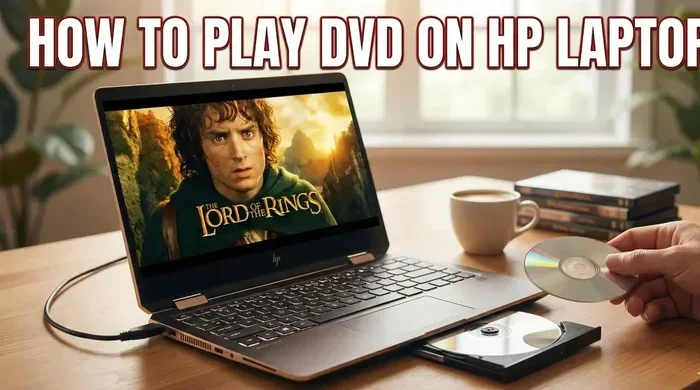
First, make sure your laptop is turned on and awake. If you have a built-in drive, open the small tray on the side of your laptop. You push a small button, and the tray slides out. Place the DVD onto the tray with the label facing up. Do not push it in too hard. Gently push the tray back into the laptop. Wait a few seconds. The disc will start to spin inside. Your dvd software should pop up a window asking what to do. Click the option to play the movie.
If the autoplay window does not show up, do not worry. Open your media player manually. In VLC, click Media, then Open Disc. Choose your DVD drive from the list. Click Play. The movie will start. This is a foolproof way to enjoy your laptop screen entertainment.
Adjusting Settings for the Best View
Sometimes the movie window is very small. You can make it full screen by pressing the F11 key or clicking the full-screen button on your player. If the sound is too low, use your laptop keyboard volume keys. If the movie looks stretched, go into the player settings and change the aspect ratio. Most DVDs are widescreen, so pick the 16:9 option. This will fill your laptop screen perfectly. You can also turn on subtitles if the movie has them built in.
Quick Tips for Smooth Playback
Here are a few quick tips to make your experience better when you watch a DVD offline:
- Clean the disc: Use a soft cloth to wipe the DVD before playing it. This stops skipping.
- Plug in your laptop: Watching a movie uses power. Keep it on the charger.
- Close other apps: This frees up memory so the movie plays without lag.
- Update your driver: If the disc does not spin, check your disc drive driver in your system settings.
Common Problems and How to Fix Them
Even with no internet, you might run into a few hiccups. Do not panic. Most problems are easy to fix. Here are the common issues you might face with laptop dvd drive problems when you try to watch a movie offline.
DVD Region Code Issues
Did you know DVDs have region codes? These are locks that stop a disc from playing in certain countries. They are used by movie studios to control when and where movies are released. If you buy a movie from Europe and live in the US, it might not play. You will get an error message. To fix this, you can change the region code in your player settings. But be careful. You can only change it a few times before it locks forever. If you have a region code problem, search online for how to reset it. This is a very common reason why people think their optical disc is broken when it is really just a lock.
The Drive Does Not Recognize the Disc
If you put a DVD in and nothing happens, the drive might not be reading it. First, try a different DVD. If the second one works, your first disc is probably dirty or scratched. If neither disc works, your drive might be dirty. You can buy a small disc cleaning kit. If that does not work, your laptop compatibility with the drive might be a driver issue. Go to your device manager and update your optical drive driver. Restarting your laptop also fixes many simple errors. Sometimes dust builds up inside the disc tray. A can of compressed air can clean it out safely.
Another common issue is a dirty lens inside the drive. The laser lens reads the DVD. Over time, dust can build up on it. This makes the drive slow or unable to read discs. You can buy a CD cleaning kit. It has a little disc with brushes. You insert it into the drive, and it cleans the lens. This is a great fix for old laptops. It costs very little and works like magic. Also, check your USB cable if you use an external drive. A loose cable means no connection. Always make sure the cable is firm in the port.
Audio and Video Sync Issues
If the sound does not match the lips, you have a sync issue. This happens when your computer is slow. It cannot keep up with the video playback. To fix this, close all other background apps. You can also lower the video quality in your player settings. This makes it easier for your laptop to handle the hard drive storage and processing. The movie will play smoothly again.
Ripping DVDs to Your Hard Drive
Do you want to watch a DVD without even putting the disc in the drive? You can rip a dvd to your laptop hard drive. This means copying the entire movie file onto your computer. Once it is on your hard drive storage, you can watch it anytime, even without the physical disc. This is great for people with a big movie collection who do not want to carry discs around. It is the ultimate way to have no internet needed entertainment.
Why Rip a DVD?
Ripping has many benefits. First, it saves space. You do not need to carry a stack of DVDs. Second, it prevents scratches. The disc stays safe in its case while the digital file plays from your laptop. Third, you can watch it faster because your hard drive reads files much quicker than an optical drive. This makes your portable media experience much smoother. You just click the file, and the movie starts instantly.
When you rip a DVD, you are copying every file on the disc. This includes the movie, the subtitles, and the bonus features. You can choose to copy just the main movie or everything. Copying just the main movie saves space. A full rip can take a long time. It depends on how fast your laptop is. A faster laptop will rip the disc in minutes. An older laptop might take an hour. Once the rip is done, you can delete the original disc. The movie stays safe on your laptop. You can back it up to a USB drive too.
Best Tools for Ripping a DVD
There are many programs that can rip a dvd. HandBrake is the most famous free tool. It converts your DVD into a digital file like MP4. You can then watch this file on any device. Just remember, you should only rip discs you own. Copying copyrighted movies is illegal in many places. Always respect the law when you make a digital copy of your own discs.
Expert Insights for the Best Viewing Experience
Want to make your offline movie time even better? A few small changes can make a huge difference. Here are some expert tips to improve how you watch DVDs on your laptop.
Maximizing Laptop Battery Life
Since you have no internet, you cannot plug into a charger? Wait, yes you can! But if you are truly off the grid, battery life matters. Watching a movie drains your battery fast. To save power, lower your screen brightness. Turn off your Wi-Fi completely. Close all other background programs. You can also switch to a dark theme on your player if your laptop screen is an OLED type. These small steps can add hours to your viewing time. You will enjoy your battery life much longer.
Connecting to an External Monitor
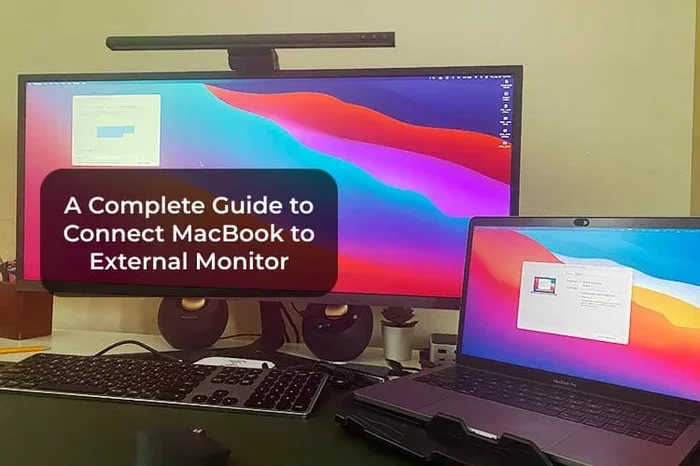
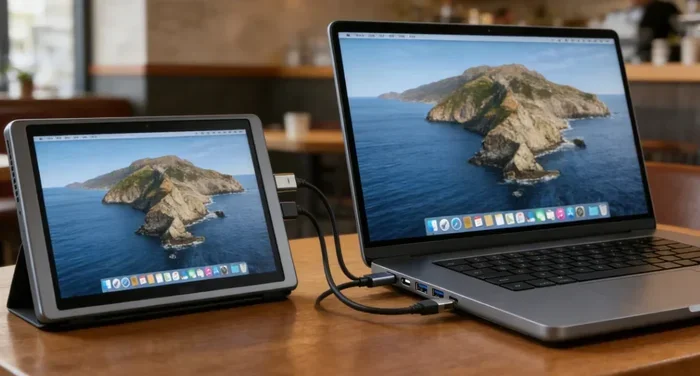
Your laptop screen might be too small for a great movie experience. You can connect your laptop to a TV or external monitor using an HDMI cable. Just plug one end into your laptop and the other into the TV. Change your TV input to HDMI, and your movie will play on the big screen. This is perfect for movie nights when you are traveling or camping. It turns your laptop into a real home theater system. You can share your movie collection with friends and family easily.
Conclusion
Watching a DVD on your laptop without internet is very easy. You just need a working drive, either built-in or external, and a good player like VLC. You do not need the web to enjoy your favorite films. Whether you watch directly from the disc or rip a DVD to your hard drive, the process is simple. You can now enjoy your dvd collection anywhere, anytime. So grab a disc, open your player, and start watching. Your next offline movie night is ready to go. Enjoy the show!
Frequently Asked Questions
Do I need Wi-Fi to play a DVD on my laptop?
No, you do not need Wi-Fi at all. A DVD plays directly from the disc using your disc drive and a media player. The movie data is stored physically on the disc. You only need internet if you are downloading a digital copy or streaming a movie.
Can I watch a DVD on a laptop without a disc drive?
Yes, you can. You just need to buy an external DVD player. These are small USB devices that you plug into your laptop. They work exactly like a built-in drive and let you watch DVDs without internet.
Why is my DVD not playing on my laptop without internet?
This is usually a software or region code issue. Your laptop might not have the right player installed, or the DVD might have a regional lock. Try downloading VLC Media Player or check your region code settings to fix the problem.
Is it legal to rip a DVD to my laptop hard drive?
Ripping DVDs for personal backup use is a gray area in many countries. It is legal to rip a disc you own for personal use in some places, but illegal in others. You should check your local copyright laws before you rip a dvd to your hard drive.
How can I watch a DVD offline on a Chromebook?
Chromebooks do not have built-in DVD drives. You must buy an external DVD player. Once plugged in, you can use a web app or Linux media player to watch the disc. Since it is offline, you do not need a Chrome extension that requires the web.
Does watching a DVD use a lot of laptop battery?
Yes, watching a movie uses more battery than browsing the web. Your screen and processor work hard to display the video. To save battery, lower your screen brightness and close other apps while you watch.