Can You Send Hdmi Over Wifi And Stream Without Wires
Yes, you can send HDMI over WiFi and stream HD content without any cables. Wireless HDMI technology lets you transmit video and audio from your device to a TV or projector using your home network. This guide covers the best devices, setup steps, and real-world tips to help you cut the cord and stream freely.
Have you ever wanted to send HDMI over WiFi and ditch all those messy cables? Maybe you have a laptop across the room and want to show a presentation on the big TV. Or perhaps you just want a cleaner living room setup without wires running across the floor.
The good news is that wireless HDMI streaming is absolutely possible today. You have several options, from dedicated transmitters to smart TV built-in features. In this guide, we will walk you through everything you need to know about streaming HD content without wires. We will cover how the technology works, which devices to buy, common problems, and simple fixes.
Whether you are a casual streamer or a home theater enthusiast, this article has something for you. Let us dive in and explore how you can send HDMI over WiFi and enjoy a clutter-free setup.
Key Takeaways
- Wireless HDMI is real: You can send HDMI over WiFi using transmitters, streaming sticks, and built-in features like AirPlay and Miracast.
- Multiple options exist: From dedicated wireless HDMI transmitters to WiFi streaming devices, there is a solution for every budget and need.
- Latency can be an issue: Wireless transmission may add a slight delay, which matters for gaming and live content.
- Setup is simple: Most wireless HDMI kits plug in and connect within minutes.
- WiFi 6 helps a lot: Newer WiFi standards offer better bandwidth for smooth HD and 4K streaming.
- Wired HDMI still wins for quality: If you need zero delay and perfect picture quality, a cable is still the best choice.
📑 Table of Contents
- What Is HDMI Over WiFi?
- How Does Wireless HDMI Technology Work?
- Best Devices for Sending HDMI Over WiFi
- Wireless HDMI vs Wired HDMI: What Is the Difference?
- Common Problems When Sending HDMI Over WiFi
- Tips for the Best Wireless HDMI Experience
- Can You Send HDMI Over WiFi for Gaming?
- Is Wireless HDMI Worth It?
- Conclusion
What Is HDMI Over WiFi?
HDMI over WiFi means sending high-definition video and audio from one device to another without using a physical HDMI cable. Instead of plugging a cable from your laptop or Blu-ray player into your TV, you use a wireless signal to transmit the same content.
This technology uses your home WiFi network or a dedicated wireless signal to carry HD and even 4K video from a source device to a display. Think of it as a wireless HDMI extender that replaces the cable you would normally use.
There are different ways to achieve this. Some methods use special hardware like wireless HDMI transmitters. Others use software-based screen mirroring built into your TV or streaming device. Each method has its own strengths, and we will look at them in detail below.
The main goal is simple: stream HD content wirelessly and enjoy your favorite movies, shows, and presentations without being tethered to a screen.
How Is This Different from Regular HDMI?
A standard HDMI cable sends video and audio through a physical wire. It gives you a direct, instant connection with zero delay. Wireless HDMI replaces that wire with a radio signal or WiFi connection.
The difference is that wireless transmission can introduce a small amount of latency, which is a slight delay between the source and the display. For most watching and browsing, this delay is unnoticeable. But for fast-paced gaming or live sports, it can matter.
How Does Wireless HDMI Technology Work?
Understanding how HDMI over wireless works helps you choose the right setup. The basic idea is simple. A transmitter sends video and audio data, and a receiver picks it up and displays it on your TV.
The Transmitter and Receiver Setup
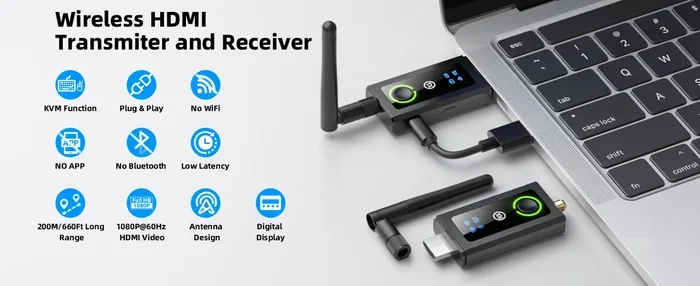
Most wireless HDMI kits come with two small boxes. You plug the transmitter into your source device, like a laptop or gaming console. The receiver plugs into your TV’s HDMI port. They communicate using a dedicated wireless frequency, often in the 5GHz range.
These kits create their own point-to-point wireless link. This means they do not rely on your home WiFi network. This is a big advantage because it keeps the signal strong and reduces interference from other devices.
WiFi-Based Streaming Methods
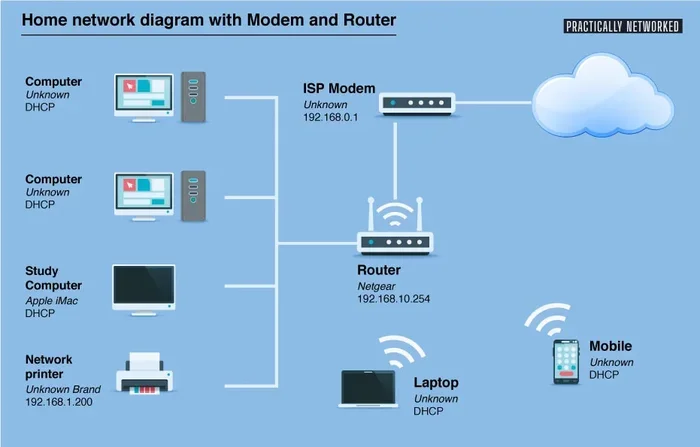
Other methods use your home WiFi network to cast HD content. For example, you can use Chromecast or Miracast to mirror your screen. Smart TVs also have built-in AirPlay support for Apple devices. These methods rely on your WiFi router to send the signal.
The benefit is convenience. You do not need extra hardware beyond what you already own. The downside is that WiFi bandwidth can affect quality and speed, especially if many devices are connected to the same network.
WiFi 6 and Bandwidth Considerations
If you have a WiFi 6 router, you are in a great position for wireless video transmission. WiFi 6 offers much better bandwidth and handles multiple devices more efficiently. This means smoother HD and 4K streaming over WiFi.
For the best results, make sure your router is close to the devices you are streaming from. Walls and distance can weaken the signal and cause buffering or quality drops.
Best Devices for Sending HDMI Over WiFi
Not all wireless HDMI adapters are the same. Some are designed for casual use, while others are built for serious home theater setups. Here are the most popular options available right now.
Dedicated Wireless HDMI Transmitters
Wireless HDMI transmitters are the most reliable option for HDMI over wireless connections. These kits include a transmitter and receiver pair that create a direct link between your source and display.
Popular brands include IOGEAR, Kramer, and Amazing Accessory. These devices can handle 1080p and even 4K resolution with very low latency. They are perfect for home theater setups, boardrooms, and gaming.
Most kits are plug-and-play. You connect the transmitter to your device and the receiver to your TV. Then you pair them, and you are streaming in minutes.
WiFi Streaming Sticks and Devices
Streaming sticks like Chromecast, Amazon Fire TV Stick, and Roku offer a different approach. These devices plug into your TV’s HDMI port and connect to your WiFi network. You then cast content from your phone, tablet, or laptop.
These are great for casual streaming. They are affordable and easy to set up. However, they do not give you a full screen mirror of your device in the same way a dedicated transmitter does. They work best for streaming apps like Netflix, YouTube, and Hulu.
Built-In Smart TV Features
Many modern smart TVs come with built-in wireless display support. Samsung TVs use Smart View, LG TVs use Screen Share, and Sony TVs support Miracast. Apple TVs support AirPlay for iPhone and iPad users.
These built-in features are the easiest way to stream without wires. You do not need to buy any extra hardware. Just make sure your phone or laptop and TV are on the same WiFi network.
Comparison Table
| Device Type | Best For | Latency | Setup Difficulty | Price Range |
|---|---|---|---|---|
| Wireless HDMI Transmitter | Home theater, gaming, presentations | Very low | Easy | $50 – $200 |
| Streaming Sticks (Chromecast, Fire Stick) | Casual streaming, app-based content | Low to moderate | Very easy | $20 – $60 |
| Built-In Smart TV Features | Quick screen mirroring | Moderate | No setup needed | Free (included) |
Wireless HDMI vs Wired HDMI: What Is the Difference?
You might wonder if wireless HDMI is really as good as a traditional cable. The honest answer is that each has its place. Let us compare them side by side.
Picture and Audio Quality
A wired HDMI cable delivers the best possible picture and sound quality. There is no compression or signal loss. You get the full uncompressed HD or 4K signal straight to your TV.
Wireless HDMI compresses the signal for transmission and then decompresses it on the other end. Modern wireless HDMI adapters do this very well, and the difference is hard to notice for most content. But for the most demanding video purists, a cable still wins.
Latency and Delay
Latency is the biggest difference. A wired connection has essentially zero delay. A wireless connection adds a small amount of latency. For watching movies or browsing the web, this does not matter. But for competitive gaming or live presentations, even a small delay can be frustrating.
Convenience and Cable Management
Wireless HDMI wins hands down for convenience. No cables to run across the room, no drilling holes in walls, no tripping hazards. You can move your laptop around freely and still stream to the TV.
If you rent your home or want a clean, minimalist setup, wireless video transmission is a game changer.
Cost Comparison
A basic HDMI cable costs just a few dollars. A good wireless HDMI kit costs between $50 and $200. Streaming sticks are even cheaper at $20 to $60. So wireless options cost more, but they offer flexibility that cables simply cannot match.
Common Problems When Sending HDMI Over WiFi
Wireless HDMI is not perfect, and you may run into some issues. Here are the most common problems and how to fix them.
Latency and Lag
Latency in wireless HDMI is the most common complaint. You might notice a slight delay between when you click something and when it appears on the TV. This is normal for all wireless transmission.
Quick Tip: To reduce latency, use a dedicated wireless HDMI transmitter rather than WiFi-based screen mirroring. Dedicated transmitters use a direct signal that is faster and more reliable.
Signal Interference
WiFi congestion can cause stuttering, buffering, or dropped frames. If your neighbor’s WiFi network is on the same channel, or if you have many devices connected, the signal can weaken.
Quick Tip: Switch your router to the 5GHz band for less interference. Also, keep your wireless HDMI transmitter away from microwaves, cordless phones, and other wireless devices.
Resolution Drops
Sometimes HD content drops to a lower resolution over WiFi. This happens when the bandwidth is not enough to sustain the higher quality stream.
Quick Tip: Make sure your WiFi router supports WiFi 5 or WiFi 6 standards. Also, reduce the distance between your router and the streaming device for a stronger connection.
Audio Sync Issues
In some setups, the audio and video can get out of sync. This is another form of latency that affects the audio track separately from the video.
Quick Tip: Most wireless HDMI adapters have an audio sync adjustment in their settings. Check the device’s app or remote control for this option.
Connection Drops
Your wireless video transmission might drop occasionally. This is usually caused by a weak signal or interference from other electronics.
Quick Tip: Place your transmitter and receiver in line of sight with each other. Walls and obstacles weaken the signal significantly.
Tips for the Best Wireless HDMI Experience
Want the smoothest wireless HDMI experience possible? Follow these practical tips to get the best results.
Use a Dedicated Bandwidth for Streaming
If you can, set up a dedicated WiFi network just for streaming. This prevents other devices from using up the bandwidth. Most modern routers let you create a separate guest network for this purpose.
Keep Devices Updated
Make sure your wireless HDMI adapter, streaming device, and TV firmware are all up to date. Manufacturers regularly release updates that improve wireless display performance and fix bugs.
Place Your Router Strategically
Your WiFi router should be in a central location, ideally in the same room as your TV and streaming device. Avoid placing it in a closet or behind furniture, as this weakens the signal.
Close Unnecessary Apps
When casting HD content, close any apps on your phone or laptop that are using the network. This frees up bandwidth for HD streaming and reduces the chance of buffering.
Test Your Setup Before Important Events
Do not wait until a big presentation to test your wireless HDMI setup. Run through it a day or two in advance to make sure everything works smoothly. This gives you time to troubleshoot any issues.
Can You Send HDMI Over WiFi for Gaming?
Gaming over wireless HDMI is possible, but it comes with some caveats. The main concern is input lag, which is the delay between pressing a button and seeing the action on screen.
For casual gaming like puzzle games, platformers, and story-driven adventures, wireless HDMI works fine. The slight delay is barely noticeable.
For competitive or fast-paced games like shooters and fighting games, a wired connection is still the better choice. The zero latency of a direct HDMI cable gives you the edge you need.
If you must game wirelessly, look for a wireless HDMI transmitter with the lowest possible latency. Some premium models advertise latency as low as one millisecond, which is practically indistinguishable from a wired connection.
Is Wireless HDMI Worth It?
The answer depends on your needs. If you want a clean, cable-free setup and you are mostly watching movies, shows, and presentations, wireless HDMI is absolutely worth it. The convenience and flexibility are hard to beat.
If you are a hardcore gamer or a video professional who needs perfect quality and zero delay, a wired HDMI connection is still the best choice. But even then, a wireless HDMI adapter can be useful for temporary setups or when you need to move around freely.
Most people find that the benefits of streaming without wires far outweigh the minor drawbacks. As WiFi technology continues to improve, wireless HDMI will only get better.
Conclusion
Can you send HDMI over WiFi and stream without wires? Absolutely yes. You have many options, from dedicated wireless HDMI transmitters to built-in smart TV features and affordable streaming sticks. Each option has its own strengths, and the best choice depends on what you want to do.
For most people, a wireless HDMI kit or a WiFi streaming device will do the job perfectly. You get to enjoy HD and 4K content on your big screen without any cables cluttering your space.
Remember the tips we covered: use a strong WiFi connection, minimize interference, and test your setup before important events. With the right equipment and a little planning, you can cut the cord and stream freely in no time.
So go ahead, explore your options, and enjoy the freedom of wireless video transmission. Your living room will thank you.
Frequently Asked Questions
Can I send 4K HDMI over WiFi?
Yes, you can send 4K HDMI over WiFi, but you need the right equipment. Look for wireless HDMI transmitters that specifically support 4K resolution. Also, make sure your WiFi network has enough bandwidth, preferably on a WiFi 6 router, for the best results.
Is wireless HDMI better than screen mirroring?
It depends on your needs. Wireless HDMI transmitters offer lower latency and better quality than most screen mirroring methods. Screen mirroring through AirPlay or Miracast is more convenient and does not require extra hardware. Choose based on whether quality or convenience matters more to you.
Does sending HDMI over WiFi reduce quality?
Modern wireless HDMI adapters compress and decompress the signal very efficiently. For most viewers, the quality difference between wired and wireless is barely noticeable. However, very demanding video professionals may notice a slight difference in the highest quality settings.
How far can I send HDMI over WiFi?
Dedicated wireless HDMI transmitters can typically reach 30 to 100 feet, depending on the model and obstacles. WiFi-based streaming methods work within the range of your home WiFi network, which can cover an entire house with a good router.
Do I need a special router for wireless HDMI?
You do not need a special router, but a WiFi 5 or WiFi 6 router will give you the best experience. These routers provide the bandwidth needed for smooth HD and 4K streaming. A basic router can work too, but you may experience more buffering and lower quality.
Can I use wireless HDMI with multiple TVs?
Most wireless HDMI transmitters connect to one source and one display. However, some higher-end models support multiple receivers, allowing you to send the same signal to several TVs. Check the specifications of your specific device to confirm multi-TV support.