Can I Use Any Wifi Antenna With My Motherboard Guide
Can I Use Any Wifi Antenna With My Motherboard? Not every antenna will work. The right choice depends on connector types, antenna gain, and your wireless card. This guide helps you find a compatible wifi antenna that boosts signal and avoids damage.
Have you ever looked at your computer and wondered if you can just grab any wifi antenna and plug it into your motherboard? The answer might surprise you. Can I Use Any Wifi Antenna With My Motherboard? The short answer is no. Not every antenna is compatible, and using the wrong one can cause problems. In this guide, we will walk you through everything you need to know. You will learn about connectors, antenna types, and how to boost your wireless signal safely.
Many people assume that all wifi antennas are the same. They are not. Your motherboard has a specific connector, and your wireless card supports certain frequency bands and antenna styles. If you pick the wrong one, you may lose signal strength or even damage your hardware. This is why understanding compatibility is so important. We will break it down step by step.
Whether you are building a new PC or upgrading an old one, this guide will help you make the right choice. We will cover connector types, antenna gains, and common mistakes. By the end, you will know exactly what to look for. Let us dive in.
Key Takeaways
- Not all antennas fit: Your motherboard uses specific connectors like RP-SMA or SMA, and forcing the wrong one can break the port.
- Check the connector type first: Match the antenna’s RP-SMA or SMA connector to your card’s jack for a secure fit.
- Antenna gain matters: Higher gain antennas boost range but need proper placement to work well.
- Omnidirectional vs. directional: Omnidirectional antennas spread signal in all directions, while directional antennas focus it for longer range.
- Avoid common mistakes: Never force a connector, ignore driver updates, or buy the wrong frequency band.
- Consider a USB wifi adapter: If your motherboard lacks a compatible port, a USB adapter with its own antenna is a great alternative.
📑 Table of Contents
Can I Use Any Wifi Antenna With My Motherboard? Understanding Your Connector
The Two Main Connector Types
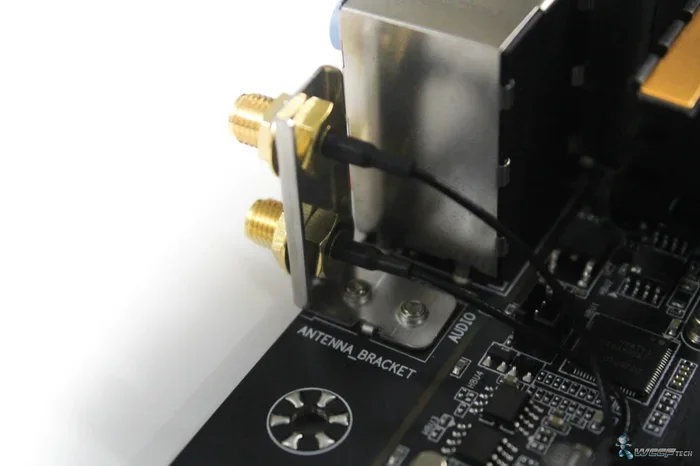
Your motherboard connects to wifi antennas through a small port on the back of the wireless card. The two most common connectors are RP-SMA and SMA. RP-SMA stands for Reverse Polarity SubMiniature version A. It has a female outer ring and a male center pin. SMA connectors have a male outer ring and a female center pin. They look similar but are not interchangeable. If you try to force an SMA antenna onto an RP-SMA jack, you will damage the port.
Most modern motherboards with built-in wifi use RP-SMA connectors. Some older boards or specialized cards might use standard SMA. Always check your motherboard manual or look up the wireless card model online. The connector type is the first thing you must match before buying any antenna.
Where to Find the Antenna Port
The antenna port is usually located on the back of the PCIe wifi card or near the I/O shield. On some motherboards, the wifi module is built into the board, and the port is hidden under a small metal cover. You may need to remove a screw or slide off a bracket to see it. Look for a tiny circular hole with a threaded center.
If you have a desktop PC, you can open the side panel and trace the antenna cables from the wifi card. The cables end in the connector. Laptops are trickier because the wifi module is often soldered or hidden under a shield. In those cases, you may need to check the service manual or use a USB wifi adapter instead.
Internal vs. External Antennas
Many motherboards come with internal antennas hidden inside the case. These antennas are small and often built into the wifi card itself. They work fine for basic browsing, but they have limited range. If you want better signal, you can replace them with external antennas. External antennas connect directly to the RP-SMA or SMA port and stick out of the case.
External antennas are much larger and can be positioned for better reception. They are especially useful if your router is far away or if there are walls blocking the signal. Just make sure the antenna connector matches your board. You can also upgrade to a higher-gain antenna later without changing the motherboard.
Types of Wifi Antennas You Can Use
Omnidirectional Antennas
Omnidirectional antennas send and receive signals in all directions, like a donut shape around the antenna. They are the most common type for home use. If you have a router in the living room, an omnidirectional antenna on your PC can pick up the signal from any angle. These antennas are easy to set up and work well for general browsing, streaming, and video calls.
Most wifi antennas that come with routers are omnidirectional. You can buy standalone omnidirectional antennas for your motherboard. They usually have a gain of 2 to 5 dBi. A higher dBi number means a bit more range, but the signal still spreads in all directions. This is a great choice if you move your laptop around or if your router is in the same room.
Directional Antennas
Directional antennas focus the wifi signal into a narrow beam, like a flashlight. They are perfect for pointing at a specific router or access point. If your router is on the other side of the house and you need a strong connection, a directional antenna can help. These antennas have higher gain, often 8 to 12 dBi, and can reach much farther than omnidirectional ones.
However, directional antennas are less flexible. You must aim them at the router. If you move your PC or the router, you may lose signal. They are best for fixed setups, like a desktop PC in a home office. Popular directional antenna types include Yagi antennas and panel antennas. They are also used in point-to-point links between buildings.
High-Gain Antennas
High-gain antennas are a special type of directional or omnidirectional antenna that boosts signal strength. They have a higher dBi rating, which means they can send and receive data over longer distances. A high-gain omnidirectional antenna might have 8 to 12 dBi, while a high-gain directional antenna can go up to 20 dBi or more.
These antennas are great for long-range wifi. If you have a dead zone in your home, a high-gain antenna can pull in a weak signal. But keep in mind that high gain does not always mean better speed. The antenna must still be compatible with your wifi card and frequency band. We will talk more about gain in the next section.
| Antenna Type | Signal Pattern | Typical Gain | Best For |
|---|---|---|---|
| Omnidirectional | 360 degrees all around | 2 to 5 dBi | General use, moving around |
| Directional | Narrow beam, one direction | 8 to 12 dBi | Long-range, fixed router |
| High-Gain | Varies (omni or directional) | 8 to 20+ dBi | Dead zones, long distances |
How to Match Your Antenna to the Motherboard
RP-SMA vs. SMA: What’s the Difference?
The RP-SMA and SMA connectors look almost the same, but they are different. RP-SMA has a female outer shell and a male center pin. SMA has a male outer shell and a female center hole. If you look closely, you can see the difference. The RP-SMA jack on your motherboard has a hole with threads, and the center pin is male. The SMA antenna has a center hole (female) and a male outer ring.
Why does this matter? Because plugging an SMA antenna into an RP-SMA jack will not work. The pins will not align, and you could bend or break them. Always check the gender of the connector. Many antennas are labeled clearly as RP-SMA or SMA. If you are unsure, look up your wireless card model and check the connector type.
Using Adapters: Pros and Cons
Sometimes you might find a great antenna that has the wrong connector. In that case, you can use an adapter. An RP-SMA to SMA adapter is a small barrel that plugs into the motherboard jack and provides a male SMA thread on the other end. This lets you connect an SMA antenna to an RP-SMA port.
Adapters are cheap and handy, but they come with drawbacks. Each adapter adds a small amount of signal loss. The more adapters you use, the weaker the signal becomes. Also, a loose adapter can wobble and disconnect. It is always better to buy an antenna that matches your connector directly. Use adapters only as a last resort.
Check Your Wireless Card Model
Before buying any antenna, find out which wireless card is in your motherboard. On a desktop, you can open the case and look at the wifi card. It will have a model number printed on it. On a laptop, you can check the Device Manager under Network Adapters. Look for the name of the wifi adapter.
Once you have the model number, search the manufacturer’s website. Look for the specifications. You will find the connector type, supported frequency bands, and maximum antenna gain. This information tells you exactly which antennas are compatible. It also helps you avoid buying the wrong thing.
Boosting Signal Strength and Range
Antenna Gain Explained
Antenna gain is measured in dBi, which stands for decibels relative to an isotropic radiator. It sounds technical, but it is simple. A higher dBi number means the antenna can focus more energy in a specific direction or spread it wider. For example, a 5 dBi omnidirectional antenna will reach farther than a 2 dBi one.
However, gain does not mean the antenna makes your internet faster. It just extends the range. If your internet plan is slow, a high-gain antenna will not fix that. It will only help you get a stronger signal from a distant router. The gain works with both sending and receiving data, so it improves the link in both directions.
Placement Tips for Best Performance
Where you place your antenna matters a lot. Do not hide it inside a metal case or behind a monitor. Metal blocks wifi signals. The best position is to have the antenna standing upright, away from other cables and electronic devices. If you have a directional antenna, aim it directly at your router.
For omnidirectional antennas, you can place them anywhere on the desk or table. Just keep them away from the floor and walls. The higher the antenna, the better the coverage. Some people mount antennas on the desk edge or use a stand. Experiment with different positions to find the sweet spot. You can check your signal strength in Windows by clicking the wifi icon and looking at the signal bars.
When a USB Wifi Adapter Might Be Better
If your motherboard does not have a compatible antenna port, or if you are using a laptop, a USB wifi adapter is a great alternative. These adapters plug into a USB port and come with their own antennas. You can position the adapter and its antennas wherever you want. Many USB adapters support the latest wifi standards like 802.11ac or 802.11ax.
USB adapters are easy to set up. You just plug them in, install the driver, and they work. They are also portable, so you can take them to different rooms or even to a friend’s house. If you are not comfortable opening your PC case, a USB adapter is the simplest way to upgrade your wifi.
Common Mistakes and What to Avoid
Forcing a Connector That Doesn’t Fit
This is the biggest mistake people make. If an antenna does not screw on easily, do not force it. Forcing the connector can strip the threads or bend the center pin. A damaged port means no wifi at all, and fixing it can be expensive. Always check the connector type before plugging anything in. If it feels tight, stop and double-check the gender and polarity.
Use a flashlight to look at the jack. If you see a male center pin, it is RP-SMA. If you see a female center hole, it is SMA. Match the antenna accordingly. If you are still unsure, search online for your motherboard model and the word “antenna connector.”
Ignoring Driver and Software Support
Even with the right antenna, you need the correct drivers. Your wireless card relies on drivers to communicate with the operating system. Outdated drivers can cause slow speeds, disconnections, and poor signal. Always download the latest drivers from the motherboard or wifi card manufacturer’s website.
Some high-gain antennas require specific settings in the driver or software. For example, you may need to enable MIMO or beamforming in the adapter settings. MIMO stands for Multiple Input Multiple Output, and it lets your card use multiple antennas to boost speed. Beamforming focuses the wifi signal directly at your device. Check your card’s software control panel to make sure these features are turned on.
Buying the Wrong Frequency Band
Wifi operates on two main frequency bands: 2.4 GHz and 5 GHz. Most antennas support both bands, but some are designed for only one. If you buy a 2.4 GHz-only antenna and your router uses 5 GHz, you will not get any signal. Always check the frequency range on the antenna’s packaging or product page.
2.4 GHz has a longer range but slower speeds. 5 GHz has faster speeds but a shorter range. Many modern routers use both bands simultaneously. Your antenna should support both to take full advantage of your wifi network. Look for antennas labeled “dual-band” or “2.4/5 GHz.”
Final Verdict and Recommendations
Quick Compatibility Checklist
Before you buy a new antenna, run through this checklist. It will save you time and money. First, check your motherboard or wifi card manual for the connector type. Second, confirm the frequency bands your card supports. Third, decide if you need an omnidirectional or directional antenna. Fourth, consider the antenna gain you need. Fifth, make sure the antenna comes with the right connector or a compatible adapter.
This checklist covers the basics. If you follow these steps, you will find an antenna that works perfectly. You will avoid the frustration of returns and compatibility issues. A little research goes a long way.
Our Top Picks for Compatible Antennas
We cannot recommend every antenna on the market, but here are a few reliable options. The TP-Link TL-ANT2408CL is a popular omnidirectional antenna with 8 dBi gain and an RP-SMA connector. It works well with most desktop motherboards. For a directional option, the TP-Link TL-ANT2414CL offers 14 dBi gain and is great for long-range links.
If you need a USB alternative, the TP-Link Archer T4U Plus is a dual-band USB adapter with high-gain antennas. It is easy to set up and supports the latest wifi standards. Always double-check the connector type against your motherboard before purchasing. Reading user reviews can also help you avoid common issues.
So, can you use any wifi antenna with your motherboard? The answer is no, but you can find the right one. By matching the connector type, choosing the right antenna style, and avoiding common mistakes, you can greatly improve your wifi signal. Can I Use Any Wifi Antenna With My Motherboard? Now you know the answer. Take a few minutes to check your board’s specs, pick a compatible antenna, and enjoy a stronger, more reliable connection.
Upgrading your antenna is one of the easiest and cheapest ways to boost wifi performance. Whether you are streaming movies, gaming online, or working from home, a good antenna makes a big difference. Follow the tips in this guide, and you will be on your way to a better wireless experience.
Frequently Asked Questions
What is an RP-SMA connector?
An RP-SMA connector is a type of antenna jack used on most wifi cards and motherboards. It stands for Reverse Polarity SubMiniature version A. The female jack has a threaded outer ring and a male center pin. It is different from a standard SMA connector, which has a male outer ring and a female center hole. Always match the antenna to the correct gender to avoid damage.
Can I use a router antenna on my motherboard?
Yes, you can if the connector matches. Many routers use omnidirectional antennas with RP-SMA connectors. You can unscrew the router antenna and screw it onto your motherboard’s wifi card. Just make sure the connector type is the same and that the antenna supports the right frequency bands. This is a cheap way to upgrade your signal.
Does antenna gain really improve wifi range?
Yes, antenna gain increases the range and focus of the wifi signal. A higher dBi rating means the antenna can reach farther or focus the signal better. However, gain does not increase your internet speed from your provider. It only helps your device communicate more effectively with the router. Proper placement is still important for the best results.
What is the difference between 2.4 GHz and 5 GHz wifi antennas?
2.4 GHz antennas have a longer range but slower speeds. They penetrate walls better. 5 GHz antennas offer faster speeds but have a shorter range. Most modern antennas are dual-band, supporting both frequencies. Check your wifi card and router to see which bands they use, and choose an antenna that supports both.
Can I use a directional antenna indoors?
Yes, directional antennas work indoors, but you need to aim them at the router. They are great for long-distance links, like pointing a signal from one building to another. In a home, you can use a directional antenna to focus on a router in another room. Just be careful not to aim it at walls or metal objects that block the signal.
Do I need to install drivers for a new wifi antenna?
The antenna itself does not need drivers, but your wifi card does. The antenna is just a passive piece of hardware. Your wireless card needs the correct drivers to work properly. Always update your wifi card drivers from the manufacturer’s website. Some cards also have software that lets you adjust antenna settings like MIMO and beamforming.